
EnGenius ESG510
EnGenius Cloud Managed ESG510 SD-WAN VPN Router User Manual
Model: ESG510
1. Product Overview
The EnGenius Cloud Managed ESG510 is a high-performance security gateway designed for business networks. It features a 1.6 GHz quad-core processor, dual 2.5 Gigabit Ethernet WAN and LAN ports, and supports cellular failover for uninterrupted connectivity. This router provides robust security features including a stateful firewall and comprehensive VPN capabilities for secure site-to-site and client connections, all managed effortlessly through the EnGenius Cloud platform.
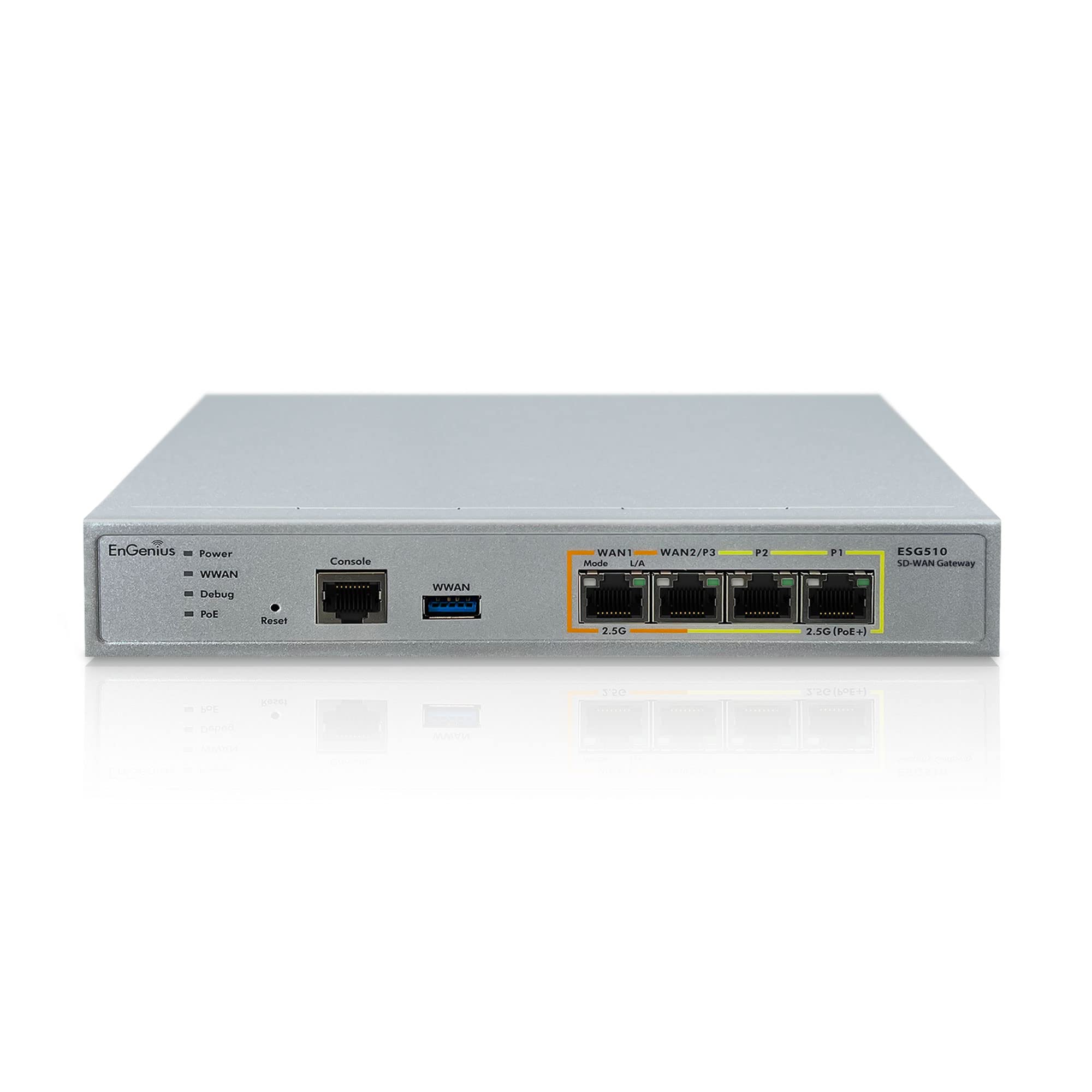
Figure 1.1: EnGenius ESG510 Router with internal view highlighting the 1.6 GHz Quad-Core processor for enhanced speed and power.
2. Package Contents
Verify that all items are present in your product package:
- EnGenius Cloud Managed ESG510 Security Gateway
- Power adapter (x1)
- Power cord (x1)
- RJ-45 Console Cable (x1)
- Wall Mount Kit (x1)
- Quick Installation Guide (x1)
3. Product Features
- Simple, Unified Cloud Management: Centralized device visibility and control from anywhere.
- High-Performance Processor: Quad-core 1.6 GHz processor for superior speed and power.
- Advanced Connectivity: Dual 2.5GbE WAN and Dual 2.5GbE LAN ports for maximum throughput.
- Power over Ethernet (PoE+): 2.5 GbE PoE+ port to power compatible devices like Wi-Fi 6E Access Points, IP cameras, or IP phones.
- Flexible VPN Setup: Quick VPN and VLAN configuration for easy network segmentation and secure access.
- Enhanced Network Resilience: Built-in load balancing and safeguards with dual-WAN and cellular failover capabilities.
- Robust Security: High-throughput stateful firewall for enhanced network protection.
- Secure Remote Access: Fast Site-to-site VPN and Client VPN for secure connections between locations and remote users.
- Automated VPN: Self-healing AUTO VPN to minimize disruption and maintain continuous secure connectivity.
4. Setup
Follow these steps to set up your EnGenius ESG510 router:
- Connect Power: Connect the power adapter to the router's DC 12V input and plug it into a power outlet.
- Connect WAN: Connect your internet modem's Ethernet cable to the WAN port (WAN1) on the router. For dual-WAN setup, connect a second internet source to WAN2/P7.
- Connect LAN Devices: Connect your local network devices (computers, switches, access points) to the LAN ports (LAN1-LAN5).
- Initial Configuration: Access the router's web interface or use the EnGenius Cloud app for initial setup and configuration. Refer to the Quick Installation Guide for detailed instructions on accessing the management interface.

Figure 4.1: Front view of the EnGenius ESG510 Router, illustrating the various ports and LED indicators for easy connection and status monitoring.

Figure 4.2: Back view of the EnGenius ESG510 Router, highlighting the power input and mounting points for flexible installation options.
Video 4.1: An overview of the EnGenius Cloud platform, demonstrating how it simplifies network management and deployment for various EnGenius devices, including the ESG510 router.
5. Operating the Router
The EnGenius ESG510 is designed for seamless operation and robust network performance. Key operational aspects include:
- Cloud Management: Utilize the EnGenius Cloud platform for centralized monitoring, configuration, and troubleshooting of your network devices, including the ESG510.
- Dual-WAN Functionality: Leverage the dual WAN ports for load balancing internet traffic or for failover redundancy to ensure continuous internet access.
- VPN Connectivity: Establish secure VPN tunnels for remote access or site-to-site connections using the router's built-in VPN features.
- Traffic Management: Configure firewall rules, VLANs, and QoS settings to optimize network traffic and enhance security.
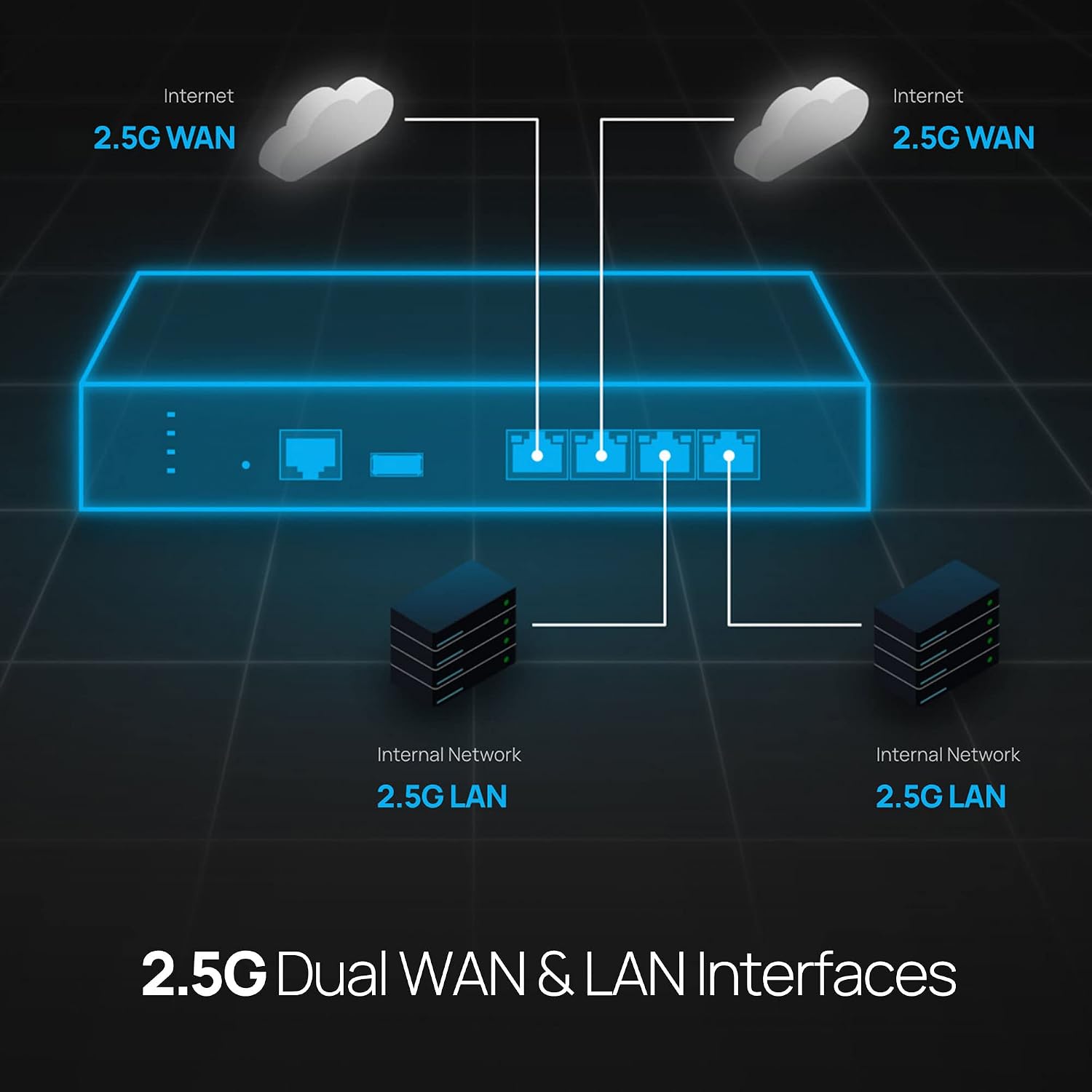
Figure 5.1: Diagram illustrating the ESG510's capability to provide uninterrupted internet connection through dual WAN ports and cellular failover, ensuring network resilience.

Figure 5.2: Network diagram showcasing the ESG510's dual 2.5 Gigabit WAN and LAN interfaces, enabling high-speed data transfer and efficient network segmentation.

Figure 5.3: Diagram depicting the secure site-to-site and client VPN capabilities of the ESG510, allowing secure remote access and inter-office connectivity.
6. Maintenance
To ensure optimal performance and longevity of your EnGenius ESG510 router, regular maintenance is recommended:
- Firmware Updates: Regularly check for and apply the latest firmware updates through the EnGenius Cloud platform to ensure your device has the most recent features, security patches, and performance improvements.
- Environmental Conditions: Ensure the router is placed in a well-ventilated area, away from direct sunlight, heat sources, and excessive dust. Maintain an operating temperature within the recommended range.
- Cable Management: Periodically check all connected cables (Ethernet, power) for secure connections and signs of wear or damage.
- Monitoring: Utilize the EnGenius Cloud dashboard to monitor device health, network traffic, and system logs for any anomalies.
7. Troubleshooting
If you encounter issues with your EnGenius ESG510 router, try the following troubleshooting steps:
- No Power: Verify the power adapter is securely connected to the router and a working power outlet. Check the power LED indicator.
- No Internet Connection: Check the WAN port LED indicators. Ensure your modem is working correctly. Verify WAN settings in the cloud management interface.
- Slow Network Speed: Check network cable connections. Ensure no excessive traffic or misconfigurations (e.g., loopbacks). Monitor network usage via the cloud dashboard.
- VPN Connection Issues: Verify VPN server settings and client configurations. Check firewall rules that might be blocking VPN traffic.
- Device Unresponsive: Perform a soft reboot via the cloud interface. If unresponsive, power cycle the device by unplugging and replugging the power adapter. As a last resort, use the reset button (refer to the Quick Installation Guide for proper reset procedures).
- Consult Documentation: For more detailed troubleshooting, refer to the comprehensive user manual available on the EnGenius support website.
8. Specifications
| Feature | Description |
|---|---|
| Brand | EnGenius |
| Model Name | EnGenius Cloud ESG510 Security Gateway |
| Processor | Quad core 1.6 GHz |
| WAN Ports | Dual 2.5 GbE |
| LAN Ports | Dual 2.5 GbE, plus additional Gigabit ports |
| PoE Support | 2.5 GbE PoE+ |
| Connectivity Technology | Ethernet, Cellular |
| Security Protocol | WPA2 |
| VPN Support | Site-to-site VPN, Client VPN |
| Firewall Security Level | High |
| Operating System | EnGenius OS |
| Item Weight | 0.97 Kilograms |
| Color | Silver |
9. Warranty and Support
The EnGenius Cloud Managed ESG510 router comes with a 1-year warranty from the date of purchase. For warranty claims, technical support, or additional product information, please visit the official EnGenius website or contact their customer support team. Ensure you have your product model number (ESG510) and proof of purchase available when seeking support.
For the latest documentation, FAQs, and support resources, please visit: www.engeniustech.com/support
Related documentsESG510


Ask a question about this manual
Ask about setup, troubleshooting, compatibility, parts, safety, or missing instructions. Manuals+ will review the question and use this page’s manual context to help answer it.