1. Introduction
This manual provides essential information for the safe and efficient operation of your Hisense 50A6K 50-inch 4K Ultra HD Smart LED Google TV. Please read it thoroughly before using the television and retain it for future reference.
The Hisense 50A6K series offers a premium viewing experience with its 4K Ultra HD resolution, Google TV operating system, and advanced features like Dolby Vision-Atmos and Game Mode Plus. Its bezel-less design enhances immersion.

Image 1.1: Front view of the Hisense 50A6K 50-inch 4K Ultra HD Smart LED Google TV.
2. Safety Information
Always adhere to the following safety precautions to prevent electric shock, fire, or damage to the television:
- Do not expose the TV to rain or moisture.
- Ensure proper ventilation; do not block ventilation openings.
- Do not place the TV on an unstable cart, stand, tripod, bracket, or table.
- Unplug the TV during lightning storms or when unused for long periods.
- Refer all servicing to qualified service personnel.
- Keep batteries away from children.
3. What's in the Box
Upon opening the package, verify that all components are present:
- 1 TV Unit
- 1 Remote Control
- 2 Table Top Stands
- 1 Wall Mount Bracket (Note: Wall mounting hardware may vary by region)
- 2 AAA Batteries
- 1 User Manual (This document)
- 1 Warranty Card
4. Setup
4.1. Physical Installation
You can install your Hisense TV using the included table-top stands or a compatible wall mount bracket.
4.1.1. Attaching the Table Top Stands
- Carefully place the TV face-down on a soft, flat surface to prevent screen damage.
- Align each stand with the corresponding slots on the bottom of the TV.
- Secure the stands using the provided screws.
4.1.2. Wall Mounting (Optional)
If wall mounting, ensure you use a VESA-compatible bracket (200mm x 300mm for this model) and follow the bracket manufacturer's instructions. Professional installation is recommended.
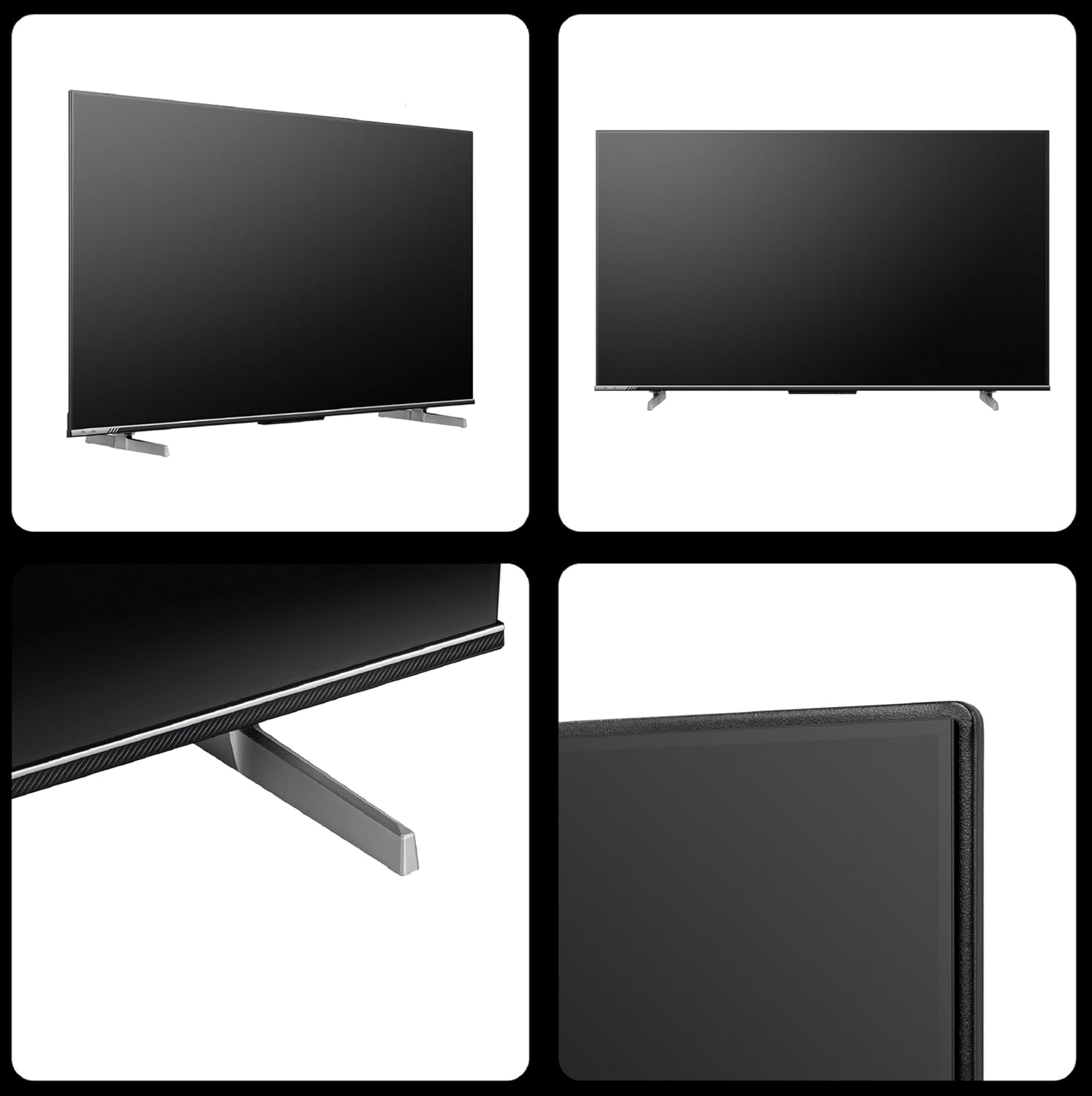
Image 4.1: Close-up of the TV's stand and bezel design.
4.2. Connecting Power
After physical installation, connect the power cord to the TV's power input and then to a wall outlet. The TV will enter standby mode.
4.3. Initial Setup
Upon first power-on, the TV will guide you through the initial setup process:
- Language Selection: Choose your preferred language.
- Network Connection: Connect to your Wi-Fi network. The TV supports dual-band Wi-Fi.
- Google Account Sign-in: Sign in with your Google account to access Google TV features, apps, and personalized recommendations.
- Channel Scan: Scan for available TV channels if connecting an antenna.
5. Operating Instructions
5.1. Basic TV Functions
Use the remote control to navigate the TV interface. Key functions include:
- Power: Turn the TV on/off.
- Input: Select input sources (HDMI, USB, AV, etc.).
- Volume: Adjust audio level.
- Channel: Change TV channels.
- Navigation: Use arrow keys and OK button to browse menus.

Image 5.1: The Hisense voice remote control with dedicated app buttons.
5.2. Smart TV Features (Google TV)
Your Hisense TV runs on Google TV, offering a personalized entertainment experience.
- Home Screen: Access personalized recommendations, installed apps, and content from various streaming services.
- Watchlist: Add movies and shows to your watchlist for later viewing.
- Google Assistant: Use voice commands via the remote or far-field voice control to search for content, control smart home devices, and get information.
- Chromecast Built-in: Cast content from your smartphone or tablet directly to the TV.
- Supported Apps: Enjoy pre-installed apps like Netflix, YouTube, Prime Video, Hotstar, SonyLiv, and many more available through the Google Play Store.

Image 5.2: The Google TV interface displaying popular streaming applications.
5.3. Gaming Features
The 50A6K is equipped with features to enhance your gaming experience:
- 120 High Refresh Rate: Provides smoother motion for compatible content and games.
- ALLM (Auto Low Latency Mode): Automatically switches the TV to a low-latency mode when a game console is detected, reducing input lag.
- VRR (Variable Refresh Rate): Synchronizes the TV's refresh rate with the game console's frame rate to eliminate screen tearing and stuttering.

Image 5.3: Visual representation of the TV's gaming features: 120Hz, ALLM, and VRR.
6. Connectivity
The Hisense 50A6K offers a variety of connectivity options:
- HDMI Ports (3): Connect set-top boxes, Blu-ray players, gaming consoles. HDMI 1 supports eARC.
- USB Ports (2): Connect hard drives or other USB devices for media playback.
- Dual-band Wi-Fi: For wireless internet connection.
- Bluetooth 5.1: Connect wireless headphones, soundbars, or other Bluetooth devices.
- Ethernet (LAN): For a wired internet connection.
- AV Input: For older devices using composite video and stereo audio.
- Digital Audio Out (Optical): For connecting to external audio systems.
- Headphone Jack: For private listening.

Image 6.1: Detailed view of the TV's rear input and output ports.
7. Maintenance
7.1. Cleaning the TV
- Always unplug the TV before cleaning.
- Use a soft, dry cloth to wipe the screen and cabinet.
- For stubborn marks, lightly dampen the cloth with water or a mild screen cleaner. Never spray cleaner directly onto the screen.
- Avoid using abrasive cleaners, waxes, or solvents.
7.2. Software Updates
Your TV may receive automatic software updates. Ensure your TV is connected to the internet to receive the latest features and performance improvements.
8. Troubleshooting
If you encounter issues with your TV, refer to the following common solutions:
| Problem | Possible Solution |
|---|---|
| No power | Check if the power cord is securely plugged into the TV and the wall outlet. Try a different outlet. |
| No picture, but sound is present | Ensure the correct input source is selected. Check cable connections to external devices. |
| No sound, but picture is present | Check volume level and mute settings. Verify audio cable connections. |
| Remote control not working | Replace batteries. Ensure no obstructions between the remote and the TV's IR sensor. |
| Wi-Fi connection issues | Restart your router and modem. Re-enter Wi-Fi password. Ensure TV is within range. |
| Picture quality issues (e.g., blurry, distorted) | Check source resolution. Adjust picture settings (brightness, contrast, sharpness). Ensure cables are securely connected. |
9. Specifications
| Feature | Detail |
|---|---|
| Brand | Hisense |
| Model | 50A6K |
| Screen Size | 50 Inches (126 cm) |
| Resolution | 4K Ultra HD (3840x2160) |
| Refresh Rate | 60 Hz (120 High Refresh Rate for gaming) |
| Operating System | Google TV |
| Sound Output | 24 Watts, Dolby Atmos, Dolby Digital |
| Connectivity | 3 HDMI (1 eARC), 2 USB, Dual-band Wi-Fi, Bluetooth 5.1, Ethernet, AV Input, Digital Audio Out, Headphone |
| Processor | ARM Mali-G52 Graphics Coprocessor |
| Memory (RAM) | 2 GB |
| Storage | 16 GB |
| Power Consumption (On-mode) | 120 Watts |
| Dimensions (with stand) | 111.9 x 27.4 x 70.2 cm |
| Weight | 10 kg |
| Model Year | 2023 |
10. Warranty and Support
Your Hisense 50A6K TV comes with a 2-year warranty provided by the manufacturer from the date of purchase. Please retain your purchase receipt for warranty claims.
For technical support, service requests, or further inquiries, please contact Hisense customer service:
- Contact Number: +91 800 266 1969
- Email: india@hisense.com
- Importer Address: Hisense India Private Limited, 009-010, Ground Floor, IHDP Business Park, Sector 127, Noida, Uttar Pradesh - 201301
For the most up-to-date support information, visit the official Hisense India website.