1. Introduction
Thank you for choosing the JAZZCOOLING ARGB Controller Kit. This manual provides detailed instructions for the proper installation, operation, and maintenance of your ARGB controller. Please read this manual thoroughly before use to ensure optimal performance and safety.
2. Product Overview
The JAZZCOOLING ARGB Controller Kit is designed to provide versatile lighting control for your PC's Addressable RGB (ARGB) components. It features a built-in lighting effect mode and can be powered directly via a SATA interface from your power supply unit (PSU). The kit includes a compact controller and a 14-key remote control for convenient lighting adjustments.
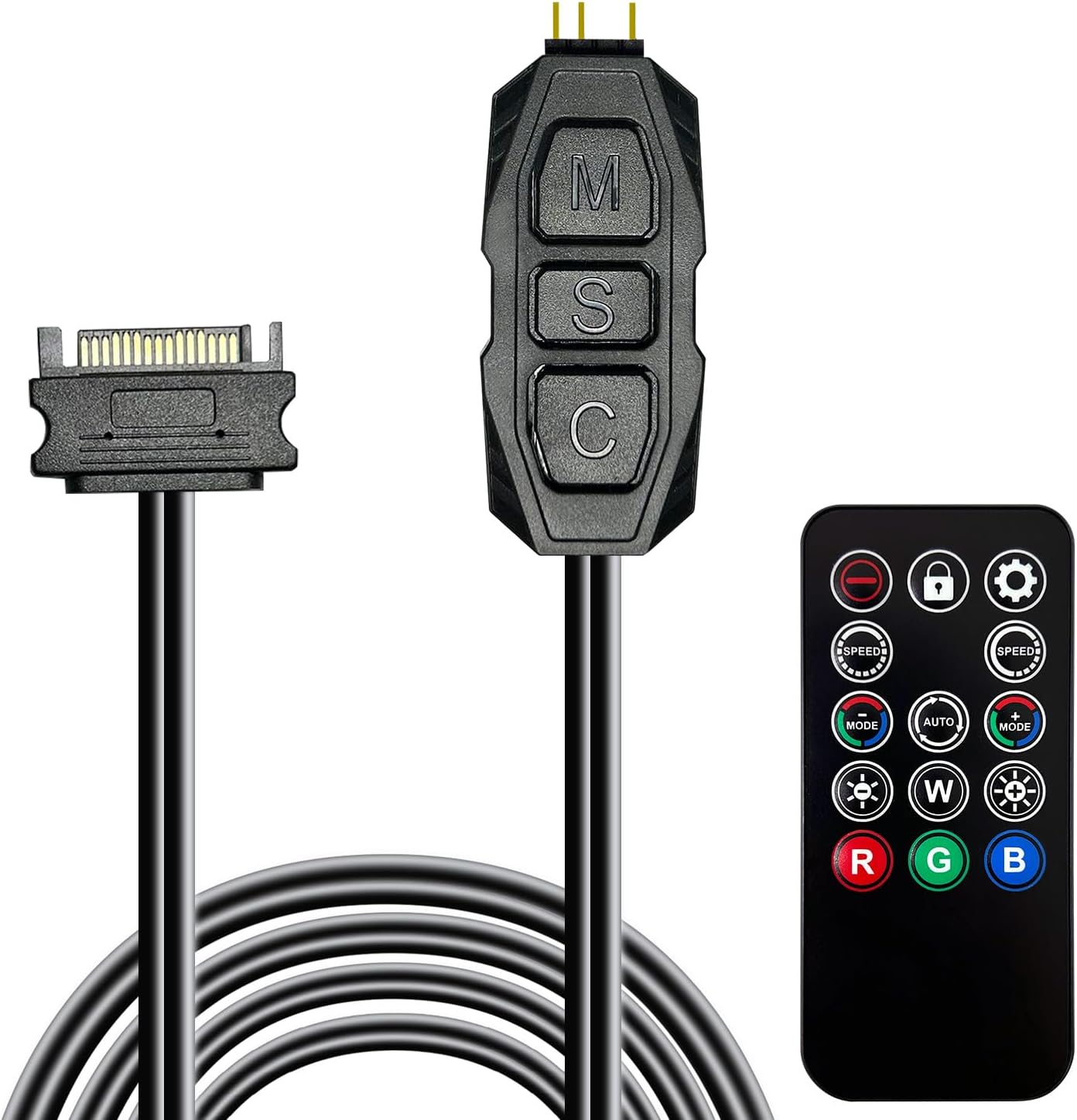
Figure 2.1: JAZZCOOLING ARGB Controller Kit showing the controller, remote, and SATA power cable.
Key Features:
- 5V 3Pin ARGB Controller: Features a built-in lighting effect mode and connects to the chassis power SATA interface for power supply, supporting all PSUs with a SATA connector.
- Easy to Use: Tool-free installation, plug-and-play functionality. Lighting can be switched conveniently via the remote controller. Offers 215 Dynamic Light Modes and 4 Static Color Lights.
- Safe and Durable: Utilizes high-quality copper wire for stable current, safe insulation, and enhanced durability. Its small and exquisite design allows for easy tracking and concealment within the PC case.
- Remote Control: Allows for manual control of lighting effects or use of the remote control to access various modes including monochrome, rainbow, trotting lights, and jumping effects.
- Wide Compatibility: Connects to 5V ARGB 3Pin equipment such as RGB fans, PC fans, PC RGB strips, GPU support brackets, RGB PSU cables, water cooler CPUs, and CPU coolers that all feature a 5V 3PIN interface.
3. Setup Instructions
Follow these steps to properly set up your ARGB Controller Kit:
- Identify Components: Ensure you have the ARGB controller, remote control, and any ARGB devices you wish to connect (e.g., fans, LED strips).
- Power Connection: Locate an available SATA power connector from your PC's power supply unit (PSU). Connect the SATA power cable from the ARGB controller to this connector. This provides power to the controller and connected ARGB devices.
- ARGB Device Connection: Connect your 5V 3PIN ARGB devices (e.g., fans, LED strips) to the 3-pin ARGB header on the controller. The controller typically has multiple ports for connecting several ARGB devices. Ensure the arrow on the ARGB connector aligns with the +5V pin on the controller to prevent damage.
- Placement: Position the controller in a suitable location within your PC case. Its small size allows for easy concealment.
- Initial Power On: Once all connections are secure, power on your PC. The connected ARGB devices should illuminate, indicating successful setup.
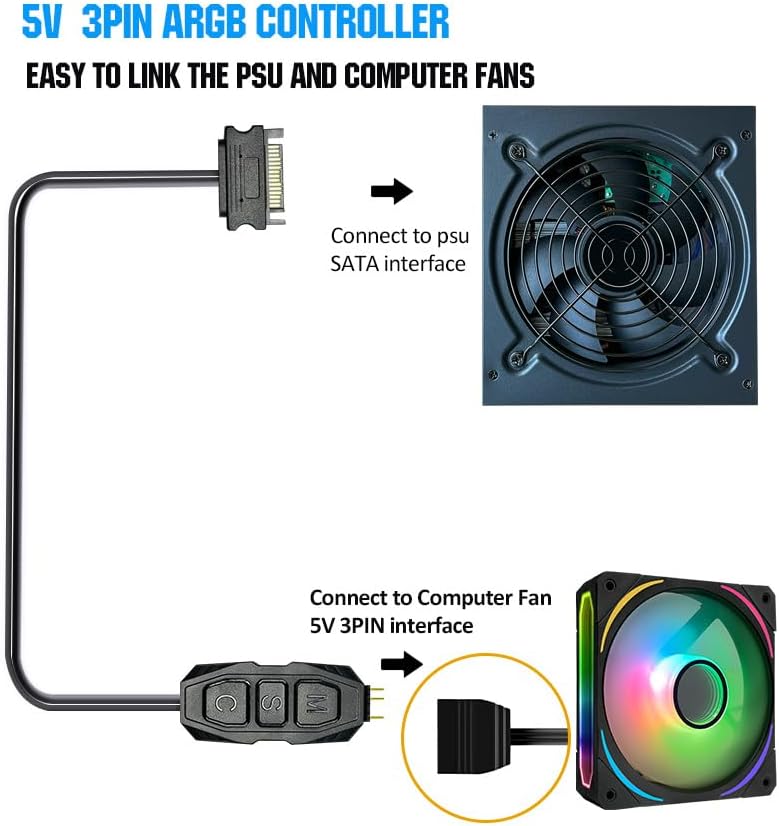
Figure 3.1: Connecting the ARGB controller to the PSU's SATA interface and a computer fan's 5V 3PIN interface.
4. Operating Instructions
The JAZZCOOLING ARGB Controller Kit offers two primary methods for controlling lighting effects: directly via the controller's buttons or using the included remote control.
4.1. Controller Button Operation
The controller features three buttons for basic lighting control:
- M (Mode) Button: Press to switch between different lighting modes (e.g., static colors, dynamic effects).
- S (Speed) Button: Press to adjust the speed of dynamic lighting effects. Press and hold for 3 seconds to turn the lighting on or off.
- C (Color) Button: Press to switch between static colors or color variations within a dynamic mode. Press and hold for 3 seconds to adjust brightness.

Figure 4.1: Two methods for switching lighting: directly on the controller and via the remote control.
4.2. Remote Control Operation
The 14-key remote control provides comprehensive control over your ARGB lighting:
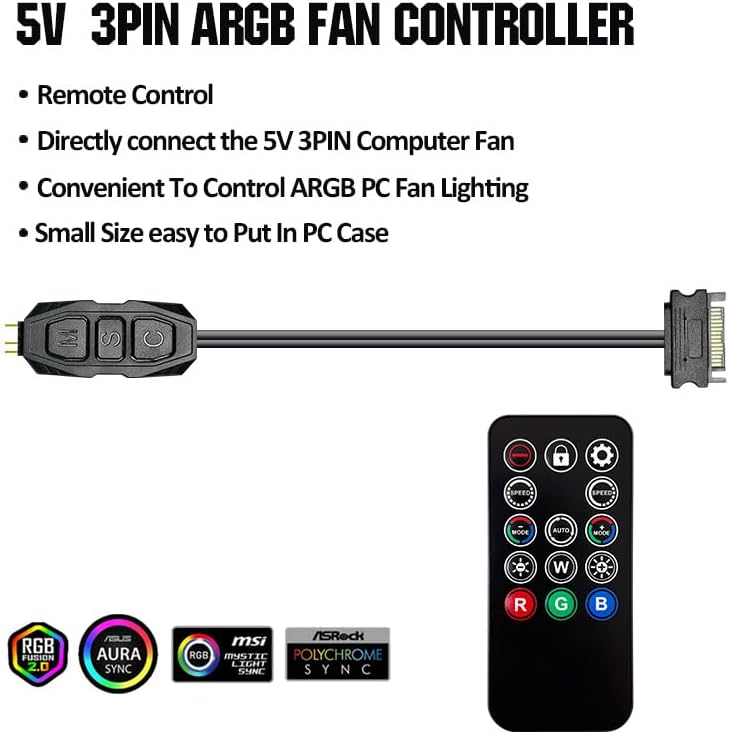
Figure 4.2: Detailed instructions for each button on the remote control.
- Power Button (Red Circle): Turns the lighting on/off.
- Lock Mode Button (Padlock): Locks the current lighting mode.
- Gear Icon Button: Adjusts the number of LEDs (3 LEDs per press, may not work after every press).
- Speed +/- Buttons: Increase or decrease the speed of dynamic lighting effects.
- Mode +/- Buttons: Cycle through the 215 dynamic lighting modes.
- Auto Button: Activates automatic cycling through all lighting modes.
- W (White) Button: Activates white light mode.
- Brightness +/- Buttons (Sun Icons): Increase or decrease the brightness of the lighting.
- R (Red), G (Green), B (Blue) Buttons: Select static red, green, or blue colors.
4.3. Demonstration Video
Watch this official video from JAZZCOOLING demonstrating the ARGB Controller Kit's lighting effects:
Video 4.1: Official JAZZCOOLING demonstration of the ARGB Controller Kit for PC RGB Case Fans, showcasing various lighting modes and effects.
5. Maintenance
The JAZZCOOLING ARGB Controller Kit requires minimal maintenance. To ensure longevity and optimal performance:
- Cleaning: Periodically clean the controller and remote with a soft, dry cloth. Avoid using liquid cleaners or abrasive materials.
- Cable Management: Ensure all cables are properly routed and secured within your PC case to prevent strain or damage.
- Environmental Conditions: Operate the controller within standard PC operating temperatures. Avoid extreme heat, cold, or humidity.
6. Troubleshooting
If you encounter issues with your ARGB Controller Kit, refer to the following common problems and solutions:
| Problem | Possible Cause | Solution |
|---|---|---|
| ARGB lights do not turn on. | No power to the controller; incorrect ARGB connection; controller or remote is off. |
|
| Remote control is unresponsive. | Remote battery is dead; remote not pointed at controller's receiver. |
|
| Lighting effects are not changing. | Controller is in a locked mode; incorrect button press. |
|
7. Specifications
| Brand | JAZZCOOLING |
| Model Number | ARGB Controller |
| Item Weight | 1.12 ounces |
| Product Dimensions | 20.8 x 0.87 x 0.31 inches |
| Voltage | 5 Volts |
| Material | Plastic |
| Color | Black |
| Included Components | ARGB splitter x 1, remote control x 1 |
| Country of Origin | China |
8. Warranty and Support
The JAZZCOOLING ARGB Controller Kit comes with a 12-month warranty from the date of purchase. This warranty covers manufacturing defects and ensures the product functions as described under normal use.
For technical support, warranty claims, or any inquiries regarding your product, please contact JAZZCOOLING customer service through the retailer where you purchased the product or visit the official JAZZCOOLING store on Amazon:
Visit the JAZZCOOLING Store on Amazon
Please have your purchase receipt and product model number ready when contacting support.


