
DEALGADGETS GLS-C018
DEALGADGETS Under Cabinet Lights Instruction Manual
Model: GLS-C018
3 Pack Under Cabinet Lights, 32 LED Cold White Rechargeable Under Cabinet Lighting Motion Sensor LED Lights
1. Product Overview
The DEALGADGETS Under Cabinet Lights are designed to provide bright, soft, and eye-caring illumination for various indoor spaces. Featuring side illumination technology, these lights ensure a glare-free experience. They are equipped with a sensitive motion sensor, adjustable brightness, and a rechargeable battery for convenience and energy efficiency. The ultra-thin design and magnetic mounting make them versatile and easy to install.

Image: Three under cabinet lights, showing their sleek design and included USB-C charging cables.
Key Features:
- Side Illumination: 32 LED lamp beads refract light to a light guide plate for bright, soft, and glare-free illumination.
- Brightness Dimmable: Supports 3-level brightness adjustment and 10%-100% stepless dimming.
- Two Working Modes: Always-on mode and Motion Sensor mode.
- Motion Sensor: Automatically senses human motion within 10ft/100° range and shuts off after 20s of no movement in dark environments.
- USB-C Rechargeable: Built-in 1000mAh high-capacity battery, easily charged via USB-C.
- Easy Installation: Built-in magnets for direct adsorption on iron surfaces, or use included iron sheets with tape for non-iron surfaces.
- Ultra-thin Design: Only 9mm thick, compact and versatile.
2. What's in the Box
Upon opening the package, please verify that all components are present and in good condition:
- 3 x Under Counter Lights
- 3 x USB-C Charge Cables
- 6 x Iron Sheets with Adhesive Tape
- 1 x Use Instructions Manual (this document)

Image: A visual representation of the package contents, showing the lights, charging cables, mounting accessories, and user manual.
3. Setup and Installation
The under cabinet lights are designed for easy and flexible installation using their built-in magnets or the provided adhesive iron sheets.
Installation Steps:
- Direct Magnetic Adsorption: If the desired installation surface is made of iron (e.g., a metal cabinet), the light can be directly adsorbed onto it using its built-in magnets.
- Adhesive Iron Sheet Installation (for non-iron surfaces):
- Step 1: Clean the target surface thoroughly to ensure it is dry and free of dust or grease.
- Step 2: Peel off the protective film from one side of the adhesive tape on the iron sheet.
- Step 3: Firmly stick the iron sheet to the desired installation location. Apply pressure for a few seconds to ensure good adhesion.
- Step 4: The light can now be magnetically attached to the installed iron sheet.
When you need to charge the light or move it to a different location, simply detach it from the magnetic surface.

Image: Step-by-step guide illustrating the magnetic installation process for the under cabinet lights.
4. Operating Instructions
The under cabinet lights offer multiple operating modes and brightness levels to suit your needs.
Control Buttons:
Each light features two main buttons for control:
- Power Button (On/Off/Mode Selection): Used to turn the light on, off, and switch between operating modes.
- Brightness Button (Dimming): Used to adjust the light's brightness.

Image: Detailed view of the light's control buttons for power/mode and brightness adjustment.
Operating Modes:
Press the Power Button to cycle through the modes:
- Click Once: Turns the light ON (Always-on Mode).
- Click Twice: Activates Motion Sensor Mode.
- Click Three Times: Turns the light OFF.
Motion Sensor Mode:
In Motion Sensor Mode, the light will automatically detect human movement within a 10ft (3m) range and a 100° detection angle. The light will turn on when motion is detected in a dark environment and will automatically turn off after 20 seconds of no movement.
Important Note: The motion sensor only activates in dim light or darkness to conserve battery life. It will not trigger in bright light conditions.

Image: Illustration demonstrating how the motion sensor functions differently in bright versus low light conditions.
Brightness Adjustment:
The lights support both 3-level brightness adjustment and 10%-100% stepless dimming.
- Short Press Brightness Button: Cycles through 3 preset brightness levels (e.g., 30%, 60%, 100%).
- Long Press Brightness Button: Activates stepless dimming, allowing you to fine-tune the brightness from 10% to 100%. Release the button when the desired brightness is reached.

Image: Visual representation of the adjustable brightness feature, from 30% to 100% cold white light.
5. Maintenance and Charging
These LED lights are designed for convenience with a built-in rechargeable battery.
Charging the Battery:
The lights feature a 1000mAh high-capacity rechargeable battery and are charged via a standard USB-C cable (included).
- Connect the provided USB-C cable to the charging port on the light.
- Connect the other end of the USB-C cable to a USB power source such as a computer, power bank, or USB wall adapter.
- A red indicator light will illuminate to show that the light is currently charging.
- The indicator light will turn green when the battery is fully charged.
A full charge typically takes 3-4 hours.

Image: Visual guide to charging the under cabinet light, showing the USB-C connection and battery indicator lights.
Battery Life:
- Always-on Mode: 5-80 hours (depending on brightness level).
- Motion Sensor Mode: 7-25 days (depending on frequency of use).
Cleaning:
To clean the lights, gently wipe the surface with a soft, dry cloth. Do not use abrasive cleaners or immerse the lights in water.
6. Troubleshooting
If you encounter any issues with your DEALGADGETS Under Cabinet Lights, please refer to the following common troubleshooting steps:
| Problem | Possible Cause | Solution |
|---|---|---|
| Light does not turn on. | Battery is depleted. | Charge the light fully using the provided USB-C cable. Check if the charging indicator turns red. |
| Motion sensor not working. | Environment is too bright. | Ensure the light is in a dim or dark environment for the motion sensor to activate. |
| Motion sensor not working. | Light is not in Motion Sensor Mode. | Press the Power Button twice to switch to Motion Sensor Mode. |
| Battery life is shorter than expected. | Frequent activation in Motion Sensor Mode or high brightness in Always-on Mode. | Reduce brightness or consider if the light is in a high-traffic area. For high-traffic areas, more frequent charging is normal. |
| Light flickers or dims unexpectedly. | Low battery. | Recharge the light. |
7. Specifications
Detailed technical specifications for the DEALGADGETS Under Cabinet Lights:
| Specification | Detail |
|---|---|
| Model Name | under cabinet light |
| Item Model Number | GLS-C018 |
| Dimensions | 8.07 x 1.57 x 0.35 inches (205 x 40 x 9 mm) |
| Item Weight | 14.4 ounces (for the pack of 3) |
| Light Source Type | LED (32 LED lamp beads) |
| Light Color | Cold White Light (6000K) |
| Brightness | 10%-100% Stepless Dimmable, 3-level adjustment |
| Power Source | Battery Powered (1000mAh Lithium Metal battery included) |
| Charging Port | USB-C |
| Charging Time | 3-4 hours |
| Motion Sensor Range | 10ft (3m) / 100° |
| Auto-off Time (Motion Sensor) | 20 seconds (after no movement) |
| Material | Aluminum |
| Mounting Type | Magnetic Mount, Stick-on |
| Indoor/Outdoor Usage | Indoor Use Only |
| Water Resistance Level | Not Water Resistant |
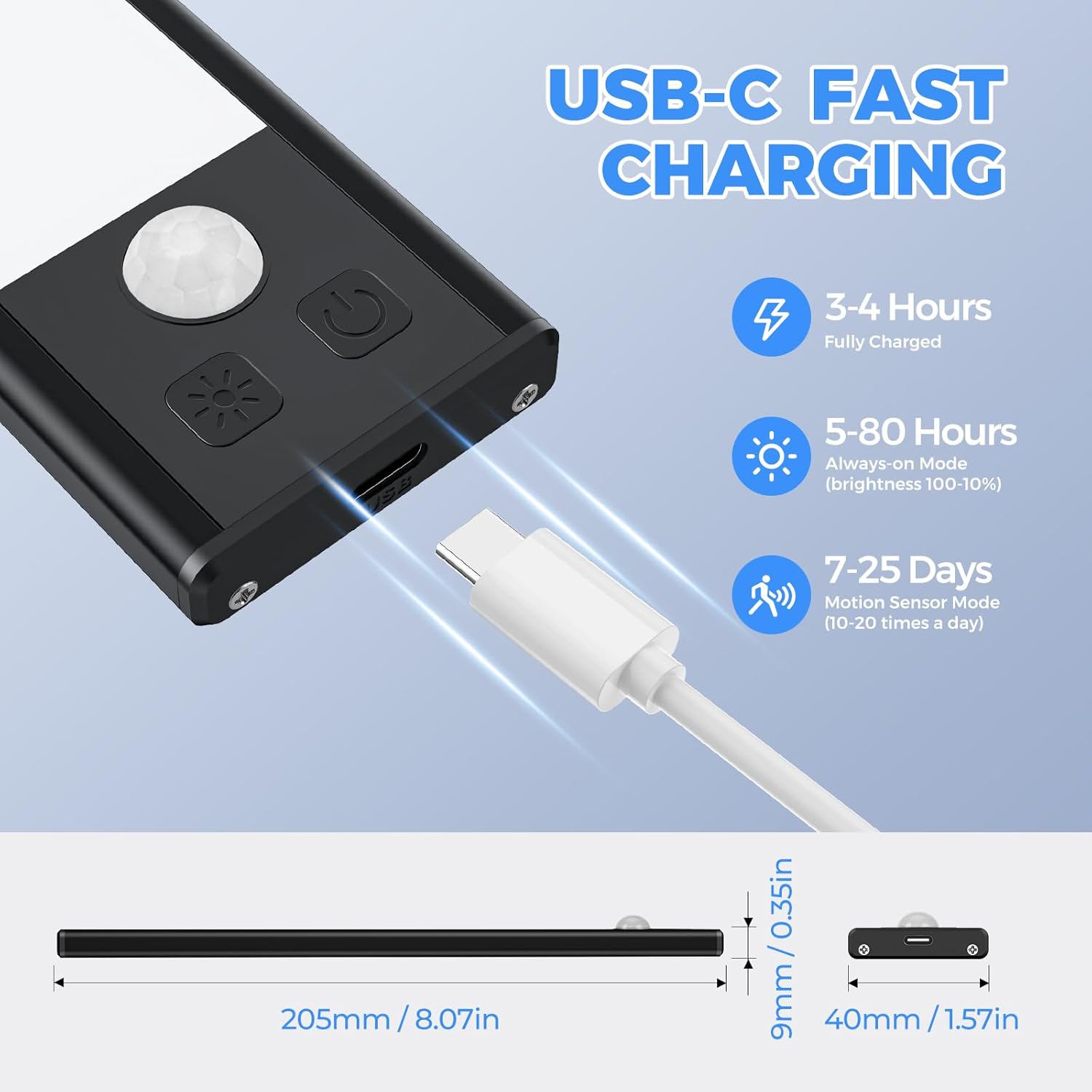
Image: Detailed dimensions and charging information for the under cabinet light.
8. Warranty and Support
DEALGADGETS is committed to providing high-quality products and excellent customer service.
Warranty:
You will enjoy lifetime free replacement for your DEALGADGETS Under Cabinet Lights. This covers manufacturing defects and significant performance issues under normal use.
Customer Support:
If you have any questions, concerns, or require assistance with your product, please do not hesitate to contact our customer service team. We offer 24-hour friendly service to ensure your satisfaction.
Please refer to your purchase platform or product packaging for specific contact details, or visit the official DEALGADGETS website for support information.
Ask a question about this manual
Ask about setup, troubleshooting, compatibility, parts, safety, or missing instructions. Manuals+ will review the question and use this page’s manual context to help answer it.