
1 Hora AUT202N
1 Hora Wireless Over-Ear Headphones User Manual
Model: AUT202N
1. Introduction
Thank you for choosing the 1 Hora Wireless Over-Ear Headphones. This manual provides essential information for setting up, operating, maintaining, and troubleshooting your headphones. Please read it carefully to ensure optimal performance and longevity of your device.

Image: The 1 Hora Wireless Over-Ear Headphones, featuring a sleek black design with vibrant LED lights on the earcups.
2. Package Contents
Before you begin, please check the package to ensure all items are present:
- 1 x 1 Hora Wireless Over-Ear Headphones
- 1 x 3.5mm Audio Cable
- 1 x USB-A to USB-C Charging Cable
- 1 x User Manual (this document)

Image: The headphones, charging cable, audio cable, and user manual laid out, representing the package contents.
3. Setup
3.1 Charging the Headphones
Before first use, fully charge your headphones. A full charge takes approximately 4 hours.
- Connect the USB-C end of the charging cable to the charging port on the headphones.
- Connect the USB-A end to a compatible USB power adapter (not included) or a computer's USB port.
- The LED indicator will show charging status and turn off or change color when fully charged.
The built-in 1000 mAh battery provides up to 28 hours of playback time and 48 days of standby time on a single charge.

Image: Headphones displayed with an overlay indicating "28 Hours of Playback," highlighting the long battery life.
3.2 Powering On/Off
To power on the headphones, press and hold the Power button until the LED indicator lights up. To power off, press and hold the Power button again until the LED indicator turns off.
4. Operating Instructions
4.1 Bluetooth Pairing
Your headphones use Bluetooth 5.1 for a fast and stable wireless connection.
- Ensure the headphones are powered off.
- Press and hold the Power button for approximately 3-5 seconds until the LED indicator flashes blue and red, indicating pairing mode.
- On your device (smartphone, tablet, computer), enable Bluetooth and search for "1 Hora AUT202N" in the list of available devices.
- Select "1 Hora AUT202N" to connect. Once connected, the LED indicator will turn solid blue or flash slowly.

Image: A smartphone screen displaying Bluetooth settings, with "1 Hora AUT202N" listed as an available device for connection, illustrating the pairing process.
4.2 Wired Connection (3.5mm Audio Cable)
You can also use the included 3.5mm audio cable for a wired connection, which is useful when the battery is low or for devices without Bluetooth.
- Plug one end of the 3.5mm audio cable into the audio input jack on the headphones.
- Plug the other end into the 3.5mm audio output jack of your device.
- The headphones will automatically switch to wired mode.
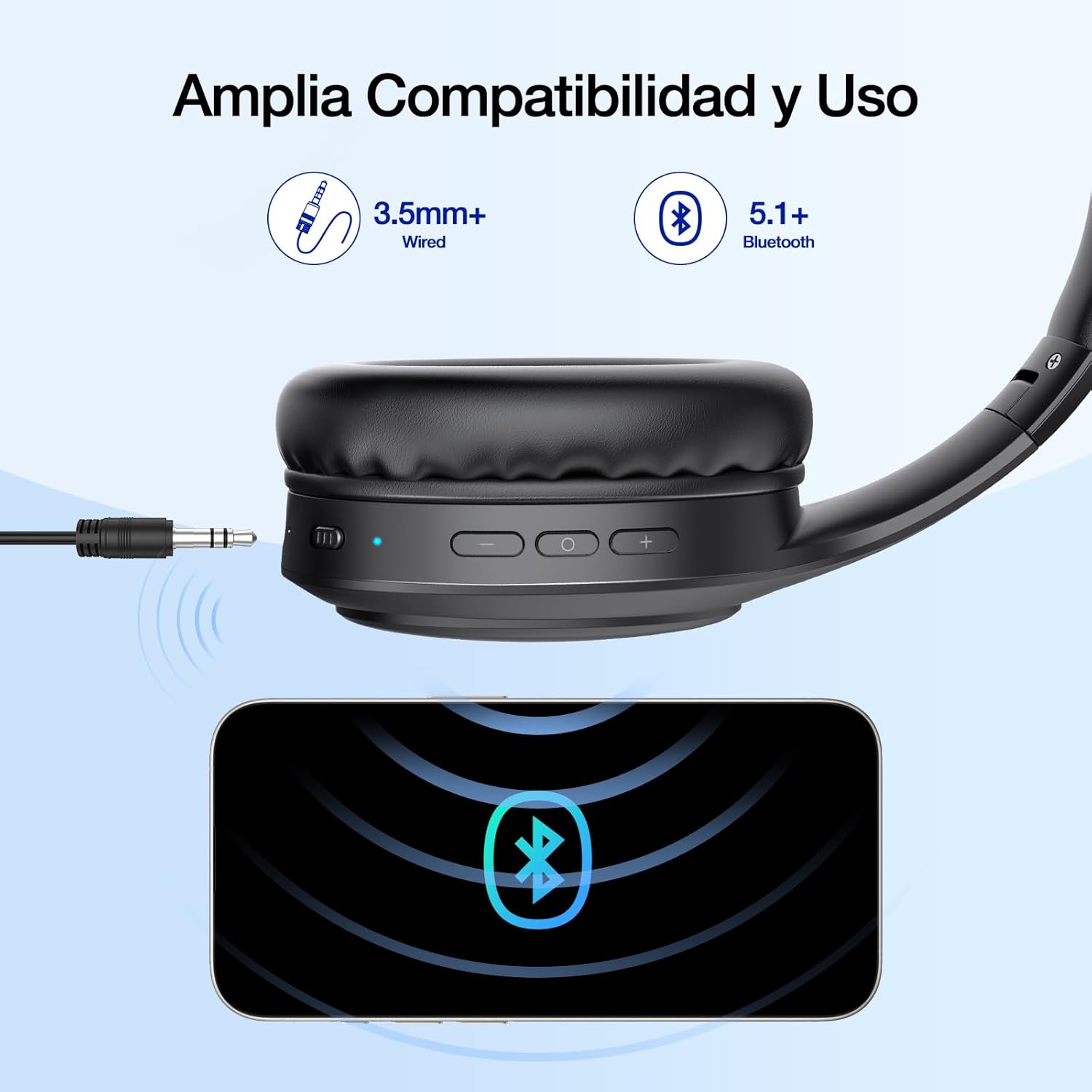
Image: A close-up of the headphone's side, showing the 3.5mm audio jack connected to a cable, with a smartphone in the foreground, demonstrating wired connectivity.
4.3 Controls and Functions
The headphones feature intuitive controls located on the earcup:
- Power Button (On/Off): Press and hold to power on/off.
- Multifunction Button:
- Press once to Play/Pause music.
- Press once to Answer/End calls.
- Press and hold to reject calls.
- Press and hold to activate voice assistant (if supported by your device).
- Volume Up / Next Track Button (+):
- Press once to increase volume.
- Press and hold to skip to the next track.
- Volume Down / Previous Track Button (-):
- Press once to decrease volume.
- Press and hold to go to the previous track.
- LED Light Control: The power button can also control the LED lighting. Press and hold the multifunction button to cycle through LED modes or turn them off.

Image: A detailed diagram highlighting the location and function of the On/Off button, Multifunction button, Volume/Track buttons, 3.5mm audio interface, and Type-C charging interface on the headphones.
4.4 LED Lighting
The headphones feature cool LED lights that can be controlled. Press and hold the multifunction button to change the lighting mode or turn the lights off completely.

Image: A close-up of the headphone earcup displaying a dynamic LED light pattern, with a color spectrum bar below, illustrating the customizable lighting options.
4.5 Built-in Microphone
The integrated microphone allows for hands-free calls and voice commands, making these headphones suitable for gaming and communication.
Image: A person smiling while wearing the headphones and holding a smartphone, indicating the use of the built-in microphone for hands-free communication.
4.6 Compatibility
These headphones offer wide compatibility with various devices, including mobile phones (iOS or Android systems), computers, laptops, and TVs.
5. Maintenance
5.1 Cleaning
To maintain the appearance and functionality of your headphones:
- Wipe the earcups and headband with a soft, dry cloth.
- Do not use abrasive cleaners, alcohol, or chemical solvents.
- Avoid getting moisture into any openings.
5.2 Storage
The headphones feature a foldable design for easy storage and portability. When not in use, fold them neatly to protect them from damage.
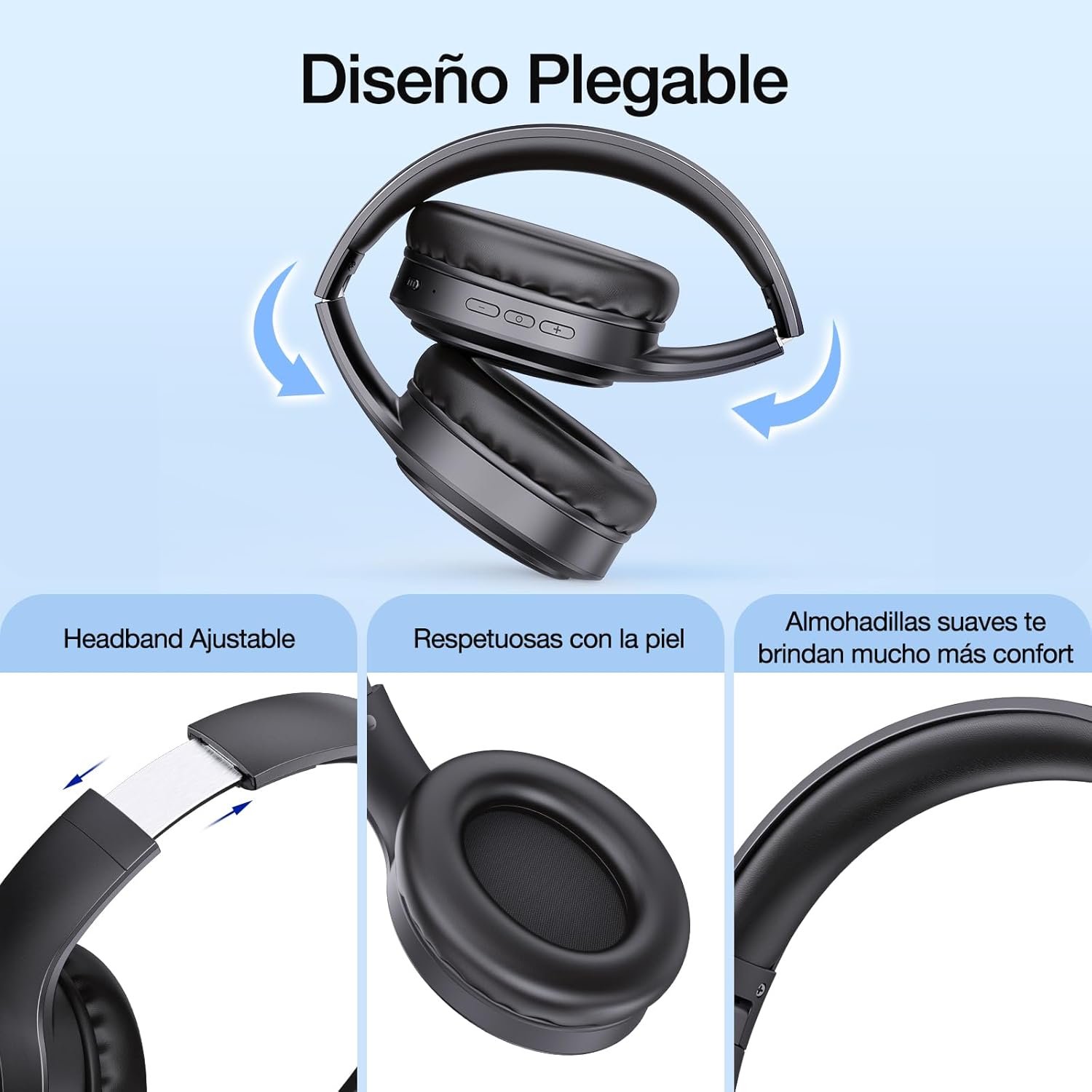
Image: The headphones shown in a folded configuration, demonstrating their portable and space-saving design.
Store your headphones in a cool, dry place, away from extreme temperatures and direct sunlight.
6. Troubleshooting
If you encounter any issues with your headphones, please refer to the following common problems and solutions:
| Problem | Possible Cause | Solution |
|---|---|---|
| Headphones do not power on. | Low battery. | Charge the headphones fully using the provided USB-C cable. |
| No sound or low volume. | Volume too low on headphones or connected device; incorrect audio source. | Increase volume on both headphones and your device. Ensure the correct audio output is selected on your device. |
| Cannot pair via Bluetooth. | Headphones not in pairing mode; device Bluetooth off; interference. | Ensure headphones are in pairing mode (flashing blue/red LED). Turn Bluetooth off and on again on your device. Move closer to the headphones. Forget the device on your phone and re-pair. |
| LED lights stop working or connection fails after charging. | Software glitch or minor malfunction. | Try a soft reset by holding the power button for 10-15 seconds. If the issue persists, contact customer support. |
| Poor sound quality (distortion). | Volume too high; poor connection; audio file quality. | Reduce volume. Ensure a stable Bluetooth connection or use the wired connection. Try a different audio source or file. |
If the problem persists after trying these solutions, please contact 1 Hora customer support.
7. Specifications
| Feature | Detail |
|---|---|
| Model Name | AUT202N |
| Brand | 1 Hora |
| Connectivity Technology | Wireless (Bluetooth 5.1), Wired (3.5mm Jack) |
| Headphone Connector | 3.5mm Jack |
| Noise Control | Acoustic Isolation |
| Frequency Response | 2480 MHz |
| Sensitivity | 115 dB |
| Impedance | 32 Ohm |
| Battery Capacity | 1000 mAh (Lithium) |
| Average Battery Life | 28 Hours (playback) |
| Standby Time | 48 Days |
| Charging Time | 4 Hours |
| Weight | 190 Grams |
| Dimensions | 1 x 1 x 1 cm (Product) |
| Material | Metal |
| Special Features | Built-in Microphone, Detachable Cable (audio), Foldable, Rechargeable Battery, Adjustable Headband, LED Lights |
| Compatible Devices | Mobile Phones (iOS/Android), Computers, Laptops, TVs, Tablets |
8. Warranty and Support
1 Hora is committed to providing excellent customer service and product support.
- 365-Day Replacement: Your product is covered by a 365-day replacement policy from the date of purchase for manufacturing defects.
- 24-Hour Customer Service: For any inquiries, technical assistance, or warranty claims, our customer service team is available to assist you within 24 hours.
Please retain your proof of purchase for warranty claims.

Image: An infographic detailing 1 Hora's service commitment, including "365 Days Replacement" and "24 Hours Customer Service."
Ask a question about this manual
Ask about setup, troubleshooting, compatibility, parts, safety, or missing instructions. Manuals+ will review the question and use this page’s manual context to help answer it.