
Introduction
The KAMING 3-in-1 Wireless CarPlay Adapter (Model Z3K) converts your factory wired CarPlay system into a wireless experience for both Apple CarPlay and Android Auto. This device also enables direct media streaming from platforms like YouTube and Netflix, supports USB media playback, and offers screen mirroring capabilities. It integrates seamlessly with your vehicle's existing control methods, providing enhanced functionality and convenience.
Setup Instructions
Follow these steps to set up your KAMING Wireless CarPlay Adapter:
- Ensure your vehicle has factory wired CarPlay (compatible with cars from 2015 onwards).
- Plug the KAMING adapter into your car's USB port designated for CarPlay.
- Wait for the device to boot up and display its interface on your car's screen.
- On your phone, forget any previous Bluetooth & Wi-Fi connections to your car.
- Enable Bluetooth and Wi-Fi on your phone.
- Connect your phone to the device's Bluetooth name (e.g., Z3 BOX-XXX).
- Follow the on-screen prompts to 'Pair' and 'Allow' synchronization.
- The system will automatically connect to Wireless CarPlay or Android Auto.
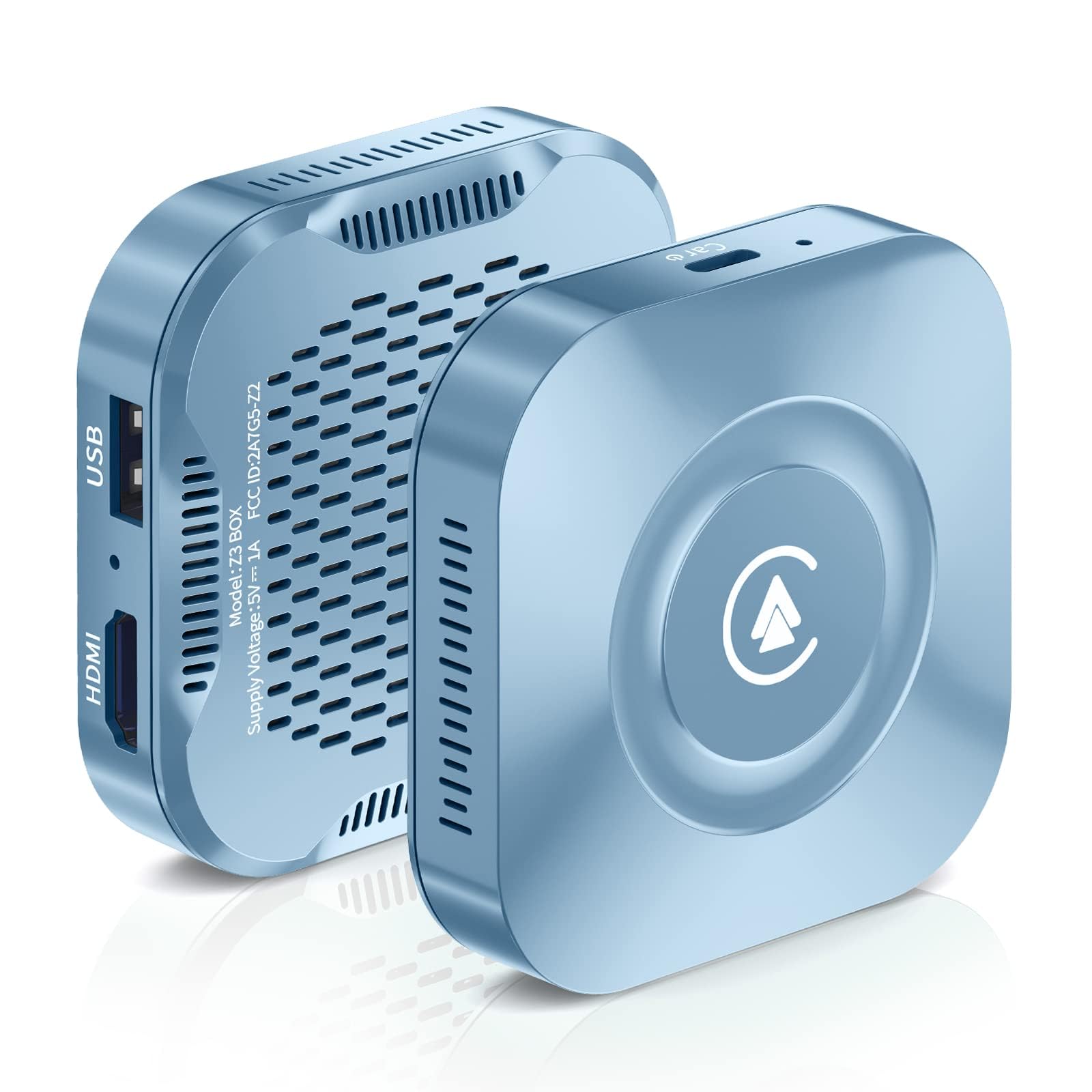
Image: The KAMING Wireless CarPlay Adapter's main interface displayed on a car's screen, illustrating the various applications available including CarPlay, Android Auto, YouTube, and Netflix.

Image: A visual guide demonstrating the connection process for the Wireless CarPlay Adapter, showing the device plugged into the car's USB port and the subsequent screen prompts for pairing.
Video: This video demonstrates the steps to take if the initial connection of the CarPlay adapter fails, guiding users through troubleshooting the connection process.
Operating Instructions
Wireless CarPlay & Android Auto
Once connected, your iPhone will automatically use wireless CarPlay and your Android phone will use wireless Android Auto. This eliminates the need for frequent plugging and unplugging of charging cables, reducing wear and tear.
Media Streaming (YouTube, Netflix, USB)
The device features built-in applications like YouTube and Netflix. To use these, connect your car to a wireless network or mobile hotspot. If no network is available, you can play videos and music by inserting a USB flash drive into the adapter.

Image: An illustration showing three distinct ways to stream media to your car's display: via Miracast applications, through the device's built-in apps, or by playing video directly from a USB drive.
Video: This video demonstrates how to stream content from Netflix and YouTube directly to your car's infotainment system using the adapter.
Screen Mirroring & HDMI Output
The adapter supports screen mirroring from your mobile phone to your car's display, TV, or projector. Simply connect your phone and the box to the same network. An HDMI output is also available, allowing you to connect the device to a TV for a smart TV experience.

Image: A diagram detailing the HDMI display dongle's use for Miracasting at home, highlighting its compatibility with both iOS and Android phones for screen projection.
Video: This video provides instructions on how to use the Miracast feature to mirror your phone's screen to your car's display.
Multiple Control Modes
The device supports all original vehicle control modes, including Siri voice control, steering wheel controls, knob controls, and touchscreen interaction. This allows for a familiar and safe user experience while driving.
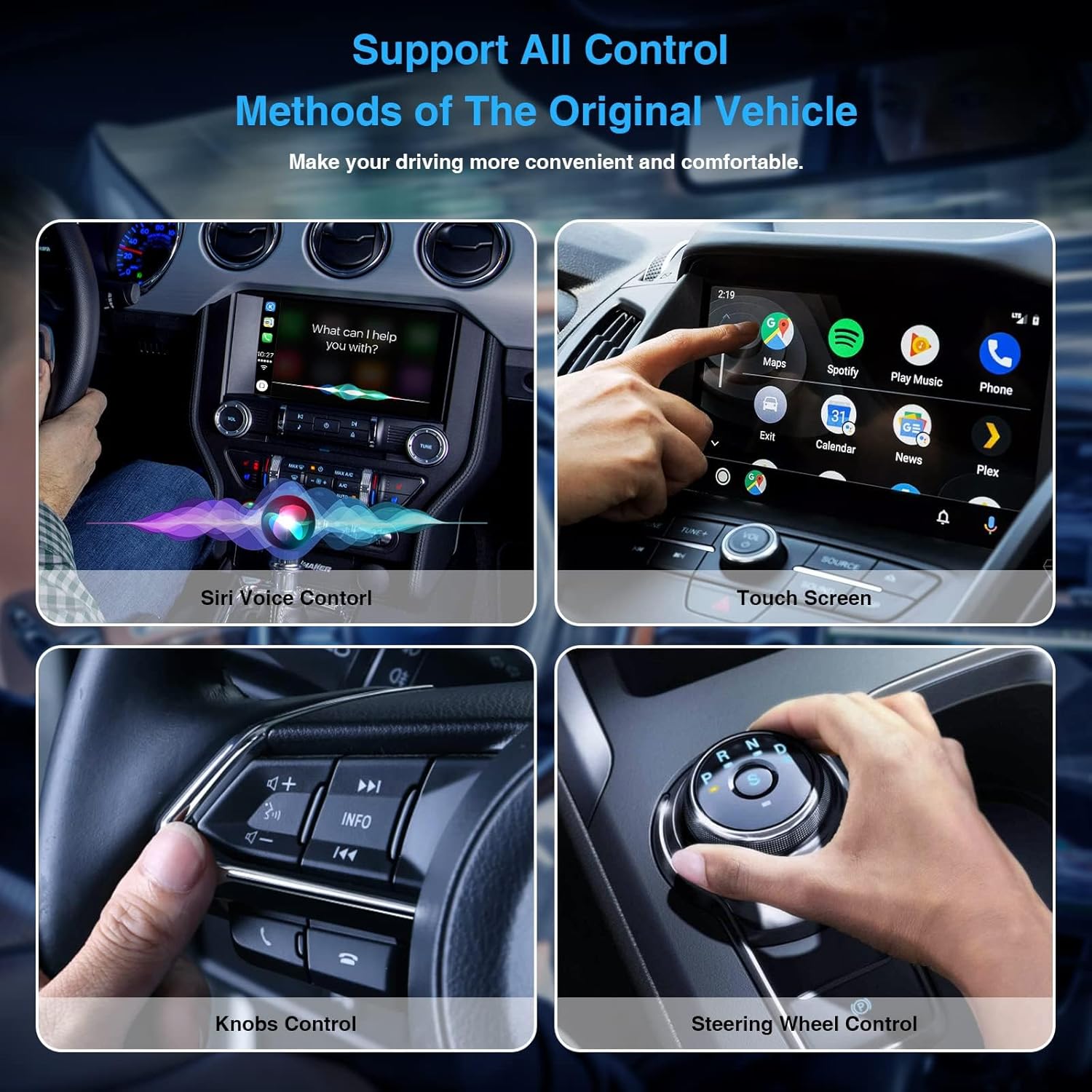
Image: A collage of images showcasing the diverse control options supported by the device, including voice commands, touchscreen gestures, rotary knobs, and steering wheel buttons.
Compatibility
The KAMING Wireless CarPlay Adapter is designed for factory wired CarPlay cars from 2015 onwards. It supports iOS 9 and above for iPhones, and Android 10 and above for Android phones. Please note that BMW vehicles are not supported.

Image: A graphic displaying the logos of numerous car manufacturers, signifying the wide range of vehicles compatible with the Wireless CarPlay Adapter, excluding BMW.
Troubleshooting
Connection Issues
If you experience issues with the initial connection or if CarPlay/Android Auto fails to connect, try the following steps:
- Unplug the device from the USB port.
- Navigate to your car's infotainment system settings.
- Look for 'System' or 'Factory Settings' and select 'Restore factory settings'.
- Find and select the 'App-Connect' option, then click 'Reset'. Confirm the reset if prompted.
- Wait for the reset to complete.
- Plug the KAMING adapter back into the USB port and repeat the setup process.
Video: This video provides a guide on how to reset the App-Connect settings in your car's system if CarPlay or Android Auto fails to connect.
Specifications
- Product Dimensions: 2.6 x 2.6 x 1.3 inches
- Item Weight: 2.05 ounces
- Item Model Number: Z3K
- Connectivity Technology: HDMI
- Connector Type: Micro USB
- Special Feature: Wireless
- Resolution: 1080p
- Supported Internet Services: Netflix, YouTube
- Controller Type: Voice Control, Steering Wheel Knob Touch Screen App Control
- Form Factor: TV Box
- Color: Blue
- Manufacturer: KAMING
Warranty and Support
The CarPlay package includes the device, one USB-C to USB-A cable, and one USB-C to USB-C cable. Life-time support is provided. If you encounter any problems with your wireless CarPlay adapter, please consult KAMING customer support for assistance.


