
1. Introduction
Thank you for choosing the Dogxiong MPP 1.51 Pen. This active stylus is designed to enhance your digital experience on compatible devices, offering precise control for writing, drawing, and navigation. Please read this manual carefully to ensure proper use and maintenance of your new pen.
2. Product Overview
Key Features
- Compatibility: Compatible with Microsoft series and laptops that support the MPP Protocol, including HP Envy 360.
- Pressure Sensitivity: Features 1024 pressure levels for precise and natural writing and drawing.
- Button Functions: Includes an eraser function and a right-click function for efficient editing and selection. Note: Button functions may vary depending on the application.
- Portability: Designed with a pen clip for easy carrying and storage.
- Palm Rejection: Allows you to rest your hand naturally on the screen while writing or drawing.
Package Contents
The Dogxiong MPP 1.51 Pen package includes the following items:
- MPP 1.51 Stylus Pen
- AAAA Battery (pre-installed or included separately)
- Two (2) Replacement Nibs
- Nib Removal Tool
- User Manual
Video: Unboxing and package contents of the Stylus Pen.
3. Setup
Battery Installation
The MPP 1.51 Pen requires an AAAA battery for operation. Follow these steps to install or replace the battery:
- Unscrew the top cap of the stylus pen.
- Insert the AAAA battery with the positive (+) end facing towards the pen tip.
- Screw the top cap back on securely.
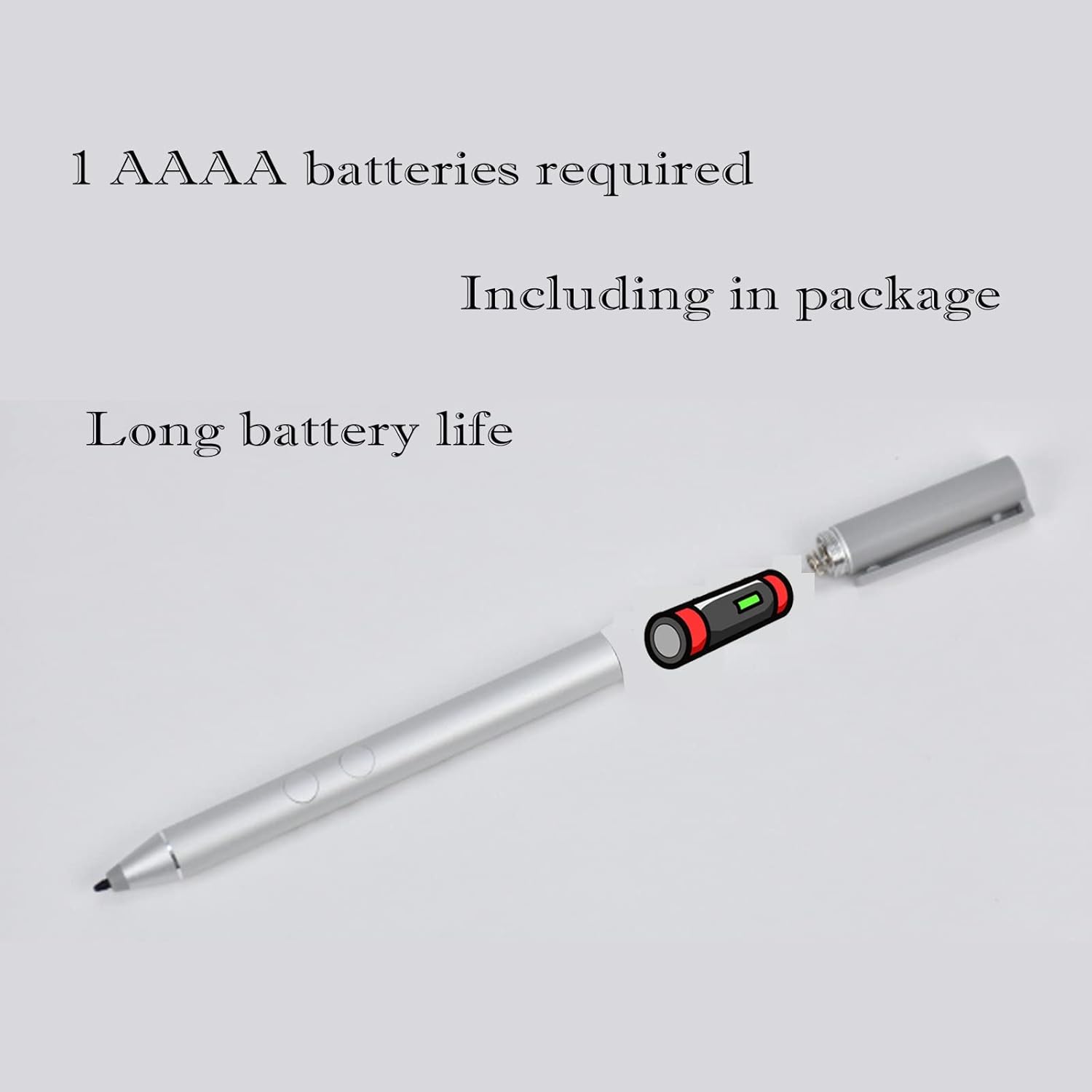
Image: Illustration of AAAA battery installation for the stylus pen.
Automatic Connection
The MPP 1.51 Pen is designed for automatic connection with compatible devices that support the MPP Protocol. Simply ensure the battery is installed correctly, and the pen should be ready to use with your device.
4. Operating Instructions
Basic Writing and Drawing
Hold the pen as you would a regular pen or pencil. The precision tip and 1024 pressure levels allow for smooth and accurate input on your device's screen. You can edit, draw, write, and scribble naturally.

Image: The stylus pen in action, demonstrating its precision for drawing and writing.
Video: Demonstration of the MPP 1.51 Pen's writing and drawing capabilities.
Button Functions
The MPP 1.51 Pen features two physical buttons on its side, which provide additional functionality:
- Eraser Function: Press and hold the designated button (typically the lower button) to activate the eraser.
- Right-Click Function: Press and hold the other button (typically the upper button) to perform a right-click action.
Note: These button functions may vary depending on the specific application you are using.
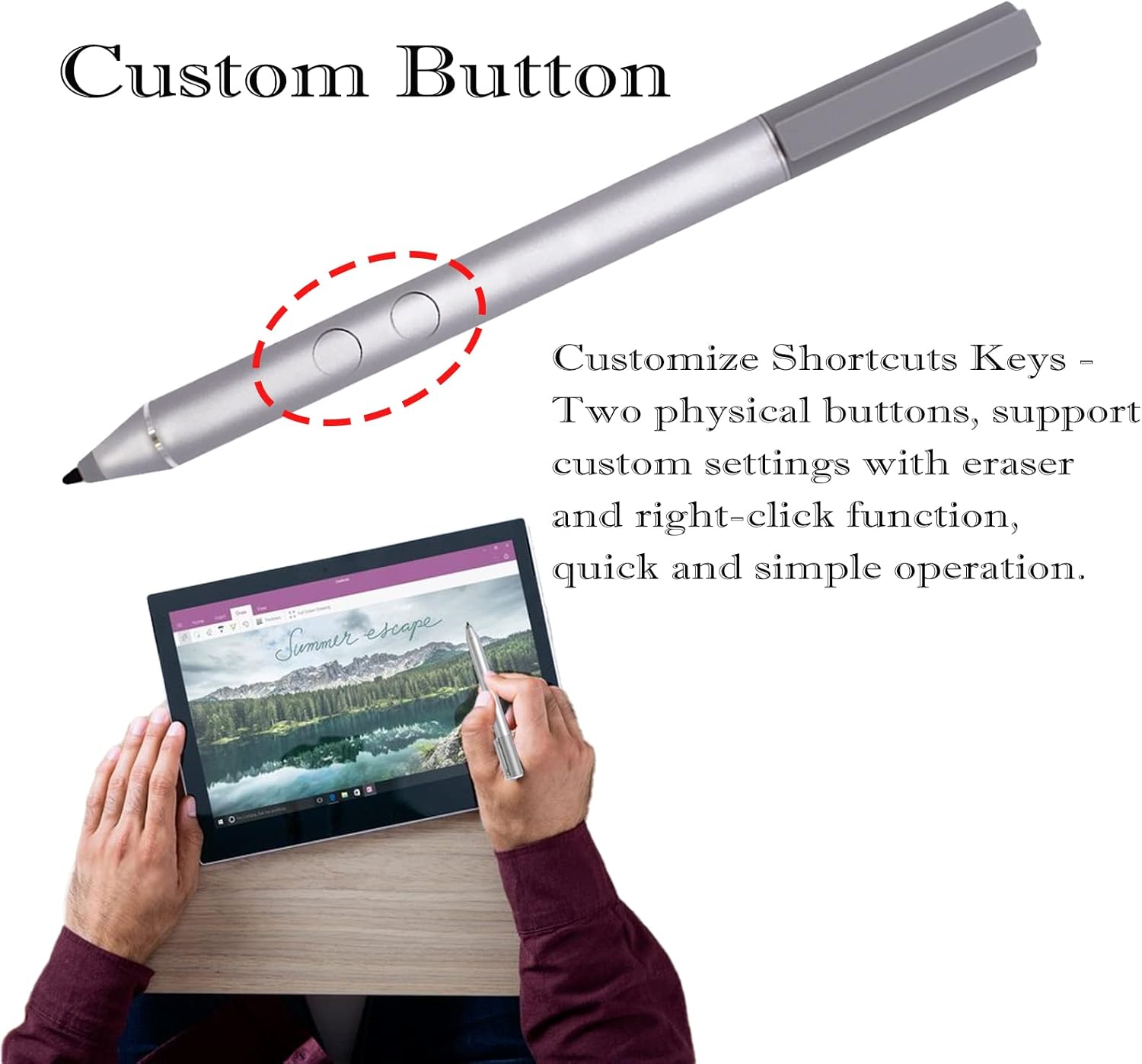
Image: The custom buttons on the stylus pen for eraser and right-click functions.
Video: Demonstration of how to use the stylus button functions for erasing and right-clicking.
Magnetic Attachment
The MPP 1.51 Pen features a magnetic design, allowing it to easily attach to the side of compatible devices for convenient storage and quick access.
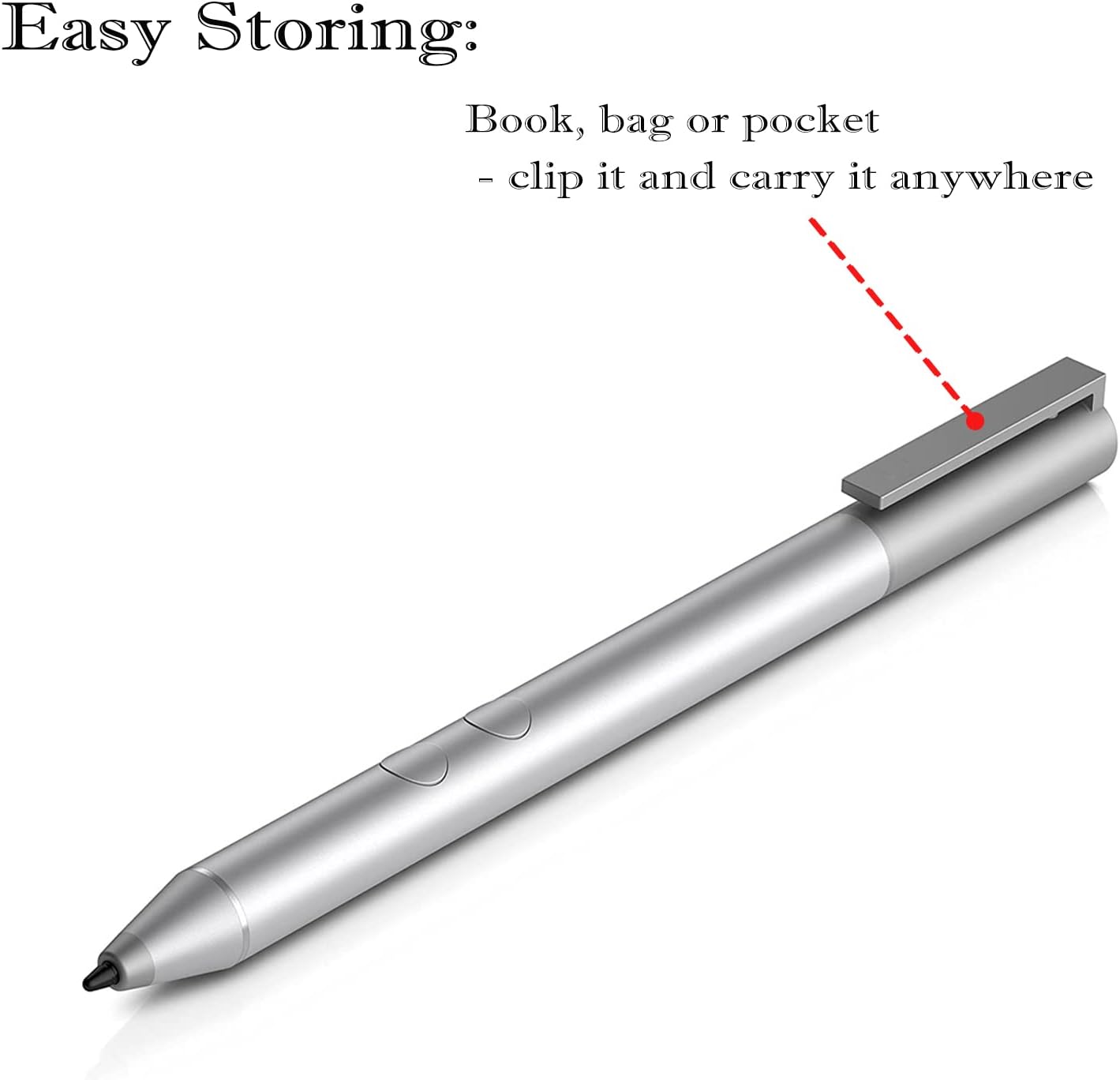
Image: The stylus pen's magnetic storage feature, allowing it to clip to a device.
Video: Overview of the HP pen, including its magnetic attachment feature.
5. Maintenance
Nib Replacement
If the pen nib becomes worn or damaged, you can replace it using the provided nib removal tool and spare nibs:
- Gently grip the old nib with the nib removal tool.
- Pull the old nib straight out from the pen.
- Insert a new nib firmly into the pen until it clicks into place.
Video: Demonstration of replacing the stylus nib using the removal tool.
Cleaning
To clean your stylus pen, gently wipe it with a soft, dry cloth. Avoid using harsh chemicals or abrasive materials that could damage the pen's surface or components.
6. Troubleshooting
- Pen not responding: Ensure the AAAA battery is correctly installed and has sufficient charge. Check if your device supports the MPP Protocol.
- Button functions not working: Verify that the application you are using supports the pen's button functions. Some applications may require specific settings or may not utilize these features.
- Inaccurate tracking: Ensure your device's screen is clean and free of debris. Restart your device if issues persist.
7. Specifications
| Product Dimensions | 1.18 x 0.39 x 0.39 inches |
| Item Weight | 0.176 ounces (5 Grams) |
| Material | Aluminum |
| Color | Silver |
| Compatible Devices | HP Envy 360, Microsoft series, and other MPP Protocol laptops |
| Battery Type | 1 AAAA Battery (included) |
8. Warranty and Support
For any questions, concerns, or technical support regarding your Dogxiong MPP 1.51 Pen, please contact the manufacturer directly through your purchase platform. Refer to your product packaging or purchase details for specific warranty information.