
1. Introduction
This manual provides detailed instructions for the installation, operation, and maintenance of your MOUNTUP Single Monitor Desk Mount, model MU0004-W. Please read this manual thoroughly before installation and retain it for future reference. Proper installation and use will ensure optimal performance and safety.
The MOUNTUP MU0004-W is designed to support a single monitor, offering adjustable positioning for an ergonomic workspace. It features a gas spring arm for smooth height adjustments and versatile movement options.
2. Compatibility Check
Before proceeding with installation, verify that your monitor and desk meet the following requirements:
- Monitor Size: Compatible with most LCD LED flat or curved computer screens up to 32 inches.
- Monitor Weight: Supports monitors weighing between 4.4 lbs (2 kg) and 17.6 lbs (8 kg).
- VESA Pattern: Supports VESA mounting patterns of 75x75mm and 100x100mm. If your monitor has a different VESA pattern, an adapter (not included) may be required.
- Desk Thickness (C-clamp): For C-clamp installation, your desk thickness must be between 0.39 inches (10mm) and 4.52 inches (115mm).
- Desk Thickness (Grommet): For grommet installation, your desk thickness must be between 0.39 inches (10mm) and 3.15 inches (80mm), and the hole diameter must be between 0.39 inches (10mm) and 2.36 inches (60mm).

Figure 1: Universal Compatibility Overview

Figure 2: Detailed Compatibility Checks
Important: Do not install this mount on tempered glass table tops.
3. Setup and Installation
The MOUNTUP MU0004-W offers two installation methods: C-clamp and Grommet mount. All necessary hardware for both options is included.
3.1. Choose Your Mounting Option

Figure 3: Two Installation Options
3.1.1. C-Clamp Installation
- Attach the C-clamp base to the edge of your desk. Ensure the desk thickness is within 0.39-4.52 inches.
- Tighten the clamp securely using the provided knob until the base is stable.

Figure 4: C-Clamp Mounting Detail
3.1.2. Grommet Mount Installation
- If your desk has a grommet hole, ensure its diameter is between 0.39-2.36 inches and desk thickness is 0.39-3.15 inches.
- Insert the grommet base through the hole and secure it from underneath the desk using the provided plate and wing nut.

Figure 5: Grommet Mounting Detail
3.2. Attaching the Monitor Arm
- Slide the lower arm onto the installed base pole.
- Attach the upper gas spring arm to the lower arm.
- Secure the VESA plate to the back of your monitor using the appropriate screws and spacers from the hardware kit.
- Carefully slide the monitor (with VESA plate attached) onto the end of the gas spring arm until it clicks into place.
4. Operating and Adjustments
The MOUNTUP MU0004-W offers a full range of motion for optimal viewing comfort.

Figure 6: Full Range Motion
4.1. Gas Spring Tension Adjustment
The gas spring allows for smooth height adjustments. Adjust the tension to match your monitor's weight for effortless movement.
- Hold the arm in a horizontal position.
- Use the provided Allen key to adjust the gas spring tension screw.
- Turn clockwise (-) to reduce tension for lighter monitors (monitor raises up).
- Turn counter-clockwise (+) to increase tension for heavier monitors (monitor drops down).
- Adjust gradually, testing the arm's movement after every few turns, until the monitor stays at the desired height without drifting. Note: It may take up to 17 turns for significant adjustment.

Figure 7: Gas Spring Adjustment
4.2. Tilt Angle Adjustment
Adjust the monitor's vertical angle for optimal viewing.
- Loosen the tilting bolt (turn to "-" direction).
- Adjust the monitor to your desired tilt angle (up to +90° and down to -45°).
- Retighten the tilting bolt (turn to "+" direction) to secure the angle.
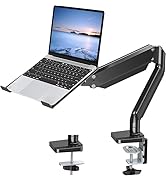
Figure 8: Tilt Angle Adjustment
4.3. Swivel and Rotation
- Swivel: The arm joints allow for 180° swivel, and the VESA plate can swivel 90° left or right.
- Rotation: The VESA plate can rotate 360° for landscape or portrait orientation.
4.4. Cable Management
Integrated cable management clips help keep your workspace tidy by concealing monitor cables.
- Route your monitor cables through the designated channels on the underside of the arm.
- Secure the cable covers to keep the cables neatly tucked away.

Figure 9: Cable Management
5. Maintenance
Regular maintenance ensures the longevity and safe operation of your monitor mount.
- Cleaning: Wipe the mount with a soft, damp cloth. Avoid abrasive cleaners or solvents.
- Periodic Checks: Periodically check all screws and bolts, especially the clamp/grommet base and VESA plate connections, to ensure they remain tight and secure. Re-tighten if necessary.
- Gas Spring: If the gas spring tension feels off, refer to Section 4.1 for adjustment instructions.
6. Troubleshooting
Refer to the following common issues and solutions. For more detailed assistance, please consult the official Troubleshooting Guide (PDF) available on the product page or contact customer support.
- Monitor Sags or Rises Unintentionally:
This indicates incorrect gas spring tension. Refer to Section 4.1 to adjust the gas spring. Increase tension for heavier monitors (turn counter-clockwise) or decrease for lighter monitors (turn clockwise). - Monitor Tilts Downward:
The tilt bolt may not be sufficiently tightened. Loosen the tilt bolt slightly, adjust the monitor to the desired angle, and then firmly re-tighten the tilt bolt as described in Section 4.2. - Mount Feels Unstable:
Ensure the C-clamp or grommet base is securely fastened to the desk. Check for any wobbling and re-tighten the base screws or clamp knob. Verify that your desk surface is stable and within the specified thickness limits. - Difficulty Moving the Arm:
If the arm is too stiff or too loose, the gas spring tension might need fine-tuning. Refer to Section 4.1. Also, ensure no cables are snagged or obstructing movement.
For further troubleshooting, please refer to the Official Troubleshooting Guide (PDF).
7. Specifications
| Feature | Specification |
|---|---|
| Model Number | MU0004-W |
| Brand | MOUNTUP |
| Material | Alloy Steel |
| Color | White |
| Compatible Monitor Size | Up to 32 inches |
| Weight Capacity | 4.4 - 17.6 lbs (2 - 8 kg) |
| VESA Compatibility | 75x75mm, 100x100mm |
| Movement Type | Tilt, Rotate, Swivel, Height Adjust, Full Motion |
| Tilt Angle | +90° to -45° |
| Swivel Angle | 180° (arm joints), 360° (VESA plate) |
| Rotation | 360° |
| Max Height Adjustment | 16.3 inches (41.4 cm) |
| Max Extension | 19.27 inches (48.9 cm) |
| Mounting Options | C-clamp, Grommet |
| C-clamp Desk Thickness | 0.39 - 4.52 inches (10 - 115 mm) |
| Grommet Desk Thickness | 0.39 - 3.15 inches (10 - 80 mm) |
| Grommet Hole Diameter | 0.39 - 2.36 inches (10 - 60 mm) |
8. Warranty and Support
The MOUNTUP Single Monitor Desk Mount MU0004-W is backed by MOUNTUP's 3-year support. For warranty claims, technical assistance, or any questions regarding your product, please contact MOUNTUP customer service through their official channels or the retailer where the product was purchased.
You can also refer to the Official User Manual (PDF) for additional information.


