
ORICO DD25-C3
ORICO Aluminum USB C Hard Drive Enclosure
Model: DD25-C3
Brand: ORICO
1. Introduction
The ORICO DD25-C3 is a high-performance aluminum USB C hard drive enclosure designed for 2.5-inch SATA SSDs and HDDs. It features a sleek aluminum alloy housing for excellent heat dissipation and robust protection. With 6Gbps SuperSpeed transmission via USB 3.2 Gen 2 and a versatile 2-in-1 USB C to USB A/C cable, it offers fast, safe, and stable data transfer. Its tool-free installation and universal compatibility with Windows, macOS, and Linux systems make it an ideal solution for expanding storage for various devices.

Figure 1: ORICO DD25-C3 Hard Drive Enclosure with included cable.
2. What's in the Box
- 1x 2.5 inch Aluminum Hard Drive Enclosure
- 1x USB C to USB A/C 2 in 1 Cable
- 1x User Manual
- 1x Shock-Proof Foam Pad
3. Specifications
| Feature | Description |
|---|---|
| Brand | ORICO |
| Model Number | DD25-C3 |
| Material | Aluminum |
| Memory Storage Capacity | Up to 6 TB |
| Compatible Devices | Laptop, Desktop, Tablet, Smartphone, PS5, Smart TV |
| Hard Disk Form Factor | 2.5 Inches (7mm/9.5mm thickness) |
| Data Transfer Rate | 6 Gigabytes Per Second (6Gbps) |
| Hardware Interface | SATA 6.0 Gb/s, USB Type C, USB 3.2 Gen 2 |
| Supported Systems | Windows, LINUX, macOS 8.0 and above |
| Product Dimensions | 6.89"L x 4.33"W x 0.83"H |
| Item Weight | 8.1 ounces |

Figure 2: Advanced and secured built-in chipset for stable data transfer.
4. Setup and Installation
The ORICO DD25-C3 Hard Drive Enclosure features a tool-free installation design, allowing for quick and easy setup. Follow these steps to install your 2.5-inch SATA SSD or HDD:
- Slide the lock and push on the other side: Gently slide the back cover of the enclosure open.
- Insert your 2.5-inch disk: Align your 2.5-inch SATA SSD or HDD with the SATA port inside the enclosure and firmly insert it until it's securely connected.
- Slide and close the cover: Slide the cover back into place until it clicks, ensuring the drive is fully enclosed.
- Connect to your device: Use the provided USB C to USB A/C 2-in-1 cable to connect the enclosure to your computer, laptop, or other compatible device.
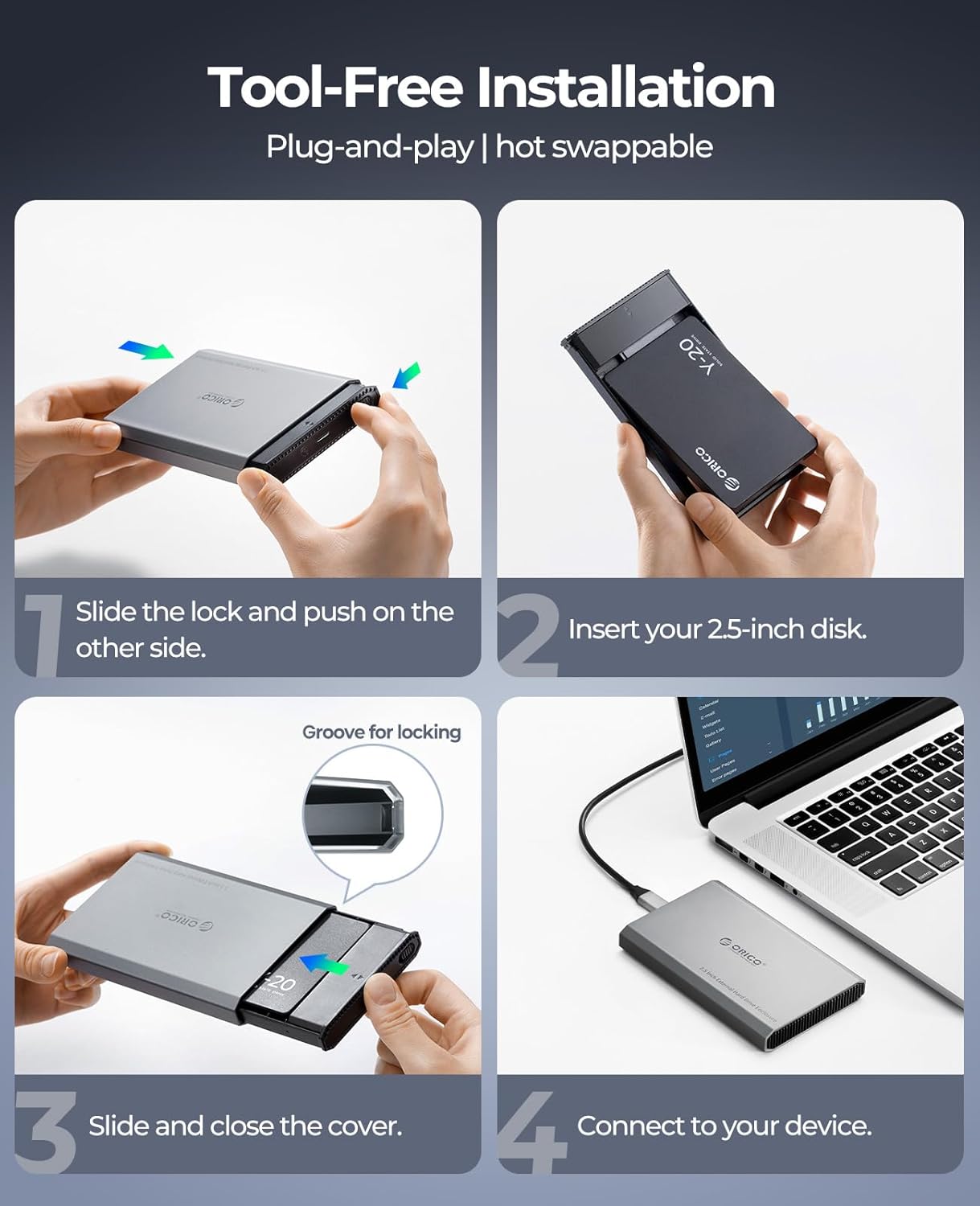
Figure 3: Visual guide for tool-free hard drive installation.
Installation Video Guide:
Video 1: Official Tool-Free Installation Guide for ORICO Aluminum Enclosure. This video demonstrates the simple steps to install your SSD/HDD into the enclosure.
5. Operating Instructions
Once your hard drive is installed and the enclosure is connected to your device, it will be recognized as an external storage device. You can then use it for various purposes:
- Data Transfer: Drag and drop files to and from the enclosure. The 6Gbps SuperSpeed transmission allows for rapid data transfer, enabling you to transfer 1GB files in seconds.
- Storage Expansion: Use it as additional storage for your PC, laptop, tablet, or even gaming consoles like PS5.
- Media Playback: Connect to Smart TVs to play media files directly from the drive.
- Mobile Device Connectivity: Utilize the USB C connection to access data from compatible smartphones.

Figure 4: Demonstrates the 6Gbps SuperSpeed data transfer capabilities.

Figure 5: Illustrates the wide compatibility with various operating systems and devices.
Product Overview Videos:
Video 2: ORICO Aluminum Enclosure for 2.5 Inch SATA SSD/HDD. This video provides a detailed look at the enclosure's features and compatibility.
Video 3: ORICO Aluminum Hard Drive Enclosure for 2.5" SATA SSD/HDD. A brief overview highlighting the key benefits and design of the enclosure.
6. Maintenance
- Auto Sleep Mode: The enclosure features a 10-minute auto sleep mode to conserve energy and prolong the service life of your HDDs/SSDs.
- Safe Removal: Always click the "Safely Remove Hardware" icon on your operating system before unplugging the enclosure to prevent data loss or corruption.
- Cleaning: Use a soft, dry cloth to clean the exterior of the enclosure. Avoid using liquid cleaners or abrasive materials.
- Storage: When not in use, store the enclosure in a cool, dry place away from direct sunlight and extreme temperatures.

Figure 6: The 10-minute auto sleep mode helps prolong drive lifespan.
7. Troubleshooting
- Device Not Recognized:
- Ensure the hard drive is correctly inserted into the enclosure and the cover is fully closed.
- Try connecting the enclosure to a different USB port on your device.
- Test with a different USB cable if available.
- Verify that the hard drive itself is functional by testing it in another enclosure or directly connecting it to a compatible system if possible.
- For new hard drives, ensure they are initialized and formatted in Disk Management (Windows) or Disk Utility (macOS).
- Slow Transfer Speeds:
- Ensure you are using a USB 3.0/3.2 Gen 2 port on your computer for optimal speeds. Older USB 2.0 ports will result in significantly slower transfers.
- Check the health of your SSD/HDD. A failing drive can cause slow performance.
- Avoid transferring many small files simultaneously, as this can inherently be slower than transferring a single large file.
- Enclosure Disconnects Randomly:
- Ensure the USB cable is securely connected at both ends.
- Avoid excessive movement or vibration of the enclosure during operation.
- Check power settings on your computer that might be turning off USB ports to save power.
8. Warranty and Support
For warranty information and technical support, please refer to the warranty card included in your product packaging or visit the official ORICO website. You may also contact the seller, ORICO Direct US Store, for assistance.
ORICO Official Website: www.oricotech.com
Related documentsDD25-C3


Ask a question about this manual
Ask about setup, troubleshooting, compatibility, parts, safety, or missing instructions. Manuals+ will review the question and use this page’s manual context to help answer it.