
LCDOLED Inspiron 15 3511 P112F
LCDOLED Replacement Display for Dell Inspiron 15 3511 P112F Series (1920x1080 On-Cell Touch Version)
Instruction Manual
1. Overview
This manual provides essential instructions for the proper installation, operation, and maintenance of your LCDOLED 15.6-inch FHD 1080P IPS LCD Display On-Cell Touch Screen Digitizer Assembly. This product is designed as a replacement part for specific Dell Inspiron laptop models. Please read this manual thoroughly before proceeding with installation.
2. Safety Information
- Professional Installation Recommended: Installation of this component requires technical expertise and specialized tools. Incorrect installation can damage the product or your laptop. It is strongly recommended that installation be performed by a qualified technician.
- Power Disconnection: Always disconnect the laptop from its power source and remove the battery before beginning any installation or repair work.
- Electrostatic Discharge (ESD) Precautions: Electronic components are sensitive to static electricity. Use an anti-static wrist strap and work on an anti-static mat to prevent damage.
- Handle with Care: The display assembly is fragile. Avoid applying excessive pressure or bending the component.
- Original Parts: This package includes the LCD screen and touch digitizer assembly only. Retain all original components such as the bezel, back cover, hinges, and cables for reassembly.
3. Compatibility
This replacement display assembly is compatible with the following Dell Inspiron laptop models:
- Dell Inspiron 15 3511
- Dell Inspiron P112F
- Dell Inspiron P112F001
- Dell Inspiron P112F002
- Dell Inspiron P112F003
Important: This product is specifically for the Touch Version of these models. It is not compatible with non-touch versions. Please verify your laptop's exact model and display specifications before installation. You can often find this information on a label on the bottom of your laptop or by checking the Service Tag (S/N) on the Dell Support website.
4. Package Contents
The package contains the following items:
- 1x LCD Screen + Touch Digitizer Assembly (15.6 inches, 1920x1080 IPS, On-Cell Touch)
Note: The package does not include an extra touch control board, LCD cable, bezel, back cover, hinges, instruction manual (other than this digital document), or installation tools. Please reuse your original components.
5. Installation Guide
This section outlines the general steps for replacing a laptop screen assembly. Due to the complexity and specific variations between laptop models, this guide is for informational purposes only. Professional installation is highly recommended.
5.1. Preparation
- Gather Tools: Ensure you have the necessary tools, which typically include small Phillips head screwdrivers, a plastic prying tool (spudger), and an anti-static wrist strap.
- Backup Data: Although screen replacement typically does not affect data, it is always prudent to back up important files before any hardware repair.
- Power Down: Shut down your laptop completely. Disconnect the AC adapter and remove the laptop battery.
- ESD Protection: Wear an anti-static wrist strap connected to a grounded surface.
5.2. Disassembly (General Steps)
- Remove Bezel: Carefully pry off the plastic bezel surrounding the screen. This may involve removing rubber screw covers and screws first.
- Unscrew Old Screen: Locate and remove the screws holding the old screen assembly to the laptop's lid.
- Disconnect Cables: Gently lay the old screen face down on the keyboard. Carefully disconnect the EDP (eDP) cable and any touch digitizer cables from the back of the screen. Be extremely careful with these connectors.
5.3. Installation of New Screen
- Connect Cables: Connect the EDP cable and touch digitizer cable to the new screen assembly. Ensure they are seated firmly and correctly.
- Secure New Screen: Position the new screen assembly into the laptop lid and secure it with the screws removed earlier.
- Test Functionality (Before Final Assembly): Before reattaching the bezel, temporarily connect the battery and AC adapter. Power on the laptop to test the display and touch functionality. If everything works, power down again.
- Reattach Bezel: Carefully snap or screw the bezel back into place.
- Final Assembly: Reinstall the laptop battery and close the laptop.
For detailed, model-specific disassembly and reassembly instructions, refer to your laptop's official service manual or reputable online repair guides for your specific Dell Inspiron model (e.g., P112F).

Image 1: Front view of the LCDOLED replacement screen assembly. This shows the display surface.

Image 2: Back view of the LCDOLED replacement screen assembly. This view typically shows the circuit board and connection points.
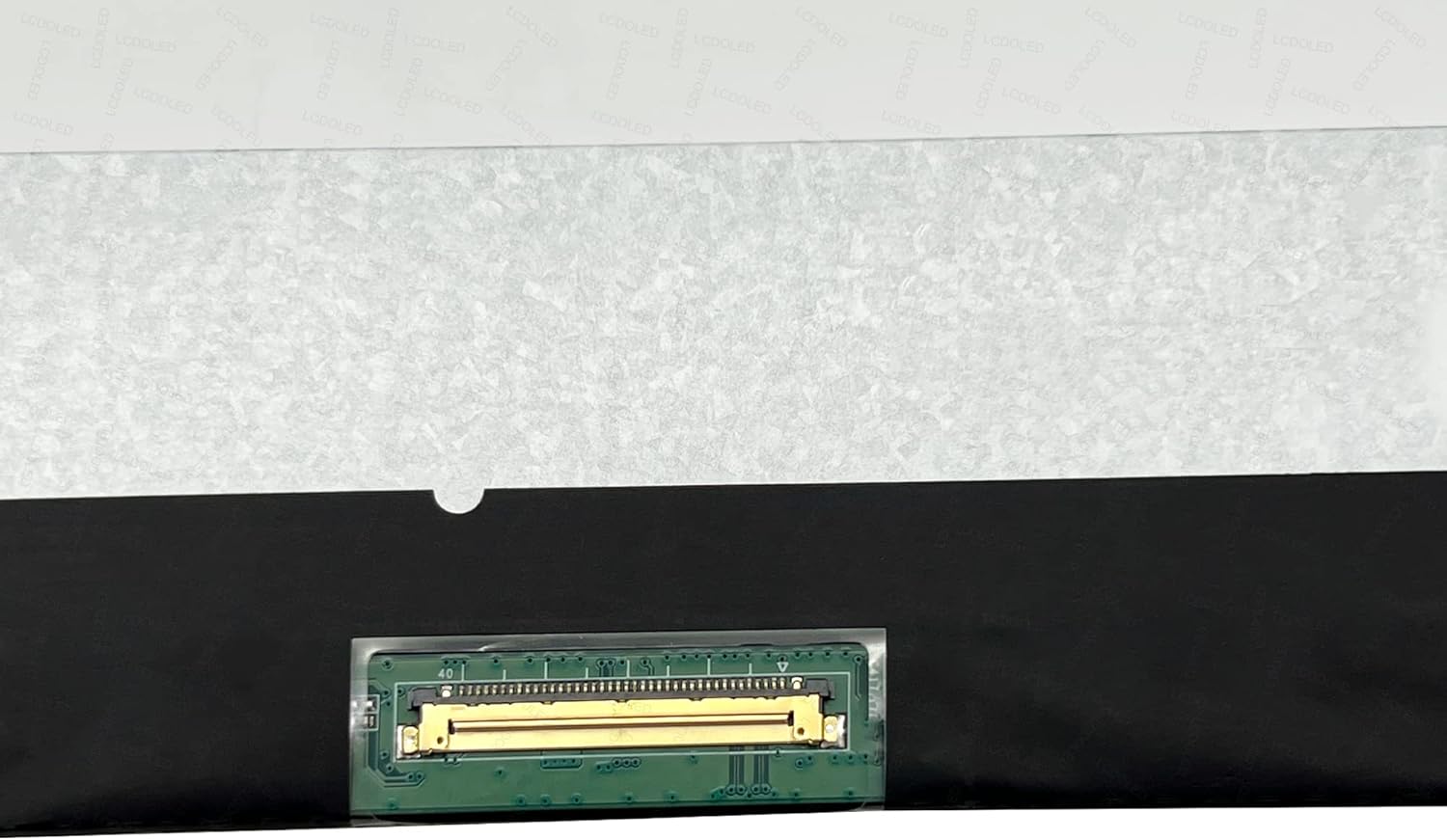
Image 3: Close-up of the EDP 40-pin connector. This is where the main display cable from the laptop motherboard connects. Ensure proper alignment and secure connection.

Image 4: Corner view of the screen, highlighting potential mounting points or adhesive areas. This helps in understanding how the screen fits into the laptop lid.

Image 5: Combined top and bottom view of the screen assembly, providing a comprehensive look at both sides of the component.
6. Operation
After successful installation, the new display assembly should function immediately upon powering on your laptop. No special drivers are typically required for basic display functionality, as these are handled by your laptop's operating system and graphics drivers.
- Display Test: Verify that the screen displays images correctly, without flickering, dead pixels, or color distortion.
- Touch Functionality: Test the touch screen by interacting with the operating system. Ensure responsiveness and accuracy across the entire screen surface.
- Resolution Check: Confirm that the display is operating at its native 1920x1080 resolution. This can usually be checked in your operating system's display settings.
7. Maintenance
To ensure the longevity and optimal performance of your new display, follow these maintenance guidelines:
- Cleaning the Screen: Use a soft, lint-free microfiber cloth specifically designed for electronics. Lightly dampen the cloth with distilled water or a screen-cleaning solution (avoid ammonia-based cleaners). Gently wipe the screen in one direction to remove dust and smudges. Do not spray liquid directly onto the screen.
- Avoid Pressure: Do not press firmly on the screen, especially the touch surface, as this can cause damage.
- Protect from Impacts: Avoid dropping or subjecting the laptop to impacts, which can damage the fragile display.
- Temperature Extremes: Do not expose the laptop to extreme temperatures or direct sunlight for extended periods.
8. Troubleshooting
If you encounter issues after installation, consider the following troubleshooting steps:
| Problem | Possible Cause | Solution |
|---|---|---|
| No display / Black screen | EDP cable not properly connected; faulty cable; incorrect screen type. |
|
| Flickering screen / Distorted image | Loose EDP cable connection; damaged cable; driver issue. |
|
| Touch screen not working | Touch digitizer cable not connected; incorrect drivers; disabled in BIOS/OS. |
|
| Dead pixels / Bright spots | Manufacturing defect. | Contact customer support for warranty assistance. |
If these steps do not resolve the issue, please contact LCDOLED customer support.
9. Specifications
| Feature | Detail |
|---|---|
| Brand | LCDOLED |
| Compatible Models | Dell Inspiron 15 3511, P112F, P112F001, P112F002, P112F003 (Touch Version) |
| Screen Size | 15.6 inches |
| Resolution | 1920x1080 (FHD) |
| Panel Type | IPS |
| Touch Functionality | On-Cell Touch Digitizer |
| Backlight Type | LED LCD |
| LCD Connector | EDP 40 pins |
10. Customer Support and Warranty
For technical assistance, warranty claims, or any questions regarding your LCDOLED replacement display, please contact LCDOLED customer support through the platform where you purchased the product.
All messages will typically be answered within 24 hours. Please provide your order number and a detailed description of the issue when contacting support.
Warranty Information: Specific warranty terms and conditions may vary. Please refer to the product listing or contact customer support for detailed warranty information.
Ask a question about this manual
Ask about setup, troubleshooting, compatibility, parts, safety, or missing instructions. Manuals+ will review the question and use this page’s manual context to help answer it.