
AZDOME M550 Pro
AZDOME M550 Pro 5G WiFi 3 Channel Dash Cam User Manual
Model: M550 Pro
Introduction
Thank you for choosing the AZDOME M550 Pro 5G WiFi 3 Channel Dash Cam. This manual provides detailed instructions for the installation, operation, and maintenance of your new dash camera. Please read this manual thoroughly before use to ensure proper functionality and to maximize your driving safety and recording capabilities.

The AZDOME M550 Pro dash cam, showcasing its main unit, rear camera, cabin camera, 64GB SD card, and the accompanying mobile application interface.
What's in the Box
Please verify that all items are present in your package:
- 1 x M550 Pro Dash Cam (Front Camera)
- 1 x In-car Rear Camera
- 1 x Cabin Camera
- 1 x 12ft Power Supply Cable with Car Charger
- 4 x Electrostatic Sticker
- 1 x Installation Tools Kit
- 1 x AZDOME M550 Pro User Manual
- 1 x Magnet Bracket Built-in GPS
- 1 x 64GB Memory Card

An illustration of all components included with the AZDOME M550 Pro dash cam, such as the front, cabin, and rear cameras, power cable, mounting bracket, and memory card.
Product Features
Built-in 5.8G WiFi
The AZDOME M550 Pro features 5GHz WiFi connectivity, offering significantly faster data transfer speeds (4-6 times faster than 2.4GHz). This allows for quick downloading of large video files, such as an 800MB video within 10 seconds, directly to your mobile device via the AZDOME app.
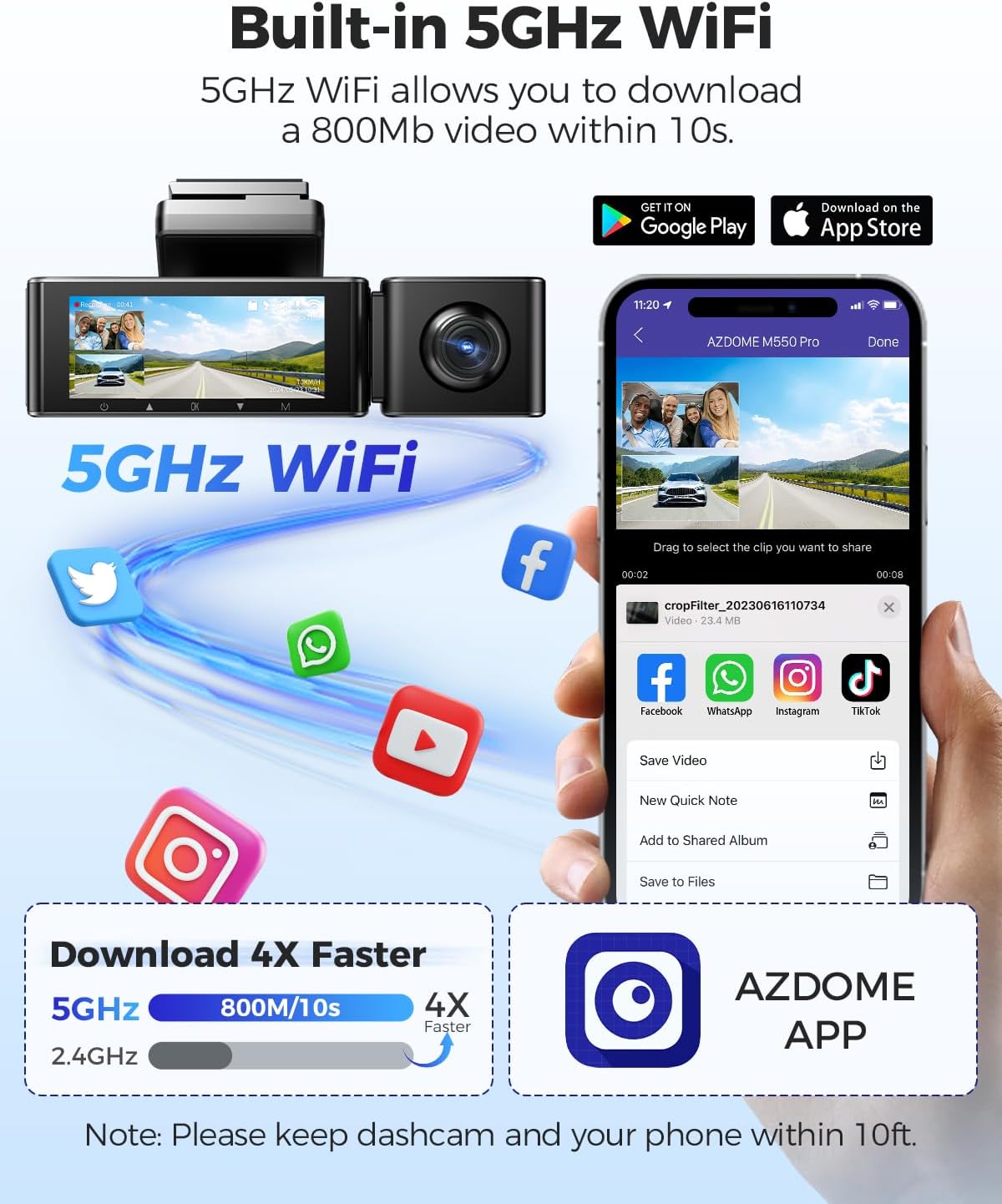
The dash cam connected to a smartphone via 5GHz WiFi, demonstrating faster video download speeds compared to 2.4GHz.
3 Channel Recording
The M550 Pro provides comprehensive coverage with its three-channel recording system:
- Front Camera: Records in 4K (3840x2160P) resolution.
- Front and Rear: Records simultaneously in 4K (front) + 1080P (rear).
- Front and Inside: Records simultaneously in 2K (2560x1440P) + 1080P (cabin).
- Front, Inside, and Rear: Records simultaneously in 2K (front) + 1080P (cabin) + 1080P (rear).
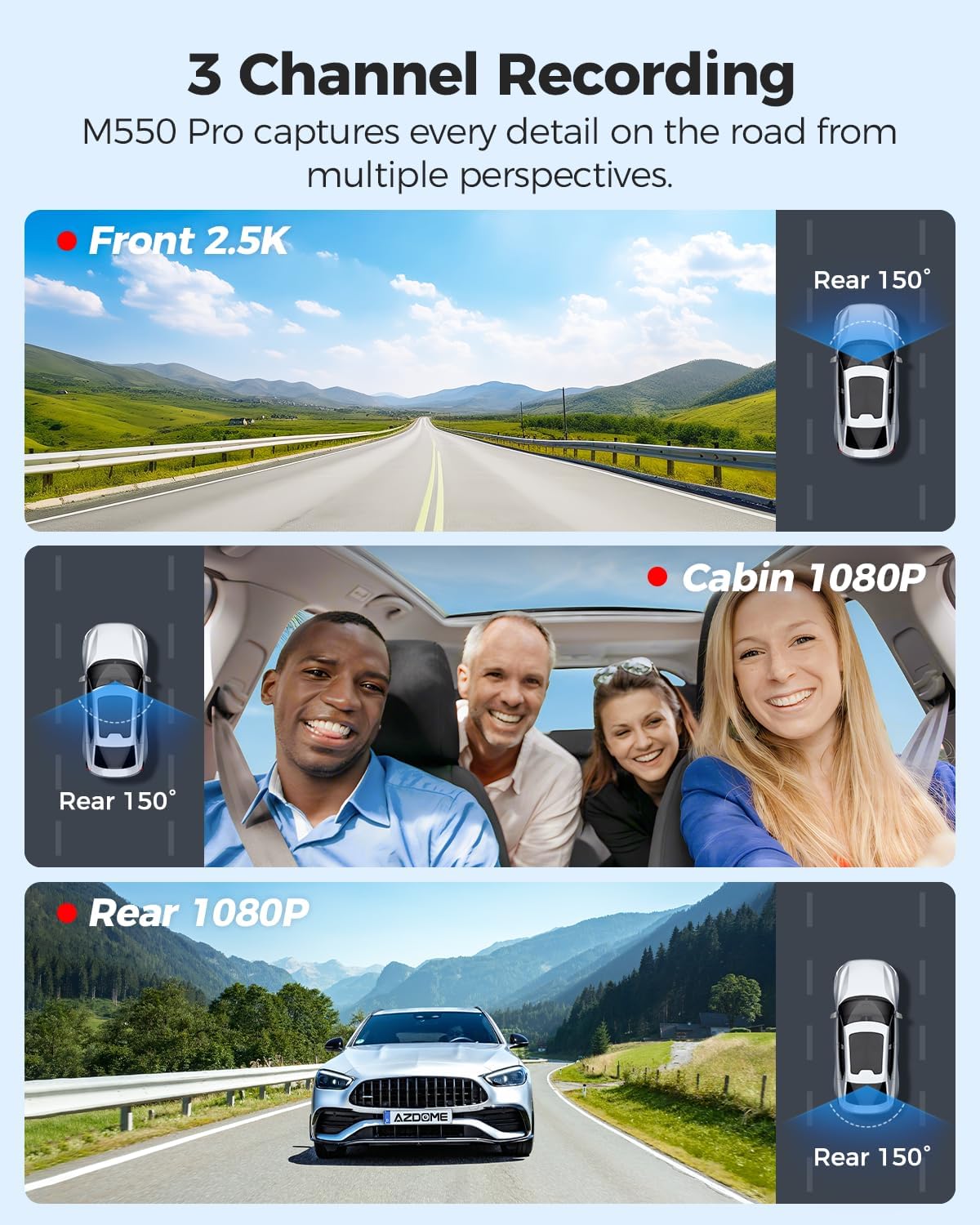
Visual representation of the three recording channels: front, cabin, and rear, capturing different perspectives around the vehicle.
24H Parking Mode
The dash cam offers two modes for 24-hour parking surveillance:
- Collision Detection Parking Mode: Utilizes the built-in G-sensor to detect impacts and automatically lock the video footage, protecting it from being overwritten.
- Time-Lapse Parking Mode: Records continuously at a low frame rate (1/5/10 FPS) for extended periods, compressing hours of footage into minutes for efficient review. This mode requires a 3-lead hardwire kit (not included, search ASIN: B096G6FKZP) for continuous power.

Depiction of the dash cam's 24-hour parking surveillance features, including collision detection and time-lapse recording for continuous monitoring.
IR Night Vision
Equipped with a Novatek 8629G Processor, SC401AI, GC2053, and SC223A sensors, the M550 Pro provides superior night vision capabilities. The cabin camera features 6 IR LEDs and an F/1.8 aperture 6-glass lens, ensuring clear recording in low-light conditions, both day and night.
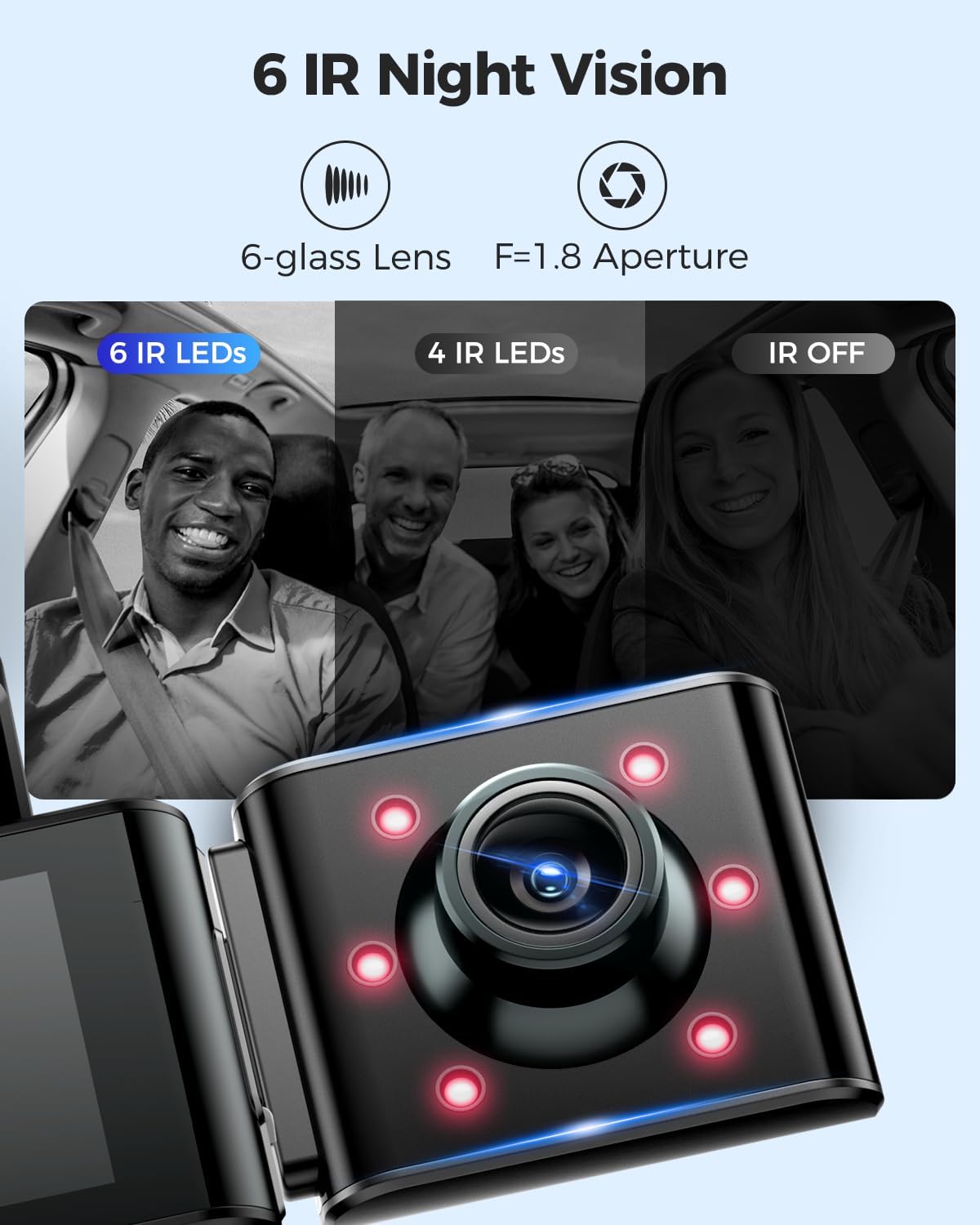
Comparison showing clear cabin view with IR LEDs on at night versus without IR LEDs, highlighting enhanced night vision.
Built-in GPS
The integrated GPS module accurately records your driving route data, including speed, latitude, and longitude. This information can be viewed using the AZDOME GPS Player software on your computer, providing crucial evidence in case of incidents.

The AZDOME GPS Player interface displaying a recorded driving route on a map, along with speed and location information.
Emergency Lock & G-sensor
The G-sensor automatically detects sudden shakes or collisions. When an incident occurs, it triggers the dash cam to save and lock a 20-second video clip, starting 5 seconds before the event, ensuring all critical footage is secured and not overwritten.

A visual explanation of the G-sensor's function, showing how it captures and locks video footage 5 seconds before and 15 seconds after a collision.
Seamless Loop Recording
The dash cam supports seamless loop recording, which means that when the memory card is full, the oldest unlocked videos will be automatically overwritten by new recordings. This ensures continuous recording without manual intervention. The included 64GB SD card provides approximately 4 hours of recording time.
An overview of loop recording, showing how older files are overwritten and providing estimated recording durations for 32GB, 64GB, and 128GB cards.
Free 64GB SD Card Included
The AZDOME M550 Pro package includes a 64GB Class 10 U3 speed Micro SD Card, pre-inserted into the dash cam, allowing for immediate use. The device supports up to 128GB Micro SD Cards for extended recording capacity.
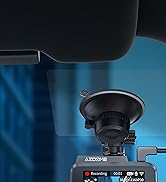
The included 64GB SD card, ready for use with the AZDOME M550 Pro dash cam.
Setup and Installation
Follow these steps for proper installation of your AZDOME M550 Pro dash cam:
- Prepare the SD Card: For first-time use, it is crucial to format the included 64GB SD card directly within the dash cam's settings.
- Mount the Front Camera: Attach the front dash cam to your windshield using the magnetic bracket with built-in GPS. Ensure it is placed in a location that does not obstruct your view and allows for optimal recording.
- Install Cabin Camera: Connect the cabin camera to the main unit. Position it to capture the interior of your vehicle.
- Install Rear Camera: Mount the in-car rear camera on your rear windshield. The rear camera is designed to be installed inside the car and offers 360-degree rotation for optimal angle adjustment.
- Route Power Cable: Connect the 12ft power supply cable to the dash cam and route it neatly along the edges of your car's interior to the car charger (cigarette lighter socket). Use the provided installation tools kit and cable clips for a clean setup.
- Connect to Power: Plug the car charger into your vehicle's 12V power outlet.

An illustration demonstrating the recommended cable routing for a clean and discreet dash cam installation within a vehicle.
Connecting to WiFi and App
To connect your M550 Pro to the AZDOME app:
- Download and install the AZDOME app from Google Play Store or Apple App Store.
- Turn off cellular data on your phone and connect to the dash cam's 5GHz WiFi network (e.g., "M550 Pro").
- Open the AZDOME app. You can now view live footage, download recordings, and adjust settings.

A visual guide detailing the process of connecting the AZDOME M550 Pro to its mobile application via WiFi.
Installation Video
For a visual guide on unboxing and installation, please refer to the official AZDOME video below:
Official AZDOME video demonstrating the unboxing and installation process for the AZDOME 3 Channel Dash Cam.
Operating Instructions
Once installed and powered on, the AZDOME M550 Pro will automatically begin recording. Familiarize yourself with the device's buttons and screen interface for various functions.
Basic Operation
- Power On/Off: The device powers on automatically when the car engine starts and powers off when the engine is turned off. You can also manually power it on/off by pressing and holding the power button.
- Recording: Recording starts automatically upon power-on. A red dot or similar indicator on the screen confirms recording is active.
- Emergency Lock: Press the dedicated emergency button (often indicated by a key or lock icon) to manually lock the current recording, preventing it from being overwritten by loop recording.
- Playback: Access recorded videos through the device's menu or via the AZDOME app.
- Menu Navigation: Use the physical buttons below the screen to navigate through settings and playback options.
User-Friendly Additional Functions
The M550 Pro includes several thoughtful features for enhanced user experience:
- Speed Adjustment: Calibrate or adjust speed display settings.
- Screensaver: Set the screen to turn off after 1, 2, or 3 minutes to avoid distraction while driving.
- Fatigue Driving Reminder: Set reminders for every 1, 2, or 4 hours to encourage breaks during long drives.
- SD Card Format Reminder: Receive prompts to format the SD card periodically to maintain optimal performance.

Screenshots of the M550 Pro's display, illustrating options for speed adjustment, screensaver settings, fatigue driving reminders, and SD card format reminders.
Maintenance
Proper maintenance ensures the longevity and optimal performance of your dash cam:
- SD Card Formatting: It is recommended to format the SD card regularly (e.g., once a month) to prevent data corruption and ensure smooth recording. Always format the card using the dash cam itself, not a computer.
- Lens Cleaning: Gently clean the camera lenses with a soft, lint-free cloth. Avoid abrasive materials or harsh chemicals that could scratch the lens.
- Firmware Updates: Check the AZDOME official website or app periodically for firmware updates. Keeping your firmware up-to-date can improve performance and add new features.
- Temperature: Avoid exposing the dash cam to extreme temperatures for prolonged periods.
Troubleshooting
If you encounter issues with your AZDOME M550 Pro, please refer to the following common problems and solutions:
| Problem | Possible Solution |
|---|---|
| Dash cam does not power on. | Check the power connection. Ensure the car charger is properly plugged into the vehicle's 12V outlet and the dash cam. Test the car charger with another device if possible. |
| Recording stops unexpectedly. | Format the SD card. Ensure the SD card is Class 10 U3 or higher. A faulty or slow SD card can cause recording issues. |
| Video footage is blurry or unclear. | Clean the camera lenses. Ensure the protective film has been removed from the lenses. Check if the windshield is clean. |
| WiFi connection issues or slow download speeds. | Ensure your phone's cellular data is off. Make sure your phone is within 10 feet of the dash cam. Restart both the dash cam and your phone. |
| GPS signal is not detected. | Ensure the dash cam has a clear view of the sky. Avoid placing it near metallic objects that might interfere with the signal. Allow a few minutes for the GPS to acquire a signal after powering on. |
| Dash cam freezes or crashes. | Perform a factory reset (refer to the device's menu for this option). Ensure the firmware is up to date. |
If the problem persists after trying these solutions, please contact AZDOME customer support for further assistance.
Specifications
| Feature | Detail |
|---|---|
| Model Name | M550 Pro |
| Product Dimensions | 1.18 x 5.47 x 1.3 inches |
| Item Weight | 0.176 ounces |
| Video Capture Resolution | Front: 4K (3840x2160P); Front & Rear: 4K+1080P; Front & Inside: 2K+1080P; Front & Inside & Rear: 2K+1080P+1080P |
| Connectivity Technology | Wi-Fi (5.8GHz) |
| Special Features | 3 Channel, Built-in 5GHz WiFi & GPS, 24 Hours Parking Mode, G-sensor, Loop Recording, Time-lapse, Infrared Night Vision, 64GB Card Included |
| Display | 3.19" IPS Screen |
| Mounting Type | Magnetic Bracket |
| Batteries | 1 Lithium Metal battery required (included) |
| Country of Origin | China |
Warranty and Support
AZDOME provides comprehensive customer support for the M550 Pro dash cam.
- Warranty: The product comes with a 12-month warranty from the date of purchase.
- Return Policy: AZDOME offers a 30-day return policy for defects.
- Customer Support: For any product inquiries, technical assistance, or additional accessories, please reach out to AZDOME's dedicated support team.

Details on AZDOME's 1-year warranty, 30-day return policy, and customer support contact information.
Thank you for choosing AZDOME.
Related documentsM550 Pro


Ask a question about this manual
Ask about setup, troubleshooting, compatibility, parts, safety, or missing instructions. Manuals+ will review the question and use this page’s manual context to help answer it.