
1. Introduction
Thank you for purchasing the Joliker M4S MP3 Player. This device is designed to provide a versatile and portable audio experience, featuring a 2.4-inch full touch screen, Bluetooth 5.0 connectivity, a built-in speaker, and extensive storage capabilities. This manual provides detailed instructions for setup, operation, and maintenance to ensure optimal performance and longevity of your device.
2. Package Contents
Please check the package for the following items:
- Joliker M4S MP3 Player
- Wired Earphones
- USB Type-C Charging Cable
- User Manual (this document)
3. Product Overview
The Joliker M4S MP3 Player combines multiple functions in a compact design. Key features include:
- 64GB Internal Storage: Capable of storing thousands of songs.
- Expandable Storage: Supports TF (Micro SD) cards up to 128GB (card not included).
- Bluetooth 5.0: For stable and efficient wireless connection to headphones or speakers. (Note: Some product images may display Bluetooth 5.3, but the device specifications confirm Bluetooth 5.0 for optimal compatibility and performance.)
- 2.4-inch Full Touch Screen: Provides intuitive navigation and control.
- Built-in HD Speaker: Allows for audio playback without external headphones.
- Multi-functional: Includes music playback, FM radio, voice recording, e-book reader, photo viewer, video player, and alarm clock.
- Wide Audio Format Support: Compatible with MP3, WMA, APE, FLAC, WAV, DRM, and ACELP.

Figure 1: Joliker M4S MP3 Player showcasing 64GB internal storage and support for up to 128GB external TF card (not included).

Figure 2: The MP3 player connected wirelessly via Bluetooth 5.0 to various audio devices, including headphones, earbuds, and a speaker.

Figure 3: The MP3 player's built-in HD speaker allows for convenient audio playback without the need for wired headphones.

Figure 4: The 2.4-inch full touch screen provides a responsive and intuitive user interface for easy navigation.
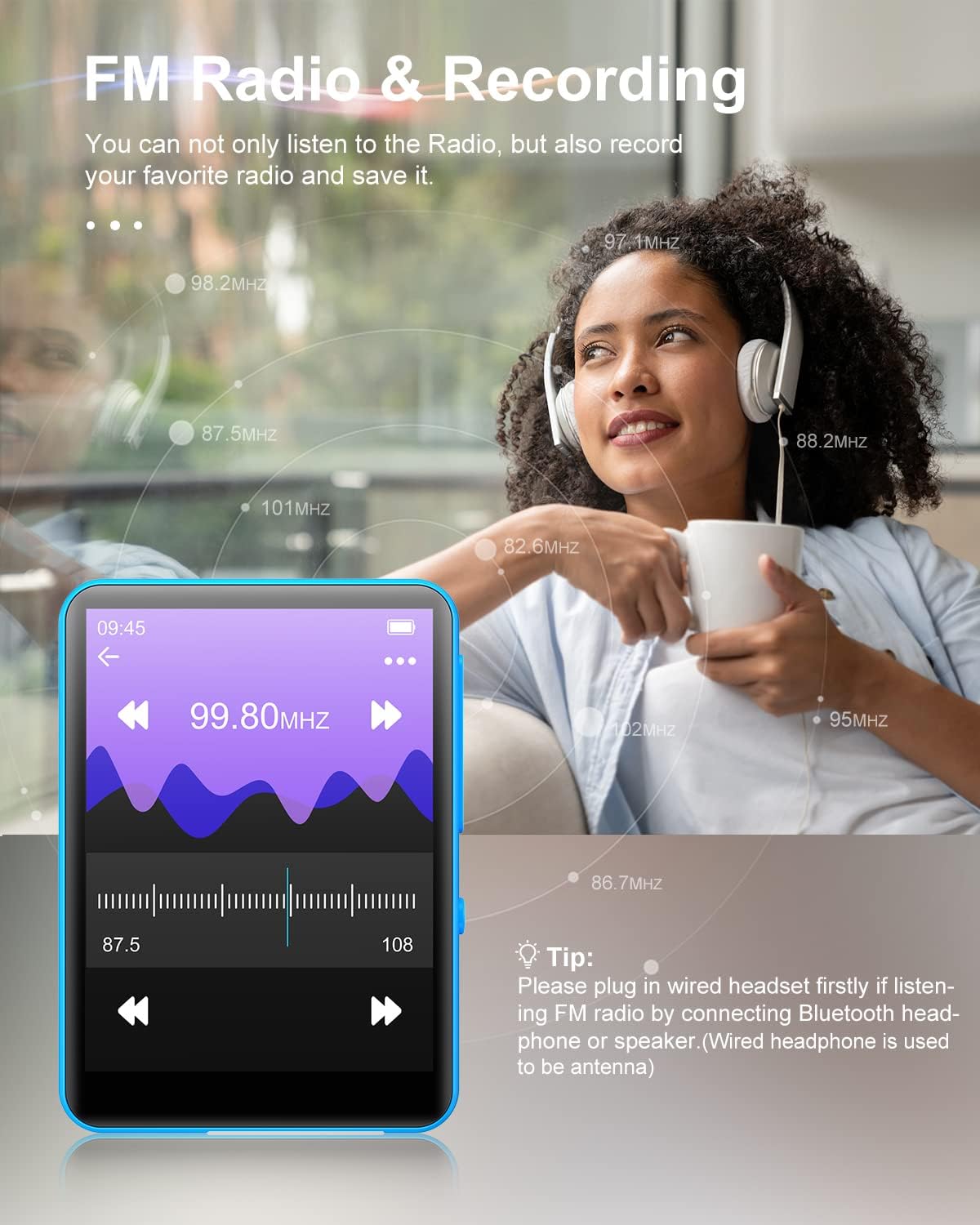
Figure 5: The FM Radio function, requiring wired headphones to act as an antenna, allows for listening and recording of radio broadcasts.

Figure 6: The multi-function interface of the MP3 player, displaying icons for music, radio, recording, settings, e-book, photos, videos, and other utilities.
4. Setup
4.1 Charging the Device
Before initial use, fully charge the MP3 player. Connect the provided USB Type-C cable to the device's charging port and the other end to a USB power adapter (not included) or a computer's USB port. The battery indicator on the screen will show charging status.
4.2 Transferring Music and Files
- Connect the MP3 player to your computer using the USB Type-C cable.
- The device will appear as a removable disk on your computer.
- Drag and drop your music files (MP3, WMA, APE, FLAC, WAV, DRM, ACELP), videos, photos, or e-books into the appropriate folders on the device.
- Safely eject the device from your computer before disconnecting the cable.
Note: For optimal organization, it is recommended to create and use folders for different types of media.
4.3 Inserting a TF Card (Optional)
To expand storage, insert a Micro SD (TF) card (up to 128GB, not included) into the designated slot on the side of the player. Ensure the card is inserted correctly until it clicks into place. The device will automatically detect the additional storage.
5. Operating Instructions
5.1 Power On/Off and Screen Lock
- Power On: Press and hold the power button for a few seconds.
- Power Off: Press and hold the power button for a few seconds until the power-off prompt appears, then confirm.
- Screen On/Off/Lock: A short press of the power button will turn the screen on or off, and also lock/unlock the touch screen to prevent accidental touches.
5.2 Navigating the Interface
The device features a full touch screen for navigation. Swipe left/right or tap icons to access different functions such as Music, Radio, Record, Settings, E-book, Photo, and Movie.
5.3 Music Playback
- From the main menu, tap the "Music" icon.
- Browse your music library by artist, album, genre, or folder.
- Tap a song to begin playback.
- Use the on-screen controls for play/pause, skip track, volume adjustment, shuffle, and repeat modes.
5.4 Bluetooth Connection
- From the main menu, tap the "Bluetooth" icon or navigate to "Settings" and select "Bluetooth".
- Turn Bluetooth "On".
- Ensure your Bluetooth headphones or speaker are in pairing mode.
- The MP3 player will scan for available devices. Select your device from the list to pair.
- Once paired, audio will be routed through the connected Bluetooth device.
Note: Bluetooth connection may disconnect when the player is connected to a computer for file transfer. Reconnect manually if needed.
5.5 FM Radio
To use the FM Radio function, you must connect the wired earphones, as they act as the antenna.
- Plug in the wired earphones into the 3.5mm audio jack.
- From the main menu, tap the "Radio" icon.
- Use the on-screen controls to scan for stations, adjust frequency, or select saved presets.
- You can also record FM radio broadcasts directly to the device's storage.
5.6 Voice Recorder
- From the main menu, tap the "Record" icon.
- Tap the record button to start recording.
- Tap again to pause/resume, and tap the stop button to save the recording.
- Recordings are saved in the "Record" folder and can be played back from there.
5.7 E-book Reader
The device supports e-book files. Transfer compatible e-book files to the "Ebook" folder on the player.
- From the main menu, tap the "Ebook" icon.
- Select the desired e-book to open it.
- Use the touch screen to turn pages.
5.8 Other Functions
Explore other functions such as Photo Viewer, Video Player, Alarm Clock, and various system settings (language, date/time, display brightness, equalizer) through the main menu.
6. Maintenance
- Cleaning: Use a soft, dry cloth to clean the device. Avoid liquid cleaners or abrasive materials.
- Storage: Store the player in a cool, dry place away from direct sunlight and extreme temperatures.
- Battery Care: To prolong battery life, avoid fully discharging the battery frequently. Charge the device regularly, even if not in use for extended periods.
- Software Updates: Check the manufacturer's website for any available firmware updates to improve performance and add features.
- Avoid Impact: The device features a zinc alloy metal design, but dropping it can still cause damage to the screen or internal components.
7. Troubleshooting
7.1 Device Will Not Turn On
- Ensure the battery is charged. Connect the player to a power source and allow it to charge for at least 10 minutes before attempting to power on again.
- If the device is unresponsive, try a hard reset (refer to the full user manual if a specific reset button or procedure is available, otherwise, hold the power button for an extended period, e.g., 15-20 seconds).
7.2 Cannot Connect to Bluetooth Device
- Ensure both the MP3 player's Bluetooth and the target device's Bluetooth are enabled and in pairing mode.
- Make sure the devices are within the effective range (typically 10 meters).
- Try unpairing and re-pairing the devices.
- Restart both the MP3 player and the Bluetooth device.
7.3 No Sound from Wired Headphones
- Ensure the headphones are fully plugged into the 3.5mm audio jack.
- Check the volume level on the MP3 player.
- Test with another pair of headphones to rule out a faulty headset.
7.4 FM Radio Not Working / Poor Reception
- Confirm that wired headphones are plugged in, as they serve as the antenna.
- Move to an area with better signal reception.
- Perform an automatic station scan to find available frequencies.
7.5 Files Not Appearing on Device
- Ensure files are transferred to the correct folders (e.g., music to "Music", e-books to "Ebook").
- Verify that the file formats are supported by the device (e.g., MP3, WMA for audio).
- If using a TF card, ensure it is properly inserted and recognized by the device.
8. Specifications
| Feature | Detail |
|---|---|
| Brand | Joliker |
| Model Number | M4S |
| Internal Storage | 64 GB |
| Expandable Storage | Up to 128 GB (Micro SD / TF Card, not included) |
| Bluetooth Version | 5.0 |
| Screen Size | 2.4 inches |
| Display Technology | LCD |
| Special Features | FM Radio, Equalizer, Voice Recorder, Built-in HD Speaker, Full Touch Screen |
| Connectivity Technology | Bluetooth, USB Type-C |
| Supported Audio Formats | MP3, WMA, APE, FLAC, WAV, DRM, ACELP |
| Compatible Devices | PC, Headphones, Laptop |
| Product Dimensions | 4.9 x 6.8 x 0.8 cm |
| Weight | 200 grams |
9. Warranty and Support
For warranty information and technical support, please refer to the documentation included with your purchase or visit the official Joliker website. Keep your purchase receipt as proof of purchase for warranty claims.
If you encounter any issues not covered in this manual, please contact Joliker customer service for assistance.