
1. Introduction
This manual provides comprehensive instructions for the operation and maintenance of your Mcbazel Foldable Wireless Keyboard with Trackpad. This device is designed for portability and multi-device compatibility, offering a convenient input solution for various operating systems.

Image: The Mcbazel Foldable Wireless Keyboard with Trackpad, illustrating its compact folded state and its full unfolded layout.
2. Package Contents
- 1 x Mcbazel Foldable Wireless Keyboard with Trackpad
- 1 x USB Charging Cable (55cm)
- 1 x User Manual

Image: Illustration of the items included in the package: the foldable keyboard, a USB-C charging cable, and the user manual.
3. Product Overview
Familiarize yourself with the key components and indicators of your keyboard.

Image: Detailed view of the keyboard's right panel, highlighting the Charging Indicator Light, Bluetooth Indicator Light, Caps Lock Light, Touchpad, Left Button, Right Button, Power Switch, and Type-C Charging Interface.
4. Setup and Charging
4.1 Charging the Keyboard
The keyboard features a built-in 140 mAh rechargeable battery. Before initial use, ensure the keyboard is fully charged.
- Connect the provided USB Type-C charging cable to the keyboard's charging port.
- Connect the other end of the cable to a USB power source (e.g., computer, wall adapter).
- The Charging Indicator Light will illuminate during charging.
- A full charge typically takes 2-3 hours. The light will turn off or change color when charging is complete.
A full charge provides up to 48 hours of continuous use or 560 hours of standby time.
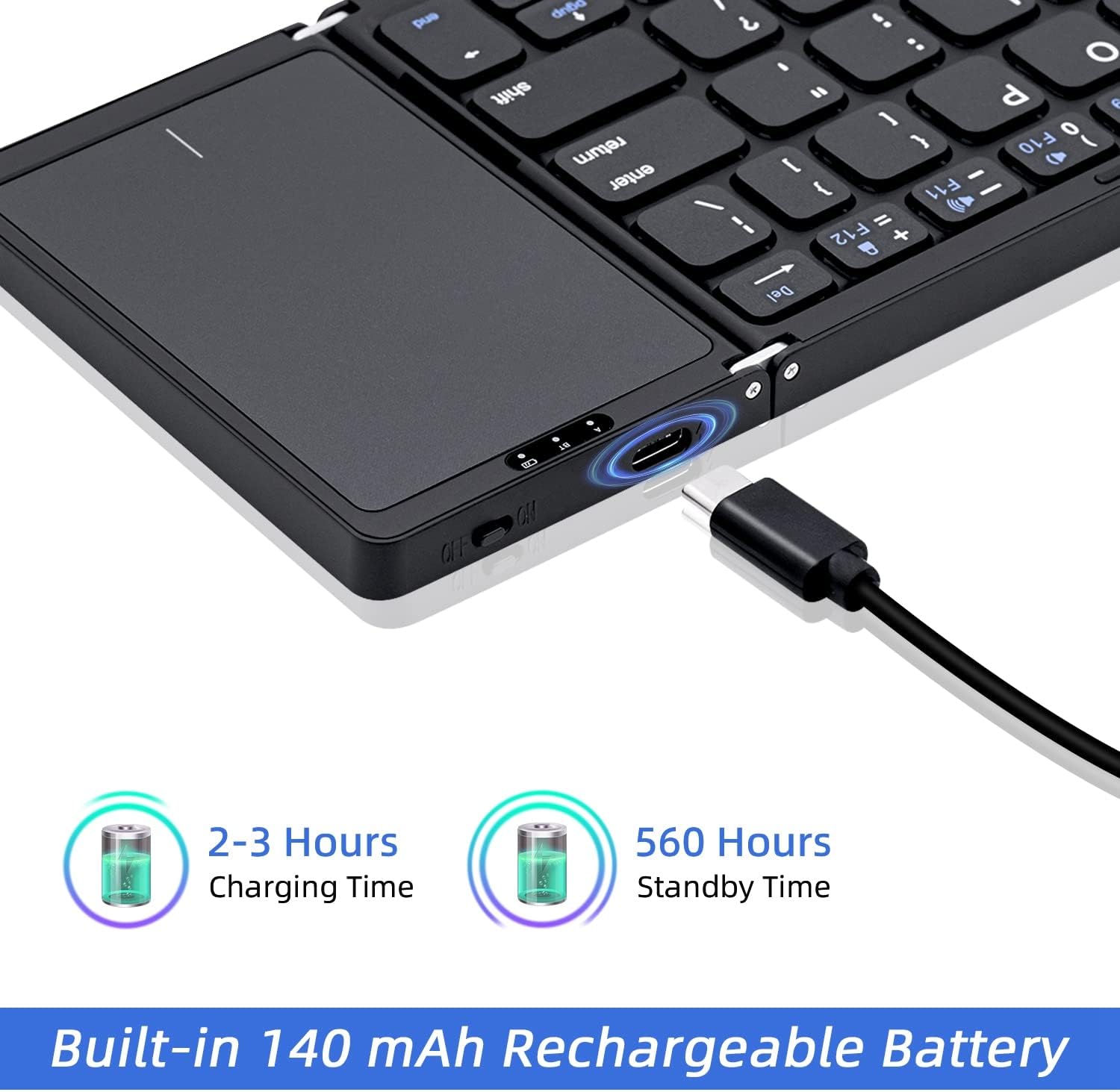
Image: The keyboard being charged via its Type-C port, illustrating the charging duration and standby time.
4.2 Powering On/Off
- To power on, slide the Power Switch to the "ON" position.
- To power off, slide the Power Switch to the "OFF" position.
- The keyboard features an auto-wake function, ensuring it is ready for use after a brief period of inactivity.
4.3 Bluetooth Pairing
The keyboard supports Bluetooth 5.1 and can connect to up to three devices simultaneously.
- Ensure the keyboard is powered on.
- Press the Fn + A keys simultaneously to select Device 1 (BT1) and enter pairing mode. The Bluetooth Indicator Light will flash.
- On your device (smartphone, tablet, laptop), enable Bluetooth and search for available devices.
- Select "Bluetooth Keyboard" or a similar name from the list of found devices.
- Follow any on-screen prompts to complete the pairing process. The Bluetooth Indicator Light will stop flashing once successfully paired.
- Repeat steps 2-5 using Fn + S for Device 2 (BT2) and Fn + D for Device 3 (BT3) to pair additional devices.

Image: The keyboard demonstrating Bluetooth 5.1 connectivity to three devices, with instructions for switching between them using Fn+A, Fn+S, and Fn+D.
5. Operation
5.1 Switching Between Devices
Once multiple devices are paired, you can switch between them seamlessly:
- Press Fn + A to connect to Device 1.
- Press Fn + S to connect to Device 2.
- Press Fn + D to connect to Device 3.
The keyboard will automatically reconnect to the last used device upon powering on.
5.2 Using the Touchpad
The integrated touchpad provides efficient control, eliminating the need for an external mouse. It supports multi-touch gestures.
- Single Finger Tap: Left-click.
- Two Finger Tap: Right-click.
- Two Finger Scroll: Scroll up/down or left/right.
- Pinch to Zoom: Zoom in/out (supported on some operating systems).
Note: Touchpad functionality requires iOS 13.4.1 or above. It cannot be used on iOS versions below 13.4.1.

Image: A hand interacting with the sensitive touchpad, illustrating its use for navigation and control.
5.3 Compatibility
The keyboard is compatible with a wide range of devices and operating systems:
- Operating Systems: iOS, Android, macOS, Windows.
- Devices: Tablets, Laptops, PCs, Smartphones (Android 4.0 and above).
- For desktop PCs without built-in Bluetooth, a Bluetooth receiver (not included) is required.
Note: This is an English version folding keyboard. Key layout and arrangement may differ from keyboards designed for other languages.
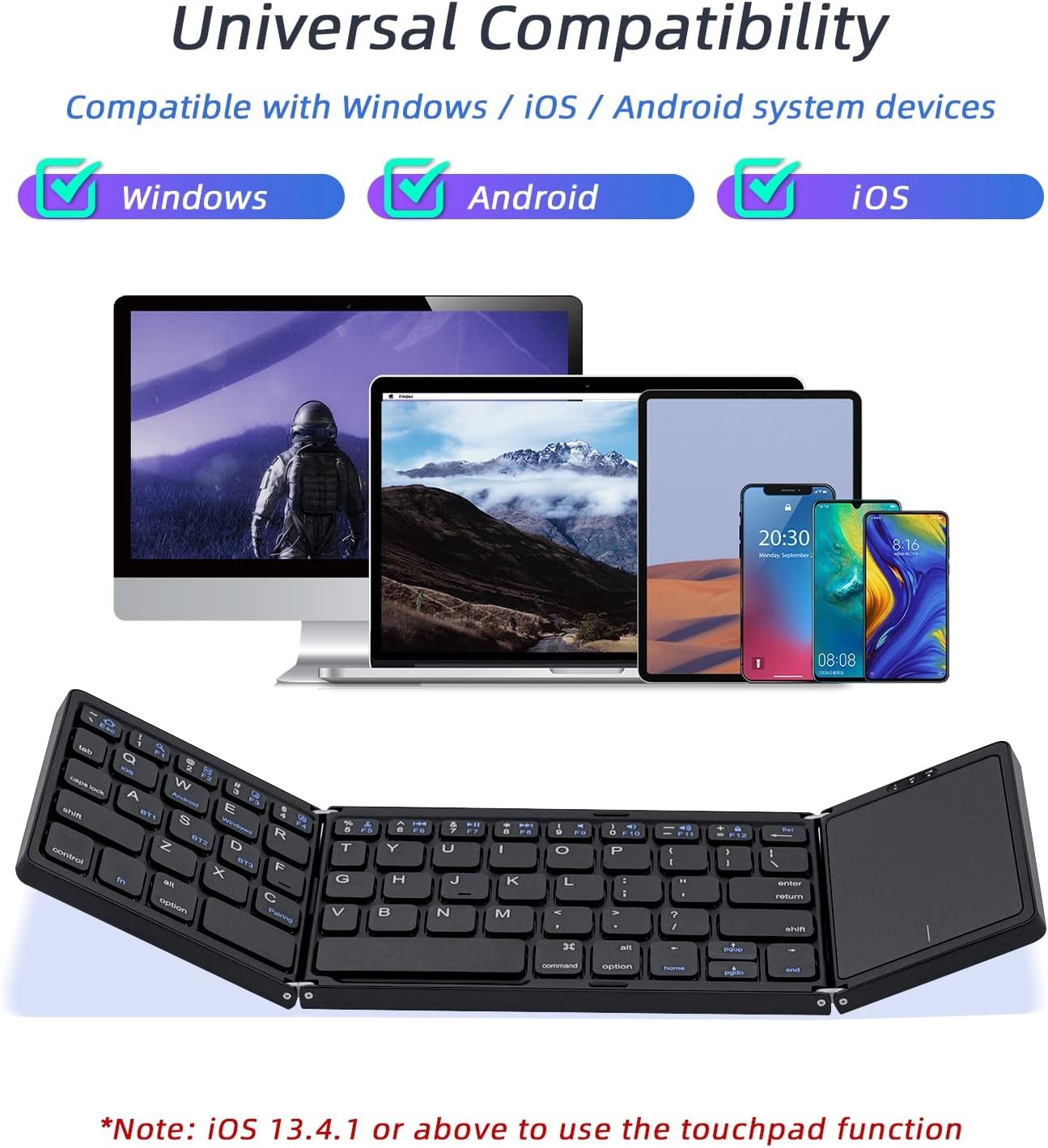
Image: Visual representation of the keyboard's universal compatibility with Windows, Android, and iOS operating systems.

Image: The keyboard positioned with various devices (iOS, Android, Windows, Mac) to illustrate its broad system compatibility.

Image: The keyboard shown with various compatible devices including tablets, laptops, iOS phones, Android phones, and desktops, noting that a Bluetooth receiver is required for desktops without built-in Bluetooth.
5.4 Key Features
- Ergonomic Design: The keyboard features an inclined angle design to improve typing comfort during extended use.
- Wireless Range: Enjoy a strong wireless connection up to 10 meters (33 feet) from your connected device.

Image: A user typing on the keyboard, highlighting its ergonomically designed inclined angle for improved comfort.

Image: A visual representation of the keyboard's 10-meter strong wireless range, suitable for various environments like a meeting room.
5.5 Foldable Design
The keyboard features a tri-folding design for maximum portability. It can be easily folded to a compact size, making it convenient for travel and storage.

Image: The keyboard demonstrating its tri-folding design, showing how it collapses into a compact form with dimensions of 15.2cm (5.9in) x 9.8cm (3.8in) x 1.9cm (0.7in).
6. Maintenance
- Keep the keyboard clean by wiping it with a soft, dry cloth. Avoid using harsh chemicals or abrasive materials.
- Store the keyboard in a cool, dry place when not in use.
- Avoid exposing the keyboard to extreme temperatures, direct sunlight, or moisture.
- Do not attempt to disassemble or repair the keyboard yourself, as this may void any potential warranty.
7. Troubleshooting
| Problem | Possible Cause | Solution |
|---|---|---|
| Keyboard does not power on. | Low battery. | Charge the keyboard for 2-3 hours using the provided USB cable. |
| Unable to pair with device. | Bluetooth is off on device; keyboard not in pairing mode; device too far. | Ensure Bluetooth is enabled on your device. Put the keyboard into pairing mode (Fn+A/S/D). Move the keyboard closer to the device (within 10 meters). |
| Keyboard disconnects frequently. | Low battery; interference; device too far. | Recharge the keyboard. Move away from other wireless devices. Ensure the keyboard is within 10 meters of your device. |
| Touchpad not working on iOS. | iOS version is below 13.4.1. | Ensure your iOS device is running iOS 13.4.1 or a newer version. |
| Touchpad clicks open Windows Taskbar. | Potential software conflict or specific gesture interpretation. | Check your device's touchpad settings for gesture customization. Try restarting both the keyboard and the connected device. If the issue persists, contact customer support. |
8. Specifications
| Feature | Detail |
|---|---|
| Model Number | INSP0297 |
| Connectivity Technology | Bluetooth 5.1 |
| Wireless Range | Up to 10 meters (33 feet) |
| Battery Capacity | 140 mAh (Rechargeable) |
| Charging Time | 2-3 hours |
| Continuous Use Time | Up to 48 hours |
| Standby Time | Up to 560 hours |
| Product Dimensions (Unfolded) | 11.97 x 3.86 x 0.35 inches (30.4 x 9.8 x 0.9 cm) |
| Product Dimensions (Folded) | 5.9 x 3.8 x 0.7 inches (15.2 x 9.8 x 1.9 cm) |
| Item Weight | 9.5 ounces (269 grams) |
| Compatible Operating Systems | iOS, Android, macOS, Windows |
| Keyboard Description | Multi Functional, Foldable |
| Material | Aircraft-grade aluminum |
9. Warranty and Support
For warranty information or technical support, please refer to the contact details provided with your purchase or visit the official Mcbazel website.
Please retain your proof of purchase for any warranty claims.