
GIISSMO B0C3GG1JDP
GIISSMO USB C Docking Station 4K Triple Monitor User Manual
Model: B0C3GG1JDP
1. Product Overview
The GIISSMO USB C Docking Station is a versatile 14-in-1 solution designed to expand the connectivity of your Windows or Mac laptop. It enables triple 4K monitor display, provides high-speed data transfer, network connectivity, and power delivery for both your laptop and external devices.

Image 1.1: The GIISSMO USB C Docking Station, showcasing its compact design.
2. Package Contents
Verify that all items are present in your package:
- GIISSMO USB C Docking Station
- 130W Power Adapter
- USB-C to USB-C Cable
- User Manual

Image 2.1: Illustration of the docking station and its included accessories: power adapter, USB-C cable, and user manual.
3. Product Diagram and Ports
Familiarize yourself with the various ports and their functions on the docking station:

Image 3.1: Detailed diagram showing all 14 ports on the docking station, including USB-C, USB-A, HDMI, DisplayPort, RJ45, SD/TF card slots, audio, and power input.
- ON/OFF Button: Power control for the docking station.
- TF/SD Card Slots: Supports data transfer up to 104MB/s.
- USB 3.0 (5Gbps) Ports: Two ports for connecting USB-A devices.
- USB C 3.1 (10Gbps) Port: High-speed USB-C data transfer.
- USB C 20W Charging Port: For charging external devices like phones or tablets.
- Audio & Mic Port: 3.5mm jack for headphones or speakers.
- RJ45 (1000Mbps) Port: Gigabit Ethernet for stable wired network connection.
- HDMI 1 (4K@60Hz) Port: Video output for external monitor.
- DisplayPort (4K@60Hz) Port: Video output for external monitor.
- HDMI 2 (4K@60Hz) Port: Video output for external monitor.
- USB 2.0 (480Mbps) Ports: Two ports, ideal for keyboard and mouse.
- DC IN (130W) Port: Power input for the docking station and laptop charging.
- Host USB-C Port: Connects the docking station to your laptop.
4. Setup Instructions
Follow these steps to set up your GIISSMO USB C Docking Station:
4.1. Power Connection
- Connect the provided 130W power adapter to the DC IN port on the docking station.
- Plug the power adapter into a wall outlet.
- Connect the USB-C to USB-C cable from the docking station's Host port to your laptop's USB-C port. Ensure your laptop's USB-C port supports power delivery for charging.

Image 4.1: Demonstrates connecting the 130W power adapter to the docking station and then to a laptop for power delivery.
4.2. DisplayLink Driver Installation
The GIISSMO docking station requires the DisplayLink driver for multi-monitor functionality. Follow these steps to install it:
- Go to synaptics.com.
- Navigate to the "Products" section and find "DisplayLink Graphics".
- Select your operating system (Windows, macOS, Android, Chrome OS, Ubuntu) and download the appropriate DisplayLink Manager software.
- Follow the on-screen instructions to install the driver. For macOS, you may need to grant screen recording permissions in "Privacy & Security" settings after installation.

Image 4.2: Visual guide for downloading and installing the DisplayLink driver for various operating systems.
Video 4.1: A demonstration of the DisplayLink driver installation process for macOS, including downloading, accepting terms, and granting necessary permissions.
5. Operating Instructions
5.1. Connecting External Monitors
The docking station supports up to three external 4K@60Hz monitors via its HDMI and DisplayPort outputs.
- Connect your external monitors to the HDMI 1, HDMI 2, and DisplayPort outputs on the docking station using appropriate cables.
- Ensure the docking station is connected to your laptop via the Host USB-C port and powered on.
- After connecting, your operating system should detect the new displays. You can configure display settings (mirror or extend) through your computer's display settings.

Image 5.1: A user working with a laptop connected to three external 4K monitors via the GIISSMO docking station, demonstrating an extended desktop setup.
Video 5.1: Overview of the USB C Docking Station, demonstrating its triple monitor capabilities and various port connections for Windows and Mac systems.
5.2. Display Modes
The docking station supports both Mirror and Extended display modes for Windows and macOS:
- Mirror Mode: Duplicates your laptop screen onto all connected external monitors.
- Extended Mode: Extends your desktop across multiple screens, allowing for increased workspace.
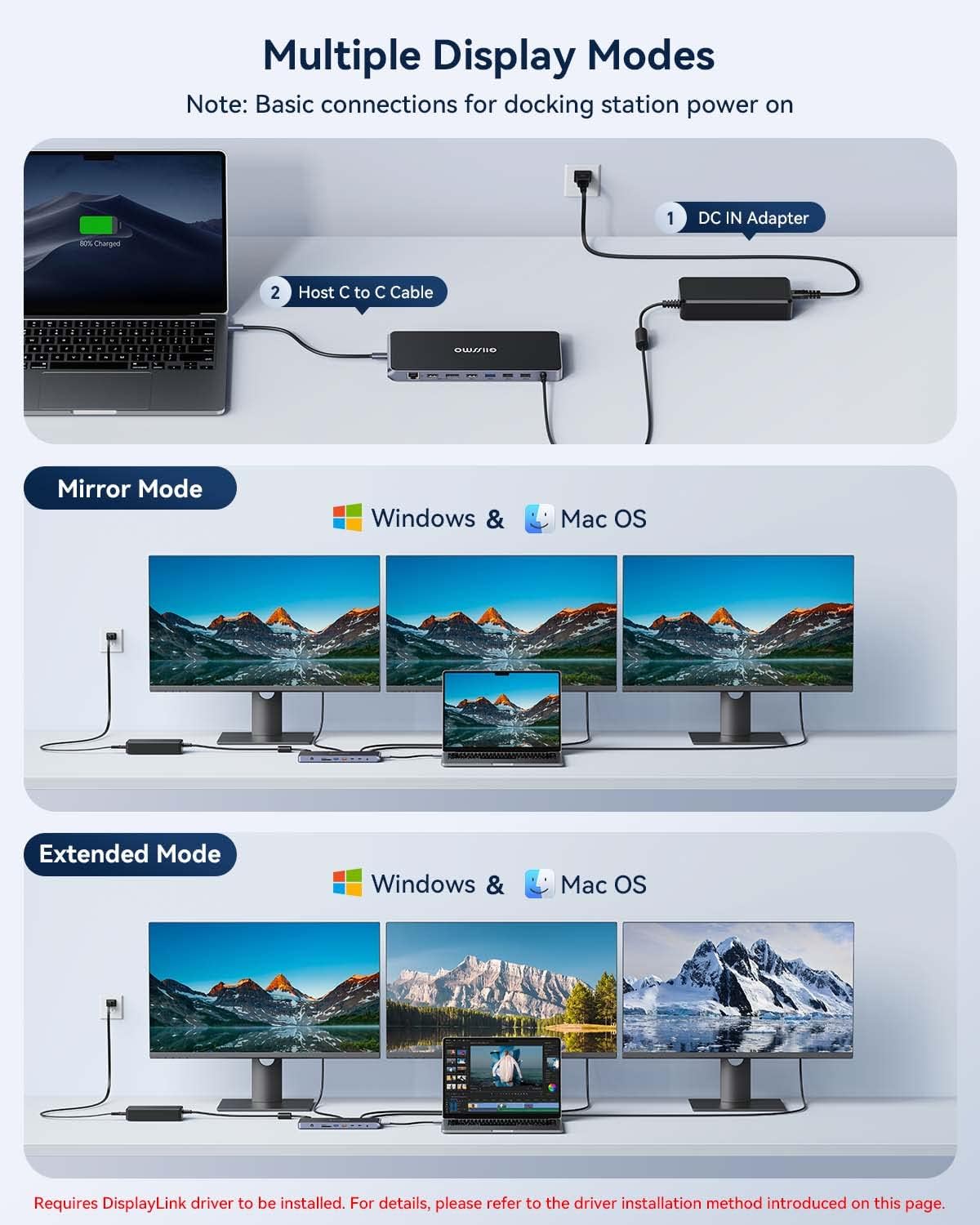
Image 5.2: Illustrates the Mirror and Extended display modes available when using the docking station with Windows and macOS, showing how screens can be duplicated or expanded.
5.3. Data Transfer and Charging
- USB 3.1 (10Gbps) Ports: Use the USB C 3.1 and USB A 3.1 ports for high-speed data transfer with compatible devices.
- USB 3.0 (5Gbps) Ports: Connect USB 3.0 devices for standard high-speed data transfer.
- USB 2.0 (480Mbps) Ports: Suitable for peripherals like keyboards, mice, or other devices that do not require high data rates.
- SD/TF Card Slots: Insert SD or TF cards for quick data access, supporting speeds up to 104MB/s.
- USB C 20W Charging: Connect your smartphone, tablet, or other USB-C powered accessories to this port for fast charging.

Image 5.3: Shows various USB ports and card slots on the docking station with their respective data transfer speeds, including 10Gbps for USB 3.1 and 104MB/s for SD/TF cards.
5.4. Network Connection
For a stable and fast internet connection, use the Gigabit Ethernet port:
- Connect an Ethernet cable from your router or modem to the RJ45 (1000Mbps) port on the docking station.
- Your laptop will automatically detect the wired connection, providing a stable network.

Image 5.4: Close-up view of the RJ45 Gigabit Ethernet port and the 3.5mm audio/mic port on the docking station, highlighting their functions.
6. Compatibility
The GIISSMO USB C Docking Station is compatible with a wide range of operating systems and devices:
- Operating Systems: Windows 11, 10, 8.1, 8, 7; macOS Ventura 13, Monterey 12, Big Sur 11, Catalina 10.15, Mojave 10.14; ChromeOS build R51 or later; Android 5 (Lollipop) onwards with USB OTG mode; Ubuntu 20.04, 22.04.
- Compatible Devices: Thunderbolt 3 MacBook Pro & Air, M1/M2 Macs, USB-C Microsoft Surface line (Pro 7 / Go & Go 2 / Book 2 & 3 / Laptop 2 & 3), HP Spectre x360 series, Dell XPS 13 & XPS 15 / Latitude, Lenovo ThinkPad T series, Huawei MateBook Pro, LG Gram, Samsung Galaxy TabPro S.
7. Specifications
| Feature | Specification |
|---|---|
| Ports | 2x HDMI (4K@60Hz), 1x DisplayPort (4K@60Hz), 1x RJ45 (1000Mbps), 1x USB C 3.1 (10Gbps), 1x USB A 3.1 (10Gbps), 2x USB 3.0 (5Gbps), 2x USB 2.0 (480Mbps), 1x USB C 20W Charging, 1x Audio, 1x SD Card, 1x TF Card, 1x DC IN (130W), 1x Host USB-C |
| Power Delivery | Up to 100W to host laptop, 20W for external USB-C devices |
| Video Output | Triple 4K@60Hz (HDMI 1, HDMI 2, DisplayPort) |
| Ethernet | Gigabit Ethernet (10/100/1000 Mbps) |
| Card Reader | SD/TF (up to 104MB/s) |
| Dimensions | 9.37 x 4.29 x 3.27 inches |
| Weight | 2.53 pounds (1.15 Kilograms) |
8. Troubleshooting
- No Display Output:
- Ensure the DisplayLink driver is correctly installed and updated.
- Verify all video cables (HDMI, DisplayPort) are securely connected.
- Check your laptop's display settings to ensure external monitors are detected and configured (extended or mirrored).
- Confirm the docking station is powered on and receiving adequate power from the 130W adapter.
- Try restarting your laptop and the docking station.
- Laptop Not Charging:
- Ensure the 130W power adapter is correctly connected to the docking station and a power outlet.
- Verify that the USB-C cable connecting the docking station to your laptop is connected to the Host port and that your laptop's USB-C port supports power delivery.
- USB Devices Not Recognized:
- Try connecting the USB device to a different USB port on the docking station.
- Ensure the docking station is properly powered.
- Test the USB device by connecting it directly to your laptop.
- No Internet Connection via RJ45:
- Check if the Ethernet cable is securely connected to both the docking station and your router/modem.
- Verify that your router/modem is functioning correctly.
- Ensure network drivers on your laptop are up to date.
9. Maintenance
- Keep the docking station in a dry, well-ventilated area.
- Avoid exposing the device to extreme temperatures or direct sunlight.
- Clean the exterior with a soft, dry cloth. Do not use liquid cleaners or aerosols.
- Ensure cables are not bent sharply or placed under heavy objects to prevent damage.
10. Warranty and Support
For warranty information or technical support, please refer to the contact details provided with your product packaging or visit the official GIISSMO website. Keep your purchase receipt for warranty claims.
GIISSMO Official Store: Visit GIISSMO Store on Amazon
Related documentsB0C3GG1JDP


Ask a question about this manual
Ask about setup, troubleshooting, compatibility, parts, safety, or missing instructions. Manuals+ will review the question and use this page’s manual context to help answer it.