
CTobd V317
CTobd V317 OBD2 Scanner Diagnostic Tool User Manual
Model: V317
Introduction
Thank you for choosing the CTobd V317 OBD2 Scanner Diagnostic Tool. This device is designed to assist in diagnosing vehicle issues by reading and clearing diagnostic trouble codes (DTCs), viewing live data, and performing various other diagnostic functions. This manual provides essential information for the safe and effective use of your scanner.
Safety Information
Always observe safety precautions when working on a vehicle. Improper use can lead to injury or damage to the vehicle or the diagnostic tool.
- Ensure the vehicle is parked on a level surface with the parking brake engaged.
- Wear appropriate personal protective equipment, such as safety glasses.
- Do not wear loose clothing or jewelry that could get caught in moving parts.
- Keep a fire extinguisher nearby.
- Never connect or disconnect the scanner while the ignition is on or the engine is running.
- Refer to your vehicle's service manual for specific safety warnings and procedures.
Product Overview
The CTobd V317 is a handheld diagnostic tool featuring a color screen and intuitive button layout for easy operation. It offers intelligent matching for automatic scanning connections, eliminating the need for manual brand/model selection.

Figure 1: CTobd V317 OBD2 Scanner main unit and detachable OBDII connector. The device features a color screen and a set of navigation buttons.

Figure 2: The CTobd V317 scanner highlighting its intelligent matching capability for automatic vehicle connection and a range of functions including Read DTC, Clear DTC, Live Data, I/M Status, O2 Sensor, View Freeze Frame, Mode 6, Mode 8, DTC Lookup, OBD Voltage Detection, Battery Voltage Detection, Data Stream Logging, Vehicle Information Inquiry, Year of Manufacture, and Online Software Upgrade.
Device Components:
- 2.8'' HD Color Screen: Displays diagnostic information clearly.
- OBDII Connector: Connects to the vehicle's OBDII port.
- Navigation Buttons: ESC, I/M, V, OK, and directional arrows for menu navigation.
- USB Interface: For software updates.
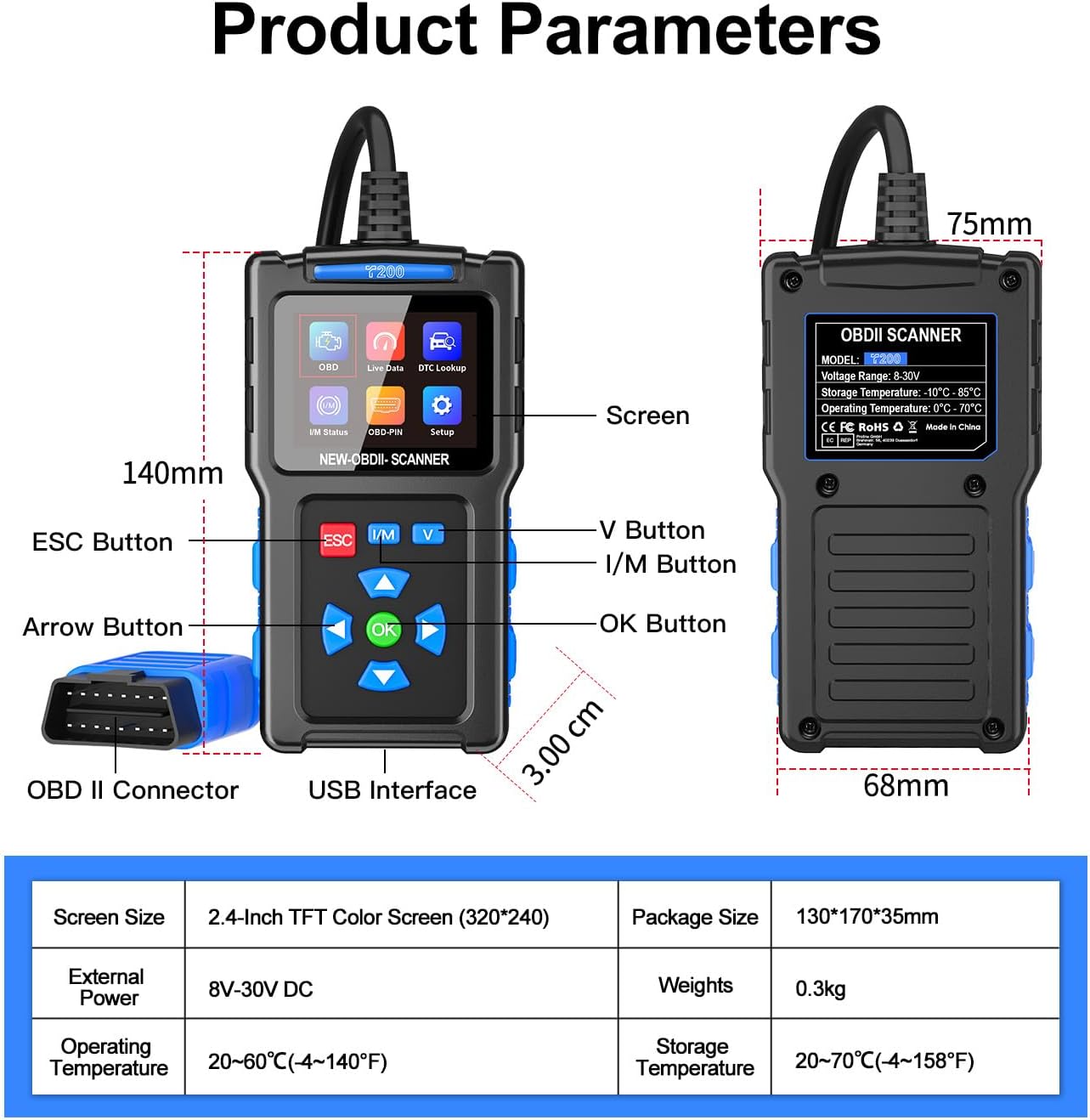
Figure 3: Detailed view of the CTobd V317 scanner with key components labeled, including the screen, ESC button, arrow buttons, OK button, I/M button, V button, OBDII connector, and USB interface. Dimensions are also indicated.
Setup
- Locate the OBDII Port: The 16-pin Data Link Connector (DLC) is usually located under the dashboard on the driver's side. Refer to your vehicle's manual if you cannot find it.
- Connect the Scanner: With the vehicle's ignition off, firmly plug the CTobd V317's OBDII connector into the vehicle's DLC.
- Power On: Turn the vehicle's ignition to the "ON" position (engine off). The scanner will automatically power on and establish communication with the vehicle.
- Language Selection: If prompted, select your preferred language from the available options (English, French, Italian, Russian, German, Spanish, Dutch).
Operating Instructions
The CTobd V317 offers various diagnostic functions accessible through its main menu.
Navigation:
- Use the ESC button to return to the previous screen or exit a function.
- Use the I/M button for I/M Readiness status.
- Use the V button (Up/Down arrows) to scroll through menu options or data.
- Use the OK button to confirm a selection or enter a function.
Key Functions:

Figure 4: The CTobd V317 scanner's main interface showing icons for various functions including Read Codes, Erase Codes, View Freeze Frame, DTC Code Lookup, Live Data, EVAP System Test, On-board Monitor Test, O2 Sensor Test, I/M Readiness, and MIL Fault Indicator Light.
- Read Codes:
Select "Read Codes" from the main menu to retrieve Diagnostic Trouble Codes (DTCs) stored in the vehicle's Engine Control Unit (ECU). The scanner will display the code and its definition.
- Erase Codes:
After performing necessary repairs, select "Erase Codes" to clear the DTCs and turn off the Check Engine Light (MIL). Confirm the action when prompted. Warning: Do not erase codes before addressing the underlying issue, as this may mask problems.

Figure 5: Visual representation of the "Read Codes" and "Erase Codes" functions, illustrating how the scanner can be used to diagnose and clear the Check Engine Light (MIL).
- Live Data:
View real-time operational data from the vehicle's sensors and components. This can help identify intermittent problems or verify repairs.
- I/M Readiness Status:
Check the status of the vehicle's emission-related monitoring systems. This is useful for emissions testing preparation.
- DTC Lookup:
Enter a DTC manually to view its definition from the scanner's internal database.
- Freeze Frame:
When an emission-related fault occurs, the ECU stores certain vehicle operating parameters at the time of the fault. This "Freeze Frame" data can help pinpoint the conditions under which the fault occurred.
- O2 Sensor Test:
Retrieves O2 sensor monitoring test results for the most recently completed tests from the vehicle's on-board computer.
- On-Board Monitor Test (Mode 6):
Retrieves test results for emission-related powertrain components and systems that are not continuously monitored.
- EVAP System Test (Mode 8):
Initiates a test of the Evaporative Emission Control System (EVAP) for leaks.
- Vehicle Information:
Displays the Vehicle Identification Number (VIN), Calibration ID (CALID), and Calibration Verification Number (CVN) of the test vehicle.
Maintenance
- Cleaning: Clean the scanner's casing with a soft, damp cloth. Do not use abrasive cleaners or solvents.
- Storage: Store the device in a dry, cool environment, away from direct sunlight and extreme temperatures.
- Software Updates: The CTobd V317 supports online software upgrades. Visit the manufacturer's website for the latest software and instructions on how to update your device via the USB interface.
Troubleshooting
If you encounter issues with your CTobd V317 scanner, refer to the following common problems and solutions:

Figure 6: Steps for diagnosing and resolving car faults, including checking for engine not starting, temperature/engine light flashing, using Google for fault codes, performing a battery test, clearing error codes, and utilizing the DTC library.
- Scanner Fails to Power On:
- Check the connection to the vehicle's OBDII port. Ensure it is secure.
- Verify the vehicle's ignition is in the "ON" position.
- Test the scanner on another OBDII-compliant vehicle to rule out a vehicle-specific issue.
- Communication Error:
- Ensure the vehicle supports the OBDII protocol (most vehicles after 1996 in the US, 2000 in EU/Asia).
- Check for damaged pins on the vehicle's DLC or the scanner's connector.
- Turn off the ignition, wait 10 seconds, and restart the connection process.
- No Codes Found:
- The Check Engine Light (MIL) may not be illuminated, indicating no current fault codes.
- Ensure the vehicle's ignition is on and the engine is off when checking for codes.
- Screen is White/Unresponsive:
- Disconnect the scanner and reconnect it.
- If the issue persists, contact customer support.
Specifications
| Feature | Detail |
|---|---|
| Model | V317 |
| Brand | CTobd |
| Screen | 2.8-inch TFT Color Screen (320*240) |
| Operating Voltage | 8V-30V DC |
| Operating Temperature | 0°C to 60°C (32°F to 140°F) |
| Storage Temperature | -20°C to 70°C (-4°F to 158°F) |
| Dimensions (L x W x H) | Approx. 140mm x 68mm x 30mm (5.46" x 2.9" x 1.18") |
| Weight | Approx. 0.3 kg (9.6 ounces) |
| Supported Protocols | All OBDII/EOBD protocols |
| Supported Languages | English, French, Italian, Russian, German, Spanish, Dutch |
Warranty and Support
For warranty information, technical support, or service inquiries, please refer to the contact information provided with your purchase or visit the official CTobd website. Keep your purchase receipt for warranty claims.
Ask a question about this manual
Ask about setup, troubleshooting, compatibility, parts, safety, or missing instructions. Manuals+ will review the question and use this page’s manual context to help answer it.