
Introduction
This manual provides detailed instructions for the setup, operation, maintenance, and troubleshooting of your SOLIDEE 65% Mechanical Gaming Keyboard. Please read this manual thoroughly before using the product to ensure proper function and longevity.
What's in the Box
- SOLIDEE 65% Mechanical Gaming Keyboard
- Removable Type-C USB Cable
- Keycap Puller
Setup Instructions
Follow these steps to connect and begin using your keyboard:
- Connect the USB-C Cable: Insert the Type-C end of the provided cable into the port on the keyboard.
- Connect to Device: Plug the standard USB-A end of the cable into an available USB port on your computer or gaming console (PS5/PS4/Xbox).
- Plug and Play: The keyboard is designed for plug-and-play functionality. No additional software installation is required for basic operation.

Image: USB-C port for cable connection.
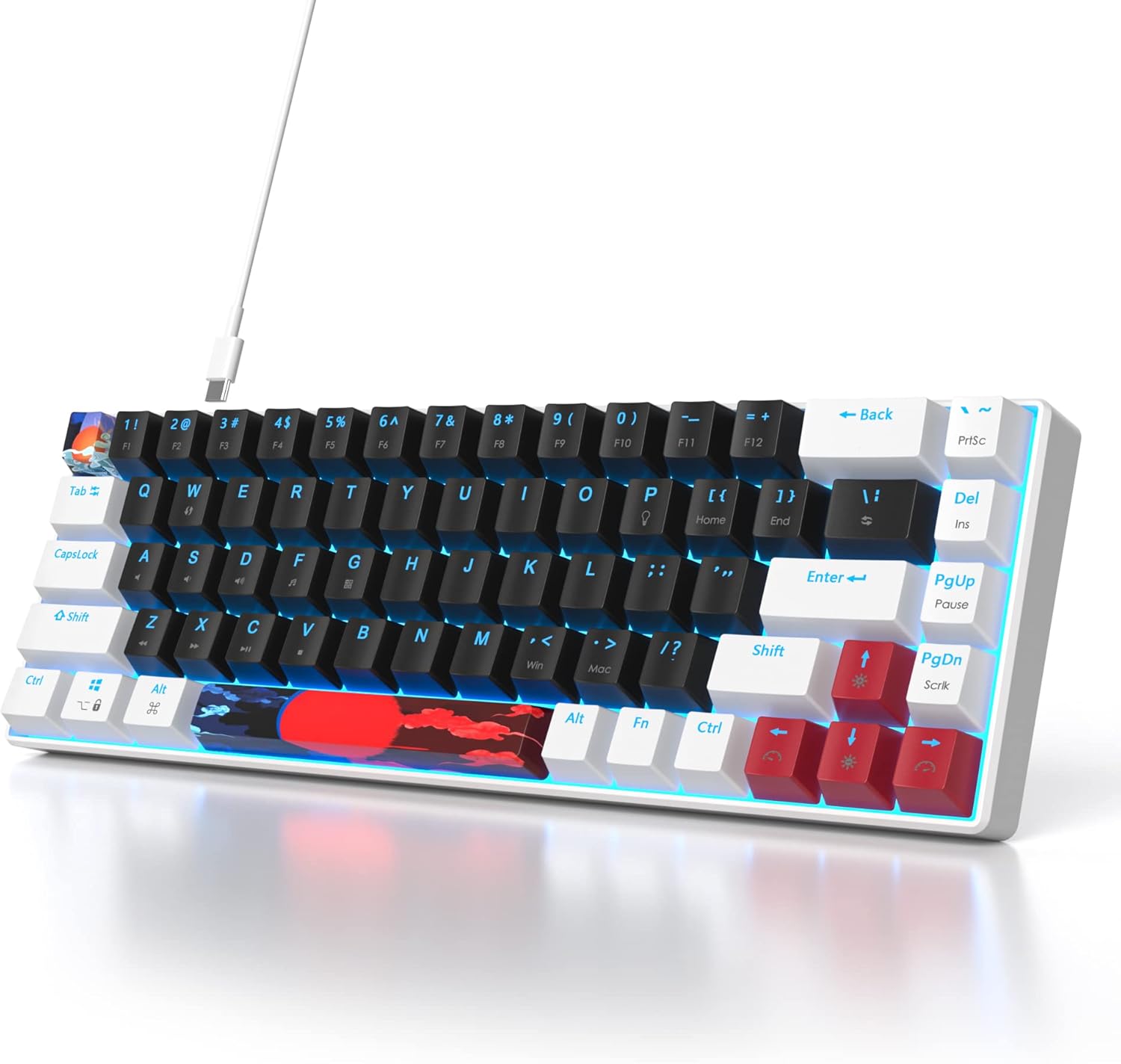
Image: Keyboard connected with its Type-C cable.
Compatibility: This keyboard is compatible with Windows 98/2000/7/8/10/XP/Vista/MAC operating systems, as well as PS5, PS4, and Xbox consoles.
Operating Instructions
Your SOLIDEE 65% Mechanical Gaming Keyboard features a compact 68-key layout with linear red mechanical switches and LED backlighting.
Key Features:
- 68-Key Layout: An ultra-compact design that saves desk space while retaining essential keys.
- Red Mechanical Switches: These linear switches provide a quiet click sound and fast action with minimal resistance, ideal for both typing and gaming.
- Ergonomic Design: The keyboard's design promotes a natural hand position to reduce fatigue during extended use.
- Shine-Through Keycaps: The keycaps are designed to allow the LED backlight to shine through, enhancing visibility and aesthetics.

Image: Detail of the red mechanical switches.

Image: Keycap demonstrating shine-through backlight.
Backlight Control:
The keyboard features a classic blue LED backlight with approximately 18 different lighting modes.
- Turn Backlight On/Off: Press Fn + P simultaneously.
- Switch Backlight Modes: Press Fn + \ | simultaneously to cycle through the available lighting effects.
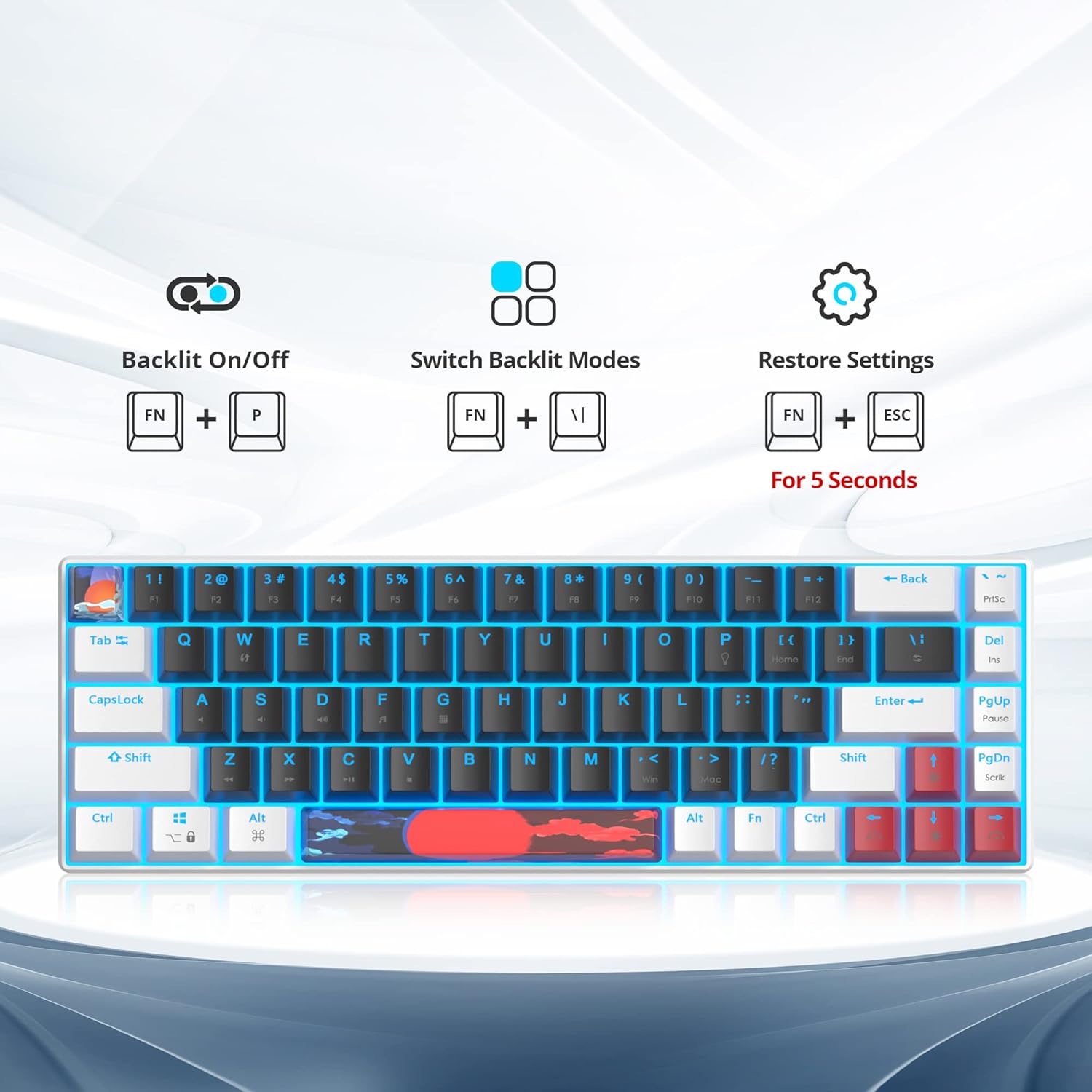
Image: Key combinations for backlight control and factory reset.
Maintenance
Proper maintenance ensures the longevity and performance of your keyboard.
- Cleaning: Use a soft, dry cloth to wipe the keyboard surface. For deeper cleaning, you may use a can of compressed air to remove dust and debris from between the keycaps.
- Keycap Removal: Use the provided keycap puller to carefully remove keycaps for cleaning or replacement. Gently pull the keycap straight up to avoid damaging the switch.
- Cable Care: Avoid bending or twisting the USB-C cable excessively to prevent internal damage.

Image: Overview of the keyboard, showing keycap layout.
Troubleshooting
If you encounter issues with your keyboard, refer to the following common solutions:
- Keyboard Not Responding: Ensure the USB-C cable is securely connected to both the keyboard and your device. Try plugging the cable into a different USB port.
- Backlight Not Working: Press Fn + P to ensure the backlight is turned on. If still not working, try resetting the keyboard settings.
- Reset Settings: To restore the keyboard to its factory default settings, press and hold Fn + ESC for 5 seconds.
- Keys Not Registering: If specific keys are not working, try removing and re-seating the keycap using the keycap puller. Ensure no debris is obstructing the switch.
Specifications
| Feature | Detail |
|---|---|
| Brand | SOLIDEE |
| Model | 68 White_Black/Red Switch |
| Color | 68 White_Black/Red Switch |
| Key Layout | 65% (68 keys) |
| Switch Type | Red Mechanical Switches (Linear) |
| Backlight | Classic Blue LED (approx. 18 modes) |
| Connectivity | Wired (Removable Type-C USB Cable) |
| Operating System Compatibility | Windows 98/2000/7/8/10/XP/Vista/MAC |
| Console Compatibility | PS5, PS4, Xbox |
| Item Weight | 840 grams |
| Package Dimensions | 35.79 x 15.8 x 4.7 cm |

Image: Keyboard dimensions (12.2 inches length, 4.2 inches width).
Warranty and Support
For warranty information or technical support, please refer to the product packaging or contact SOLIDEE customer service through the retailer where the product was purchased. Keep your proof of purchase for warranty claims.