
1. Introduction
This manual provides detailed instructions for the installation, operation, maintenance, and troubleshooting of the Generic MS-7826 Z87 LGA 1150 Desktop ATX Motherboard. This motherboard is designed for personal computer systems and supports Intel Core i3, i5, and i7 processors from the 4th and 5th generations, utilizing the LGA 1150 socket and Intel Z87 chipset. It features DDR3 RAM support and integrated graphics capabilities.
Please read this manual thoroughly before proceeding with installation to ensure proper setup and to prevent damage to the components.
2. Setup and Installation
Before beginning installation, ensure your workspace is clean, well-lit, and free of static electricity. It is recommended to wear an anti-static wrist strap.
2.1 Motherboard Overview

Image 1: Top-down view of the Generic MS-7826 Z87 LGA 1150 Motherboard, showing the CPU socket, RAM slots, PCIe slots, and various connectors.
2.2 CPU Installation (LGA 1150)
- Locate the LGA 1150 CPU socket on the motherboard.
- Gently push down the load lever and pull it sideways to open the CPU socket retention frame.
- Carefully align the CPU with the socket, ensuring the golden triangle on the CPU matches the triangle on the socket. Do not force the CPU into the socket.
- Lower the retention frame and secure it by pushing the load lever back into its locked position.
- Apply thermal paste to the CPU and install the CPU cooler according to its manufacturer's instructions.
2.3 RAM Installation (DDR3)
- Identify the two DDR3 RAM slots on the motherboard.
- Open the clips at both ends of the RAM slot.
- Align the RAM module with the slot, ensuring the notch on the module matches the key in the slot.
- Press down firmly on both ends of the RAM module until the clips snap into place, securing the module.
2.4 Power Connections
- 24-Pin ATX Power Connector: Connect the main 24-pin power cable from your power supply unit (PSU) to the corresponding connector on the motherboard.
- CPU Power Connector: Connect the 4-pin or 8-pin CPU power cable from your PSU to the connector near the CPU socket.
2.5 Storage and Peripheral Connections
- SATA Ports: Connect your SATA hard drives or SSDs to the SATA ports on the motherboard using SATA data cables. Ensure power cables from the PSU are also connected to these devices.
- Front Panel Connectors: Connect the power switch, reset switch, HDD LED, power LED, and front panel USB/audio headers to their respective pins on the motherboard. Refer to the motherboard's silkscreen labels for correct orientation.
- Expansion Slots: Install any graphics cards or other expansion cards into the appropriate PCIe slots.
2.6 Rear I/O Panel
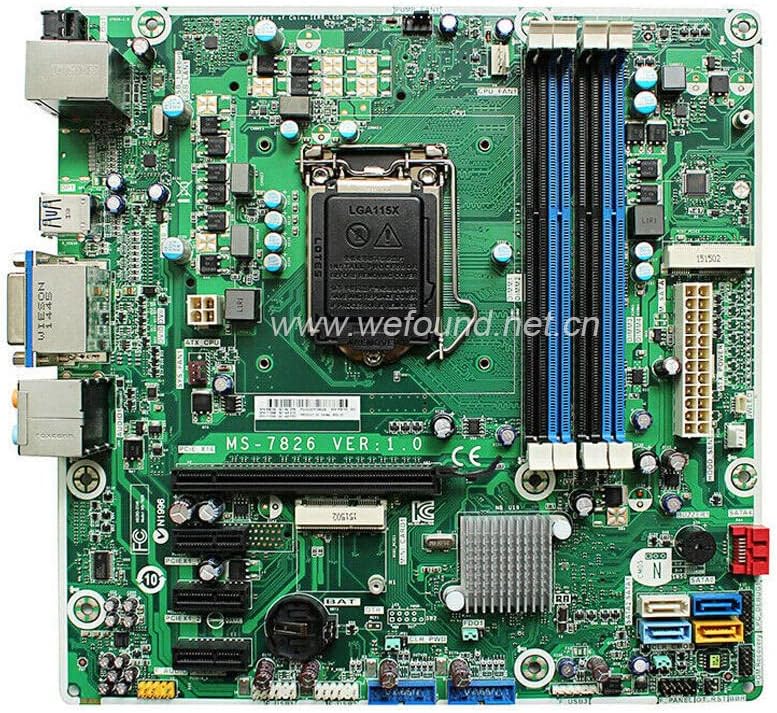
Image 2: Close-up view of the rear input/output (I/O) panel, showing various ports including USB, Ethernet, and audio jacks.
Connect your monitor, keyboard, mouse, and other peripherals to the appropriate ports on the rear I/O panel.
3. Operation
3.1 First Boot
After all components are installed and connected, power on your system. The system should perform a Power-On Self-Test (POST). If successful, the system will proceed to boot from your installed operating system or prompt for an OS installation.
3.2 BIOS/UEFI Setup
To access the BIOS/UEFI setup utility, press the designated key (commonly Del, F2, or F10) during the initial boot sequence. In the BIOS/UEFI, you can configure boot order, system time, CPU settings, and other hardware parameters.
3.3 Driver Installation
After installing your operating system, install the necessary drivers for the motherboard's chipset, integrated graphics, audio, and network interface. These drivers are typically provided by the operating system or can be downloaded from the chipset manufacturer's website (e.g., Intel).
4. Maintenance
4.1 Cleaning
Regularly clean the interior of your computer case to prevent dust buildup, which can lead to overheating. Use compressed air to gently remove dust from the motherboard, CPU cooler, and other components. Ensure the system is powered off and unplugged before cleaning.
4.2 BIOS Updates
BIOS updates can provide improved compatibility, stability, and new features. Check the manufacturer's website (if available) for the latest BIOS versions and follow their instructions carefully. Incorrect BIOS updates can render the motherboard inoperable.
4.3 CMOS Battery Replacement

Image 3: Close-up view showing the circular CMOS battery (CR2032) and various headers, including USB headers and a PCIe slot.
The CMOS battery (CR2032) powers the BIOS settings and real-time clock. If your system consistently loses time or BIOS settings, the CMOS battery may need replacement. To replace, gently pry out the old battery and insert a new CR2032 battery with the positive (+) side facing up. Ensure the system is powered off and unplugged.
5. Troubleshooting
- No Power: Ensure all power cables (24-pin ATX, CPU power) are securely connected. Check the power supply unit (PSU) and wall outlet.
- No Display: Verify the monitor is connected to the correct video output (either integrated graphics or a dedicated graphics card). Reseat the RAM modules and graphics card.
- System Fails to Boot/POST Errors: Listen for beep codes (if the motherboard has a speaker) which can indicate specific issues (e.g., RAM, CPU, graphics card). Reseat all components.
- Operating System Not Found: Check boot order in BIOS/UEFI. Ensure storage devices are properly connected and detected.
- CMOS Reset: If experiencing persistent boot issues or incorrect BIOS settings, you can reset the CMOS. This can be done by removing the CMOS battery for a few minutes (with the system unplugged) or by using the CLR_PWD jumper (refer to motherboard silkscreen for location).
6. Technical Specifications
| Feature | Specification |
|---|---|
| Brand | Generic |
| Model Name | MS-7826 |
| CPU Socket | LGA 1150 |
| Chipset Type | Intel Z87 |
| Compatible Processors | Intel Core i3-4xxx, Intel Core i5-4xxx, Intel Core i7-4xxx, Intel Core i5-5xxx, Intel Core i7-5xxx |
| RAM Memory Technology | DDR3 |
| Memory Slots Available | 2 |
| Main Power Connector Type | 24-Pin |
| Graphics Card Interface | Integrated |
| Compatible Devices | Personal Computer |
| Item Model Number | MS-7826 |
| Manufacturer Part Numbers | 698749-002, 717068-501, 698749-001 |
7. Warranty and Support
As this is a generic product, specific warranty terms and conditions may vary depending on your point of purchase. Please refer to the seller or retailer from whom you purchased this motherboard for detailed warranty information and support procedures.
For technical assistance, it is recommended to consult online resources, community forums, or a qualified computer technician.