
Vgate vLinker FS USB
Vgate vLinker FS USB OBD2 Diagnostic Tool User Manual
Model: vLinker FS USB
1. Introduction
The Vgate vLinker FS USB is a high-performance OBD2 to USB car diagnostic tool designed to interface with your vehicle's On-Board Diagnostics system. It allows users to read and clear diagnostic trouble codes, view live data, and perform various vehicle-specific functions, particularly optimized for use with FORScan software. This manual provides comprehensive instructions for setting up, operating, and maintaining your vLinker FS USB device.

Figure 1: Vgate vLinker FS USB OBD2 Diagnostic Tool
2. Key Features
- Determines cause of Check Engine Light and clears DTCs.
- Reads live data and hard memory data.
- Collects vehicle information.
- Custom-designed for use with FORScan and recommended by the FORScan Team.
- MS-CAN & HS-CAN toggle switch for convenient access and configuration.
- Supports USB 2.0 and USB 3.0 interfaces.
- Transfer rate and baud rate up to 3Mpbs and 3Mhz, significantly faster than other devices.
- Compatible with a variety of third-party apps and software.
3. Package Contents
Upon opening the package, verify that all components are present and in good condition:
- Vgate vLinker FS USB OBD2 Adapter
- User Manual / Quick Start Guide
Video 1: Unboxing and overview of the Vgate vLinker FS USB adapter and its included quick start guide.
4. Setup Guide
4.1 Driver Installation
Before connecting the vLinker FS USB to your computer, it is crucial to install the necessary drivers. Drivers can typically be found on the official Vgate website or the FORScan website, as recommended. Follow the on-screen instructions during installation.
- Download the latest drivers for your operating system (Windows XP/Vista/7/8/8.1/10 are supported).
- Run the installer and follow the prompts.
- Restart your computer if prompted.
4.2 Connecting to Your Computer
Once drivers are installed, connect the vLinker FS USB to your computer using the integrated USB cable. The device should be recognized by your system.
4.3 Connecting to Your Vehicle
Locate your vehicle's OBD2 port, typically found under the dashboard on the driver's side. Plug the vLinker FS USB adapter firmly into the OBD2 port. Ensure a secure connection.
4.4 Software Installation (FORScan Example)
For optimal performance, especially with Ford, Mazda, Lincoln, and Mercury vehicles, it is recommended to use FORScan software. Download and install FORScan from their official website.
- Download the FORScan application for Windows.
- Install the application on your computer.
- Launch FORScan. The software should detect the vLinker FS USB adapter.
- Turn your vehicle's ignition to the "ON" position (engine off).
- Follow the software prompts to connect to your vehicle and begin diagnostics.

Figure 2: Vgate vLinker FS USB connected for dealership-level diagnostics.
5. Operating Instructions
5.1 Basic Diagnostic Functions
With the vLinker FS USB connected to your vehicle and computer, and your diagnostic software launched, you can perform various functions:
- Read/Clear DTCs: Access the "Diagnostic Trouble Codes" section of your software to read current, pending, and historic codes. Use the "Clear Codes" function to turn off the Check Engine Light after repairs.
- Live Data Stream: Monitor real-time sensor data such as engine RPM, vehicle speed, oxygen sensor readings, fuel system status, etc. This is crucial for diagnosing intermittent issues.
- Freeze Frame Data: View a snapshot of sensor readings at the moment a Diagnostic Trouble Code (DTC) was set, providing context for the fault.
- Vehicle Information: Retrieve vehicle identification number (VIN), calibration IDs, and calibration verification numbers.
5.2 MS-CAN & HS-CAN Toggle Switch
The vLinker FS USB features a toggle switch to select between MS-CAN (Medium Speed CAN) and HS-CAN (High Speed CAN) networks. This allows access to different modules within your vehicle, enabling comprehensive diagnostics and configuration of as-built data. Ensure the switch is in the correct position for the module you intend to access.
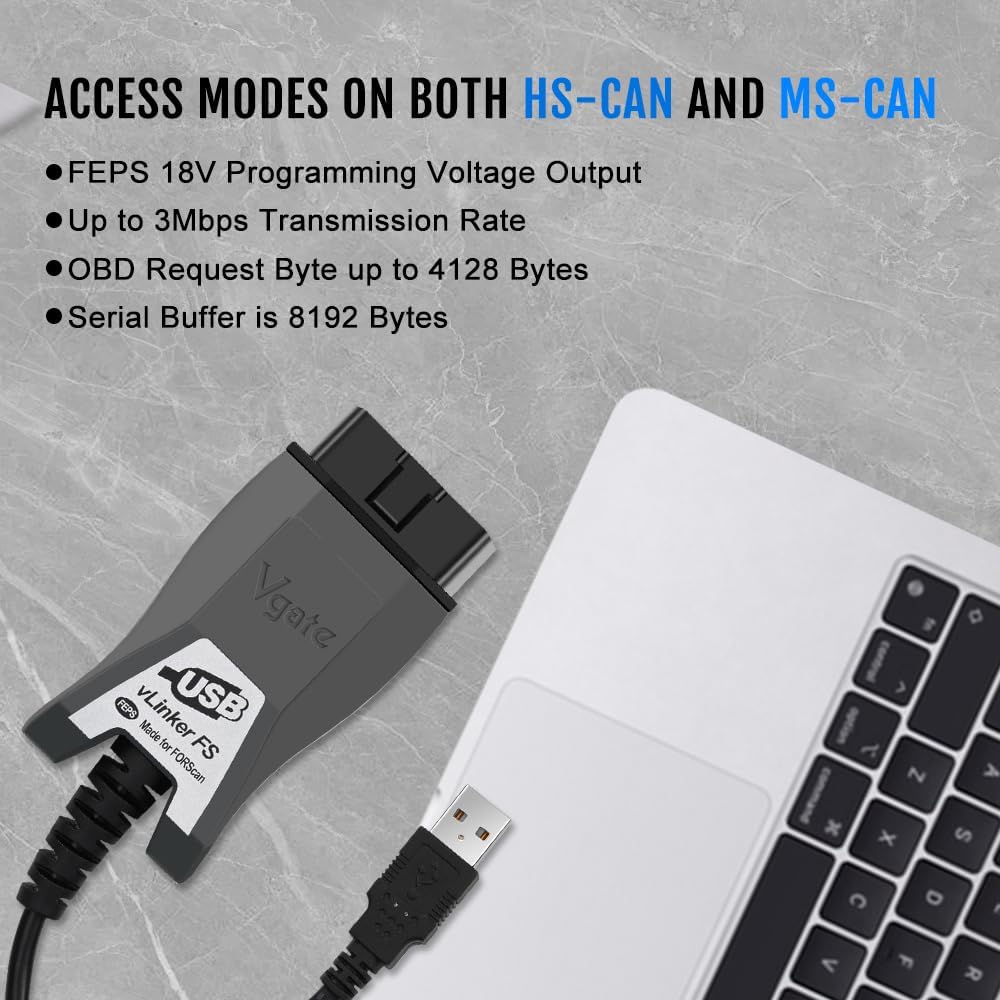
Figure 3: Device highlighting MS-CAN and HS-CAN access modes.
5.3 Supported Software
Beyond FORScan, the vLinker FS USB is compatible with various third-party diagnostic applications. Always ensure the software you choose is compatible with the vLinker FS USB and your vehicle's make/model.

Figure 4: Examples of supported diagnostic software.
6. Maintenance
- Keep the device clean and free from dust and moisture.
- Store in a cool, dry place when not in use.
- Avoid excessive force when connecting or disconnecting the adapter.
- Regularly check the manufacturer's website for firmware updates for the vLinker FS USB and software updates for your diagnostic application to ensure optimal performance and compatibility.
7. Troubleshooting
If you encounter issues, refer to the following common problems and solutions:
| Problem | Possible Cause | Solution |
|---|---|---|
| Device not found / Not recognized by computer. | Missing or incorrect USB drivers; faulty USB port/cable. | Ensure USB drivers are correctly installed from the official website. Try a different USB port on your computer. Check the USB cable for damage. |
| Cannot connect to vehicle ECU. | Ignition not in "ON" position; loose OBD2 connection; incorrect software settings; vehicle not supported. | Turn ignition to "ON" (engine off). Ensure the adapter is firmly plugged into the OBD2 port. Verify software settings (e.g., COM port, baud rate). Confirm vehicle compatibility. |
| Slow data transfer or freezing. | Outdated drivers; software conflicts; high system load. | Update drivers to the latest version. Close unnecessary applications on your computer. Ensure your computer meets the software's minimum requirements. |
| "OBD plug hard to insert into port!" (from review) | Manufacturing tolerance; tight fit in specific vehicle ports. | Apply gentle, firm pressure. Ensure correct orientation. If consistently difficult, inspect the OBD port for obstructions. |
8. Specifications
| Brand | Vgate |
| Model | vLinker FS USB |
| Connectivity | USB 2.0, USB 3.0 |
| Supported Protocols | SAE J1850-PWM, SAE J1850-VPW, ISO 9141-2, ISO 14230-4 (slow), ISO 14230-4 (fast), ISO 15765-4 (CAN), ISO 1939 (CAN), ISO 11898 (raw CAN), Medium Speed CAN (MS-CAN) |
| Transmission Rate | Up to 3Mpbs |
| Baud Rate | Up to 3Mhz |
| Supported Operating Systems | Windows XP, Windows 2000/Vista/7/8/8.1/10 |
| Dimensions | 5.91 x 4.92 x 1.57 inches |
| Weight | 5.3 ounces |
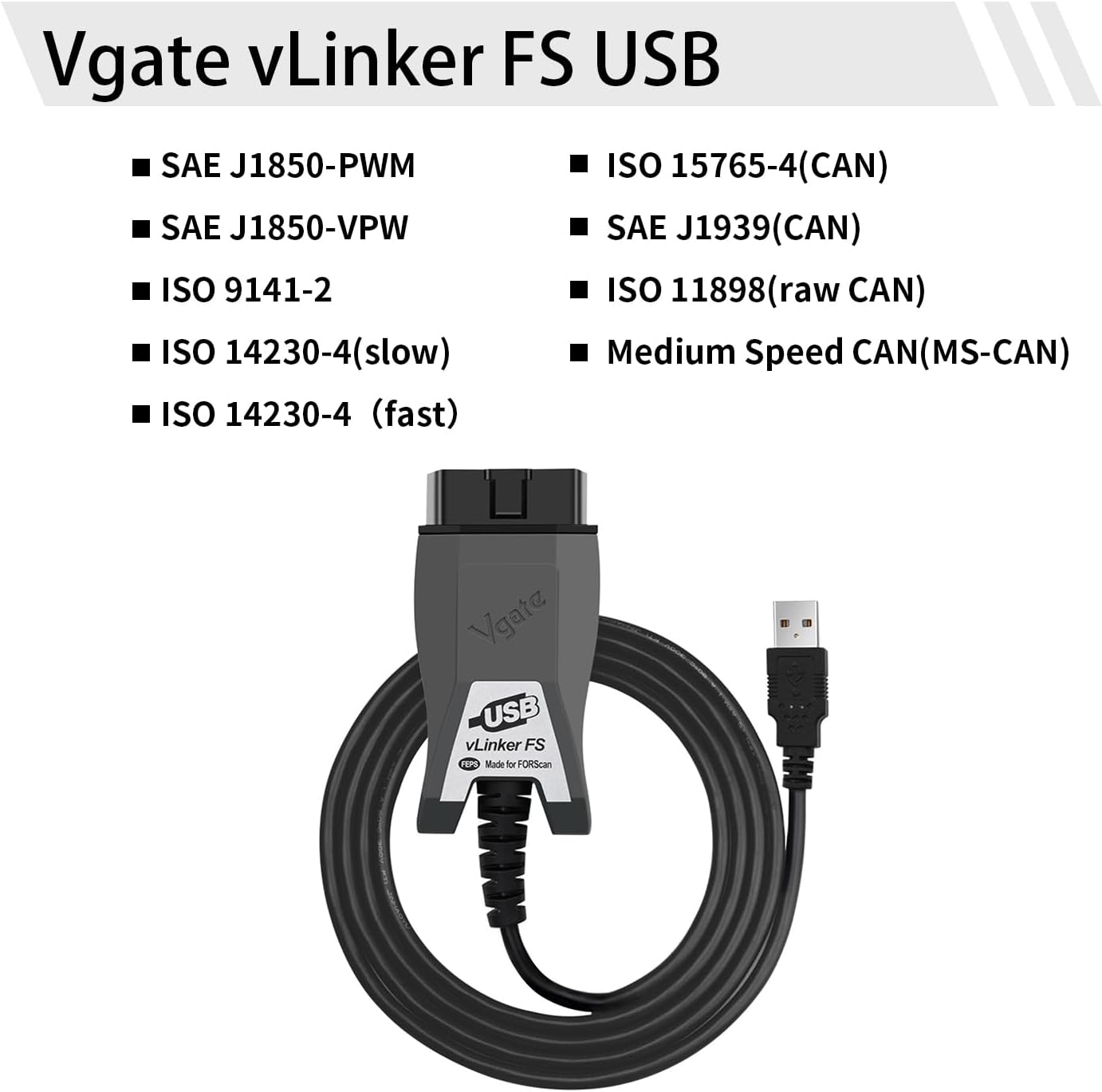
Figure 5: Supported communication protocols for vLinker FS USB.
9. Warranty and Support
Vgate products are designed for reliability and performance. For warranty information, technical support, or further assistance, please refer to the contact details provided on the product packaging or visit the official Vgate website. Keep your purchase receipt for warranty claims.
Related documentsvLinker FS USB


Ask a question about this manual
Ask about setup, troubleshooting, compatibility, parts, safety, or missing instructions. Manuals+ will review the question and use this page’s manual context to help answer it.