
1. Introduction
This manual provides detailed instructions for the installation, operation, and maintenance of your Carpuride W502 Portable Wireless Carplay & Android Auto Screen. Please read this manual thoroughly before using the device to ensure proper functionality and safety.

Image: The Carpuride W502 device, a 5-inch screen with a sun visor, mounted on a motorcycle handlebar, displaying a CarPlay interface. A small image of a motorcycle and a smartphone screen showing Apple CarPlay and Android Auto icons are also visible.
The Carpuride W502 is designed to enhance your motorcycle riding experience by providing seamless smartphone integration, navigation, and entertainment features directly on a dedicated 5-inch touch screen. It supports both wireless Apple CarPlay and Android Auto, offering a safe and convenient way to access your phone's functions while on the road.
2. What's in the Box
Verify that all components are present in the package:

Image: Diagram showing the dimensions of the 5-inch screen and various included accessories: clamping interface, power button, SD card slot, power cord, power cable, extension rod bracket, USB boost voltage cable, and user manual.
- 1x Motorcycle Carplay Unit
- 1x Motorcycle Special Bracket
- 1x Waterproof Power Adapter
- 1x Bracket Back Clip
- 1x Users Manual
- 1x Sunshade Cover
- 1x USB Boost Voltage Cable (if applicable to your model variant)
3. Setup and Installation
3.1 Mounting the Device
The Carpuride W502 comes with a portable mount designed for easy installation on most motorcycle handlebars. Follow these steps:
- Attach the mount to the handlebar: Use a Phillips screwdriver to secure the base of the mount to your motorcycle's handlebar.
- Clamp the connecting rod: Attach the adjustable connecting rod to the handlebar mount. This rod allows for 360-degree adjustment.
- Insert device and adjust position: Slide the Carpuride W502 unit onto the bracket back clip. Adjust the screen to your desired viewing angle and tighten the adjustment ring to secure it.
- Installation is complete: Ensure all connections are firm and the device is stable before riding.

Image: Four-step diagram illustrating the installation process of the Carpuride W502 on a motorcycle handlebar, showing attachment of the mount, clamping the connecting rod, inserting the device, and final adjustment.
3.2 Power Connection Options
The Carpuride W502 offers two methods for power connection:
Method 1: Direct Battery Connection (Power Cable)
Connect the included power cable directly to your motorcycle's battery (12V, 1A). The device features built-in reverse connection protection, preventing damage if wires are incorrectly connected.
- Connect the Red Power Wire to the motorcycle battery's Positive Terminal (+).
- Connect the Black Ground Wire to the motorcycle battery's Negative Terminal (-).
- Ensure the waterproof detachable connectors are securely fastened.

Image: Diagram showing how to connect the Carpuride W502 power cable directly to a motorcycle battery, with red wire to positive and black wire to negative terminals. It highlights the waterproof detachable connectors and a fuse.
Note: Use the same color power cord interface for wiring. Interfaces of different colors are incompatible and cannot be connected.
Method 2: USB Port Connection (USB Boost Cable)
If your motorcycle has a USB port, you can use the 5V-12V USB boost line to power the W502.
- Plug the USB end of the boost cable into your motorcycle's USB port.
- Connect the other end of the boost cable to the Carpuride W502's power input.
- Ensure the waterproof detachable connectors are securely fastened.
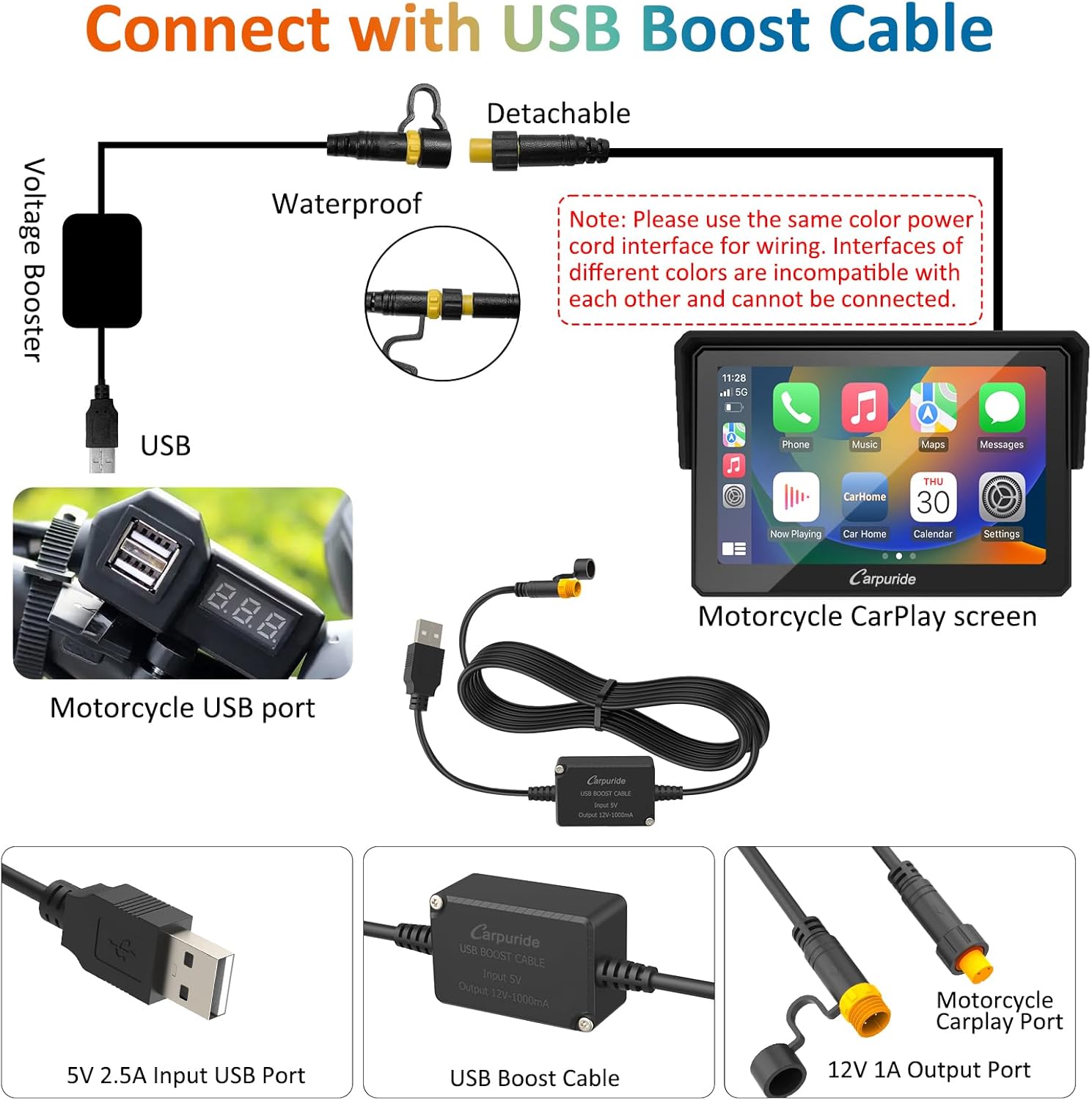
Image: Diagram showing how to connect the Carpuride W502 using a USB boost cable to a motorcycle's USB port. It illustrates the voltage booster, USB input, and the connection to the Carplay screen.
Note: Use the same color power cord interface for wiring. Interfaces of different colors are incompatible and cannot be connected.
4. Operating Instructions
4.1 Powering On/Off and Screen Control
- Power On/Off: Press and hold the power button (located on the side of the unit) to turn the device ON or OFF.
- Display Volume Bar: After booting, press the power button once briefly to display the volume bar.
- Screen On/Off: Press the power button briefly to turn the screen ON or OFF without powering down the device. Avoid long presses to prevent accidental shutdown.
4.2 Seamless Smartphone Integration (CarPlay & Android Auto)
The Carpuride W502 allows you to connect your mobile phone wirelessly via Bluetooth to utilize Apple CarPlay or Android Auto functionalities. This replaces the need to handle your phone directly while riding, enhancing safety.
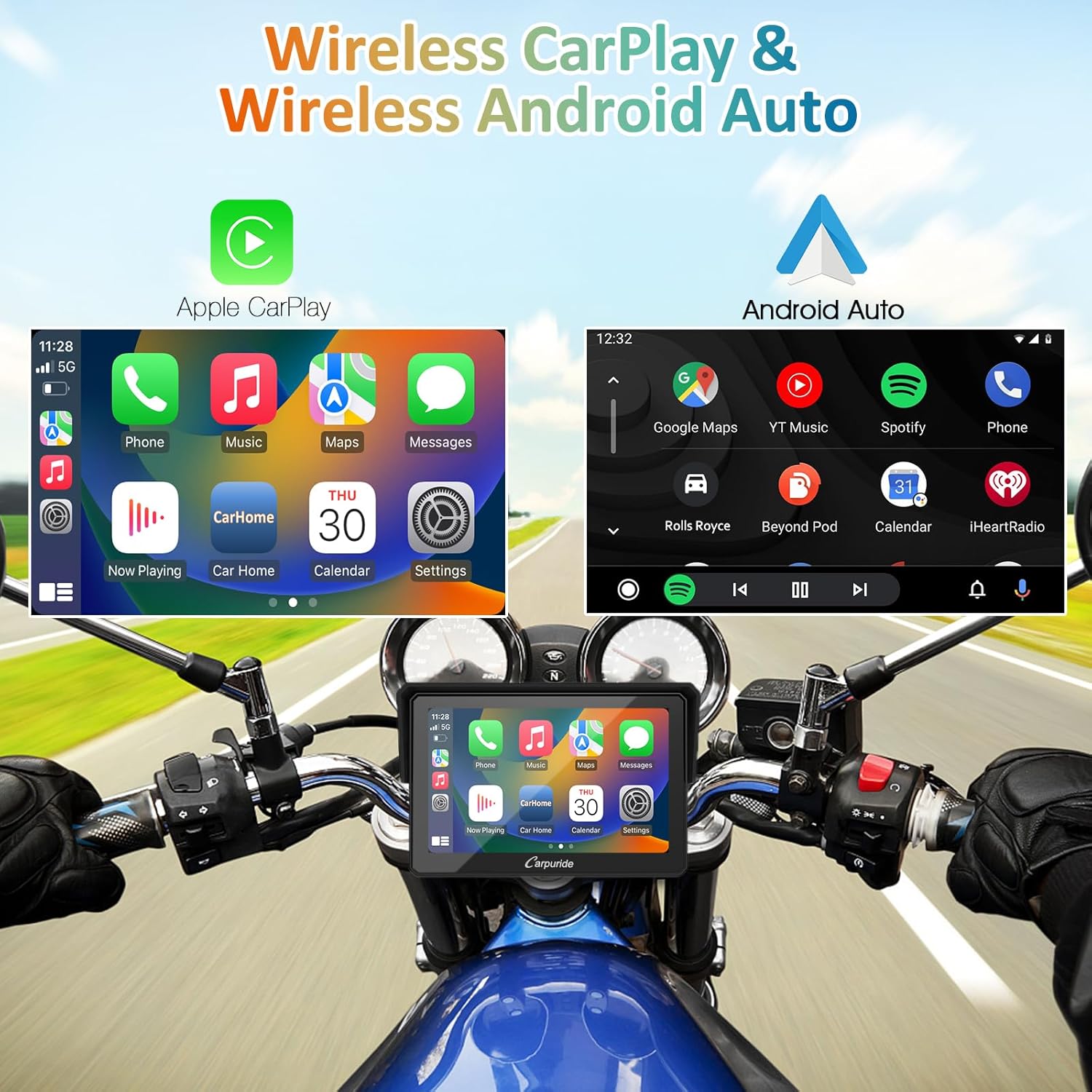
Image: A split screen showing the Apple CarPlay interface on the left and the Android Auto interface on the right, both displaying common apps like Phone, Music, Maps, and Messages. Below, the Carpuride W502 is shown mounted on a motorcycle handlebar, displaying the CarPlay interface.
Once connected, you can access navigation, music, calls, and messages directly from the 5-inch touch screen.
4.3 Dual Bluetooth Connectivity
The W502 offers dual Bluetooth connectivity, allowing for flexible audio routing:
Method 1: Carpuride Bluetooth to Phone and Headset
The Carpuride W502's Bluetooth can connect simultaneously to both your smartphone and your Bluetooth helmet or headset. This allows the W502 to act as a central hub for audio.

Image: Diagram illustrating Bluetooth connections. The Carpuride W502 screen connects to a smartphone via Bluetooth (for CarPlay/Android Auto) and simultaneously to a Bluetooth headset or helmet. A note advises ensuring the helmet/earphone is discoverable and not to connect the phone directly to the helmet/earphone to avoid interference.
Note: The helmet or earphone must be turned on and in an active state to be discovered by the Carpuride screen for pairing. Do not connect your mobile phone directly to the Bluetooth helmet or earphone, as this may interfere with the pairing process when using the Carpuride W502.
Method 2: Smartphone Bluetooth to Headset (via CarPlay/Android Auto)
In CarPlay or Android Auto mode, you can connect your smartphone directly to your motorcycle's helmet or Bluetooth headset. The audio will then be routed from your phone, through CarPlay/Android Auto, to your headset.
This setup allows you to conveniently adjust volume, switch songs, and manage calls using your helmet or earphones.
4.4 Hands-Free Features
The Carpuride W502 supports several hands-free functions to enhance riding safety and convenience:
- Voice Control: Utilize Google Voice or Siri for voice commands.
- Navigation: Wake up navigation applications and receive turn-by-turn directions.
- Music Playback: Listen to music from your smartphone.
- Calls: Make and receive calls without needing to touch your phone.
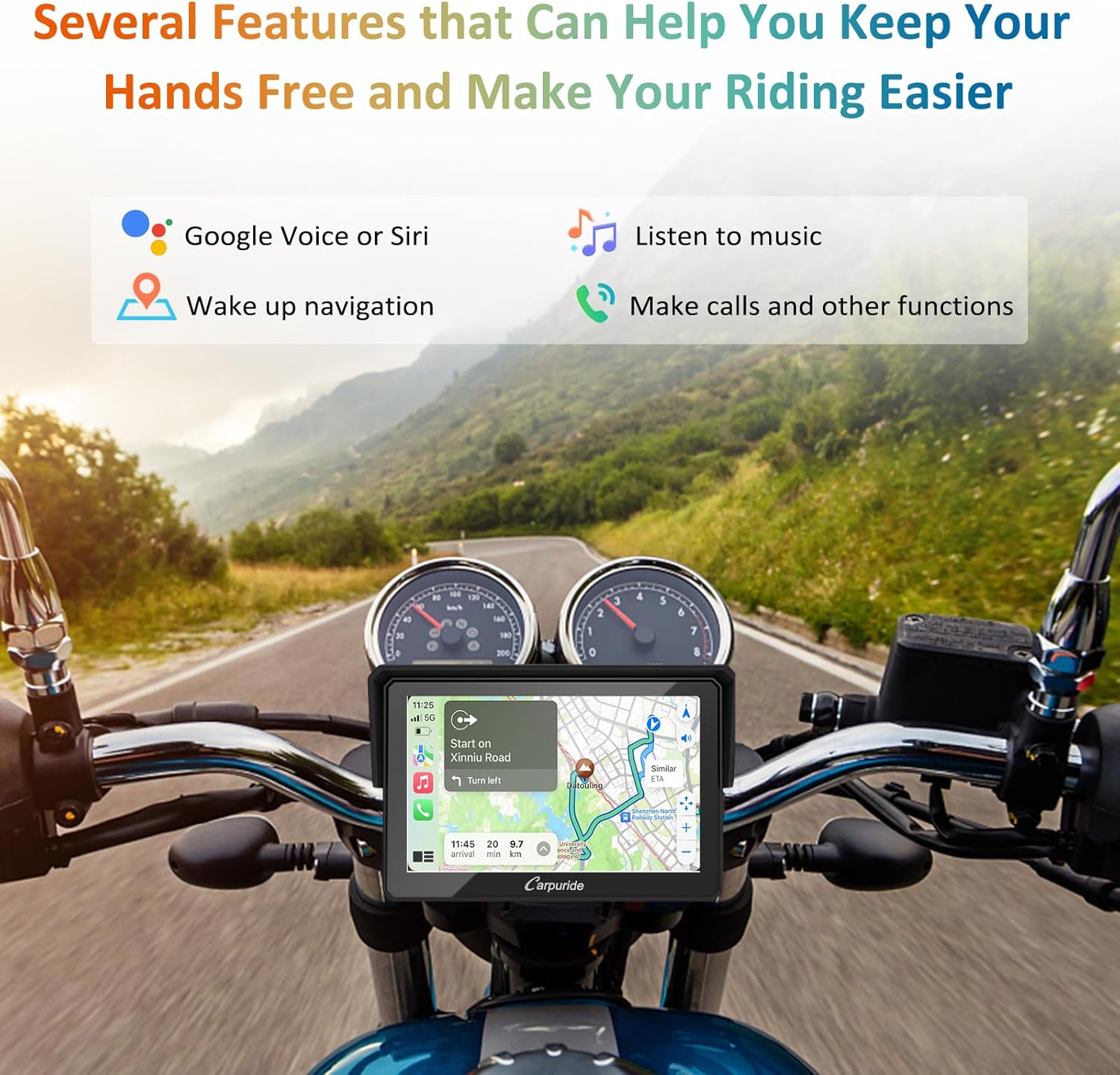
Image: The Carpuride W502 mounted on a motorcycle handlebar, displaying a navigation map. Icons above list features: Google Voice or Siri, Listen to music, Wake up navigation, Make calls and other functions.
4.5 Screen Features
The 5-inch high-definition IPS touch screen is designed for optimal visibility and durability on motorcycles:
- Display: 5-inch high-definition IPS touch screen with a vibrant 65K color display.
- Brightness: Peak brightness of 1000nit ensures clear visibility even under bright outdoor sunlight.
- Sunshade: The included lens hood further improves visibility in direct sunlight.
- TF Card Support: Supports up to 64GB TF card for enjoying music or videos.

Image: The Carpuride W502 screen displaying a navigation map. Icons highlight features like HD 800*480 High Resolution, IPS Full Viewing Angle, 2.5D Curved Screen, and 1000 Nit brightness.

Image: The Carpuride W502 screen displaying a music player interface, with a 64GB TF card shown next to it. The image suggests enjoying music or videos on the journey via TF card.
5. Maintenance
To ensure the longevity and optimal performance of your Carpuride W502, follow these maintenance guidelines:
- Cleaning: Use a soft, damp cloth to clean the screen and exterior. Avoid abrasive cleaners or solvents.
- Waterproof Design: The device features an IPX7 waterproof rating, meaning it can withstand rain and splashes. However, avoid submerging the device in water for extended periods.
- Temperature Resistance: The device is designed for use in various weather conditions, including high temperatures. The sunshade helps protect the screen from direct sunlight and overheating.
- Storage: When not in use for extended periods, store the device in a cool, dry place. The anti-theft detachable design allows you to easily remove the screen for secure storage.

Image: A split image showing a motorcycle rider in the rain (IP67 Waterproof) and another rider in sunny, high-temperature conditions (High Temperature resistance), with the Carpuride W502 screen overlaid, indicating its suitability for various occasions.

Image: Three panels depicting the Carpuride W502 screen performing in different weather conditions: snow, sunny high temperature, and rain, emphasizing its durability and resistance to elements.
6. Troubleshooting
If you encounter issues with your Carpuride W502, please refer to the following common troubleshooting steps:
- Device not powering on:
- Check power connections to ensure they are secure and correctly wired to the battery or USB port.
- Verify that the motorcycle's battery has sufficient charge.
- If using the USB boost cable, ensure the USB port is active and providing power.
- No CarPlay/Android Auto connection:
- Ensure Bluetooth is enabled on both your smartphone and the Carpuride W502.
- Make sure your phone is not already connected to another Bluetooth device (especially a helmet/headset) that might interfere with the W502 pairing.
- Restart both your smartphone and the Carpuride W502.
- Forget the device in your phone's Bluetooth settings and re-pair.
- No audio output:
- Check volume settings on both the Carpuride W502 and your connected helmet/headset.
- Ensure your helmet/headset is properly paired and connected to either the W502 or your smartphone (depending on your chosen audio routing method).
- Verify that the audio source (music app, navigation app) is playing.
- Screen not responding to touch:
- Gently clean the screen surface to remove any dirt or moisture.
- Restart the device.
If these steps do not resolve the issue, please contact Carpuride customer support for further assistance.
7. Specifications
| Feature | Specification |
|---|---|
| Model Name | W502 |
| Item Model Number | W502pro |
| Brand | Carpuride |
| Screen Size | 5 Inches (Visible screen diagonal: 13 cm) |
| Display Resolution | HD 800*480 |
| Brightness | 1000 Nit |
| Special Features | Bluetooth, Touchscreen, Waterproof (IPX7) |
| Connectivity Technology | Bluetooth, USB |
| Vehicle Service Type | Motorcycle |
| Mounting Type | Handlebar Mount |
| Item Weight | 1.59 pounds |
| Product Dimensions | 0.39 x 0.39 x 0.39 inches (Device dimensions, excluding mount) |
| Manufacturer | CARPURIDE |

Image: The back of the Carpuride W502 device, showing product name "Carpuride Portable Carplay", HVIN "CP701", FCC ID, IC ID, CE FC marks, and serial number.
8. Warranty and Support
Carpuride offers a 12-month warranty for the W502 GPS navigator. We are committed to providing reliable products and excellent customer support.
For any questions or concerns regarding your Carpuride W502, please contact our technical support team. We guarantee a 100% satisfactory solution within 24 hours.
Your satisfaction is our priority.
