
1. Overview
The BOSS Gigcaster 8 is a powerful all-in-one audio command center specifically designed for musicians who livestream and create audio and video content. It provides all necessary tools for professional sound within a single desktop interface, featuring quick-access live control via faders, knobs, eight assignable pads, and a vivid color touchscreen. This device allows direct connection of a guitar or bass, processing voices with studio-grade effects, and integrating keyboards or drum machines via line inputs. It can mix up to eight audio sources for streaming, including background music and remote guest audio, making it an essential partner for various music-focused media applications.

Figure 1: Front view of the BOSS Gigcaster 8.
2. Key Features
- Powerful all-in-one audio command center purpose-built for musicians who livestream and create audio and video content.
- Delivers professional sound tools in a single desktop interface with quick-access live control via faders, knobs, eight assignable pads, and a vivid color touchscreen.
- High-impedance input for direct connection of a guitar or bass, featuring flagship-level GT amps and effects.
- Eight-channel audio mixer with numerous sound-shaping tools.
- Four XLR/TRS combo jacks for microphones and electronic instruments.
- Mic inputs feature phantom power and high-grade preamps with low noise and wide gain range (+70 dB).
- Dedicated vocal effects, harmony, and voice transformer functions derived from VE vocal processors.
- Ready-to-go preset libraries provide optimized sound processing for guitar, bass, singing, and speaking.
- Record live stereo or multitrack audio (32-bit/48 kHz) to an optional microSD card.
3. Setup
Before operating your BOSS Gigcaster 8, ensure all necessary connections are made and the device is powered correctly. The unit is designed for intuitive setup to get you started quickly.
3.1. What's in the Box
Upon unboxing, verify that all components are present:
- Gigcaster 8 Unit
- AC Adaptor: PSD Series
- Owner's Manual (this document)
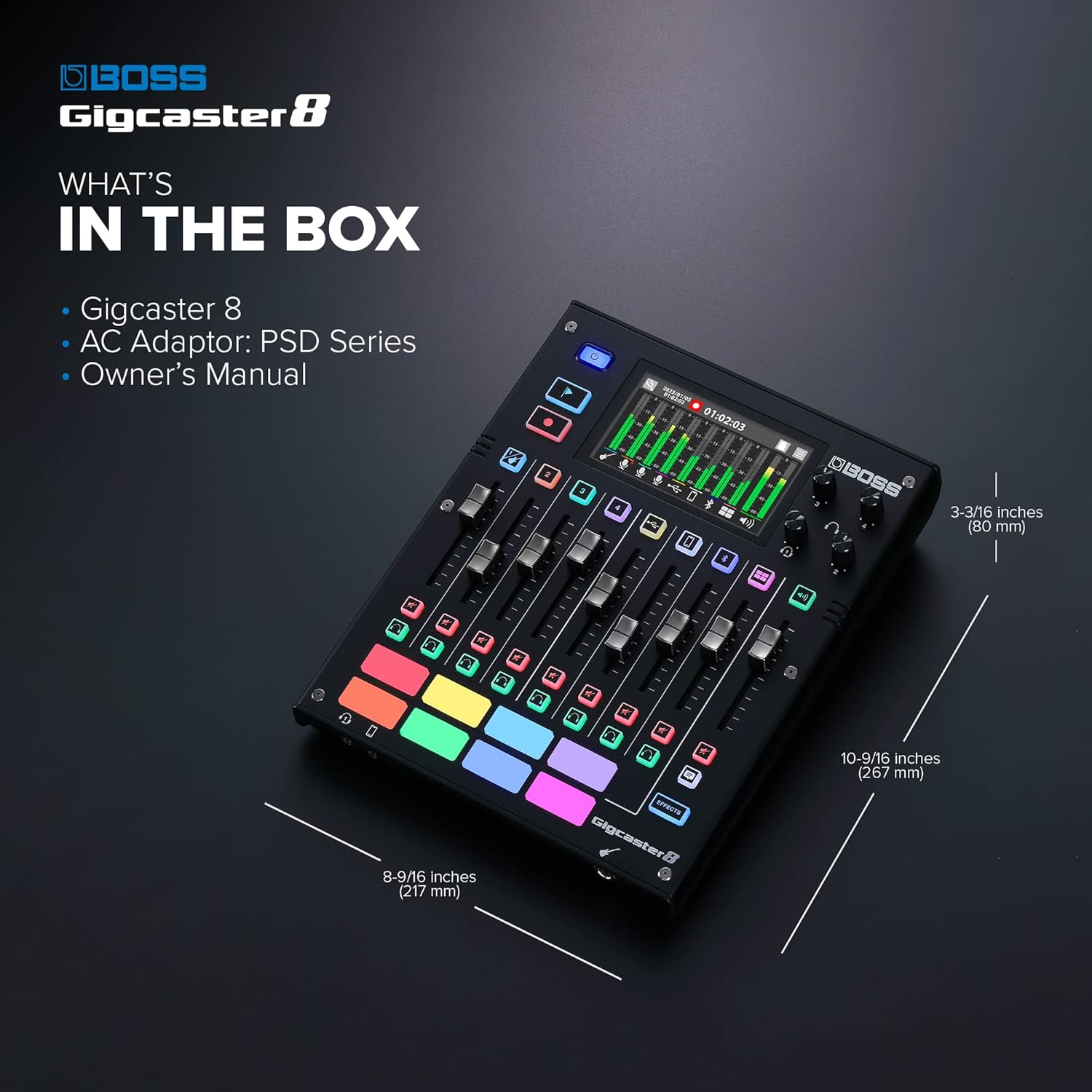
Figure 2: Included items and dimensions of the Gigcaster 8.
3.2. Initial Connections
- Power Connection: Connect the provided AC adaptor to the DC IN port on the rear panel and plug it into a power outlet.
- USB Connection: For computer integration, connect a USB cable from the Gigcaster 8's USB port to your computer. This enables the 20x14 USB audio interface functionality.
- Microphone/Instrument Inputs: Connect your microphones to the XLR/TRS combo jacks (Channels 1-4) and your guitar/bass to the high-impedance input. Additional electronic instruments can be connected to the line inputs.
- Headphones/Monitors: Connect your headphones to the dedicated headphone output for monitoring. Connect studio monitors to the main outputs for playback.
4. Operating Instructions
The Gigcaster 8 offers a user-friendly interface for controlling your audio. Utilize the physical controls and the vivid color touchscreen for real-time adjustments.
4.1. Live Control Elements
- Faders: Adjust individual channel levels for precise mixing.
- Knobs: Control various parameters such as gain, EQ, and effects.
- Assignable Pads: Trigger sound effects, music, or other functions instantly.
- Color Touchscreen: Navigate menus, adjust detailed settings, and monitor audio levels visually.

Figure 3: Adjusting controls on the Gigcaster 8.
4.2. App Integration
For advanced control and deeper customization, the Gigcaster 8 can be integrated with a dedicated control application. This app provides access to features like equalization, high-pass filters, compression, and panning, which are only accessible through the app interface.

Figure 4: Detailed view of the Gigcaster 8 touchscreen interface.
5. Connectivity
The Gigcaster 8 offers extensive connectivity options to integrate with various audio sources and devices.
5.1. Inputs
- 4 XLR/TRS Combo Jacks: For microphones and electronic instruments.
- High-Impedance Input: Dedicated for direct connection of a guitar or bass.
- USB Audio: 20x14 USB audio interface for computer connection.
- Bluetooth: For wireless audio streaming from mobile devices.
5.2. Outputs
- Main Outputs: For connecting to studio monitors or a PA system.
- Headphone Output: For personal monitoring.
- USB Audio: Output channels for sending audio to a computer.
6. Recording
The Gigcaster 8 supports high-quality audio recording directly to microSD media or via its USB audio interface.
- Onboard Recording: Record live stereo or multitrack audio directly to an optional microSD card.
- Audio Quality: Supports 32-bit/48 kHz recording for pristine sound.
- USB Audio Interface: Functions as a 20x14 USB audio interface, allowing simultaneous recording and streaming to a computer.
7. Effects and Sound Shaping
Enhance your audio with a comprehensive suite of effects and sound-shaping tools.
- GT Amps and Effects: Access flagship-level guitar and bass amplifier models and effects.
- VE Vocal Processors: Utilize dedicated vocal effects, harmony, and voice transformer functions.
- Preset Libraries: Quickly apply optimized sound processing for various applications (guitar, bass, singing, speaking) using ready-to-go preset libraries.
- EQ and Compression: Fine-tune your sound with equalization and compression tools, accessible via the control app.
8. Maintenance
To ensure the longevity and optimal performance of your BOSS Gigcaster 8, follow these maintenance guidelines:
- Cleaning: Regularly wipe the unit with a soft, dry cloth. Avoid using abrasive cleaners, waxes, or solvents.
- Storage: Store the device in a cool, dry place away from direct sunlight, extreme temperatures, and high humidity.
- Handling: Handle the unit with care to prevent physical damage to faders, knobs, and the touchscreen.
9. Troubleshooting
If you encounter issues with your Gigcaster 8, consider the following basic troubleshooting steps:
- No Power: Ensure the AC adaptor is securely connected to both the unit and a working power outlet.
- No Audio Output: Check all cable connections (inputs, outputs, headphones). Verify that channel faders and master volume are not muted or set too low. Confirm correct input selection and routing.
- App Connectivity Issues: Ensure Bluetooth is enabled on your mobile device and the Gigcaster 8. Try restarting both the device and the app.
- Recording Problems: Check if a compatible microSD card is inserted and has sufficient free space. Verify recording settings within the device or app.
For persistent issues, refer to the full owner's manual or contact BOSS customer support.
10. Specifications
| Feature | Detail |
|---|---|
| Model Number | GCS-8 |
| Brand | BOSS |
| Number of Channels | 8 |
| Item Weight | 2.99 pounds (1.36 Kilograms) |
| Product Dimensions | 10.63 x 8.66 x 3.15 inches |
| Power Source | Corded Electric |
| Connectivity Technology | USB |
11. Product Videos
Watch the official product video for an overview of the BOSS Gigcaster 8 and Gigcaster 5.
Video 1: Official overview of the BOSS Gigcaster 8 and Gigcaster 5, highlighting key features and applications.
12. Warranty and Support
BOSS products are designed for reliability and performance. For detailed warranty information and customer support, please refer to the official BOSS website or the warranty card included with your product. You can also contact your local dealer for assistance.


