
Celly BUZ2WH
Celly BUZ2 Bluetooth Headphones User Manual
Model: BUZ2WH
Introduction
Thank you for choosing the Celly BUZ2 Bluetooth Headphones. This manual provides comprehensive instructions for setting up, operating, maintaining, and troubleshooting your new wireless headphones. Please read this manual carefully before use to ensure optimal performance and longevity of your device.
Safety Information
- Do not expose the headphones or charging case to extreme temperatures, humidity, or liquids.
- Avoid dropping or subjecting the device to strong impacts.
- Do not attempt to disassemble or repair the headphones yourself. This will void the warranty.
- Keep out of reach of children and pets.
- Use only the provided charging cable or a certified equivalent.
- Prolonged listening at high volume levels may cause hearing damage. Adjust volume to a safe level.
Package Contents
Please check that all items are present in your package:
- Celly BUZ2 Bluetooth Headphones (Left and Right Earbuds)
- Charging Case
- USB Charging Cable
- User Manual
Product Overview
Familiarize yourself with the components of your Celly BUZ2 Bluetooth Headphones.


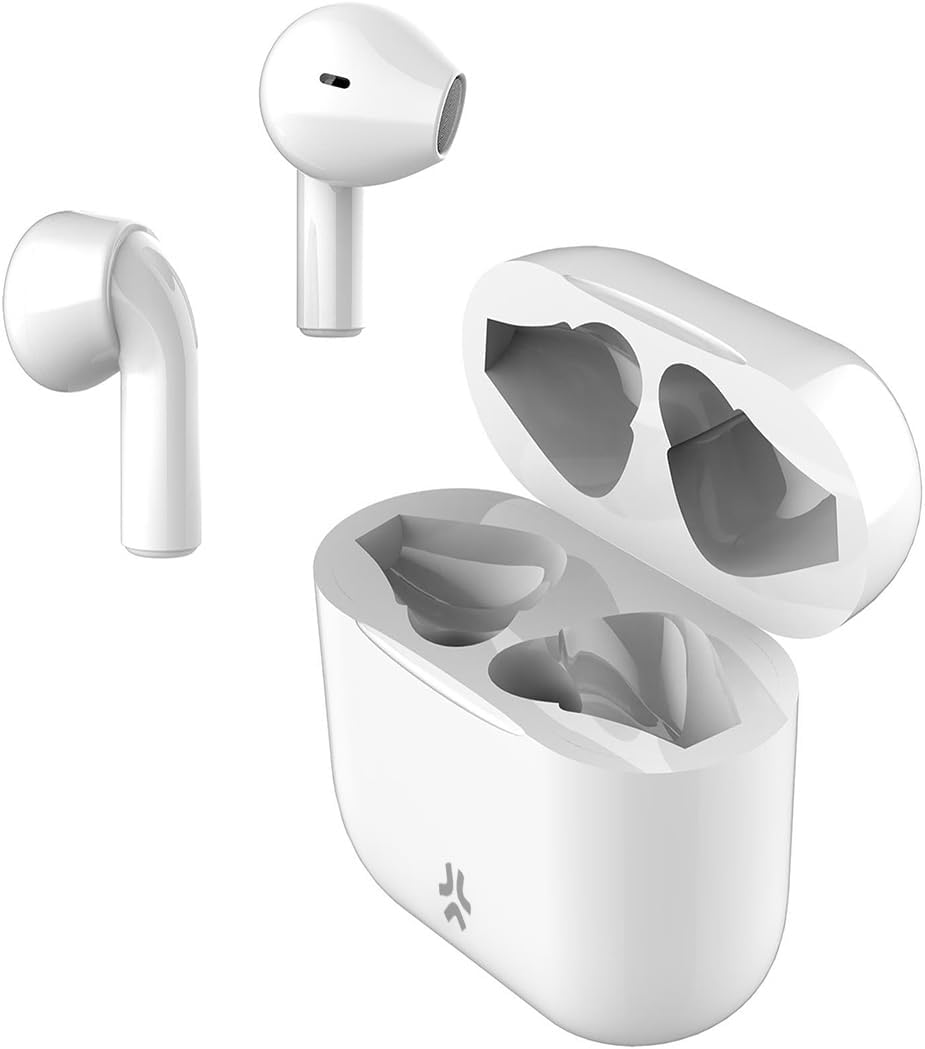
Setup
1. Charging the Headphones and Case
Before first use, fully charge the headphones and the charging case.
- Place both earbuds into the charging case. Ensure they are correctly seated.
- Connect the USB charging cable to the charging port on the case and the other end to a USB power source (e.g., computer, wall adapter).
- The indicator light on the case will show charging status. Once fully charged, the light may change or turn off.
- A full charge typically takes approximately 1-2 hours for the earbuds and 2-3 hours for the case.
2. Pairing with a Device
Pair your Celly BUZ2 headphones with your Bluetooth-enabled device (smartphone, tablet, laptop, etc.).
- Ensure the headphones are charged.
- Open the charging case. The earbuds will automatically enter pairing mode, indicated by a flashing LED light on one or both earbuds.
- On your device, go to Bluetooth settings and turn Bluetooth ON.
- Search for available devices. Select "Celly BUZ2" from the list.
- Once connected, the LED indicator on the earbuds will stop flashing or turn off, and you will hear a confirmation tone.
- If pairing fails, turn off Bluetooth on your device, place the earbuds back in the case, close the lid, wait a few seconds, then repeat the steps.
Operating
Power On/Off
- Power On: Open the charging case, and the earbuds will automatically power on. Alternatively, if off and out of the case, press and hold the touch control area on both earbuds for 3 seconds.
- Power Off: Place the earbuds back into the charging case and close the lid. They will automatically power off and begin charging. Alternatively, if out of the case, press and hold the touch control area on both earbuds for 5 seconds.
Music Playback Controls
| Action | Control |
|---|---|
| Play/Pause | Tap either earbud once. |
| Next Track | Double-tap the right earbud. |
| Previous Track | Double-tap the left earbud. |
| Volume Up | Triple-tap the right earbud. |
| Volume Down | Triple-tap the left earbud. |
Call Management
| Action | Control |
|---|---|
| Answer/End Call | Tap either earbud once. |
| Reject Call | Press and hold either earbud for 2 seconds. |
Voice Assistant
Activate your device's voice assistant (Siri, Google Assistant, etc.) by pressing and holding either earbud for 3 seconds (when not on a call).
Maintenance
- Cleaning: Use a soft, dry, lint-free cloth to clean the earbuds and charging case. Do not use harsh chemicals or abrasive materials.
- Storage: When not in use, store the headphones in their charging case to protect them and keep them charged. Store in a cool, dry place away from direct sunlight.
- Battery Care: To preserve battery life, avoid fully discharging the headphones frequently. Charge them regularly, even if not in constant use.
Troubleshooting
| Problem | Solution |
|---|---|
| Headphones not turning on. | Ensure the charging case and earbuds are fully charged. Place earbuds in case, close lid, then open again. |
| Cannot pair with device. | Ensure Bluetooth is enabled on your device. Make sure headphones are in pairing mode. Forget "Celly BUZ2" from your device's Bluetooth list and try pairing again. Move closer to your device. |
| Only one earbud is working. | Place both earbuds back into the charging case, close the lid, wait 5 seconds, then open the lid again. Ensure both earbuds are charged. |
| No sound or low volume. | Check volume levels on both the headphones and your connected device. Ensure headphones are properly connected. Try playing different audio. |
| Charging issue. | Ensure the charging cable is securely connected. Try a different USB port or power adapter. Clean the charging contacts on the earbuds and case. |
Specifications
| Feature | Detail |
|---|---|
| Model Name | BUZ2WH |
| Brand | Celly |
| Connectivity Technology | Wireless (Bluetooth) |
| Item Weight | 0.12 Kilograms |
| Material | Silicone, Plastic |
| Included Components | User Manual, Charging Cable |
| Compatible Devices | Laptops, Telephones, Tablets, Smart Speaker, Car Audio Systems, Gaming Consoles, Television, Desktops, Cellphones |
| Specific Uses for Product | Music |
Warranty and Support
For warranty information and technical support, please refer to the warranty card included in your product packaging or visit the official Celly website. Keep your proof of purchase for warranty claims.
Related documentsBUZ2WH


Ask a question about this manual
Ask about setup, troubleshooting, compatibility, parts, safety, or missing instructions. Manuals+ will review the question and use this page’s manual context to help answer it.