
Introduction
The SENCKIT S1 Bluetooth Tracker is designed to help you locate your valuable items quickly and efficiently. Utilizing Apple's Find My network, this smart tracker allows you to pinpoint the location of your keys, bags, wallets, pets, and other belongings directly from your iOS device. This manual provides detailed instructions for setting up, operating, and maintaining your SENCKIT S1 tracker.

Image: SENCKIT S1 Bluetooth Tracker, a white square device with a keychain, next to an iPhone displaying its location on a map.
Safety Information
Warning: Not suitable for children under 36 months.
Please keep the device and its small parts, especially the battery, out of reach of young children to prevent choking hazards.
Package Contents
Verify that all items are present in your package:
- 1 x SENCKIT S1 Bluetooth Tracker
- 1 x Instruction Manual (this document)
Setup
1. Battery Installation
The SENCKIT S1 tracker uses a replaceable CR2032 button cell battery. The battery is pre-installed, but you may need to remove a protective strip before first use.
- Locate the small groove on the side of the tracker.
- Carefully pry open the tracker casing using a thin, non-metallic tool or your fingernail.
- If present, remove the plastic protective strip from the battery compartment.
- Ensure the CR2032 battery is correctly seated with the positive (+) side facing up.
- Close the tracker casing firmly until it clicks into place.

Image: The SENCKIT S1 tracker with its back cover removed, revealing the internal circuit board and a CR2032 battery. This illustrates the battery installation process.
2. Pairing with Apple Find My App
The SENCKIT S1 tracker is designed to work exclusively with Apple's Find My network. Ensure your iOS device is running the latest version of iOS.
- Open the pre-installed Find My app on your iPhone or iPad.
- Tap the Items tab at the bottom of the screen.
- Tap + Add Item, then select Other Supported Item.
- Place your SENCKIT S1 tracker near your iOS device. The app will detect the tracker.
- Tap Connect when prompted.
- Follow the on-screen instructions to name your item and link it to your Apple ID.
- Tap Agree to the privacy statement and then Finish. Your tracker is now paired.

Image: A sequence of three iPhone screens demonstrating the initial steps to pair the SENCKIT S1 tracker with the Apple Find My app, from opening the app to selecting "Other Supported Item."

Image: A sequence of three iPhone screens illustrating the completion of the pairing process, including tapping "Connect," linking to an Apple ID, and finalizing the setup.
Operating Instructions
1. Locating Nearby Items
When your SENCKIT S1 tracker is within Bluetooth range of your iOS device, you can make it play a sound to help you find it.
- Open the Find My app.
- Go to the Items tab and select your SENCKIT S1 tracker.
- Tap Play Sound. The tracker will emit a loud ring (up to 90dB) to guide you to its location.
- Tap Stop Sound once you have found your item.

Image: An iPhone screen displaying the "Play Sound" function within the Find My app, indicating the tracker's proximity and the ability to trigger an audible alert. A SENCKIT tracker with keys is shown next to the phone.
2. Locating Far Away Items
If your item is out of Bluetooth range, the Apple Find My network can help you locate it. Hundreds of millions of Apple devices anonymously and securely relay the location of your tracker to you.
- Open the Find My app.
- Go to the Items tab and select your SENCKIT S1 tracker.
- The app will display the tracker's last known location on a map.
- Tap Directions to get navigation to the tracker's location.

Image: An iPhone screen displaying the Find My app with a map showing the current location of the SENCKIT S1 tracker, indicating its use for remote tracking.
3. Left-Behind Alerts
Receive notifications if you leave your item behind and it goes out of range of your iOS device.
- In the Find My app, select your SENCKIT S1 tracker.
- Scroll down and enable the Notify When Left Behind toggle.
- You can also set specific locations where you do not want to be notified (e.g., your home).
4. Lost Mode
If your SENCKIT S1 tracker is truly lost, you can enable Lost Mode to help others return it to you.
- In the Find My app, select your SENCKIT S1 tracker.
- Scroll down and tap Enable under Lost Mode.
- Follow the prompts to enter a contact phone number or email address.
- If someone finds your tracker and scans it with an NFC-enabled smartphone, they will see your contact information.

Image: An iPhone screen displaying the "Lost Mode" feature within the Find My app, showing how a contact number can be displayed to someone who finds the tracker.
Maintenance
1. Battery Replacement
The SENCKIT S1 tracker has a battery life of up to 1 year. The Find My app will notify you when the battery is low. Replace the CR2032 battery following these steps:
- Locate the small groove on the side of the tracker.
- Carefully pry open the tracker casing.
- Remove the old CR2032 battery.
- Insert a new CR2032 battery with the positive (+) side facing up.
- Close the tracker casing firmly until it clicks into place.

Image: A graphic illustrating the SENCKIT S1 tracker's replaceable battery feature, highlighting its long-term use with a 365-day battery life.
2. Cleaning
To clean your SENCKIT S1 tracker, wipe it with a soft, dry, or slightly damp cloth. Avoid using harsh chemicals or abrasive materials, as these can damage the device.
Troubleshooting
- Tracker not pairing:
- Ensure the battery is correctly installed and has sufficient charge.
- Make sure your iOS device's Bluetooth is enabled.
- Bring the tracker very close to your iOS device during pairing.
- Restart your iOS device and try pairing again.
- Tracker not playing sound:
- Check the battery level in the Find My app. Replace the battery if low.
- Ensure the tracker is within Bluetooth range of your iOS device.
- Inaccurate location:
- Location accuracy depends on the density of Apple devices in the Find My network. In remote areas, updates may be less frequent.
- Ensure your iOS device has a stable internet connection for map updates.
Specifications
| Model | S1 |
| Dimensions | 1.5"L x 1.5"W x 0.28"Th (38mm x 38mm x 7mm) |
| Weight | 0.88 ounces (8.7g) |
| Battery Type | CR2032 (Replaceable) |
| Battery Life | Up to 1 year |
| Connectivity | Bluetooth |
| Wireless Range | 10-20M (Indoor), 20-30M (Outdoor) |
| Buzzer Volume | Up to 90dB |
| Water Resistance | IP65 |
| Compatibility | Apple Find My (iOS Compatible) |
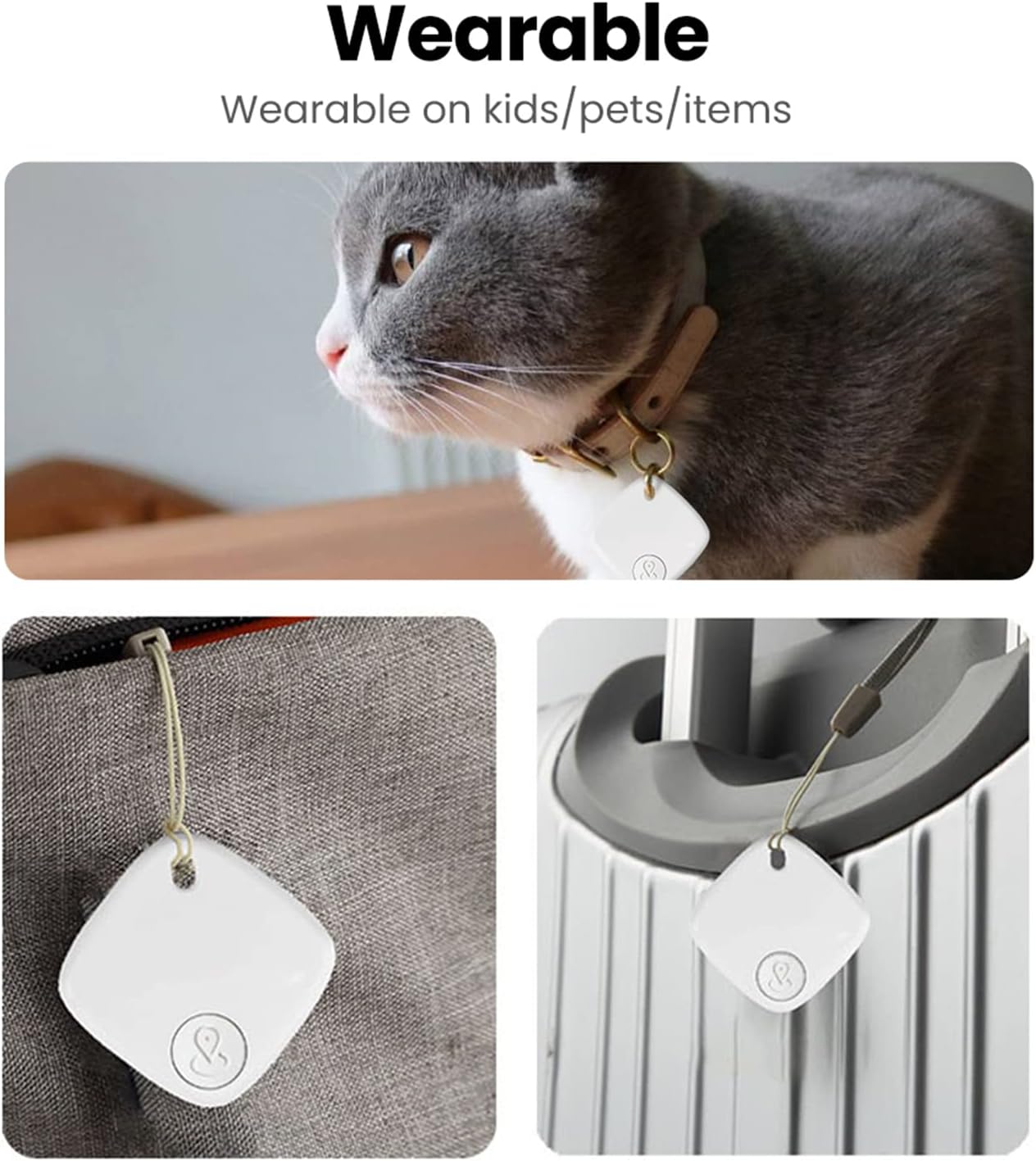
Image: A detailed diagram illustrating the physical dimensions and key specifications of the SENCKIT S1 Bluetooth Tracker.
Usage Scenarios
The SENCKIT S1 Bluetooth Tracker is versatile and can be attached to various items:
- Keys: Attach to your keyring to easily find misplaced keys.
- Bags & Backpacks: Secure to your luggage, handbag, or backpack for travel or daily use.
- Wallets: Slip into your wallet to prevent loss.
- Pets: Attach to your pet's collar to help locate them if they wander off.

Image: A collage demonstrating various applications of the SENCKIT S1 tracker, including attachment to a pet's collar, a bag, and luggage.