
1. Introduction
The LENVII CW888 is a versatile 2-in-1 barcode scanner designed for efficient data capture. It supports both 2.4G wireless and USB wired connections, offering flexibility for various environments. This device is capable of reading a wide range of 1D and 2D barcodes, including QR codes, from both printed labels and digital screens. Its integrated charging base provides convenient power management and hands-free operation.

Image 1: LENVII CW888 Wireless 2D Barcode Scanner with its charging base.
2. Package Contents
Verify that all items are present in the package:
- 1x LENVII CW888 Barcode Scanner
- 1x USB Cable
- 1x User Manual
3. Product Overview
Familiarize yourself with the components of the LENVII CW888 barcode scanner.
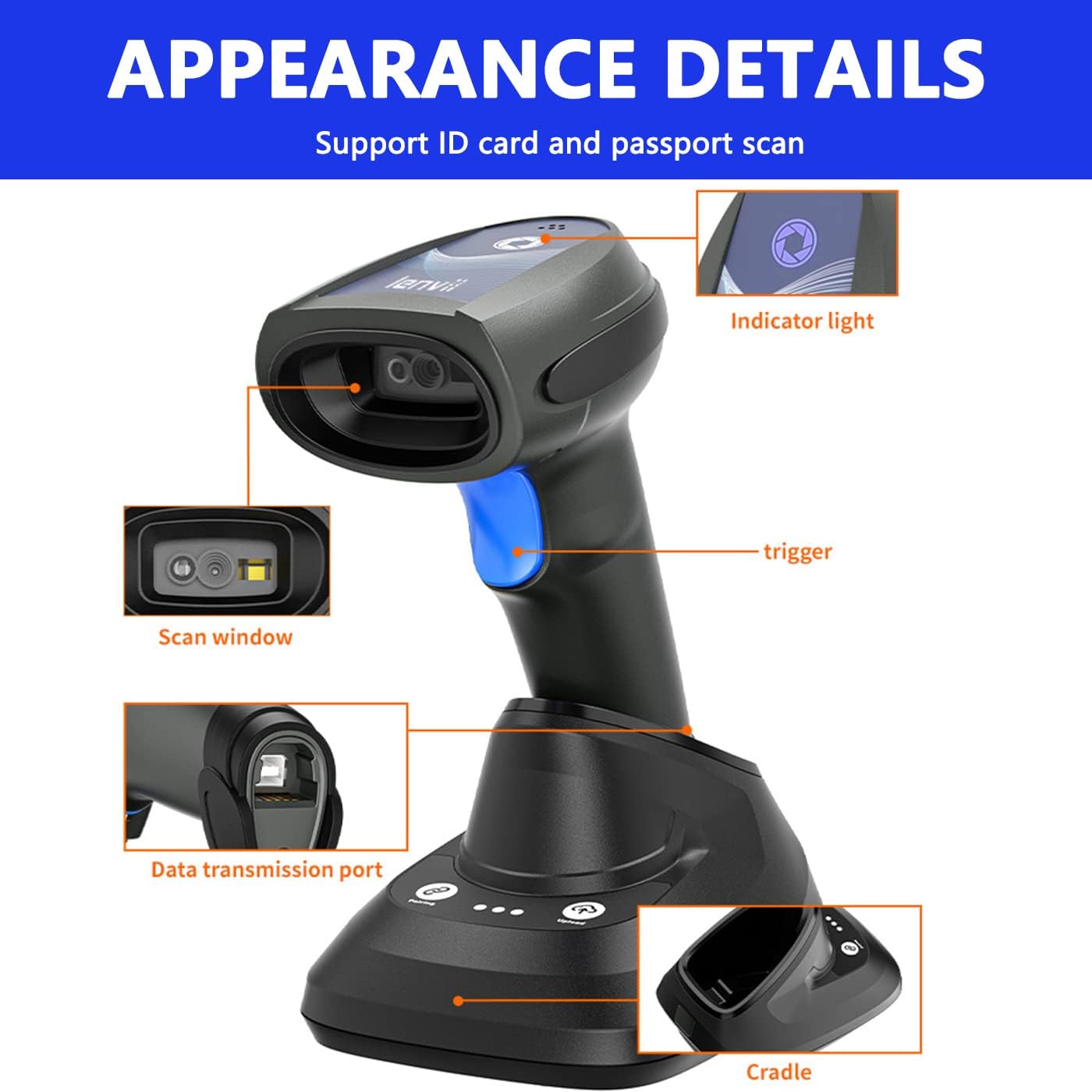
Image 2: Detailed view of the scanner components, including the scan window, trigger, indicator light, data transmission port, and cradle.
- Scan Window: Area where barcodes are read.
- Trigger: Button to initiate scanning in Key Trigger Mode.
- Indicator Light: Provides status feedback (e.g., power, connection, scan success).
- Data Transmission Port: USB port for wired connection and charging.
- Cradle (Charging Base): Used for charging and hands-free continuous scanning.
4. Setup
4.1. Charging the Scanner
The scanner is equipped with a built-in 2200mAh battery. A full charge takes approximately 5 hours and provides up to 12 hours of continuous scanning or 3 months of standby time.
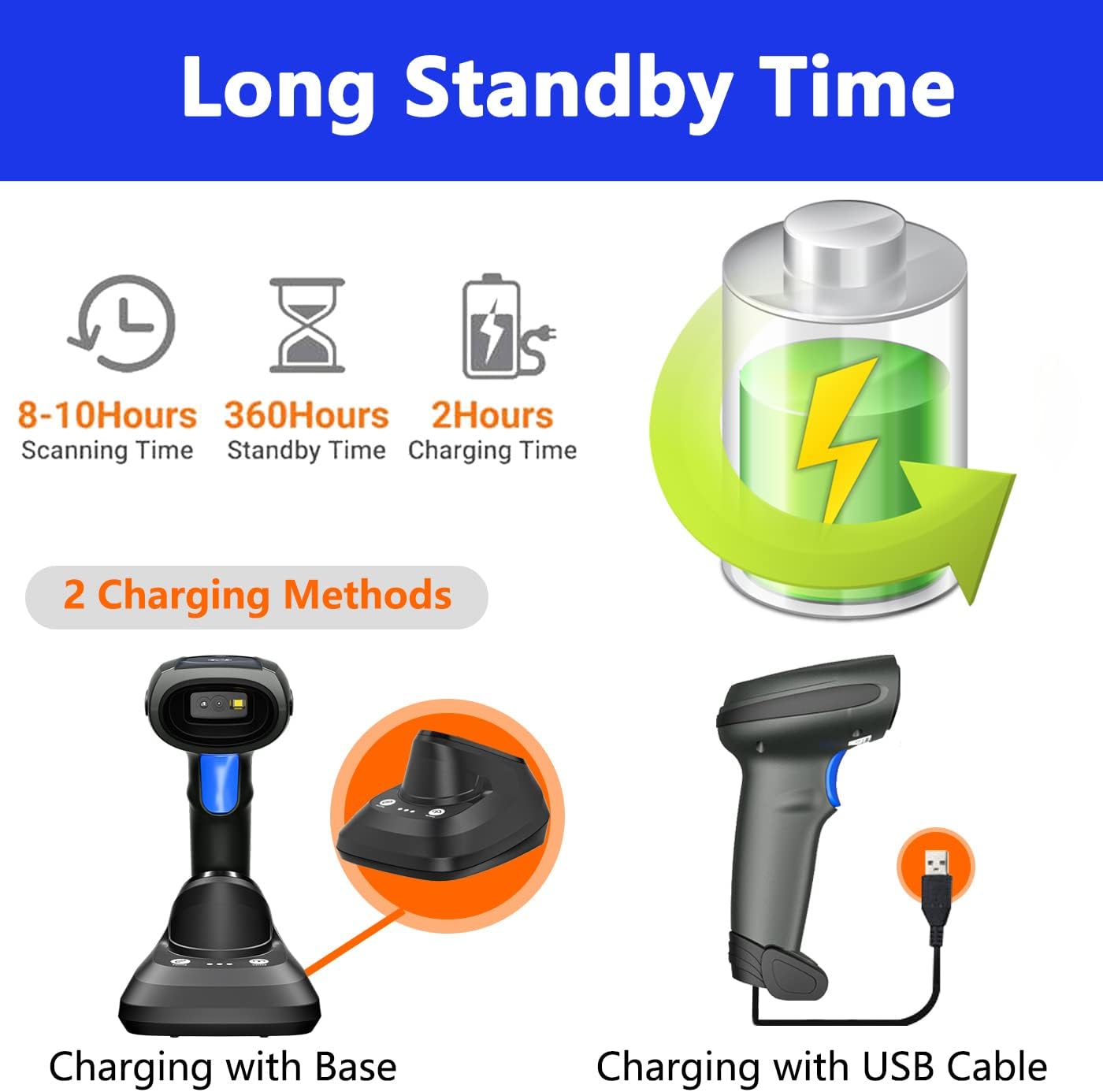
Image 3: Illustration of the two charging methods: using the charging base or directly via USB cable.
- Charging with Base: Place the scanner onto the charging base. Ensure the base is connected to a power source via the USB cable.
- Charging with USB Cable: Connect the USB cable directly to the scanner's data transmission port and a power source (e.g., computer USB port, USB wall adapter).
4.2. Connecting the Scanner
The CW888 offers two connection methods: 2.4G wireless and USB wired.

Image 4: Depicts wireless connection to a laptop and USB cable connection to a desktop computer.
- 2.4G Wireless Connection: Plug the 2.4G USB receiver (usually located in the charging base or scanner itself) into your computer's USB port. The scanner will automatically pair. The wireless signal range can reach up to 50 meters.
- USB Wired Connection: Connect the scanner directly to your computer using the provided USB cable. The scanner will function as a wired device and also charge simultaneously.
4.3. System Compatibility
The LENVII CW888 barcode scanner is compatible with various operating systems:
- Windows XP/7/8/8.1/10
- Mac OS
- Android
- Linux
It works with common software applications such as Quickbook, Word, Excel, and Novell.
5. Operating Modes
5.1. Scanning Modes
The scanner supports two primary scanning modes:

Image 5: Illustrates Key Trigger Mode (manual scan) and Continuous Scanning Mode (automatic scan with base).
- Key Trigger Mode: Press the trigger button to scan each barcode individually.
- Continuous Scanning Mode: When placed on the charging base, the scanner can automatically detect and scan barcodes without needing to press the trigger, providing a hands-free operation.
5.2. Upload Modes
The scanner offers two data upload modes:

Image 6: Shows Instant Upload Mode (real-time data transfer) and Storage Mode (offline data collection).
- Instant Upload Mode: Barcode data is synchronously uploaded to your connected device immediately after scanning.
- Storage Mode: The scanner can store up to 50,000 barcode entries (512KB internal memory) when out of range or disconnected. Data can be uploaded to your device later when a connection is re-established.
6. Decoding Capabilities
The LENVII CW888 scanner can easily capture a wide range of 1D and 2D barcodes, even those that are poorly printed, damaged, or displayed on screens.

Image 7: Examples of supported 1D and 2D barcode types.
Supported barcode symbologies include:
- 1D Barcodes: UPC/EAN (including additional code), Code128, Code39, Code39 Full ASCII, Codebar, Industrial/Interleaved 2 of 5, Code93, MSI, Code11, ISBN/ISSN.
- 2D Barcodes: QR Code, Data Matrix, PDF417, Aztec code, Maxicode.
7. Maintenance
To ensure optimal performance and longevity of your LENVII CW888 barcode scanner, follow these maintenance guidelines:
- Cleaning: Use a soft, dry cloth to clean the scanner's exterior. For the scan window, use a lint-free cloth and a mild cleaning solution if necessary. Avoid abrasive materials or harsh chemicals.
- Battery Care: Avoid fully discharging the battery frequently. For long-term storage, charge the battery to about 50% and store in a cool, dry place.
- Storage: Store the scanner in a safe place away from extreme temperatures, direct sunlight, and moisture.
- Handling: Handle the scanner with care to prevent drops or impacts that could damage internal components.
8. Troubleshooting
If you encounter issues with your LENVII CW888 barcode scanner, consider the following:
- Scanner Not Working: Ensure the scanner is fully charged and properly connected (either wirelessly via the USB receiver or directly via USB cable).
- No Data Transmission: Check the connection. For wireless mode, ensure the USB receiver is plugged in and within range. For wired mode, verify the USB cable is securely connected to both the scanner and the computer.
- Unable to Read Barcodes: Ensure the barcode is clean and not excessively damaged. Adjust the scanning distance. Check if the barcode type is supported by the scanner.
- Software Issues: Confirm that your operating system and application are compatible with the scanner.
For persistent issues, please refer to the detailed troubleshooting section in the full manual (if available) or contact customer support for assistance. Provide specific details about the problem to receive a prompt response.
9. Specifications
Technical specifications for the LENVII CW888 Wireless 2D Barcode Scanner:

Image 8: Dimensions of the scanner and its charging base.
| Feature | Specification |
|---|---|
| Model | CW888 |
| Connectivity Technology | 2.4G Wireless, USB Wired |
| Wireless Distance | Up to 50 meters |
| Internal Storage | 512 KB (stores up to 50,000 code entries) |
| Decoding Rate | 100 scans per second |
| Minimum Resolution | 5mil |
| Light Source | LED 650+/-20nm |
| Battery | 2200mAh Lithium Ion |
| Charging Time | Approx. 5 hours |
| Continuous Scanning Time | Up to 12 hours |
| Standby Time | Up to 3 months |
| Product Dimensions | 5.31 x 2.01 x 1.57 inches |
| Item Weight | 1.76 pounds |
| Keyboard Language | English/French/German/Spanish/Italian |
| Compatible Systems | Windows XP/7/8/8.1/10, Mac OS, Android, Linux |
10. Applications
The LENVII CW888 barcode scanner is suitable for a wide range of industries and applications, enhancing efficiency in various operational settings.

Image 9: Examples of environments where the scanner can be used, such as warehouses, logistics, and supermarkets.
- Supermarkets and Retail Stores
- Warehouses and Inventory Management
- Logistics and Express Services
- Libraries and Document Management
- Restaurants and Point-of-Sale (POS)
- Banks and Financial Institutions
- Postal Services
- Industrial and Manufacturing Process Management
11. Warranty and Support
For warranty information or technical support, please refer to the documentation included with your purchase or contact the LENVII customer service. When contacting support, please have your product model (CW888) and purchase details ready.


