
1. Introduction
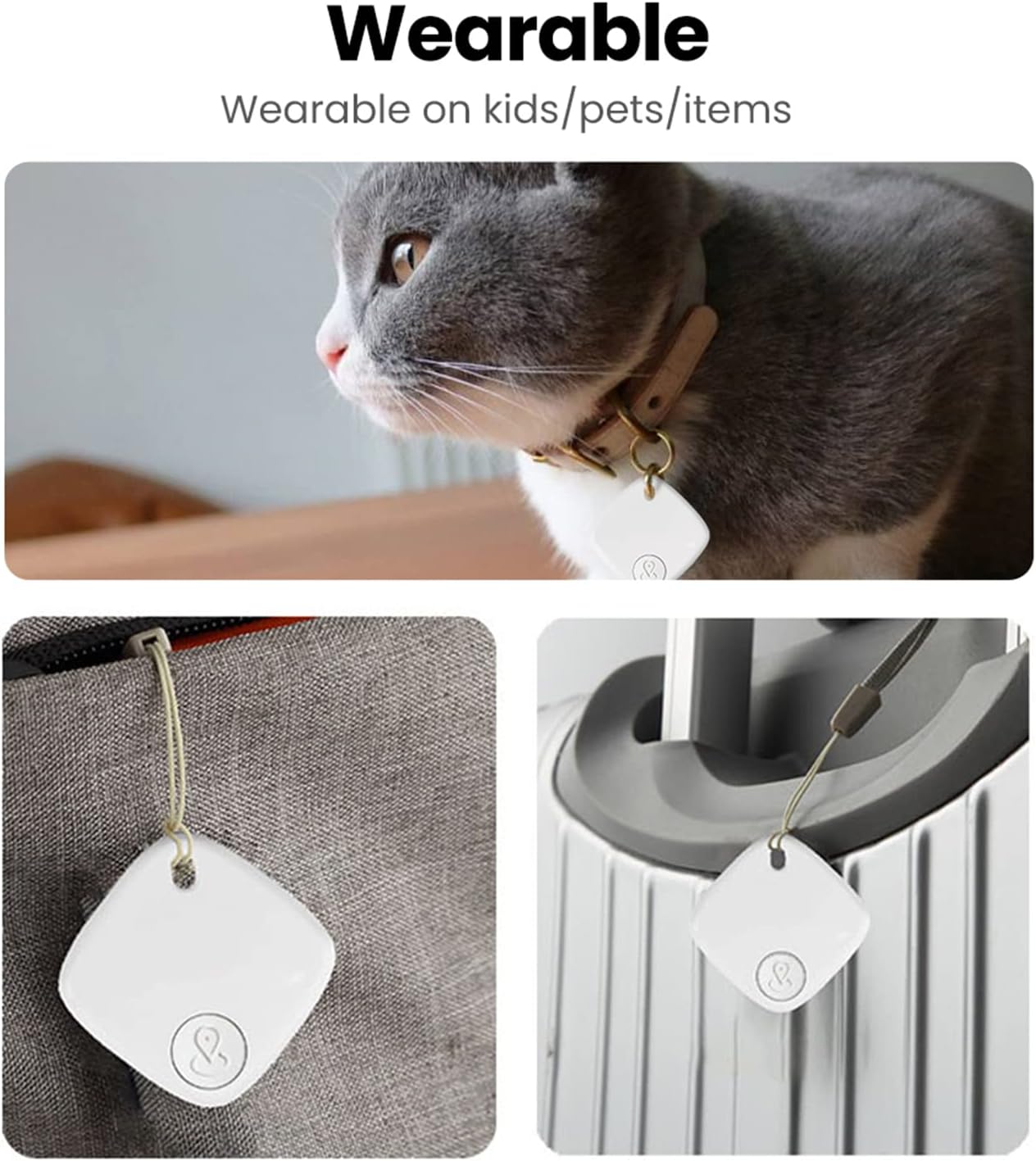
The SENCKIT S1 Bluetooth Tracker is a compact item locator designed to help you find your personal belongings quickly and efficiently. Utilizing the Apple Find My network, this device allows you to track keys, bags, wallets, pets, and other items directly from your iOS device. It features a replaceable battery for extended use and provides alerts when you leave your items behind.
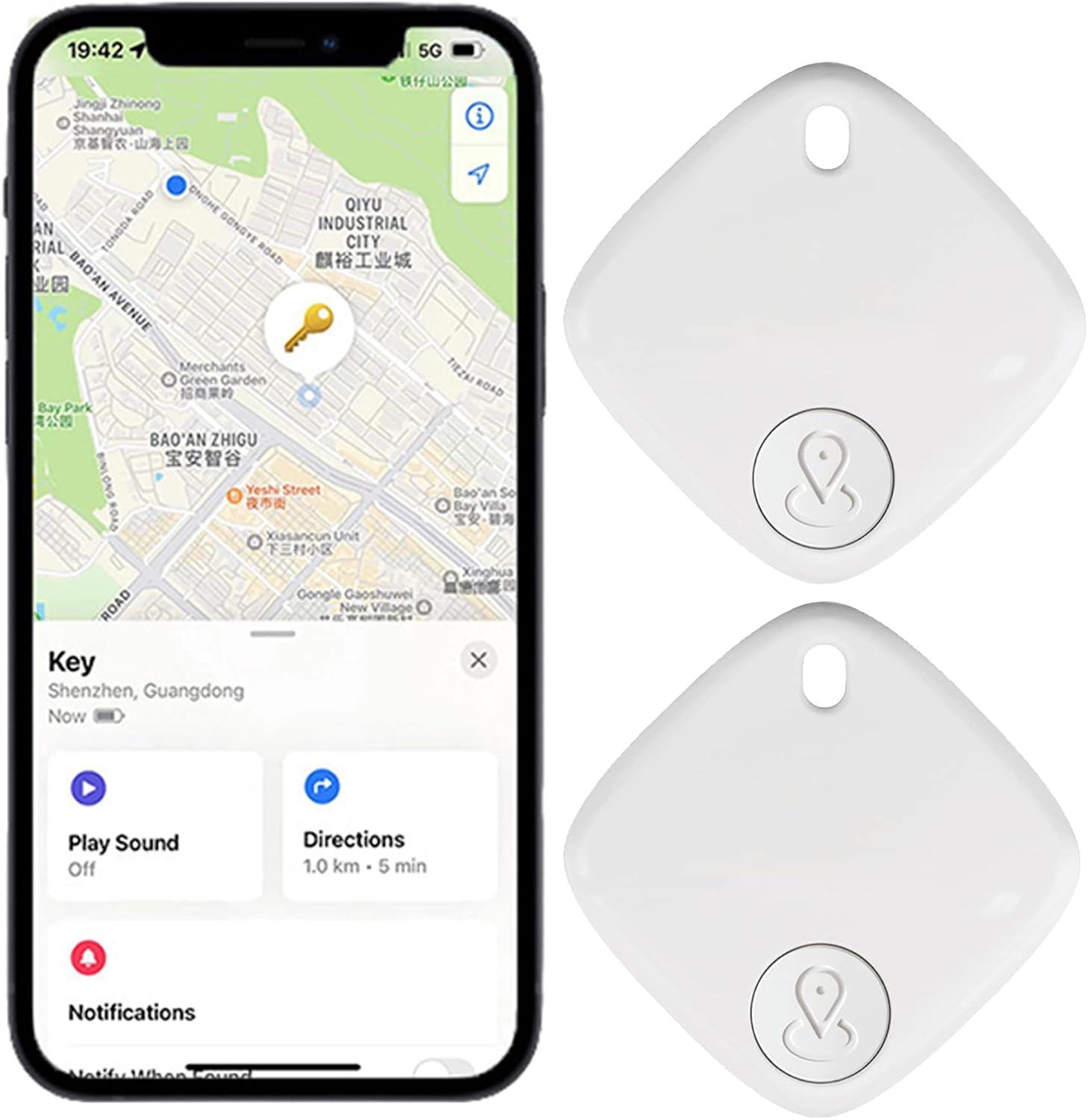
2. Package Contents
Please verify that all items are present in your package:
- 2 x SENCKIT S1 Smart Tracker
- 2 x Instruction Manual
3. Product Overview
The SENCKIT S1 tracker is designed for convenience and durability. It is lightweight, small, and features an IP65 water-resistant rating, making it suitable for various environments. The device emits a loud ring up to 90dB to assist in locating nearby items.

4. Setup Instructions
The SENCKIT S1 Bluetooth Tracker pairs exclusively with Apple devices using the Find My app. Ensure your iOS device is updated to the latest version.
- Open the Find My App: On your Apple device, open the pre-installed 'Find My' application.
- Tap 'Add Item': Navigate to the 'Items' tab and tap the 'Add Item' button.
- Select 'Other Supported Item': Choose the option for 'Other Supported Item' to begin the pairing process.

- Tap 'Connect': The app will detect your SENCKIT S1. Tap 'Connect' to link it to your device.
- Link to your Apple ID: Follow the on-screen prompts to link the tracker to your Apple ID. Review and agree to the terms.
- Finish: Once linked, the tracker will appear in your 'Items' list within the Find My app.

5. Operating Instructions
5.1 Locating Nearby Items
When your SENCKIT S1 is within Bluetooth range of your Apple device, you can use the Find My app to make it play a sound. This helps you pinpoint its exact location if it's nearby, such as under a sofa cushion or in another room.
- Open the Find My app.
- Select your SENCKIT S1 from the 'Items' list.
- Tap 'Play Sound'. The tracker will emit a loud beep.


5.2 Locating Far-Away Items
If your item is out of Bluetooth range, the Apple Find My network can help. Hundreds of millions of Apple devices anonymously and securely relay the location of your SENCKIT S1 to you.
- Open the Find My app.
- Select your SENCKIT S1 from the 'Items' list.
- The app will display the last known location on a map, or the current location if detected by another Find My network device.

5.3 Left-Behind Alerts
To receive notifications when you leave an item behind:
- In the Find My app, select your SENCKIT S1.
- Enable the 'Notify When Left Behind' toggle.
- You will receive an alert on your device if the tracker moves out of range.
5.4 Lost Mode
If your item is truly lost, you can activate 'Lost Mode':
- In the Find My app, select your SENCKIT S1.
- Enable 'Lost Mode'.
- You can enter a contact phone number or email address. If another Apple device user finds your item, they can use their device to see your contact information and help return it.

5.5 Privacy Protection
All communication within the Find My network is anonymous and encrypted to protect your privacy. Location data and history are never stored directly on the SENCKIT S1 tracker itself.
5.6 Use Cases


6. Maintenance
6.1 Battery Replacement
The SENCKIT S1 uses a replaceable CR2032 coin cell battery, providing up to 1 year of standby time. To replace the battery:
- Gently open the tracker casing.
- Remove the old CR2032 battery.
- Insert a new CR2032 battery with the positive (+) side facing up.
- Close the casing securely.


6.2 Water Resistance
The SENCKIT S1 has an IP65 water-resistant rating, meaning it is protected against dust ingress and low-pressure water jets from any direction. It is not designed for submersion in water.
7. Troubleshooting
- Tracker not connecting: Ensure Bluetooth is enabled on your iOS device and the tracker's battery is not depleted. Try restarting your device and the pairing process.
- No sound from tracker: Check if the 'Play Sound' function is activated in the Find My app. Ensure the tracker is within Bluetooth range.
- Inaccurate location: Location accuracy depends on the density of the Apple Find My network and GPS signal availability. Ensure your device has a stable internet connection.
- Battery life issues: Ensure you are using a fresh CR2032 battery. Extreme temperatures can affect battery performance.
8. Specifications

| Feature | Specification |
|---|---|
| Model | S1 |
| Product Dimensions | 1.49 x 1.49 x 0.27 inches (38 x 38 x 7 mm) |
| Item Weight | 1.76 ounces (8.7g) |
| Battery Type | CR2032 (replaceable) |
| Battery Life (Standby) | Up to 1 year |
| Buzzer Volume | 90dB |
| Connectivity | Bluetooth |
| Water Resistance | IP65 |
| Wireless Range (Indoor) | 10-20 meters |
| Wireless Range (Outdoor) | 20-30 meters |
| Compatible Devices | Apple devices with Find My app (iOS, iPadOS, macOS) |
9. Warranty and Support
SENCKIT products are designed for reliability and performance. For warranty information or technical support, please refer to the contact details provided with your purchase or visit the official SENCKIT website. Please have your product model (S1) and purchase information ready when contacting support.
Manufacturer: SENCKIT