
LENVII CW200
LENVII CW200 Wireless 2D Barcode Scanner User Manual
Model: CW200
1. Introduction
This manual provides detailed instructions for the setup, operation, maintenance, and troubleshooting of your LENVII CW200 Wireless 2D Barcode Scanner. Please read this manual thoroughly before using the device to ensure proper functionality and to extend its lifespan.

Image 1.1: The LENVII CW200 Wireless 2D Barcode Scanner, showcasing its ergonomic design and included USB cables and wireless dongle.
2. Key Features
- 2-in-1 Connection: Supports both 2.4G wireless and USB wired connections.
- Wide Compatibility: Works with Windows XP/7/8/10, Mac OS, Android, and Linux. Compatible with common software like Quickbook, Word, Excel.
- Advanced Decoding: Reads 1D, 2D, and QR barcodes from paper or screens, including poorly printed or damaged codes. Supports UPC/EAN, Code128, Code39, QR Code, Data Matrix, PDF417, Aztec, and more.
- Long Battery Life: Built-in 2200mAh battery provides up to 12 hours of continuous scanning and 3 months of standby time after a 5-hour charge.
- Two Upload Modes: Instant Upload Mode for real-time data transfer and Storage Mode for offline data collection (up to 50,000 barcode entries).
- Durable Design: Anti-shock, shatterproof construction, capable of withstanding falls from 2.0 meters (6.56 feet).

Image 2.1: Dimensions of the LENVII CW200 Barcode Scanner, showing its length, width, and height.
3. Package Contents
Verify that all items are present in the package:
- 1x LENVII CW200 Wireless Barcode Scanner
- 1x USB Cable (for charging and wired connection)
- 1x 2.4G Wireless USB Dongle
- 1x User Manual (this document)
4. Setup Instructions
4.1 Initial Charging
Before first use, fully charge the scanner. Connect the scanner to a USB power source using the provided USB cable. The charging indicator light will show the charging status. A full charge typically takes approximately 2 hours.

Image 4.1: Illustration of the LENVII CW200 Barcode Scanner's battery life, showing 9 hours scanning time, 60 days standby, and 5 hours charging time for its 2200mAh battery.
4.2 Connecting the Scanner
4.2.1 Wireless 2.4G Connection
- Insert the 2.4G wireless USB dongle into an available USB port on your computer or host device.
- Turn on the barcode scanner. It should automatically pair with the dongle.
- A successful connection is indicated by a specific sound or light pattern (refer to scanner's LED indicator guide).
- If the connection fails, refer to the "Troubleshooting" section for re-pairing instructions.

Image 4.2: Diagram illustrating the 2-in-1 connection options for the LENVII CW200 Barcode Scanner, showing wireless 2.4G and USB wired connections to PCs and laptops, and explicitly stating no Bluetooth support for iPads or phones.

Image 4.3: Visual representation of the LENVII CW200 Barcode Scanner's long-distance transmission capabilities, showing up to 30 meters (98 feet) indoors with obstacles and up to 80 meters (262 feet) outdoors in a barrier-free environment.
4.2.2 USB Wired Connection
- Connect one end of the USB cable to the scanner's square USB port.
- Connect the other end of the USB cable to an available USB port on your computer or host device.
- The scanner will be recognized as a standard HID keyboard device, and no additional drivers are typically required.
5. Operating Instructions
5.1 Scanning Barcodes
- Point the scanner's window at the barcode you wish to scan.
- Press the trigger button. A red scanning line will appear.
- Ensure the scanning line crosses the entire barcode.
- A successful scan will be indicated by a beep and/or a green light. The barcode data will be transmitted to your connected device.

Image 5.1: A comprehensive chart demonstrating the LENVII CW200 Barcode Scanner's ability to identify and scan various 1D, 2D, and QR barcodes, including UPC, EAN, Code 128, Code 39, QR Code, Data Matrix, and PDF417. It also notes a minimum supported barcode size of 5 mil.
5.2 Upload Modes
The LENVII CW200 supports two data upload modes:
- Instant Upload Mode: Barcode data is transmitted to the connected device immediately after each successful scan. This mode is suitable for real-time data entry.
- Storage Mode: Barcode data is stored in the scanner's internal memory (up to 50,000 entries). This mode is ideal for environments where a continuous connection is not feasible. Data can be uploaded to the host device later by scanning a specific command barcode (refer to the full manual for command barcodes).
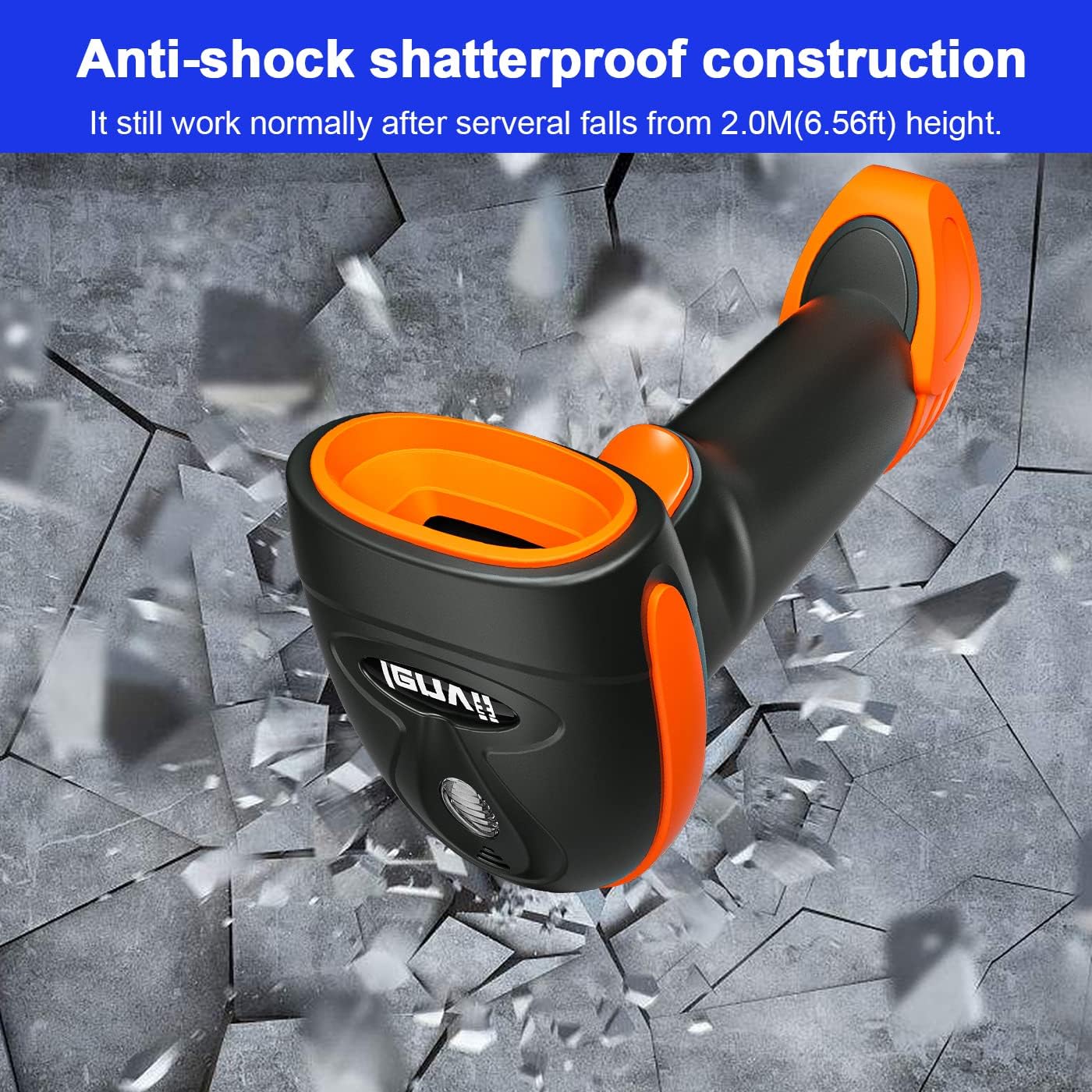
Image 5.2: Visual explanation of the LENVII CW200 Barcode Scanner's two upload modes: Instant Upload Mode, where barcodes are synchronously uploaded to the computer, and Storage Mode, where up to 2000 barcodes can be stored and uploaded later.
5.3 Language Settings
The scanner supports multiple keyboard languages. To change the keyboard language, scan the appropriate configuration barcode from the full user manual. Supported languages include English, French, German, Spanish, and Italian.
6. Maintenance
- Cleaning: Use a soft, dry cloth to clean the scanner's exterior. For the scanning window, use a lens cleaning cloth and a mild cleaning solution if necessary. Avoid abrasive materials or harsh chemicals.
- Storage: Store the scanner in a cool, dry place away from direct sunlight and extreme temperatures.
- Battery Care: To prolong battery life, avoid fully discharging the battery frequently. Charge the scanner regularly, especially if it will be stored for an extended period.
- Physical Protection: While the scanner has anti-shock construction, avoid unnecessary drops or impacts to prevent potential damage.
7. Troubleshooting
7.1 Scanner Not Connecting Wirelessly
- Check Dongle: Ensure the 2.4G USB dongle is securely plugged into a working USB port on your computer.
- Power On: Confirm the scanner is powered on and sufficiently charged.
- Re-pairing: If the scanner does not connect automatically, you may need to re-pair it. Scan the "Pairing Mode" barcode (usually found in the full manual or quick start guide), then scan the barcode on the USB dongle, or follow specific re-pairing instructions provided by LENVII.
- Interference: Move away from strong electromagnetic interference sources.
7.2 Scanner Not Reading Barcodes
- Aiming: Ensure the red scanning line completely covers the barcode.
- Barcode Type: Verify that the barcode type is supported by the scanner (refer to "Specifications").
- Barcode Quality: Poorly printed, damaged, or very small barcodes may be difficult to read. Try scanning a different, clear barcode.
- Distance: Adjust the scanning distance. The optimal distance varies depending on barcode size and type.
- Lighting: Ensure adequate lighting, but avoid direct glare on the barcode.
7.3 No Data Output to Computer
- Connection Mode: Ensure the scanner is in the correct upload mode (Instant Upload Mode for real-time data). If in Storage Mode, you need to initiate data upload.
- Application Focus: Make sure the cursor is active in the application where you want the data to appear (e.g., a text editor, spreadsheet).
- Wired Connection: If using a wired connection, ensure the USB cable is securely connected to both the scanner and the computer.
8. Specifications
| Feature | Detail |
|---|---|
| Model | CW200 |
| Connectivity | 2.4G Wireless, USB Wired |
| Decode Rate | 100 scans per second |
| Minimum Resolution | 5 mil |
| Light Source | LED 650 +/- 20nm |
| Internal Storage | 512 KB (up to 50,000 code entries) |
| Wireless Distance | Up to 50m (indoor), Up to 80m (outdoor barrier-free) |
| Battery Capacity | 2200mAh |
| Charging Time | Approx. 2 hours |
| Continuous Scanning Time | Up to 12 hours |
| Standby Time | Up to 3 months |
| Supported Barcodes (1D) | UPC/EAN (include extra code), Code128, Code39, Code 39 Full ASCII, Codabar, Industrial/Interleaved 2 of 5, Code93, MSI, Code11, ISBN/ISSN |
| Supported Barcodes (2D/QR) | QR Code, Data Matrix, PDF417, Aztec code, Maxicode |
| Compatible Systems | Windows XP/7/8/8.1/10, Mac OS, Android, Linux |
| Product Dimensions | 5.31 x 2.01 x 1.57 inches |
| Item Weight | 1.1 pounds |
| Keyboard Language | English, French, German, Spanish, Italian |

Image 8.1: Depiction of the LENVII CW200 Barcode Scanner's anti-shock, shatterproof construction, illustrating its ability to withstand falls from 2.0 meters (6.56 feet).

Image 8.2: Examples of typical application environments for the LENVII CW200 Barcode Scanner, including supermarkets, warehouses, libraries, and pharmacies.
9. Warranty Information
LENVII products are designed for reliability and performance. For specific warranty terms and conditions, please refer to the warranty card included with your product or visit the official LENVII website. Keep your purchase receipt as proof of purchase for warranty claims.
10. Customer Support
If you encounter any issues or have questions regarding your LENVII CW200 Barcode Scanner, please contact LENVII customer support. You can typically find contact information on the product packaging, the official LENVII website, or by referring to the "Contact Us" section in the full user manual.
When contacting support, please provide your product model (CW200) and a detailed description of the issue.
For additional resources and frequently asked questions, visit the official LENVII website: https://www.lenvii.net/
Related documentsCW200

Ask a question about this manual
Ask about setup, troubleshooting, compatibility, parts, safety, or missing instructions. Manuals+ will review the question and use this page’s manual context to help answer it.