
Introduction
The Redragon K649 PRO is a 78% layout wireless gasket RGB gaming keyboard designed for versatility and performance. It features a full-transparent design, 3-mode connectivity (USB-C wired, 2.4GHz wireless, and Bluetooth 5.0), hot-swappable switches, and multiple noise dampening layers for an enhanced typing experience. This manual provides detailed instructions for setup, operation, maintenance, and troubleshooting.

Image: The Redragon K649 PRO keyboard showcasing its transparent design and RGB backlighting.
Package Contents
Verify that all items are present in your package:
- 1 x Redragon K649 PRO Gaming Keyboard
- 1 x Detachable USB Type-C Cable
- 1 x User Manual (this document)
- 4 x Translucent Custom Switches (spare)
Setup
The Redragon K649 PRO keyboard supports three connection modes: wired, 2.4GHz wireless, and Bluetooth.

Image: The Redragon K649 PRO keyboard demonstrating its tri-mode connectivity with a laptop, tablet, and smartphone.
1. Wired Connection
- Locate the USB Type-C port on the keyboard.
- Connect the provided USB Type-C cable to the keyboard and the other end to an available USB port on your computer.
- The keyboard will automatically be recognized and ready for use.
2. 2.4GHz Wireless Connection
- Locate the 2.4GHz USB dongle (receiver) included in the package.
- Plug the USB dongle into an available USB port on your computer.
- On the keyboard, switch the mode selector to the 2.4G position.
- The keyboard should connect automatically. If not, press FN + 4 to initiate pairing.
3. Bluetooth Connection
- On the keyboard, switch the mode selector to the BT position.
- Press and hold FN + 1, FN + 2, or FN + 3 for 3-5 seconds to enter pairing mode for the desired Bluetooth channel. The indicator light will flash rapidly.
- On your device (PC, laptop, tablet), enable Bluetooth and search for new devices.
- Select "Redragon K649 PRO" from the list of available devices to pair.
- Once paired, the indicator light on the keyboard will stop flashing and remain solid.
Operating Instructions
RGB Lighting Control
The K649 PRO features 16.8 million splendid RGB backlighting with 20 preset modes. You can customize lighting effects directly on the keyboard or through the dedicated software.

Image: A detailed view of the keyboard's keys illuminated with various RGB colors.
- FN + \|: Cycle through different backlight modes.
- FN + <: Decrease backlight speed.
- FN + >: Increase backlight speed.
- FN + Up Arrow: Increase backlight brightness.
- FN + Down Arrow: Decrease backlight brightness.
- FN + Right Ctrl: Change backlight color in certain modes.
Key Functions and Layout
The 82-key layout provides a compact form factor while retaining essential function keys. Many keys have secondary functions accessible via the FN key.
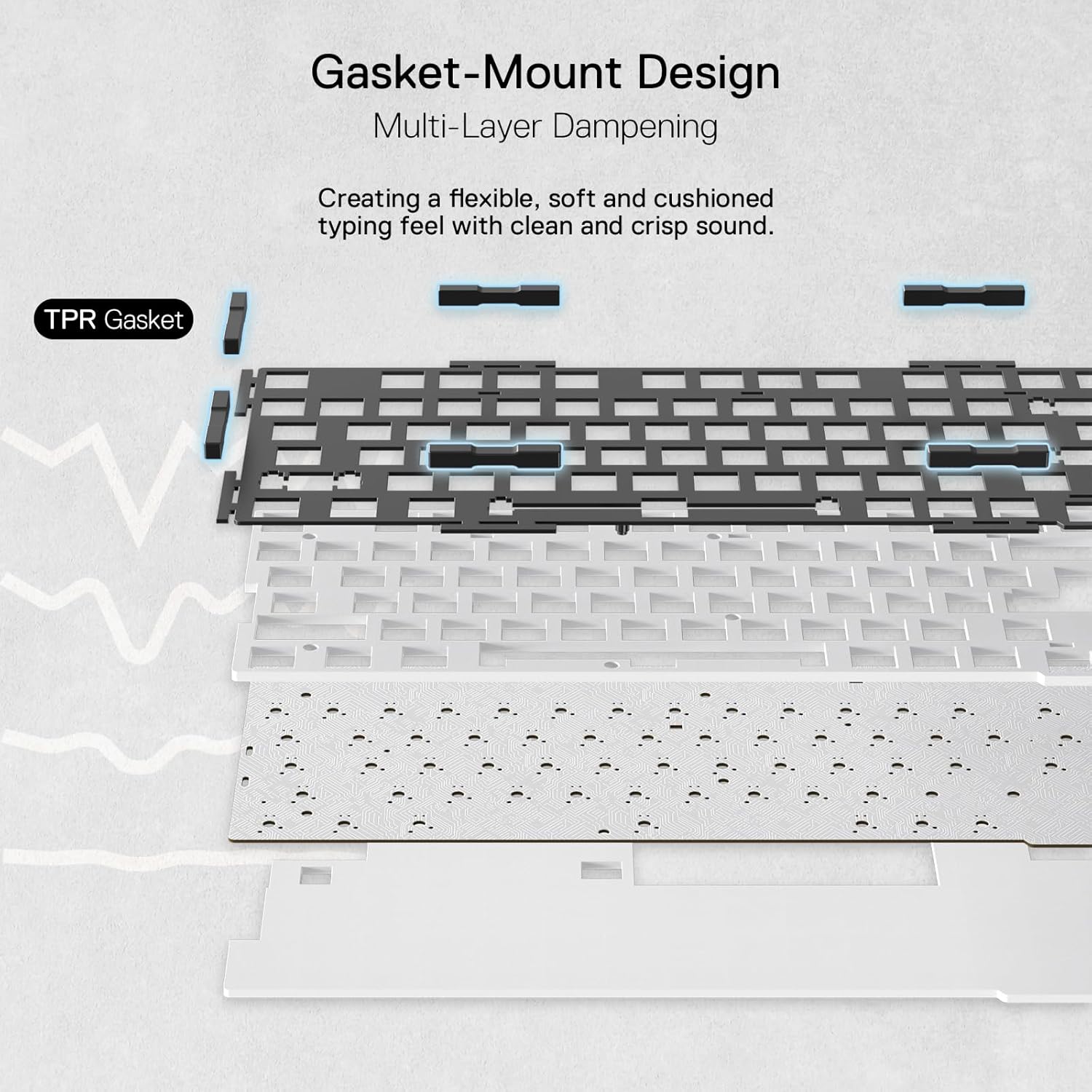
Image: An illustration highlighting the 82-key layout and function key zone of the K649 PRO.
- FN + F1-F12: Access multimedia controls and system functions (e.g., volume, media playback). Refer to the keycap legends for specific functions.
- FN + WIN: Lock/Unlock Windows key.
- FN + ALT: Switch between Mac/Windows layout (if applicable).
Pro Software Support
For advanced customization, download the Redragon Pro Software from the official Redragon website. The software allows you to:
- Create custom RGB lighting effects and profiles.
- Program macros for specific keys.
- Rebind key functions.
- Update keyboard firmware.
Hot-Swap Switches
The K649 PRO features upgraded hot-swappable sockets, allowing you to easily change mechanical switches without soldering. This supports both 3-pin and 5-pin switches, enabling personalization of your typing feel.

Image: A detailed view of the keyboard's hot-swap sockets with switches removed, alongside individual switch components.
Replacing Switches:
- Power off the keyboard or disconnect it from your device.
- Use the included keycap puller to carefully remove the desired keycap.
- Use the included switch puller to gently grip the top and bottom clips of the switch and pull it straight up.
- Align the pins of the new switch with the holes in the PCB. Ensure the pins are straight to avoid bending.
- Press the new switch firmly into place until it clicks.
- Replace the keycap.
Caution: Apply gentle, even pressure when inserting switches. Bent pins can damage the switch or the keyboard socket.
Noise Dampening Features
The K649 PRO incorporates a gasket-mount design and five layers of noise dampening materials to provide a softer, quieter, and more consistent typing sound and feel.

Image: An exploded diagram illustrating the internal structure of the keyboard, highlighting the gasket and various dampening layers.
- Gasket Mount: Precision-locked covers with gaskets reduce rigid noise and provide even feedback.
- 3.5mm PO Foam: Absorbs sound within the keyboard housing.
- IXPE Switch Foam: Placed under the switches to reduce switch bottom-out noise.
- PET Sound Pad: Further dampens acoustic resonance.
- Bottom Socket Foam: Reduces noise from the PCB and plate.
- Silicone Bottom Pad: Provides additional sound absorption and stability.
Maintenance
Proper maintenance ensures the longevity and performance of your keyboard.
- Cleaning: Use a soft, dry cloth to wipe the keyboard surface. For deeper cleaning, remove keycaps with the provided puller and use compressed air to clear debris from between switches.
- Switch Care: If switches feel scratchy or inconsistent, they can be lubricated. This is an advanced procedure and should only be attempted if you are familiar with switch disassembly and lubrication.
- Storage: Store the keyboard in a cool, dry place away from direct sunlight and extreme temperatures.
Troubleshooting
If you encounter issues with your Redragon K649 PRO keyboard, refer to the following common solutions:
- Keyboard not responding (Wired):
- Ensure the USB-C cable is securely connected to both the keyboard and the computer.
- Try a different USB port on your computer.
- Test the keyboard on another computer to rule out a system-specific issue. - Keyboard not responding (2.4GHz Wireless):
- Ensure the keyboard is switched to 2.4G mode.
- Verify the USB dongle is properly inserted into a working USB port.
- Re-pair the keyboard by pressing FN + 4.
- Check battery level; charge if low. - Keyboard not responding (Bluetooth):
- Ensure the keyboard is switched to BT mode.
- Verify Bluetooth is enabled on your device.
- Re-pair the keyboard by holding FN + 1/2/3 for 3-5 seconds.
- Check battery level; charge if low.
- Ensure your device's Bluetooth drivers are up to date. - RGB lighting not working or stuck:
- Press FN + \| to cycle through modes.
- Adjust brightness with FN + Up/Down Arrow.
- If using software, ensure settings are correctly applied and the software is running. - Specific keys not working:
- If the keyboard is hot-swappable, carefully remove the keycap and switch for the affected key.
- Inspect the switch pins for bends or damage. Straighten bent pins or replace the switch if damaged.
- Reinsert the switch firmly. - Lag or input delay in wireless modes:
- Ensure the keyboard is fully charged.
- Move the keyboard closer to the receiver/device to reduce interference.
- Avoid using the keyboard near other strong wireless signals (e.g., Wi-Fi routers, other 2.4GHz devices).
Specifications
| Brand | Redragon |
| Model Number | K649 PRO |
| Connectivity Technology | 2.4Ghz Wireless, Bluetooth (BT 3.0/5.0), USB-C Wired |
| Keyboard Description | 82 Keys Wireless Gasket Transparent Keyboard |
| Number of Keys | 82 |
| Keyboard Layout | QWERTY |
| Switch Type | Linear (Custom Transparent Switches) |
| Hot-Swap Socket | Yes (3/5-pin compatible) |
| Backlighting | RGB (16.8 Million Colors, 20 Preset Modes) |
| Noise Dampening | 5-Layer System, Gasket Mount Design |
| Material | Silicone (for dampening) |
| Power Source | Battery Powered |
| Compatible Devices | PC, Laptop, Tablet |
Warranty and Support
Redragon products are designed for reliability and performance. For warranty information, technical support, or service inquiries, please refer to the official Redragon website or contact their customer support directly. Keep your purchase receipt as proof of purchase for any warranty claims.
Official Redragon Website: www.redragonzone.com
