
1. Introduction
This manual provides detailed instructions for the FOSA Digital Voice Recorder Watch, Model fosar0tyfn7qc2-12. Please read this guide thoroughly to ensure proper use, optimal performance, and longevity of your device. This device is designed for discreet and efficient audio recording, offering features such as one-click recording, intelligent voice activation, and advanced noise reduction.

Figure 1.1: The FOSA Digital Voice Recorder Watch.
2. Product Overview
2.1 Key Features
- One-Click Recording: Initiate recording with a single press for quick and convenient operation.
- Native Files Removal: Delete recorded files directly from the device using the included in-line headphones.
- 360-Degree Stereoscopic Recording: Utilizes a highly sensitive capacitive microphone for comprehensive sound pickup.
- DSP Noise Reduction: Advanced acoustic DSP module with left and right channel noise reduction technology filters out ambient noise for clear audio.
- Intelligent Voice Activated Recording: Automatically starts recording when sound is detected and pauses during silence, optimizing storage space and playback efficiency.
2.2 Device Components

Figure 2.1: Overview of the FOSA Digital Voice Recorder Watch with labeled components.
- USB Interface: For charging and data transfer.
- Previous Song Button: Navigates to the previous track during playback.
- Boot / Record / Next Track Button: Multi-functional button for powering on/off, initiating/stopping recording, and navigating to the next track.
- Record Key: Dedicated button for starting and stopping recordings.
- Display Screen: Shows time, date, battery status, and recording information.
3. Setup
3.1 Initial Charging
Before first use, fully charge the device. Connect the watch to a USB power source (e.g., computer USB port or a USB wall adapter) using the provided USB cable. The display will indicate charging status. A full charge typically takes approximately 2-3 hours.
3.2 Time Synchronization
The device supports timestamping for recordings. To ensure accurate timestamps, connect the device to a computer. The device should automatically synchronize its internal clock with the computer's system time. Refer to the 'Connecting to a Computer' section for detailed steps.
4. Operating Instructions
4.1 Power On/Off
- To Power On: Press and hold the Boot / Record / Next Track button until the display illuminates.
- To Power Off: Press and hold the Boot / Record / Next Track button until the display turns off.
4.2 One-Click Recording

Figure 4.1: The dedicated record key for one-click recording.
- To Start Recording: Slide the dedicated Record key to the 'ON' position. The device will vibrate briefly, and the recording indicator will appear on the screen.
- To Stop Recording: Slide the Record key back to the 'OFF' position. The device will vibrate again, and the recording will be saved automatically.
4.3 Intelligent Voice Activated Recording (VAR)

Figure 4.2: Visual representation of voice-activated recording functionality.
This feature conserves battery and storage by only recording when sound is detected. To activate VAR, ensure the device is powered on and recording is initiated. The device will automatically enter VAR mode. Recording will pause when silence is detected and resume when sound returns.
4.4 Playback
To listen to recordings, connect the included in-line headphones to the device's 3.5mm jack. Use the Boot / Record / Next Track button to navigate between tracks and the Previous Song button to go back. The volume can typically be adjusted via the headphone controls or device settings (if available).
4.5 File Management
- Native File Removal: While headphones are connected, specific button combinations (refer to on-screen prompts or a detailed menu if available) allow for direct deletion of files.
- Connecting to a Computer: Connect the device to a computer via the USB cable. The device will appear as a removable disk. You can then copy, move, or delete files using your computer's file explorer.
- OTG Connection (Mobile Phone): Use an OTG adapter (not included) to connect the device to a compatible smartphone. This allows you to view and manage files directly on your mobile phone.
5. Maintenance
5.1 Cleaning
Wipe the device with a soft, dry cloth. Avoid using harsh chemicals, solvents, or abrasive cleaners, as these can damage the device's surface and internal components.
5.2 Storage
Store the device in a cool, dry place away from direct sunlight, extreme temperatures, and high humidity. When storing for extended periods, ensure the battery is partially charged (around 50%) to prolong its lifespan.
5.3 Battery Care
To maximize battery life, avoid fully discharging the battery frequently. Charge the device regularly, even if not in constant use. The device features a 300 mAh environmental protection lithium battery, offering up to 30 days of standby time and 50-60 hours of continuous recording.
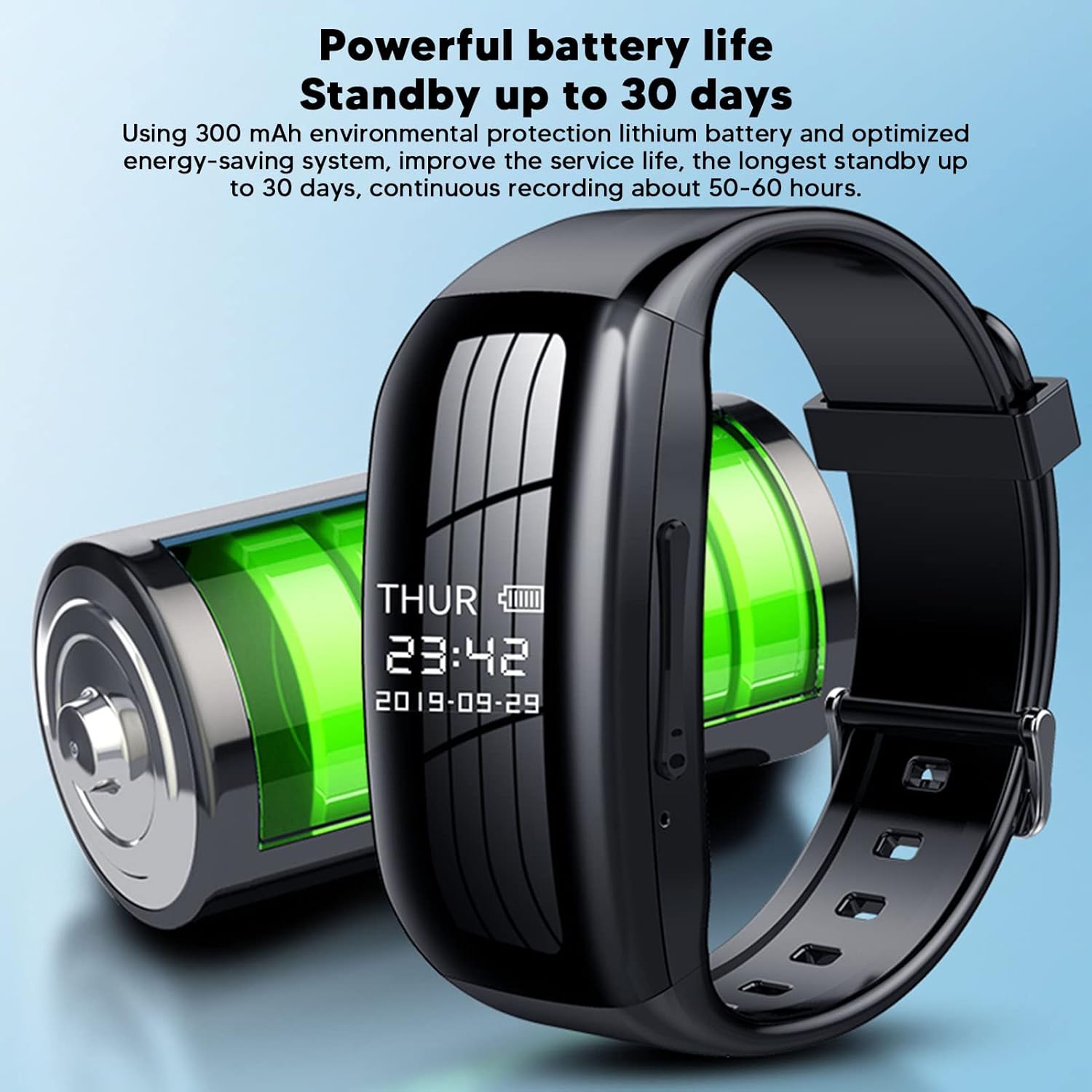
Figure 5.1: The device features a long-lasting battery for extended use.
6. Troubleshooting
If you encounter issues with your FOSA Digital Voice Recorder Watch, please refer to the following common problems and solutions:
| Problem | Possible Cause | Solution |
|---|---|---|
| Device does not power on. | Low battery; device frozen. | Charge the device for at least 30 minutes. If still unresponsive, attempt a reset (if a reset button is available, otherwise let battery fully drain and recharge). |
| Cannot hear recordings during playback. | Headphones not properly connected; volume too low; corrupted file. | Ensure headphones are fully inserted. Increase volume. Try playing the file on a computer to check for corruption. |
| Recordings are unclear or noisy. | High ambient noise; microphone obstructed. | Ensure the microphone is unobstructed. Record in a quieter environment. The DSP noise reduction feature helps, but extreme noise can still affect quality. |
| Device not recognized by computer. | Faulty USB cable; driver issue; incorrect connection mode. | Try a different USB cable or USB port. Ensure the device is powered on when connected. Restart your computer. |
| Voice Activated Recording (VAR) not working as expected. | Sound level too low; sensitivity setting. | Ensure the sound source is within adequate range and volume. Check if there are any VAR sensitivity settings (if available) that can be adjusted. |
7. Specifications
The following table outlines the technical specifications of the FOSA Digital Voice Recorder Watch:
| Feature | Specification |
|---|---|
| Brand | FOSA |
| Model Number | fosar0tyfn7qc2-12 |
| Memory Storage Capacity | 8 GB |
| Digital Recording Time | 589 minutes (approx.) |
| Battery Life (Standby) | Up to 30 days |
| Battery Life (Continuous Recording) | 50-60 hours (approx.) |
| Microphone Form Factor | Built-In, Highly Sensitive Capacitive |
| Microphone Operation Mode | Stereo (360-degree pickup) |
| Audio Format | WAV |
| Hardware Interface | USB 2.0 |
| Headphones Jack | 3.5 millimeters |
| Compatible Devices | Smartphone, Earphone, Personal Computer, Laptop |
| Item Weight | 4.9 ounces |
| Package Dimensions | 6.3 x 5.71 x 1.61 inches |
8. Warranty and Support
8.1 Warranty Information
This product is covered by a standard manufacturer's warranty. Please retain your proof of purchase for any warranty claims. For specific warranty terms and conditions, refer to the documentation included with your product or contact the manufacturer directly.
8.2 Customer Support
For technical assistance, troubleshooting not covered in this manual, or other inquiries, please visit the official FOSA store on Amazon or contact their customer service. You can find the FOSA store at: FOSA Amazon Store.