
1. Introduction
This manual provides detailed instructions for the setup, operation, maintenance, and troubleshooting of your RUNMUS GAMING CW902 Wired Gaming Mouse. Please read this manual thoroughly to ensure optimal performance and longevity of your device.

A top-down view of the RUNMUS GAMING CW902 wired gaming mouse, showcasing its ergonomic shape and vibrant RGB lighting.
2. Product Features
The RUNMUS GAMING CW902 mouse is engineered for performance and comfort, offering a range of features to enhance your gaming and computing experience:
- Ergonomic & Anti-Fatigue Design: Crafted for extended use, reducing strain during long sessions.
- High DPI Sensitivity: Adjustable DPI from 800 to 6400 for precise tracking and responsiveness.
- 6 Customizable Buttons: Program buttons for specific functions or macros to suit your playstyle.
- Dynamic RGB Lighting: Multiple customizable lighting modes to personalize your setup.
- Durable Build Quality: Constructed with high-quality materials for longevity and reliability.
- Universal Compatibility: Supports Windows, macOS, and Linux operating systems.
- High-Precision Optical Sensor: Provides extreme accuracy and responsiveness for competitive gameplay.

A close-up view of the RUNMUS CW902 mouse, highlighting its ergonomic and anti-fatigue design for extended comfortable use.
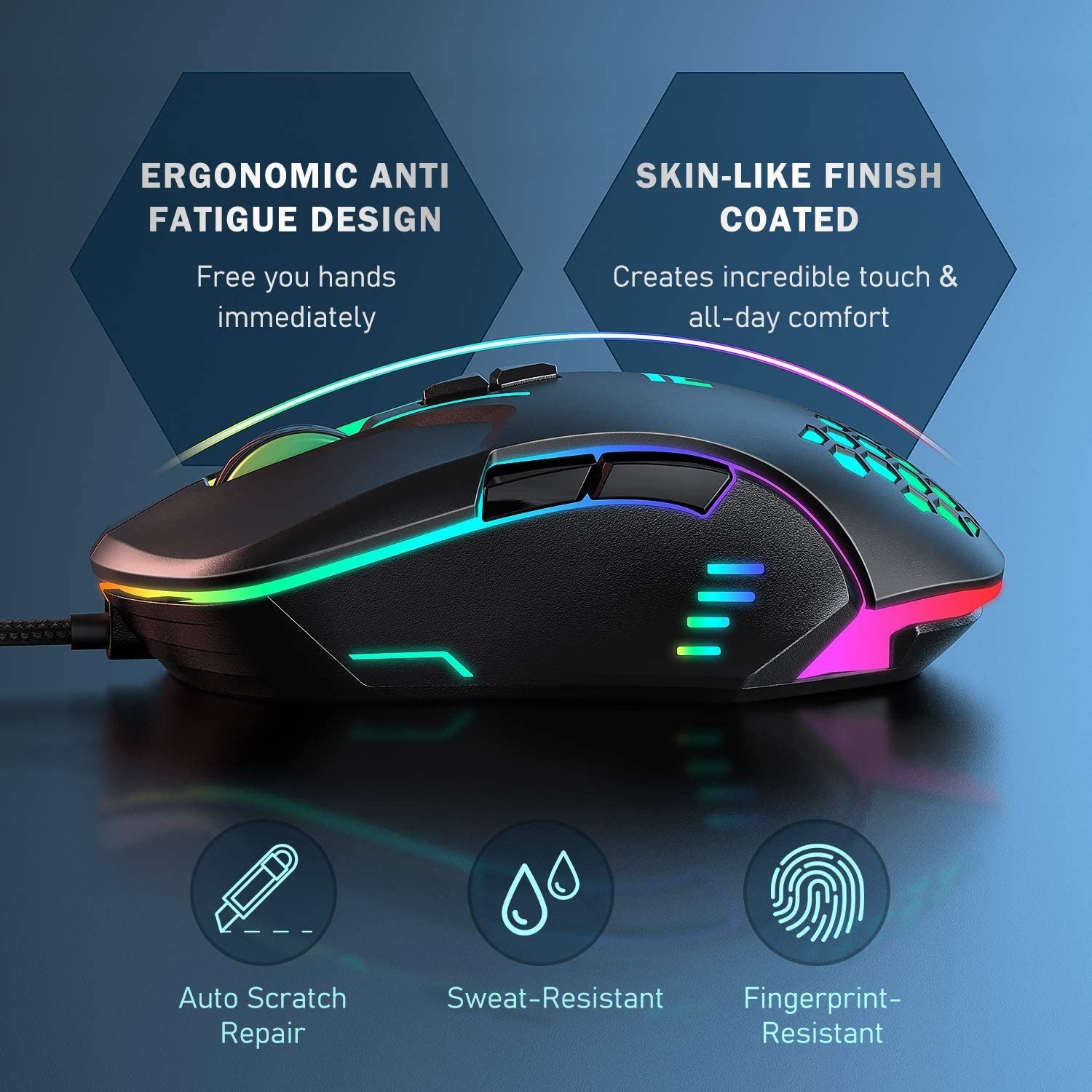
A side view of the RUNMUS CW902 mouse highlighting its ergonomic, anti-fatigue design and skin-like coated finish for comfortable grip, along with features like auto scratch repair, sweat-resistance, and fingerprint-resistance.
3. Package Contents
Please verify that all items are present in your package:
- RUNMUS GAMING CW902 Wired Gaming Mouse
- User Manual (this document)
4. Setup
Setting up your RUNMUS GAMING CW902 mouse is a straightforward process:
- Connect the Mouse: Plug the USB connector of the CW902 mouse into an available USB port on your computer.
- Driver Installation: The mouse is plug-and-play. Your operating system (Windows, macOS, Linux) will automatically detect and install the necessary drivers. No additional software installation is typically required for basic functionality.
- Verification: Once connected, the RGB lighting on the mouse should illuminate, and the cursor should respond to movement.
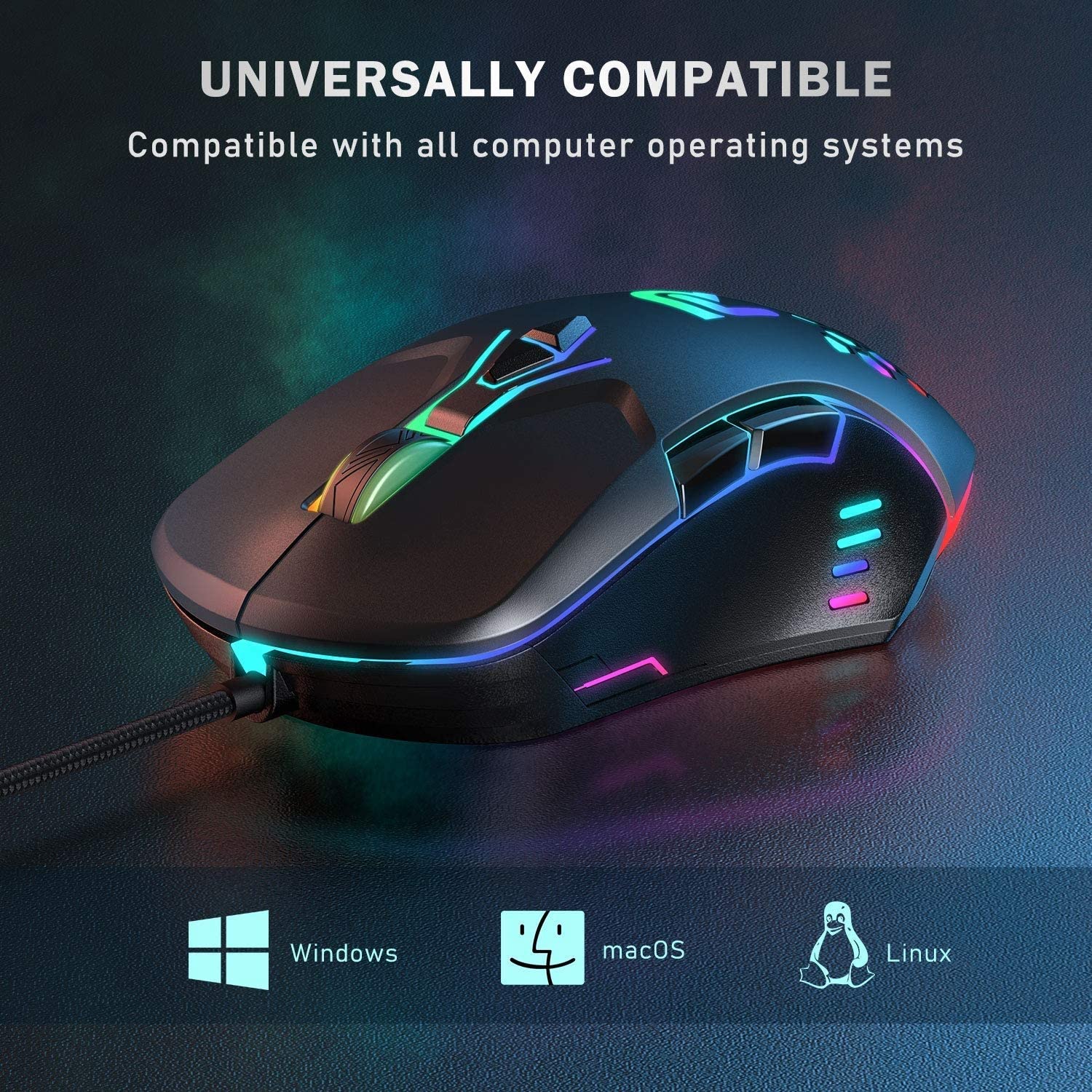
The RUNMUS CW902 mouse displayed with icons for Windows, macOS, and Linux, indicating its universal compatibility with various operating systems.
5. Operating Instructions
5.1 Basic Functions
- Left Click: Primary action button.
- Right Click: Secondary action button, typically for context menus.
- Scroll Wheel: Used for scrolling through documents and web pages. Can also function as a middle click button.
5.2 DPI Adjustment
The CW902 mouse features adjustable DPI settings, allowing you to change cursor sensitivity on the fly. Use the dedicated DPI button (usually located behind the scroll wheel) to cycle through the preset DPI levels:
- 800 DPI
- 1600 DPI
- 2400 DPI
- 3200 DPI
- 4800 DPI
- 6400 DPI
Each DPI level may correspond to a different RGB lighting color for visual indication.

An illustration of the RUNMUS CW902 mouse showcasing its six programmable RGB lighting modes (Rainbow, Floe, Colorful, Waltz, 4 Seasons, DPI Mode) and six default adjustable DPI levels ranging from 800 to 6400, each with a distinct color indicator.

An image illustrating the RUNMUS CW902 mouse's adjustable DPI range from 800 to 6400, with visual representations of different DPI levels.
5.3 RGB Lighting Modes
The mouse features various RGB lighting effects. Use the dedicated lighting button (if available, or a combination of buttons) to switch between modes such as:
- Rainbow
- Floe
- Colorful
- Waltz
- 4 Seasons
- DPI Mode (lighting changes with DPI setting)
5.4 Programmable Buttons
The CW902 includes 6 buttons that can be customized. While basic functionality is plug-and-play, advanced customization of these buttons may require specific software, which can typically be downloaded from the manufacturer's official website. Refer to the software's instructions for programming macros and remapping buttons.

A user operating the RUNMUS CW902 mouse during a gaming session, emphasizing its high-precision sensor for accurate and responsive tracking, with a view of the internal components.
6. Maintenance
Proper maintenance ensures the longevity and performance of your gaming mouse:
- Cleaning: Use a soft, dry cloth to wipe the surface of the mouse. For stubborn dirt, slightly dampen the cloth with water. Avoid harsh chemicals or abrasive materials.
- Sensor Cleaning: Occasionally, use a cotton swab lightly dampened with isopropyl alcohol to gently clean the optical sensor on the underside of the mouse. Ensure no liquid enters the mouse.
- Cable Care: Avoid sharply bending or pulling the USB cable. Store the mouse in a way that prevents the cable from being tangled or crimped.
- Storage: When not in use for extended periods, store the mouse in a clean, dry environment away from direct sunlight and extreme temperatures.
7. Troubleshooting
If you encounter issues with your RUNMUS GAMING CW902 mouse, refer to the following common solutions:
- Mouse Not Responding:
- Ensure the USB cable is securely plugged into a working USB port.
- Try plugging the mouse into a different USB port on your computer.
- Restart your computer.
- Cursor Movement is Erratic or Jumpy:
- Clean the optical sensor on the underside of the mouse.
- Ensure you are using the mouse on a clean, non-reflective, and uniform surface (a mouse pad is recommended).
- Check for any physical obstructions around the sensor.
- DPI Not Changing:
- Press the DPI button firmly.
- Ensure no software is overriding the hardware DPI settings.
- RGB Lights Not Working or Incorrect:
- Check the USB connection.
- Cycle through the RGB lighting modes using the designated button.
- If using customization software, ensure settings are correctly applied.
If these steps do not resolve the issue, please contact customer support.
8. Specifications
| Brand | RUNMUS GAMING |
| Model | CW902 |
| Connectivity | Wired USB |
| Movement Detection Technology | Optical |
| DPI Range | 800-6400 DPI (Adjustable) |
| Number of Buttons | 6 |
| Hand Orientation | Right |
| Product Dimensions | 7.5 x 12 x 4 cm |
| Item Weight | 120 g |
| Operating System Compatibility | Linux, Windows 7, Windows XP (and newer Windows versions, macOS) |

A promotional image of the RUNMUS CW902 High-Precision Pro Gaming Mouse, indicating its compatibility with Windows, macOS, and Linux operating systems.

A split image showing the internal precision sensor of the RUNMUS CW902 mouse on one side and a user actively gaming with the mouse on the other, emphasizing its accuracy.
9. Warranty and Support
The RUNMUS GAMING CW902 Wired Gaming Mouse comes with a standard manufacturer's warranty. Please refer to the product packaging or the official RUNMUS GAMING website for specific warranty terms and conditions.
For technical support, troubleshooting assistance beyond this manual, or warranty claims, please contact RUNMUS GAMING customer service through their official support channels. Keep your purchase receipt as proof of purchase for warranty purposes.