
BoxWave SlimKeys Bluetooth Keyboard
BoxWave SlimKeys Bluetooth Keyboard User Manual
Model: SlimKeys Bluetooth Keyboard
Brand: BoxWave
1. Introduction
Thank you for choosing the BoxWave SlimKeys Bluetooth Keyboard. This portable, backlit keyboard is designed to enhance your typing experience across various devices, including tablets and PCs. This manual provides detailed instructions on setting up, operating, and maintaining your keyboard to ensure optimal performance.
2. Package Contents
- BoxWave SlimKeys Bluetooth Keyboard
- USB Charging Cable
- User Manual (this document)
3. Product Overview
The BoxWave SlimKeys Bluetooth Keyboard is engineered for portability and functionality. Key features include a vibrant LED backlight, multi-platform compatibility, and a slim, lightweight design.

Figure 3.1: BoxWave SlimKeys Bluetooth Keyboard with a tablet, showcasing its compact design and compatibility.
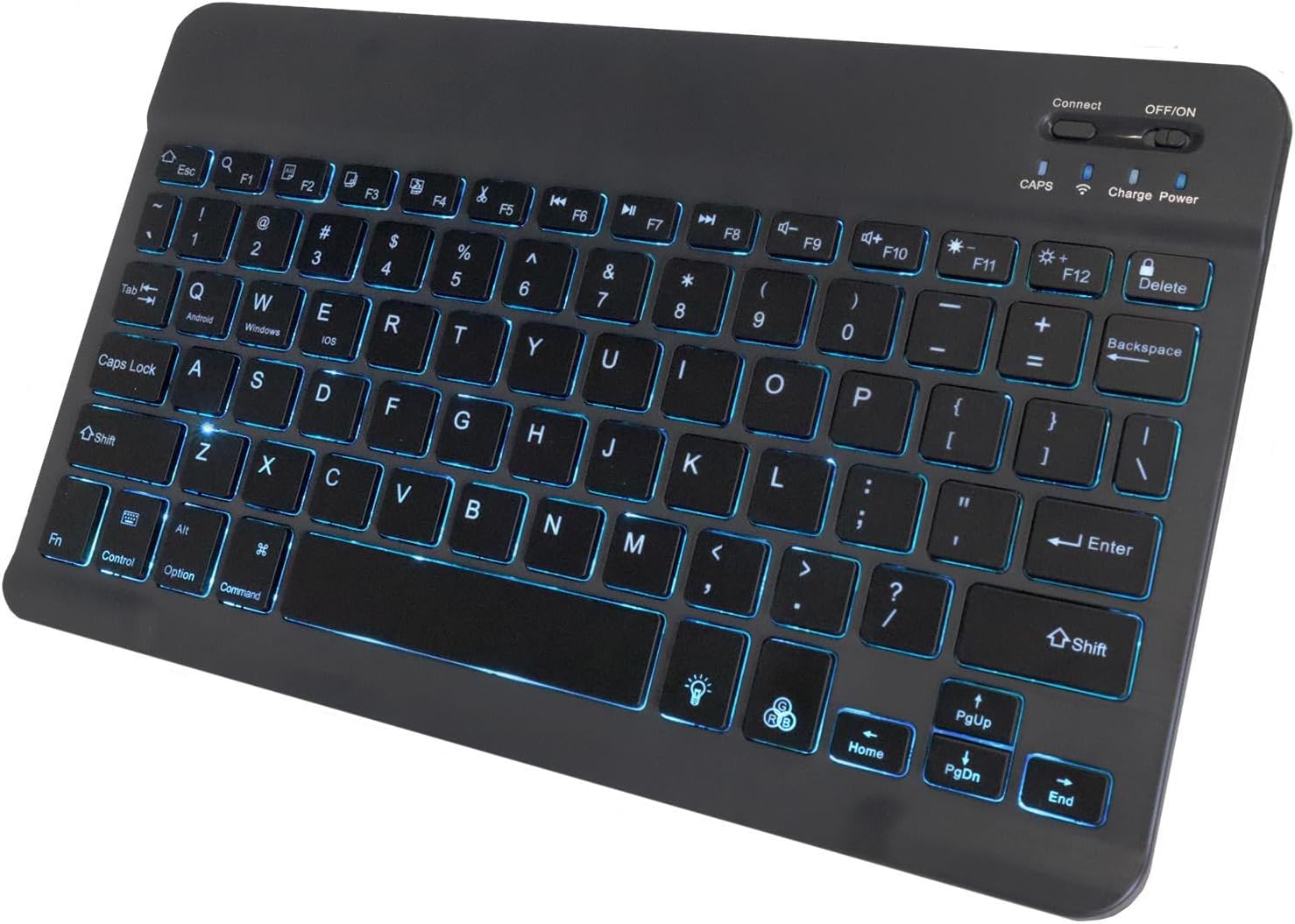
Figure 3.2: Top view of the keyboard, highlighting the illuminated keys and control switches.
Key Features:
- Backlit Keys: Integrated LED backlight with seven customizable colors for typing in low-light conditions.
- Reliable Wireless Connectivity: Connects quickly and easily via Bluetooth 3.0.
- Slim and Portable: Compact and lightweight design, ideal for travel and easy storage.
- Chiclet Keys: Low-profile keys designed for quiet and comfortable typing.
- Battery-Saving Power Switch: Dedicated on/off switch to conserve battery life.
4. Setup
4.1 Charging the Keyboard
Before first use, ensure the keyboard is fully charged. Connect the included USB charging cable to the keyboard's charging port and the other end to a USB power source (e.g., computer USB port, USB wall adapter). The charging indicator light will illuminate during charging and turn off when fully charged.

Figure 4.1: Keyboard connected to a charging cable, illustrating the charging process.
4.2 Bluetooth Pairing
- Power On: Locate the ON/OFF switch on the keyboard and slide it to the "ON" position. The power indicator light will briefly illuminate.
- Activate Pairing Mode: Press the "Connect" button on the keyboard. The Bluetooth indicator light will begin to flash, indicating the keyboard is in pairing mode.
- Enable Bluetooth on Your Device: On your tablet, PC, or smartphone, navigate to the Bluetooth settings and ensure Bluetooth is enabled.
- Search for Devices: Your device will scan for available Bluetooth devices. Look for "SlimKeys Keyboard" or a similar name in the list of found devices.
- Pair: Select "SlimKeys Keyboard" from the list. Your device may prompt you to enter a pairing code displayed on your screen. Type this code on the SlimKeys keyboard and press Enter.
- Confirmation: Once successfully paired, the Bluetooth indicator light on the keyboard will stop flashing and remain solid or turn off, and your device will show the keyboard as connected.
The keyboard supports multi-platform compatibility, including Android, Windows, and iOS devices.

Figure 4.2: Multi-platform compatibility icons.
5. Operating Instructions
5.1 Backlight Features
The SlimKeys keyboard features an integrated LED backlight with seven customizable colors to enhance visibility in various lighting conditions.
- Turning On/Off Backlight: Press the Light Bulb key (usually located near the bottom right of the keyboard) to toggle the backlight on or off.
- Changing Backlight Color: Press the Light Bulb key repeatedly to cycle through the seven available colors.
- Adjusting Brightness: Use the Fn + Light Bulb key combination to adjust the backlight brightness levels.

Figure 5.1: Keyboard showcasing the seven available backlight colors.
5.2 Specialized Function Keys
The keyboard includes specialized function keys (F1-F12) that provide quick access to common commands. These functions are typically accessed by pressing the Fn key simultaneously with the desired function key.
| Key Combination | Function | Description |
|---|---|---|
| Fn + Esc (Home) | Home | Returns to the home screen or main page. |
| Fn + F1 (Search) | Search | Activates the search function. |
| Fn + F2 (Select All) | Select All | Selects all content. |
| Fn + F3 (Copy) | Copy | Copies selected content. |
| Fn + F4 (Paste) | Paste | Pastes copied content. |
| Fn + F5 (Cut) | Cut | Cuts selected content. |
| Fn + F6 (Skip Back) | Skip Back | Skips to the previous track/media. |
| Fn + F7 (Play/Pause) | Play/Pause | Plays or pauses media. |
| Fn + F8 (Skip Forward) | Skip Forward | Skips to the next track/media. |
| Fn + F9 (Volume Down) | Volume Down | Decreases audio volume. |
| Fn + F10 (Volume Up) | Volume Up | Increases audio volume. |
| Fn + F11 (Brightness Down) | Brightness Down | Decreases screen brightness. |
| Fn + F12 (Brightness Up) | Brightness Up | Increases screen brightness. |
| Fn + Delete (Lock) | Lock | Locks the device screen. |

Figure 5.2: Layout of specialized function keys.
6. Maintenance
- Cleaning: Use a soft, dry, lint-free cloth to clean the keyboard. For stubborn dirt, slightly dampen the cloth with water or a mild cleaning solution. Avoid excessive moisture.
- Storage: When not in use for extended periods, turn off the keyboard using the ON/OFF switch to conserve battery life. Store in a cool, dry place.
- Avoid Liquids: Do not expose the keyboard to liquids. In case of accidental spills, immediately turn off the keyboard and allow it to dry completely before reuse.
- Battery Care: To prolong battery life, avoid fully discharging the keyboard frequently. Recharge when the battery low indicator appears.
7. Troubleshooting
| Problem | Possible Cause | Solution |
|---|---|---|
| Keyboard does not turn on. | Battery is depleted. | Charge the keyboard using the provided USB cable. |
| Cannot connect via Bluetooth. | Bluetooth is off on the device or keyboard. Keyboard is not in pairing mode. Device is out of range. Interference. |
|
| Keys are not responding. | Connection issue. Low battery. |
|
| Backlight is not working. | Backlight is off. Low battery. |
|
8. Specifications
| Feature | Detail |
|---|---|
| Brand | BoxWave |
| Model | SlimKeys Bluetooth Keyboard |
| Connectivity Technology | Bluetooth 3.0 |
| Compatible Devices | PC, Tablet (Android, Windows, iOS) |
| Special Feature | Backlit (7 Colors) |
| Keyboard Description | Gaming (as per product data, though general use) |
| Color | Jet Black |
| Item Weight | 8.6 ounces (approx. 244 grams) |
| Dimensions (Approx.) | 9.5 in (Width) x 5.75 in (Depth) x 0.2 in (Height) |
| Battery Life | Up to 30 days (usage), 6 months (standby when powered off) |
| Country of Origin | China |

Figure 8.1: Approximate dimensions of the SlimKeys Bluetooth Keyboard.
9. Warranty and Support
BoxWave products are designed for quality and reliability. While specific warranty details are not provided in this manual, for any technical assistance or inquiries regarding your BoxWave SlimKeys Bluetooth Keyboard, please refer to the support information provided at the point of purchase or on the official BoxWave website.
Limited 3rd party tech support for your device (up to 3 inquiries via messaging) may be available. Please note this support is not affiliated with or endorsed by DUODUOGO.
Ask a question about this manual
Ask about setup, troubleshooting, compatibility, parts, safety, or missing instructions. Manuals+ will review the question and use this page’s manual context to help answer it.