
1. Introduction
This manual provides comprehensive instructions for the installation, operation, and maintenance of your Dohaeris 2.5Gbase-T PCIe Network Card. This high-performance network adapter is designed to provide reliable and fast 2.5 Gigabit Ethernet connectivity for compatible computer systems. It features an Intel I226-V chip, ensuring stable and efficient network performance.

Figure 1: Dohaeris 2.5Gbase-T PCIe Network Card. This image shows the network card with its standard height bracket, featuring the RJ45 port and PCIe connector.
2. Package Contents
Please verify that all items are present and in good condition upon opening the package:
- Dohaeris 2.5Gbase-T PCIe Network Card (with high-profile bracket pre-installed)
- Low-profile bracket
- Mounting screw
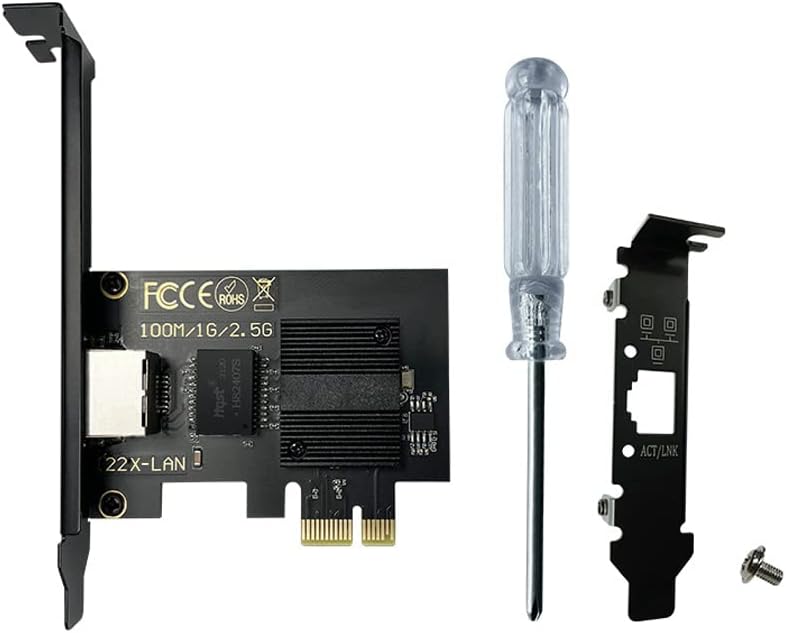
Figure 2: Contents of the product package. This image displays the network card, a low-profile bracket for smaller cases, and a mounting screw.
3. Specifications
| Feature | Description |
|---|---|
| Chipset | Intel I226-V (Note: This is an Intel chip product, not an Intel branded product.) |
| Interface | PCI Express x1 (Compatible with x4, x8, x16 slots) |
| Network Port | 1 x RJ45 (10/100/1000/2500Mbps) |
| Data Transfer Rate | 2.5 Gigabits Per Second |
| Supported Operating Systems | Windows 10/11, Windows Server 2012 and above, VMWare ESXI 5.x/6.x or higher, Linux system |
| CPU Compatibility | Intel 6th generation and above CPUs (Does not support AMD CPU computers) |
| Dimensions (L x W x H) | 5.94 x 4.02 x 1.65 inches (approx. 15.1 x 10.2 x 4.2 cm) |
| Item Weight | 3.52 ounces (approx. 100 grams) |
| Color | Black |
| UPC | 712867335286 |

Figure 3: Approximate dimensions of the network card. The image indicates a length of 12cm, a height of 8cm (including bracket), and a card width of 5.8cm.

Figure 4: Close-up view of key features. This image highlights the fully shielded 8-pin Ethernet port, the high-quality aluminum heat sink for heat dissipation, and the gold-plated PCI-E fingers for stable transmission.
4. System Compatibility
To ensure proper functionality, your system must meet the following requirements:
- Operating System: Windows 10/11, Windows Server 2012 or newer, VMWare ESXI 5.x/6.x or higher, or a compatible Linux distribution.
- Processor: Intel 6th generation CPU or newer. This network card is not compatible with AMD CPU systems.
- PCIe Slot: An available PCI Express x1, x4, x8, or x16 slot on your motherboard.

Figure 5: Common PCIe interface types. The card supports motherboards with X1, X4, X8, or X16 card slot interfaces.
5. Setup and Installation
5.1. Physical Installation
- Power Off and Disconnect: Before beginning, ensure your computer is completely powered off and unplugged from the power outlet.
- Open Computer Case: Remove the side panel of your computer case to access the motherboard.
- Identify PCIe Slot: Locate an available PCI Express x1, x4, x8, or x16 slot on your motherboard. Refer to your motherboard's manual if unsure.
- Remove Slot Cover: Remove the corresponding metal slot cover from the back of your computer case. If your case requires a low-profile bracket, replace the pre-installed high-profile bracket on the network card with the included low-profile bracket using a small Phillips head screwdriver.
- Insert Network Card: Carefully align the network card with the chosen PCIe slot and press down firmly and evenly until it is fully seated. You should hear a click or feel it lock into place.
- Secure Card: Secure the network card to the computer case using the provided mounting screw.
- Close Case: Replace the computer case side panel and reconnect all cables.
Figure 6: The network card with its standard bracket. Ensure the correct bracket (high or low profile) is installed for your computer case before physical installation.
5.2. Driver Installation
After physical installation, you will need to install the appropriate drivers for the network card to function correctly. The Intel I225 and I226 chips share the same set of drivers.
- Download Drivers: Power on your computer. Once the operating system loads, open a web browser and navigate to the official Intel website's support or download section for network adapters. Search for drivers compatible with the Intel I226-V or I225-V chipset. Download the latest stable driver package for your specific operating system (Windows 10/11, Linux, etc.).
- Extract Drivers: Unzip the downloaded driver package to a convenient location, such as your desktop.
- Open Device Manager:
- Right-click on "This PC" (or "My Computer") on your desktop or in File Explorer.
- Select "Manage" from the context menu.
- In the Computer Management window, navigate to "Device Manager".
- Locate Network Adapter: Under "Network adapters", you may see an unrecognized device or a generic Ethernet controller. Right-click on this device.
- Update Driver: Select "Update driver".
- Browse for Drivers: Choose "Browse my computer for drivers".
- Specify Location: Click "Browse" and navigate to the folder where you extracted the downloaded drivers. Ensure "Include subfolders" is checked. Click "Next".
- Complete Installation: The system will now install the drivers. Once completed, a confirmation message will appear. Click "Close".

Figure 7: Driver download process. This image illustrates navigating to the Intel website to download the appropriate driver package.

Figure 8: Driver installation via Device Manager. This image shows the steps to manually update the driver by browsing to the downloaded driver files.
Your Dohaeris 2.5Gbase-T PCIe Network Card should now be recognized and ready for use.
6. Operation
Once the network card is physically installed and its drivers are successfully loaded, it operates automatically. Connect a standard RJ45 Ethernet cable from your router, modem, or network switch to the RJ45 port on the network card. The card will establish a network connection, indicated by activity lights on the port (if present). You can verify network connectivity and speed through your operating system's network settings.

Figure 9: The network card in a typical application. This image shows the card with its Intel I226-V chip, indicating its use in servers, machine vision, industrial computers, and soft routing scenarios.
7. Maintenance
The Dohaeris 2.5Gbase-T PCIe Network Card requires minimal maintenance. Follow these guidelines to ensure its longevity:
- Keep Clean: Periodically clean the interior of your computer case to prevent dust buildup on the network card's components, especially the heatsink. Use compressed air for this purpose.
- Ensure Airflow: Ensure proper airflow within your computer case to prevent overheating.
- Driver Updates: Occasionally check the Intel website for updated drivers. Keeping drivers current can improve performance and stability.
- Avoid Physical Damage: Handle the card with care. Avoid bending or applying excessive force to the card or its connectors.
8. Troubleshooting
If you encounter issues with your network card, refer to the following common troubleshooting steps:
- No Network Connection:
- Verify the Ethernet cable is securely connected to both the network card and your router/modem.
- Check the network status in your operating system.
- Ensure the network card is properly seated in the PCIe slot.
- Reinstall the drivers as described in Section 5.2.
- Slow Network Speed:
- Confirm your router/modem supports 2.5Gbps speeds.
- Ensure your Ethernet cable is rated for Cat5e or higher (Cat6 or Cat6a recommended for 2.5Gbps).
- Update the network card drivers to the latest version.
- Check for other network devices or software consuming bandwidth.
- Card Not Detected in Device Manager:
- Ensure the card is fully seated in the PCIe slot.
- Try the card in a different PCIe slot if available.
- Verify your CPU is Intel 6th generation or newer, as AMD CPUs are not supported.
- Check your motherboard's BIOS/UEFI settings to ensure the PCIe slot is enabled.
- Driver Installation Issues:
- Ensure you downloaded the correct drivers for the Intel I226-V/I225-V chip and your operating system.
- Temporarily disable antivirus software during driver installation if it interferes.
- Run the driver installer as an administrator.
9. Warranty Information
Dohaeris products are manufactured to high quality standards. This product is covered by a manufacturer's warranty against defects in materials and workmanship. The specific terms and duration of the warranty may vary by region and retailer. Please retain your proof of purchase for warranty claims. For detailed warranty information, refer to the documentation provided with your purchase or contact Dohaeris customer support.
10. Customer Support
If you require further assistance or have questions not covered in this manual, please contact Dohaeris customer support through the retailer where you purchased the product or visit the official Dohaeris website for contact information. When contacting support, please have your product model number and purchase details ready.