Introduction
Thank you for choosing the E-YOOSO K620 87-Key Mechanical Keyboard. This manual provides detailed instructions for setting up, operating, and maintaining your keyboard to ensure optimal performance and longevity. The K620 is a compact, wired mechanical keyboard designed for gaming and typing, featuring Brown Switches, adjustable backlighting, and an ergonomic design.
Product Features
- Brown Mechanical Switches: Offers a tactile bump with a quieter click, suitable for both typing and gaming. Features a 50 million keystroke lifespan, 2.8mm actuation distance, and 55g actuation force.
- 87-Key Compact Layout: A tenkeyless (TKL) design that saves desk space while retaining essential keys for gaming and productivity.
- Adjustable Backlighting: 18 adjustable backlight modes, including 8 dynamic modes, 8 built-in gaming modes, and 2 customizable modes.
- RGB Side Lighting: 4 distinct RGB side lighting modes to enhance the aesthetic.
- Ergonomic Design: Features foldable back kickstands and a stepped key design to reduce finger fatigue during extended use.
- Full N-Key Rollover (Anti-Ghosting): Ensures all 87 keys register simultaneously, preventing missed key presses during intense gaming or fast typing.
- Hot-Swappable Switches: Allows for easy replacement of switches without soldering, enabling customization and maintenance.
- Durable Keycaps: High-quality double-shot injection molded PBT and ABS keycaps for clear backlighting and durability.
- Detachable USB-C Cable: For convenient connectivity and portability.
- Wide Compatibility: Supports Windows 10/8/7/Vista/XP, limited Mac OS, PS5/PS4, Desktops, Chromebooks, PCs, and Laptops.
Package Contents
- E-YOOSO K620 Mechanical Keyboard
- USB-C to USB-A Cable
- Keycap Puller
- Switch Puller
- Extra Keycaps (ESC and Space Bar, orange color)
- User Manual

Image: Included accessories for the E-YOOSO K620 keyboard.
Setup Instructions
- Connect the Cable: Locate the USB-C port on the back of the keyboard. Insert the USB-C end of the provided cable into the keyboard and the USB-A end into an available USB port on your computer or compatible device.

Image: Connecting the detachable USB-C cable to the keyboard.
- Plug and Play: The keyboard is plug-and-play. Your operating system should automatically detect and install the necessary drivers. No additional software installation is required.
- Adjust Keyboard Height: Utilize the foldable kickstands on the underside of the keyboard to adjust the typing angle for ergonomic comfort.
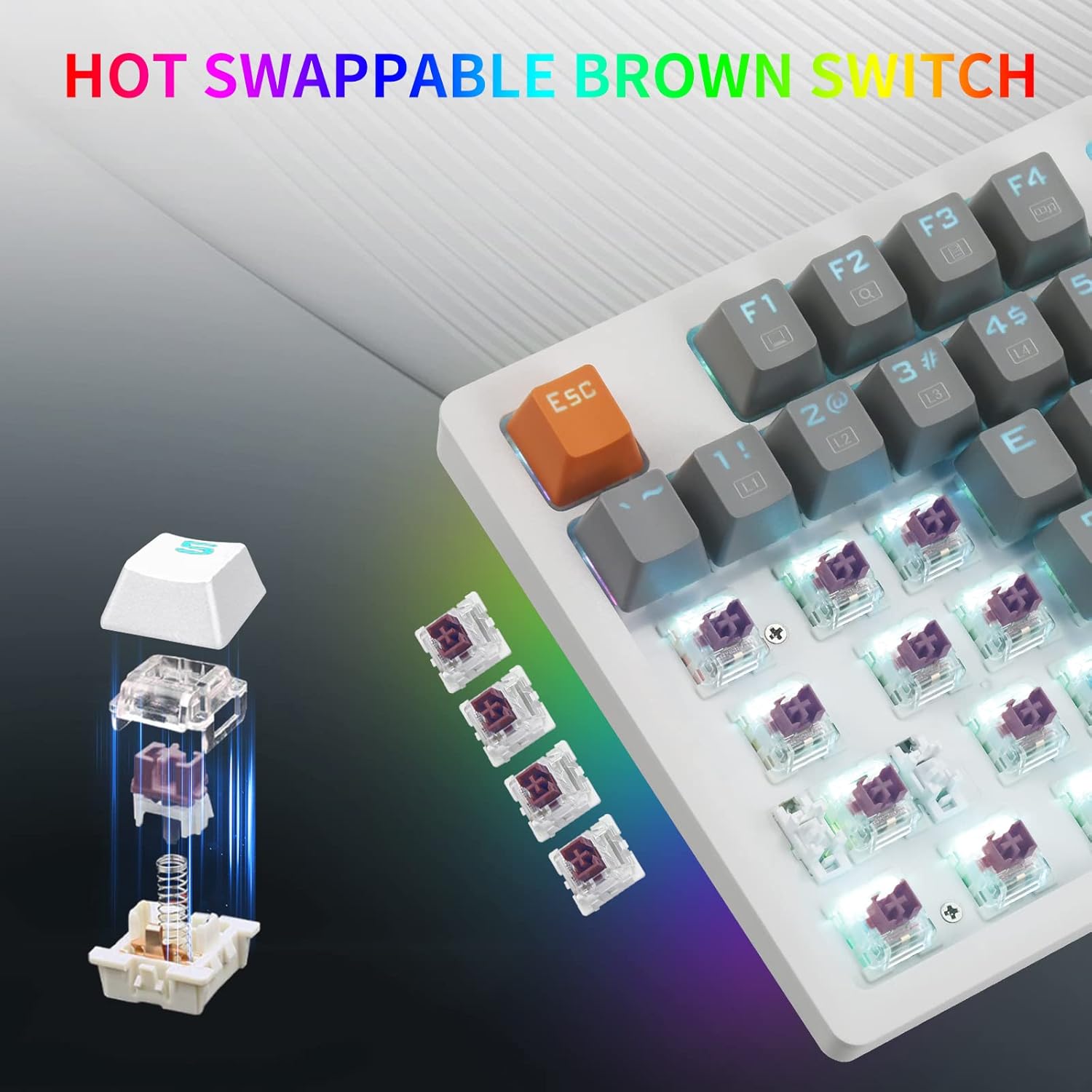
Image: Ergonomic design of the keyboard with adjustable height.
Operating Instructions
Function Key Combinations (Fn)
The Fn key (located near the right Alt key) is used in combination with other keys to access various multimedia and lighting functions. Press and hold the Fn key, then press the desired function key.
| Function | Key Combination | Description |
|---|---|---|
| Multimedia Player | Fn + F1 | Opens default media player. |
| Volume Down | Fn + F2 | Decreases audio volume. |
| Volume Up | Fn + F3 | Increases audio volume. |
| Mute | Fn + F4 | Mutes/unmutes audio. |
| Stop | Fn + F5 | Stops media playback. |
| Previous Track | Fn + F6 | Plays previous track. |
| Play/Pause | Fn + F7 | Plays or pauses media. |
| Next Track | Fn + F8 | Plays next track. |
| Fn + F9 | Opens default email client. | |
| Web Browser | Fn + F10 | Opens default web browser. |
| My Computer | Fn + F11 | Opens 'This PC' or 'My Computer'. |
| Calculator | Fn + F12 | Opens calculator application. |
| Toggle Backlight Mode | Fn + Ins | Cycles through 8 dynamic backlight modes. |
| Gaming Backlight Modes | Fn + (1-8) | Activates 8 built-in gaming backlight modes. |
| Customizable Backlight Modes | Fn + (9,0) | Activates 2 customizable backlight modes. |
| Toggle RGB Side Lighting | Fn + Pause | Cycles through 4 RGB side lighting modes. |
| Adjust Backlight Brightness | Fn + Up/Down Arrow | Increases/decreases backlight brightness. |
| Adjust Backlight Speed | Fn + Left/Right Arrow | Adjusts the speed of dynamic backlight effects. |
| Lock Windows Key | Fn + Win | Locks/unlocks the Windows key to prevent accidental presses during gaming. |
Backlight Customization
To customize backlight modes (Fn+9 or Fn+0):
- Press Fn + 9 (or Fn + 0) to enter custom mode.
- Press Fn + Home to start recording. The indicator lights will flash.
- Press the keys you wish to light up. Each press will cycle through available colors.
- Press Fn + Home again to save the custom lighting profile.
Video: Demonstrating the solid LED backlight and RGB side lighting features of the E-YOOSO K620 keyboard, including keycap and switch replacement.
Hot-Swappable Switches
The E-YOOSO K620 keyboard features hot-swappable switches, allowing you to change individual switches without soldering. This enables customization of typing feel and easy replacement of faulty switches.
Replacing Switches:
- Remove Keycap: Use the provided keycap puller to gently remove the keycap from the switch you wish to replace.

Image: Removing a keycap to access the switch.
- Remove Switch: Use the provided switch puller to carefully grip the top and bottom clips of the switch. Gently pull upwards to remove the switch from the PCB.

Image: A brown switch being removed from the keyboard.
- Insert New Switch: Align the pins of the new switch with the holes on the PCB. Gently press the switch down until it clicks into place. Ensure the pins are straight to avoid bending them.

Image: Inserting a new switch into the keyboard.
- Replace Keycap: Place the keycap back onto the new switch and press down firmly.
Maintenance
- Cleaning: Regularly clean the keyboard with a soft, dry cloth. For deeper cleaning, remove keycaps using the provided keycap puller and use compressed air to clear dust and debris from between the switches.
- Avoid Liquids: Do not expose the keyboard to liquids. In case of spills, immediately disconnect the keyboard and allow it to dry completely before reconnecting.
- Storage: Store the keyboard in a cool, dry place away from direct sunlight and extreme temperatures.
Troubleshooting
| Problem | Possible Cause | Solution |
|---|---|---|
| Keyboard not responding | Loose cable connection, faulty USB port, driver issue. |
|
| Backlight not working or incorrect | Backlight turned off, incorrect mode selected, software conflict. |
|
| Keys not registering (ghosting) | Software issue, specific key malfunction. |
|
| Windows key is disabled | Windows key lock activated. |
|
Specifications
| Feature | Detail |
|---|---|
| Model | K620 |
| Switch Type | Brown Mechanical Switches (Hot-Swappable) |
| Key Count | 87 Keys (Tenkeyless) |
| Backlighting | Single Color Backlight (18 modes), RGB Side Lighting (4 modes) |
| Connectivity | Wired USB (Detachable USB-C cable) |
| Anti-Ghosting | Full N-Key Rollover |
| Keycap Material | PBT and ABS (Double-shot injection molded) |
| Compatible Devices | Laptop, PC, Mac OS (limited), PS4, PS5, Chromebook |
| Dimensions | 15.16 x 6.73 x 1.81 inches |
| Weight | 1.85 pounds |
| Manufacturer | E-YOOSO |
Warranty and Support
E-YOOSO provides responsive after-sales service for your product. If you encounter any problems or have questions regarding your K620 Mechanical Keyboard, please contact our customer support team.
- Return/Exchange Policy: Within 3 months of purchase, you are eligible for a free return or exchange.
- Contact Support: Please refer to the contact information provided with your product packaging or visit the official E-YOOSO website for support details.


