
1. Introduction
This manual provides detailed instructions for the installation, operation, and maintenance of your SIXTOP Android Car Stereo. This unit is specifically designed for Hyundai Sonata NF models from 2009 to 2010, featuring a 9-inch touchscreen, 2GB RAM, and 32GB ROM. Please read this manual thoroughly before use to ensure proper functionality and safety.

Image 1.1: SIXTOP Android Car Stereo unit with included camera, microphone, and connectivity icons.
2. Package Contents and Dimensions
Verify that all components listed below are included in your package. If any items are missing or damaged, please contact customer support.
- Android Car Stereo Unit (9-inch touchscreen)
- Rear Camera
- Microphone
- RCA Cable
- GPS Antenna
- USB Cable
- Video Extension Cable
- Screws
- User Manual
- Power Cord
- Tool

Image 2.1: Product dimensions and a visual representation of all included accessories.
3. Setup and Installation
3.1 General Installation
The car stereo is designed for direct fitment in Hyundai Sonata NF 2009-2010 models. Ensure the vehicle's power is disconnected before beginning installation.

Image 3.1: Comparison of the car dashboard before and after the stereo installation.
3.2 Power Cord Connection
If the provided power cord socket does not fit your car, it may indicate that your vehicle has a higher configuration requiring a CANBUS protocol box or an upgraded power cord. In such cases, please contact customer service with pictures of your original car's center console and car socket for assistance in finding a suitable power cord.
3.3 Backup Camera Installation
The unit supports a waterproof night vision camera for clearer reversing images. Ensure the two short wires on the camera are connected. For optimal performance, set the camera resolution to AHD 720/25fps in the Factory Settings (Password: 000000).

Image 3.2: Wiring diagram for the backup camera connection.
4. Operating Features
4.1 Apple Carplay and Android Auto
The Android radio supports both Apple Carplay and Android Auto. This allows synchronization of your phonebook, email, notifications, map navigation, and music applications to the stereo. Voice control via your mobile phone's voice assistant is also supported.
- Connection: Ensure your mobile phone's WiFi is on. Connect via Bluetooth, then open the "ZLINK5" app for automatic connection. Alternatively, use a USB cable to connect your phone and then open the "ZLINK5" app.

Image 4.1: Apple Carplay and Android Auto interfaces.
4.2 Mirror Link and Split Screen
Mirror Link functionality allows you to transmit your mobile phone's screen to the car stereo, ideal for viewing downloaded videos. The Split Screen feature enables independent operation of two applications side-by-side.
- Mirror Link: Select the "ZLINK5" app and switch to the "Mirror Link" connection option.
- Split Screen: Tap the rectangle icon at the top of the screen, then select a browsing page and drag it to either the left or right side of the screen.

Image 4.2: Mirror Link display.
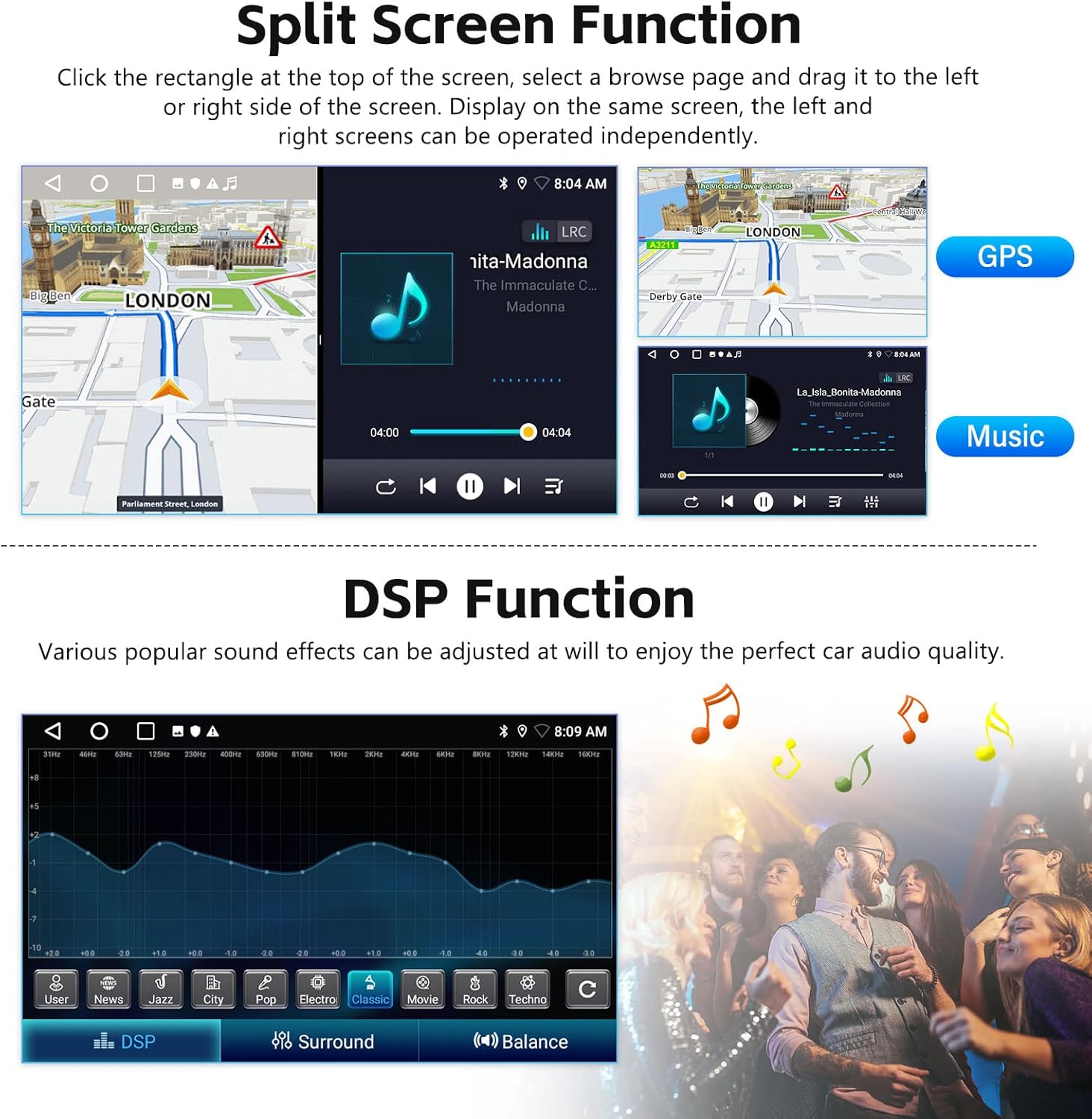
Image 4.3: Split Screen function displaying navigation and music simultaneously.
4.3 WiFi and GPS Navigation
Connect to WiFi to download various applications and access online content. The built-in GPS navigation allows for both online and offline map usage.
- WiFi: Connect to a WiFi network to download apps, stream music, and watch videos.
- GPS Navigation: Download offline navigation maps directly from the Play Store. Online maps function perfectly when connected to WiFi.

Image 4.4: WiFi connectivity and GPS navigation interface.
4.4 Radio Themes
The stereo offers 26 different desktop themes to customize the visual experience. To change themes, long-press on a blank space on the homepage and select your preferred theme.

Image 4.5: Examples of the 26 customizable desktop themes.
4.5 Bluetooth and FM/RDS Radio
The unit includes Bluetooth for hands-free communication and music streaming, along with an FM/RDS radio tuner.
- Bluetooth: Supports incoming and outgoing calls, address book synchronization, and mobile phone music playback.
- FM/RDS Radio: Supports FM radio stations (87.5-108 MHz) for news, music, weather, and traffic information.

Image 4.6: FM/RDS Radio interface.

Image 4.7: Bluetooth connectivity for calls and music.
4.6 Steering Wheel Control Function
The stereo supports the use of your car's original steering wheel buttons to control audio functions, enhancing convenience and driving safety.

Image 4.8: Steering Wheel Control setup and usage.
4.7 DSP Function
The Digital Sound Processor (DSP) allows for adjustment of various sound effects to optimize your car's audio quality.

Image 4.9: DSP equalizer settings for audio customization.
5. Specifications
| Feature | Specification |
|---|---|
| Memory (RAM) | 2GB |
| Storage (ROM) | 32GB |
| Screen Size | 9 Inches |
| Screen Resolution | 1024 x 600 |
| Power Output | 4*45W |
| Radio Band | FM/RDS (87.5-108 MHz) |
| Operating Temperature | -20°C to 75°C |
| Reversing Input | AHD/CVBS |
| Audio Output Mode | Stereo |
| Connectivity Technology | Bluetooth, WiFi |
| Special Feature | Touchscreen |
| Voice Command | Buttons, Microphone, Touchscreen |
| Map Type | Worldwide |
| Mounting Type | Dashboard Mount |
| Item Weight | 3.87 pounds |
| Package Dimensions | 16.14 x 10.59 x 6.06 inches |
6. Troubleshooting
6.1 Power Cord Incompatibility
If the radio and frame match your car, but the power cord socket is not suitable, your car may have a high configuration requiring a CANBUS protocol box or an upgraded power cord. Please contact customer service with photos of your original car's center console and car socket for assistance.
6.2 Backup Camera Resolution
If the backup camera image is not clear, ensure the resolution is set correctly. Navigate to Factory Settings (Password: 000000) and set the camera resolution to AHD 720/25fps.
7. Warranty and Support
7.1 Product Warranty
The SIXTOP Android Car Stereo comes with a 1-year warranty from the date of purchase. This warranty covers manufacturing defects and malfunctions under normal use. Please retain your proof of purchase for warranty claims.
7.2 Technical Support
For any technical assistance, installation queries, or troubleshooting not covered in this manual, please contact SIXTOP customer service. We offer 24/7 quick response and lifetime technical support.
- Email Support: SIXTOP123@163.com
- Online Support: Visit the SIXTOP store on Amazon and click "Ask a question" to contact the seller.

Image 7.1: Online support contact information.


