
1. Introduction
Thank you for choosing the Binize CarPlay AI Box Android 13. This device is designed to enhance your in-car entertainment and connectivity by integrating a full Android 13 system into your vehicle's existing OEM wired CarPlay or Android Auto system. Enjoy wireless CarPlay, wireless Android Auto, built-in navigation, and access to various video applications directly on your car's display.

Image 1: Binize CarPlay AI Box interface showing Android 13, wireless CarPlay, and Android Auto on a car's infotainment screen.
2. What's in the Box
- Binize CarPlay AI Box
- USB-C to USB-A Cable
- USB-C to USB-C Cable
- User Manual
3. Specifications
| Operating System | Android 13 |
| Processor | Qualcomm Snapdragon 665 Octa-core, 64-bit 11 nm, up to 2.0 GHz |
| RAM+ROM | 8GB + 128GB |
| Expandable Memory | TF card, up to 256GB |
| SIM Card | 2G/3G/4G LTE Nano SIM card |
| Wi-Fi | Dual-band Wi-Fi 802.11 a/b/g/n/ac (2.4 GHz + 5 GHz) |
| Bluetooth | Dual BT 5.0, for iPhone/Android smartphone hands-free calling & audio streaming, external BT mouse, remote controller, etc. |
| GNSS | Built-in GPS/GLONASS/Beidou |
| Power Input | USB 5V-1A |
| Operating Temperature | -30 ~ 75°C |
| Dimensions | 80*80*18 mm |
4. Setup and Installation
- Connect the AI Box: Plug the Binize CarPlay AI Box into your car's OEM wired CarPlay USB port (USB-A or Type-C) using the provided cable. The device is plug-and-play and should automatically connect.
- Bluetooth Pairing: Once connected, navigate to the Bluetooth settings on your car's infotainment system and pair with the Binize AI Box.
- TF Card Conversion (for OEM Wired Android Auto or Wireless CarPlay & Wired Android Auto):
- If your original car only supports wired Android Auto, or supports both wireless CarPlay and wired Android Auto, you will need to convert the AI Box to the Android Auto port.
- Insert a TF card containing the specific reverse file (provided by Binize) into the AI Box. This will switch the device's default mode from wired CarPlay to wired Android Auto compatibility.
- APN Configuration: If you are experiencing network connectivity issues, you may need to add or reset the APN settings.

Image 2: Visual guide for connecting the CarPlay AI Box to the car's USB port and initiating Bluetooth pairing.

Image 3: Steps for TF card conversion to enable Android Auto functionality on the Binize CarPlay AI Box.
Video 1: Demonstrates how to add APN settings for network connectivity on the Binize CarPlay AI Box.
Video 2: Demonstrates how to reset APN settings on the Binize CarPlay AI Box.
5. Operating Instructions
5.1 Wireless CarPlay & Android Auto
After successful setup, the Binize CarPlay AI Box will automatically connect to your smartphone, providing seamless wireless CarPlay or Android Auto functionality. All original car control methods will remain intact.
5.2 Pre-installed Video Applications
The device comes with built-in Android functionality and pre-installed video applications. Connect to your car's Wi-Fi or mobile hotspot to log in and enjoy your favorite videos. Additional apps can be downloaded from the Play Store.
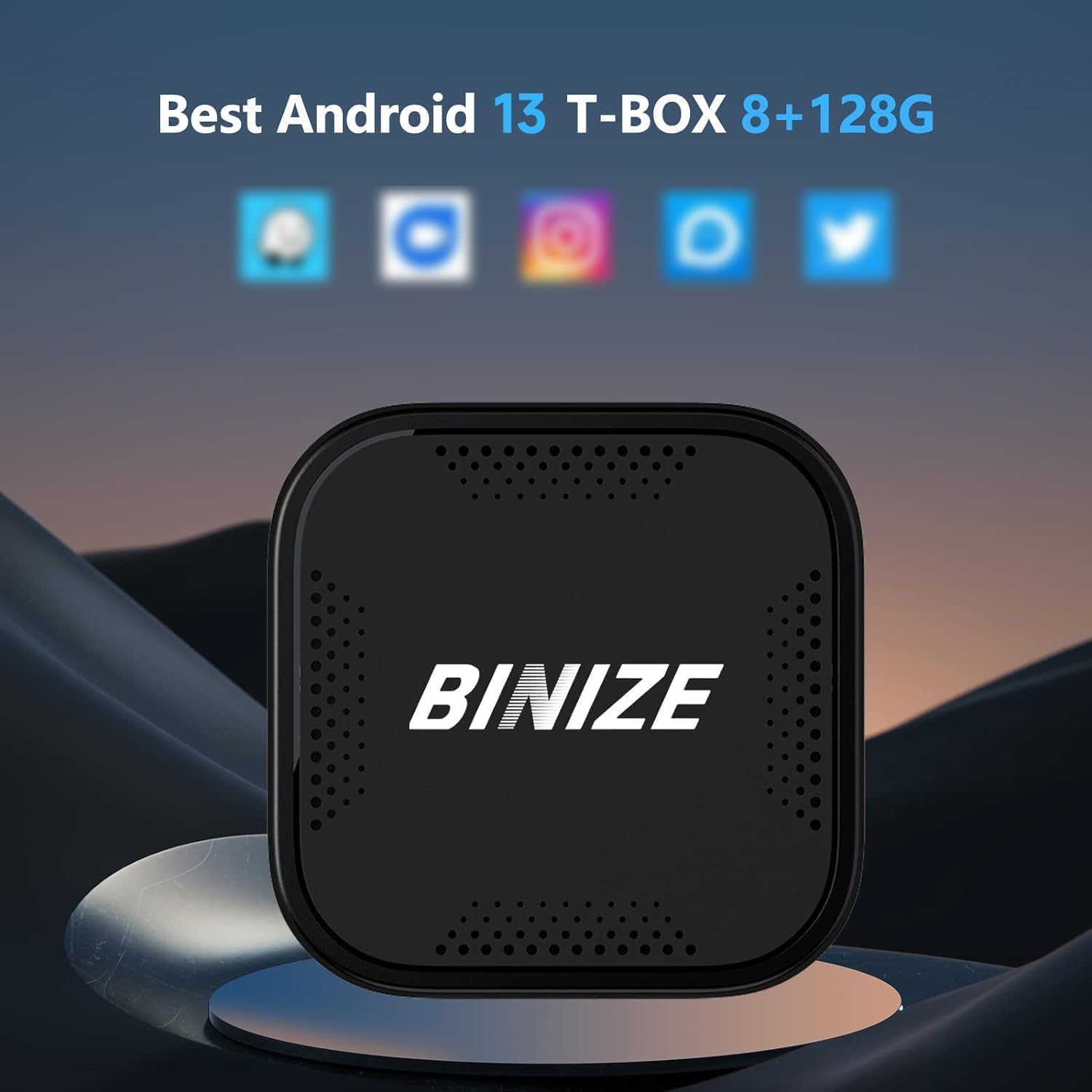
Image 4: The CarPlay AI Box interface displaying pre-installed video applications for in-car entertainment.
5.3 Split-Screen Viewing
Utilize the advanced split-screen feature to run multiple applications simultaneously, such as navigation and a video player.
Video 3: Guide on how to update Netflix and use the split-screen feature on the Binize CarPlay AI Box.
5.4 Voice Control
The device integrates with voice assistants like Siri or Google Assistant, allowing you to use voice commands for hands-free operation.

Image 5: The CarPlay AI Box supports 5GHz Bluetooth for phone calls and music streaming.
5.5 Auxiliary Floating Button
The device may feature an auxiliary floating button for quick access to certain functions. You can customize its visibility.
Video 4: Instructions on how to hide or show the Auxiliary Floating Button on the Binize CarPlay AI Box.
5.6 Mouse Control
For enhanced navigation and control, an external Bluetooth mouse can be connected to the AI Box.
Video 5: Demonstrates how to use a mouse with the Binize CarPlay AI Box for easier navigation.
6. Compatibility
The Binize CarPlay AI Box is designed for vehicles with OEM wired CarPlay. It can also be used with cars that have OEM wired Android Auto, provided the TF card conversion is performed.
Important Notes:
- The original car with wireless CarPlay does not work with this device in its default configuration. TF card conversion may be required if your car supports both wireless CarPlay and wired Android Auto.
- Not compatible with Samsung phones.
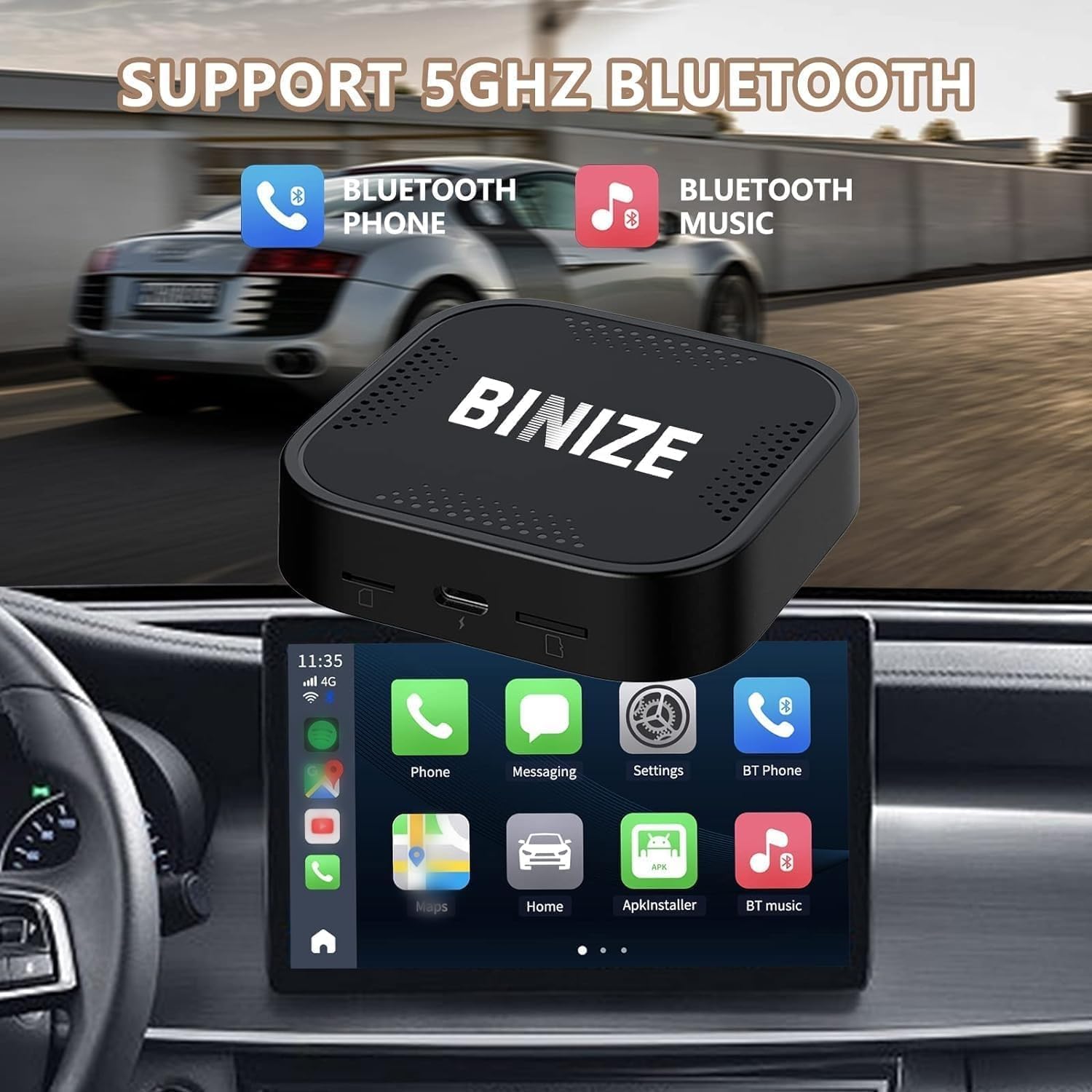
Image 6: A compatibility chart listing various car brands and models supported by the Binize CarPlay AI Box.
7. Maintenance
To ensure optimal performance and longevity of your Binize CarPlay AI Box, keep the device clean and free from dust. Avoid exposing it to extreme temperatures or direct sunlight for prolonged periods. Handle with care to prevent physical damage.
8. Troubleshooting
- Device Keeps Restarting: If the box keeps restarting, ensure you are using the correct power cord and that it is securely connected. For cars that originally support wireless CarPlay & wired Android Auto and experience power/USB display issues, switch the CarPlay AI box to use the wired Android Auto channel via TF card conversion.
- Connectivity Issues: Ensure your phone's Bluetooth and Wi-Fi are enabled and correctly paired with the AI Box. Check APN settings if internet access is problematic.
- App Functionality: Ensure all apps are updated to their latest versions via the Play Store.
Video 6: Addresses troubleshooting for a CarPlay AI Box that keeps restarting, suggesting the use of the correct power cord.
9. Warranty and Support
The Binize CarPlay AI Box comes with a 2-year warranty. For any technical support or warranty claims, please contact BINIZE customer service through their official channels or the retailer where the product was purchased.


