1. Introduction
This manual provides instructions for the JLab GO Charge Wireless Mouse. Please read this manual thoroughly before using the product to ensure proper operation and to maximize its features.

Figure 1: JLab GO Charge Wireless Mouse, top view with USB dongle.
2. Package Contents
Verify that all items are present in the package:
- GO Charge Wireless Mouse
- Charging cord (USB-C to USB-A)
- 2.4GHz USB Wireless Dongle
- Quick Start Guide
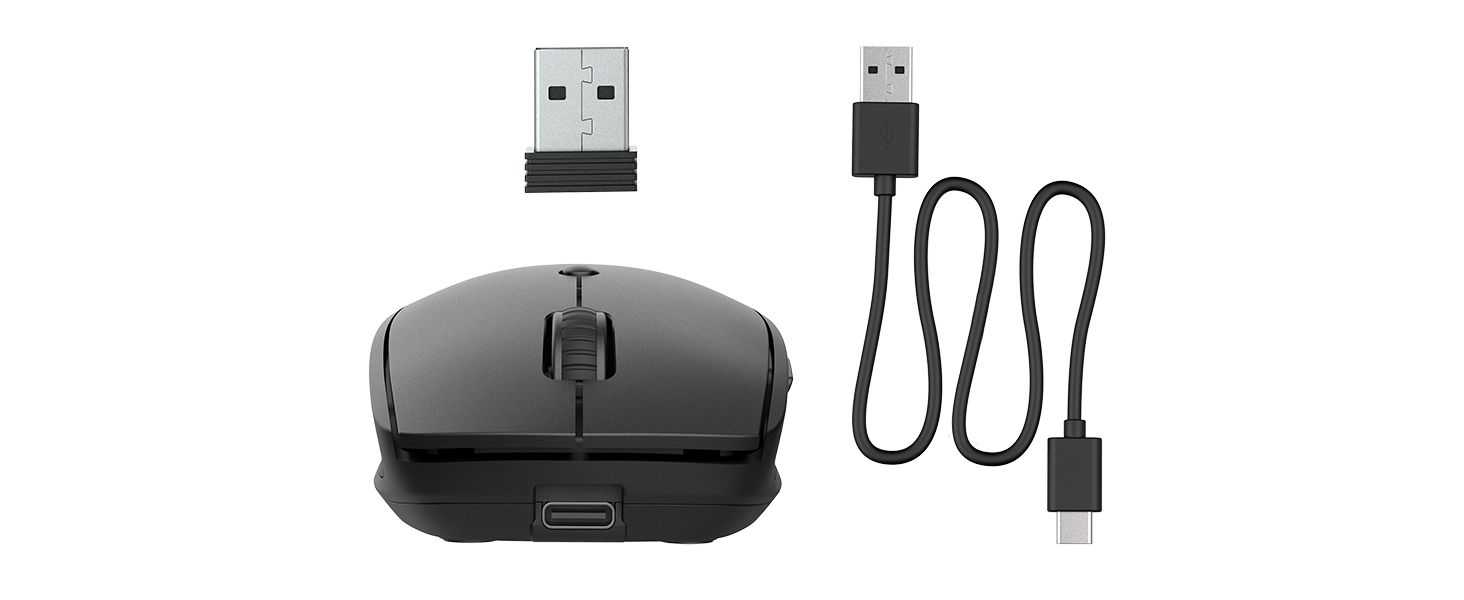
Figure 2: Included components: JLab GO Charge Wireless Mouse, USB-C to USB-A charging cable, and 2.4GHz USB wireless dongle.
3. Setup
3.1 Charging the Mouse
The JLab GO Charge Wireless Mouse features a rechargeable battery, eliminating the need for disposable batteries. Use the provided USB-C to USB-A charging cable to charge the mouse. The charging port is located at the front of the mouse.
- Connect the USB-C end of the cable to the mouse.
- Connect the USB-A end to a compatible USB power adapter (not included) or a computer USB port.
- A red indicator light on the underside of the mouse will illuminate during charging and turn off when fully charged.
3.2 Connectivity Options
The mouse offers two primary connection methods: 2.4GHz USB wireless dongle and Bluetooth.
3.2.1 2.4GHz USB Wireless Dongle Connection
- Locate the USB wireless dongle stored in the compartment on the underside of the mouse.
- Insert the USB dongle into an available USB-A port on your computer.
- Turn on the mouse using the power switch on its underside. The red optical sensor light will activate.
- The mouse should automatically connect to your computer.

Figure 3: Underside of the mouse, highlighting the USB dongle storage compartment and the power switch.
3.2.2 Bluetooth Connection
The mouse supports connecting wirelessly to up to two Bluetooth devices.
- Turn on the mouse using the power switch on its underside.
- Press the Bluetooth pairing button (often labeled 'BT1' or 'BT2') on the underside of the mouse. The corresponding LED indicator will blink, indicating pairing mode.
- On your device (computer, tablet, etc.), navigate to Bluetooth settings and search for new devices.
- Select "JLab GO Charge Mouse" from the list of available devices to pair.
- Repeat for a second Bluetooth device using the 'BT2' button if available.
3.3 Multi-Device Toggle
The JLab GO Charge Mouse allows seamless switching between up to three connected devices (one via USB dongle, two via Bluetooth). Use the dedicated toggle button on the underside of the mouse to switch between the paired devices.
4. Operating the Mouse
4.1 Basic Functions
- Left Click: Primary selection and activation.
- Right Click: Accesses contextual menus.
- Scroll Wheel: Scrolls content vertically. Can also be clicked for middle-click functionality.

Figure 4: Proper hand placement for operating the JLab GO Charge Wireless Mouse.
4.2 Adjustable Tracking (DPI)
The mouse features an adjustable DPI (Dots Per Inch) button, typically located below the scroll wheel. Press this button to cycle through different sensitivity settings, allowing you to adjust the cursor speed to your preference.
4.3 Side Buttons
The mouse is equipped with side buttons, usually for 'Forward' and 'Back' navigation in web browsers or file explorers. These can often be customized through your operating system's mouse settings.
5. Maintenance
5.1 Cleaning
To maintain optimal performance, regularly clean your mouse. Use a soft, dry cloth to wipe the surface. For the optical sensor, use a cotton swab lightly dampened with isopropyl alcohol, ensuring no liquid enters the mouse's interior.
5.2 Battery Care
To prolong the life of the internal rechargeable battery:
- Avoid fully discharging the battery frequently.
- Store the mouse in a cool, dry place when not in use for extended periods.
- Charge the mouse regularly, even if not completely depleted.
6. Troubleshooting
6.1 Mouse Not Responding
- Ensure the mouse is powered on.
- Check battery level and charge if necessary.
- For 2.4GHz connection: Ensure the USB dongle is securely inserted into a working USB port. Try a different USB port.
- For Bluetooth connection: Verify Bluetooth is enabled on your device and the mouse is paired. Try re-pairing the mouse.
- Restart your computer or device.
6.2 Erratic Cursor Movement
- Clean the optical sensor on the underside of the mouse.
- Ensure you are using the mouse on a suitable surface (e.g., a mouse pad). Avoid highly reflective or transparent surfaces.
- Adjust the DPI setting to a lower sensitivity.
6.3 Charging Issues
- Verify the charging cable is correctly connected to both the mouse and the power source.
- Try a different USB port or power adapter.
- Ensure the charging cable is not damaged.
7. Specifications
| Brand | JLab |
| Model | GO Charge Wireless Mouse |
| Color | Black |
| Connectivity Technology | Bluetooth, USB, Wireless (2.4GHz) |
| Movement Detection Technology | Optical |
| Special Feature | Wireless, Rechargeable |
| Compatibility | Mac, Windows, Chrome OS |
8. Warranty and Support
8.1 Warranty Information
JLab products are designed with quality and durability in mind. For detailed warranty information, please refer to the official JLab website or the warranty card included with your product. Keep your proof of purchase for warranty claims.
8.2 Customer Support
If you encounter any issues or have questions regarding your JLab GO Charge Wireless Mouse, please visit the official JLab support page or contact their customer service. Contact information can typically be found on the JLab website or in the Quick Start Guide.


