
Introduction
The ION Audio Total PA Titan is a high-power, portable PA speaker system designed for various events and gatherings. This system delivers powerful, vibrant sound through its bi-amplified 500-watt design, featuring a 12-inch woofer and a 1-inch tweeter. It includes versatile connectivity options such as Bluetooth, USB playback, and an auxiliary input. The integrated multi-colored party lights enhance the atmosphere, and the ION Sound Control App provides remote management of audio and lighting functions. Built-in handles and wheels ensure easy transport.
Package Contents
- Total PA Titan Speaker System
- Power Cable
- Microphone with Cable
- Quickstart Guide
Setup
- Unpacking: Carefully remove the Total PA Titan speaker from its packaging. Retain all packaging materials for future transport or storage.
- Placement: Position the speaker on a stable, flat surface such as a tabletop, or mount it on a compatible speaker stand. Ensure adequate space around the unit for ventilation.
- Power Connection: Connect the included power cable to the speaker's power input and then to a grounded electrical outlet. The unit operates on 120V AC power.
- Initial Power On: Press the Power button located on the rear panel to turn on the speaker. The display will illuminate.

Figure 1: Front view of the ION Audio Total PA Titan speaker, showcasing the illuminated woofer with multi-colored lights. This image illustrates the speaker's primary aesthetic and design.

Figure 2: The ION Audio Total PA Titan speaker shown with its retractable handle extended and wheels visible, demonstrating its portability feature for easy transport.
Operating Instructions
Power On/Off
Press the Power button on the rear panel to turn the unit on or off.
Bluetooth Pairing
- Ensure the Total PA Titan speaker is powered on.
- Activate Bluetooth on your audio device (e.g., smartphone, tablet).
- On your device, select "Total PA Titan" from the list of available Bluetooth devices. The speaker will indicate a successful connection.
- For optimal control and to manage audio and lighting functions, download and install the ION Sound Control App from your device's app store.
- If experiencing connection issues, ensure your device has Wi-Fi Internet access active. If the ION Sound Control App is closed, you may need to turn the Total PA Titan off and then on again for your smartphone to recognize it.
USB Playback
Insert a USB flash drive containing audio files into the USB port on the rear panel. The speaker will automatically detect and begin playing compatible audio files. Use the control panel buttons to navigate tracks and adjust playback.
Auxiliary Input
Connect external audio devices (e.g., MP3 players, CD players) to the Aux Input using a standard 3.5mm audio cable. Adjust the volume on both the connected device and the Total PA Titan.
Microphone Usage
Connect the included microphone to the Mic Input on the rear panel. Adjust the microphone volume using the dedicated knob on the control panel. This input is suitable for announcements or karaoke.
ION Sound Control App
The ION Sound Control App (available for iOS and Android) allows you to remotely control various functions of your Total PA Titan, including:
- Audio adjustments (bass, treble, volume)
- Light mode selection and customization
- Source selection
Light Modes
The Total PA Titan features 10 multi-colored light modes. These can be cycled through using a dedicated button on the control panel or managed via the ION Sound Control App. The lights can also be set to dance to the beat of the music.
Wireless Stereo-Link
To create a stereo sound experience, you can wirelessly connect two Total PA Titan speakers. Refer to the Quickstart Guide for detailed instructions on initiating the Wireless Stereo-Link function.

Figure 3: Detailed view of the rear control panel of the ION Audio Total PA Titan, highlighting the various input ports (USB, Aux, Mic) and control knobs for audio adjustments.
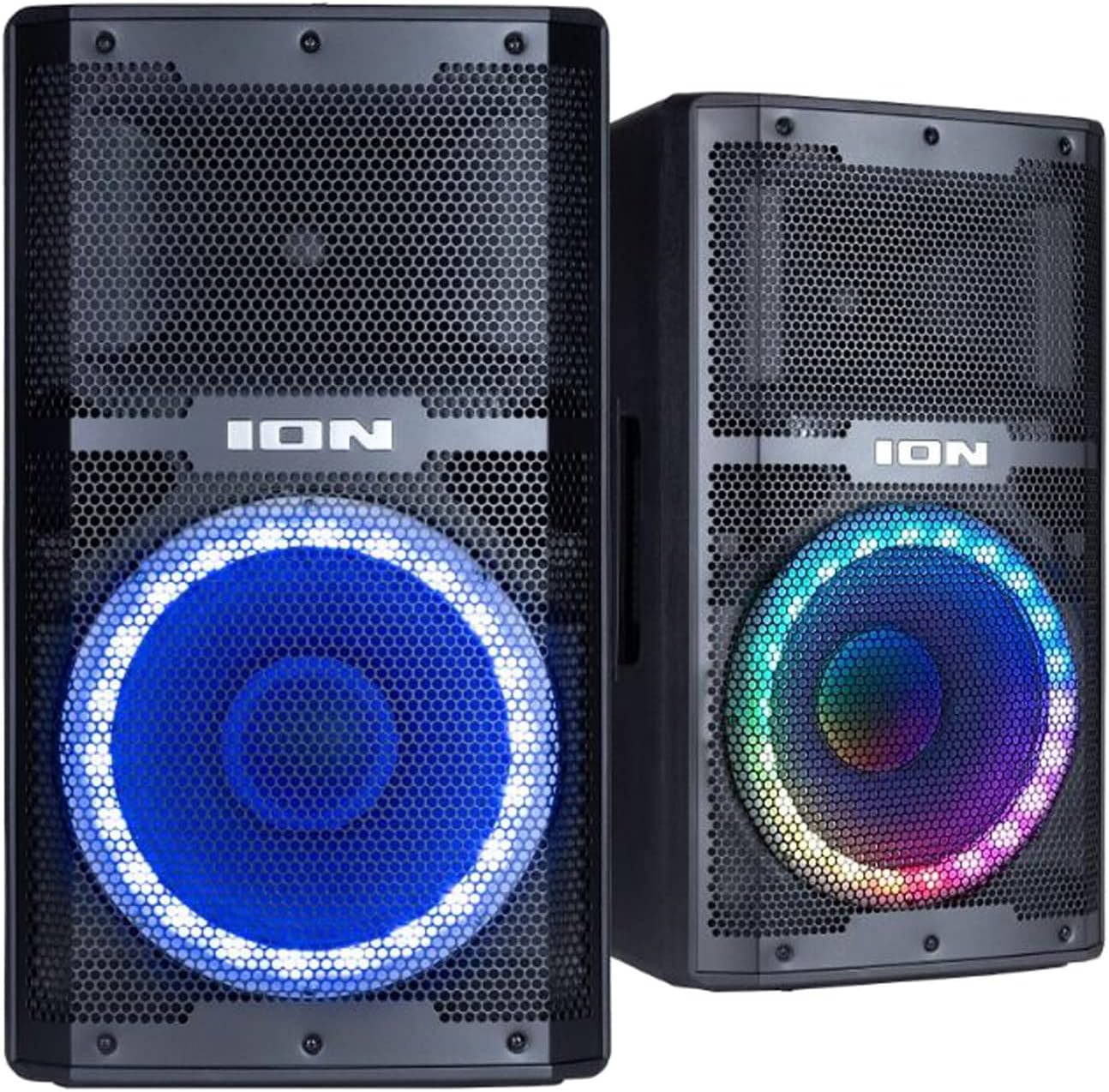
Figure 4: Two ION Audio Total PA Titan speakers positioned together, illustrating a potential setup for wireless stereo-link functionality to enhance sound coverage.
Maintenance
- Cleaning: Use a soft, dry cloth to clean the exterior surfaces of the speaker. Avoid using abrasive cleaners, solvents, or harsh chemicals.
- Storage: When not in use, store the speaker in a cool, dry place, away from direct sunlight and extreme temperatures.
- Safety: Do not expose the speaker to water or moisture. Ensure all connections are secure before operation.
Troubleshooting
| Problem | Solution |
|---|---|
| No power | Ensure the power cable is securely connected to both the speaker and a working electrical outlet. Verify the power switch is in the 'On' position. |
| No sound output | Check the master volume control on the speaker and the volume on your audio source device. Ensure the correct input source (Bluetooth, USB, Aux) is selected. Verify all audio cables are properly connected. |
| Bluetooth pairing issues | Make sure Bluetooth is enabled on your device and the speaker is in pairing mode. If the ION Sound Control App was recently closed, try turning the Total PA Titan off and then on again to refresh its Bluetooth visibility. Ensure no other devices are currently connected to the speaker. |
| Lights not working or incorrect mode | Check the light mode button on the control panel. If using the ION Sound Control App, verify the light settings within the app. |
Specifications
- Model: ION TPA Titan
- Brand: Ion
- Power Output: 500 Watts (Peak)
- Woofer: 12 inches (304.8mm)
- Tweeter: 1 inch (25.4mm)
- Connectivity Technology: Bluetooth 5.0
- Audio Inputs: Bluetooth, USB, Aux (3.5mm), Microphone (XLR/1/4" combo)
- Power Source: Corded Electric (120V AC)
- Material: Metal, Plastic
- Color: Black
- Compatible Devices: Smartphone, Tablet, USB drives, other audio devices
- Mounting Type: Tabletop, Speaker Stand (compatible with 32mm to 35mm diameter stands)
- UPC: 842655103572
- ASIN: B0C2JLJZ77
Warranty and Support
For warranty information and technical support, please refer to the official ION Audio website or contact their customer service directly. Keep your purchase receipt as proof of purchase for any warranty claims.


