
1. Introduction
This manual provides detailed instructions for the setup, operation, and maintenance of your BuzzTV Essentials E1 Streaming Media Player. The E1 is designed for ultra-fast and easy-to-use media streaming, supporting video resolutions up to 4K (60fps).
Powered by an Amlogic S905W Arm-Cortex A53 processor and running on an optimized Android 9 operating system, the device features 2 GB DDR3 RAM and 8 GB eMMC internal storage. It includes Dual Band Wi-Fi (2.4 GHz) for stable streaming.

Image: Top view of the BuzzTV Essentials E1 Streaming Media Player, showcasing its compact design.
2. Package Contents
Please verify that all items listed below are included in your package:
- BuzzTV Essentials E1 Streaming Media Player
- Power Adapter
- HDMI Cable
- Buzz TV Remote (Bonus)
- 4-Outlet Power Bar (Bonus)

Image: The bonus 4-outlet power bar, a supplementary item included with the BuzzTV Essentials E1.
3. Device Overview
Familiarize yourself with the ports and connections on your BuzzTV Essentials E1 device.
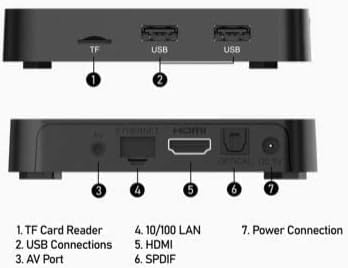
Image: Diagram illustrating the various ports and connections on the BuzzTV Essentials E1 streaming media player.
- TF Card Reader: For inserting a TransFlash (microSD) memory card to expand storage.
- USB Connections: Two USB ports for connecting external devices such as USB drives, keyboards, or mice.
- AV Port: Analog video and audio output for older televisions.
- 10/100 LAN: Ethernet port for a wired internet connection.
- HDMI: High-Definition Multimedia Interface for connecting to an HDTV or monitor.
- SPDIF: Digital audio output for connecting to an audio receiver or sound system.
- Power Connection: Input for the DC 5V power adapter.
4. Remote Control Overview
The Buzz TV Remote provides comprehensive control over your streaming media player and can also control certain TV functions.
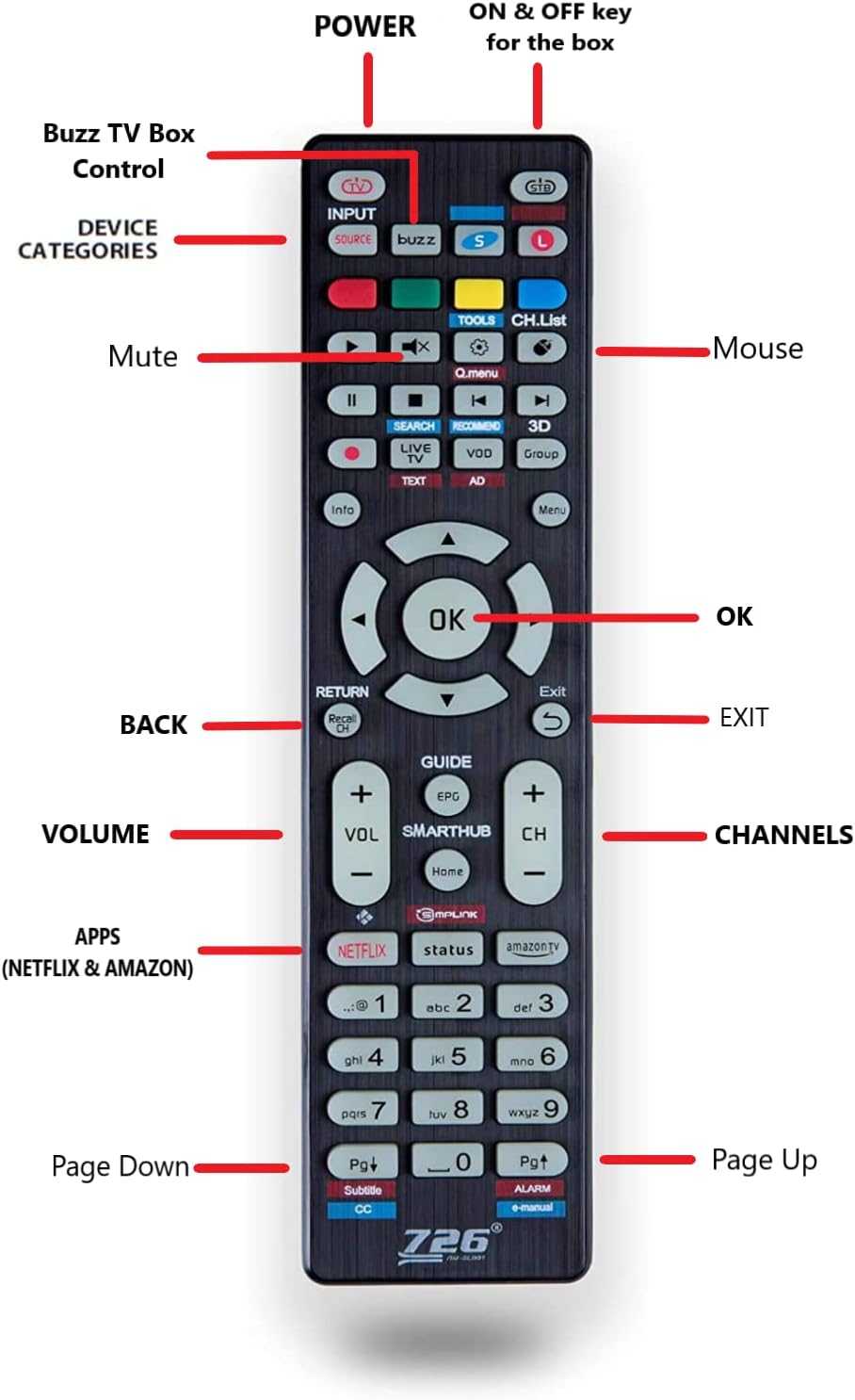
Image: Layout of the BuzzTV remote control, with labels indicating the function of each button.
- POWER: Turns the BuzzTV box ON and OFF.
- STB Button: Located at the very top, this button controls the power for the BuzzTV box.
- L Button: For controlling LG brand televisions.
- S Button: For controlling Samsung brand televisions.
- Input/Source: Selects input source on your TV.
- Navigation Pad (Up, Down, Left, Right, OK): For menu navigation and selection.
- BACK/RETURN: Returns to the previous screen or menu.
- EXIT: Exits the current application or menu.
- VOLUME +/-: Adjusts the volume.
- CH +/-: Changes channels (if applicable).
- Mute: Mutes or unmutes audio.
- Mouse: Activates/deactivates mouse mode for easier navigation in some apps.
- APPS (Netflix & Amazon): Dedicated buttons for quick access to Netflix and Amazon Prime Video.
- Page Up/Down: Scrolls through pages or lists.
5. Setup
Follow these steps to set up your BuzzTV Essentials E1 Streaming Media Player:
- Connect to TV:
Connect one end of the HDMI cable to the HDMI port on the BuzzTV E1 and the other end to an available HDMI input on your television. Note the HDMI input number (e.g., HDMI 1, HDMI 2) for later selection on your TV.
- Connect to Power:
Plug the power adapter into the DC 5V power connection port on the BuzzTV E1. Then, plug the power adapter into a wall outlet or the bonus power bar.
- Connect to Internet (Optional, but Recommended):
- Wi-Fi: For wireless internet, the device will prompt you to connect to a Wi-Fi network during initial setup. Select your network and enter the password. The E1 supports Dual Band Wi-Fi (2.4 GHz) for stable connections.
- Ethernet: For a wired connection, connect an Ethernet cable from your router to the 10/100 LAN port on the BuzzTV E1.
- Power On:
Turn on your television and select the correct HDMI input source using your TV remote. Press the POWER button on the BuzzTV remote to turn on the BuzzTV E1. The BuzzTV logo should appear on your screen.
- Initial Configuration:
Follow the on-screen prompts to complete the initial setup, which may include language selection, time zone, and Google account login (optional).
6. Operating Instructions
Once set up, you can begin using your BuzzTV Essentials E1.
- Navigation: Use the Navigation Pad (Up, Down, Left, Right) and OK button on the remote to browse menus and select items.
- Accessing Applications: From the home screen, navigate to the "Apps" section to view and launch installed applications. You can also use the dedicated Netflix and Amazon buttons for quick access.
- Using the Bonus Remote for TV Control:
- To control your BuzzTV box, ensure the remote is in STB mode (indicated by the STB button).
- To control an LG TV, press the L button.
- To control a Samsung TV, press the S button.
- Adjusting Settings: Access the "Settings" menu from the home screen to configure network settings, display options, audio output, and more.
- Software Updates: Periodically check for system updates in the settings menu to ensure optimal performance and access to the latest features.
7. Maintenance
Proper maintenance ensures the longevity and optimal performance of your BuzzTV Essentials E1.
- Cleaning: Use a soft, dry cloth to clean the device. Avoid liquid cleaners or abrasive materials.
- Ventilation: Ensure the device is placed in a well-ventilated area. Do not cover ventilation openings to prevent overheating.
- Power Off When Not in Use: For extended periods of inactivity, it is recommended to power off the device using the remote or by disconnecting the power adapter.
- Software Updates: Regularly check for and install system updates to maintain security and performance.
8. Troubleshooting
If you encounter issues with your BuzzTV Essentials E1, refer to the following common solutions:
| Problem | Possible Solution |
|---|---|
| No Power / Device Not Turning On |
|
| No Video / Black Screen |
|
| No Audio |
|
| Wi-Fi Connection Issues |
|
| Remote Control Not Responding |
|
9. Specifications
| Feature | Detail |
|---|---|
| Model Name | E1 |
| System Processor | AMlogic S905W Arm-Cortex A53 |
| System Memory (RAM) | 2 GB DDR3 |
| Internal Storage | 8 GB eMMC |
| Operating System | Android 9 (Optimized) |
| Video Resolution | Up to 4K (60fps), 2K, 1080p (60fps), 1080i, 720p, 720i, 576p, 576i, 486p, 486i |
| Connectivity | Dual Band Wi-Fi (2.4 GHz), Ethernet (10/100 LAN) |
| Ports | HDMI, 2x USB, TF Card Reader, AV Port, SPDIF, DC 5V Power |
| Dimensions | 9 x 6 x 2 inches |
| Item Weight | 1.74 pounds |
| Color | Black |
| Supported Internet Services | Amazon Prime Video, Hulu, Hulu Plus (and others via app installation) |
10. Warranty and Support
For warranty information and technical support, please refer to the official BuzzTV website or contact their customer service directly. Keep your purchase receipt as proof of purchase for any warranty claims.
For further assistance, you may visit the BuzzTV store page on Amazon: BuzzTV Store

