
1. Introduction
The ORICO Hard Drive Docking Station provides a convenient and efficient solution for accessing 2.5-inch and 3.5-inch SATA HDDs and SSDs. With USB 3.2 Gen 1 (USB-C) connectivity, it offers high-speed data transfer up to 5Gbps, supporting drives up to 22TB. Its tool-free design ensures easy installation, and features like UASP support, auto-sleep mode, and multiple safety mechanisms protect your data and enhance usability.

Figure 1: ORICO 1-Bay Hard Drive Docking Station (DD18C3)
2. Package Contents
Please verify that all items listed below are included in your package:
- 1x 2.5" & 3.5" Hard Drive Docking Station
- 1x 2-In-1 USB C to USB C/A Adapter Cable
- 1x 12V Power Adapter
- 1x User Manual

Figure 2: Included Package Contents
3. Product Overview
3.1. Ports and LED Indicators
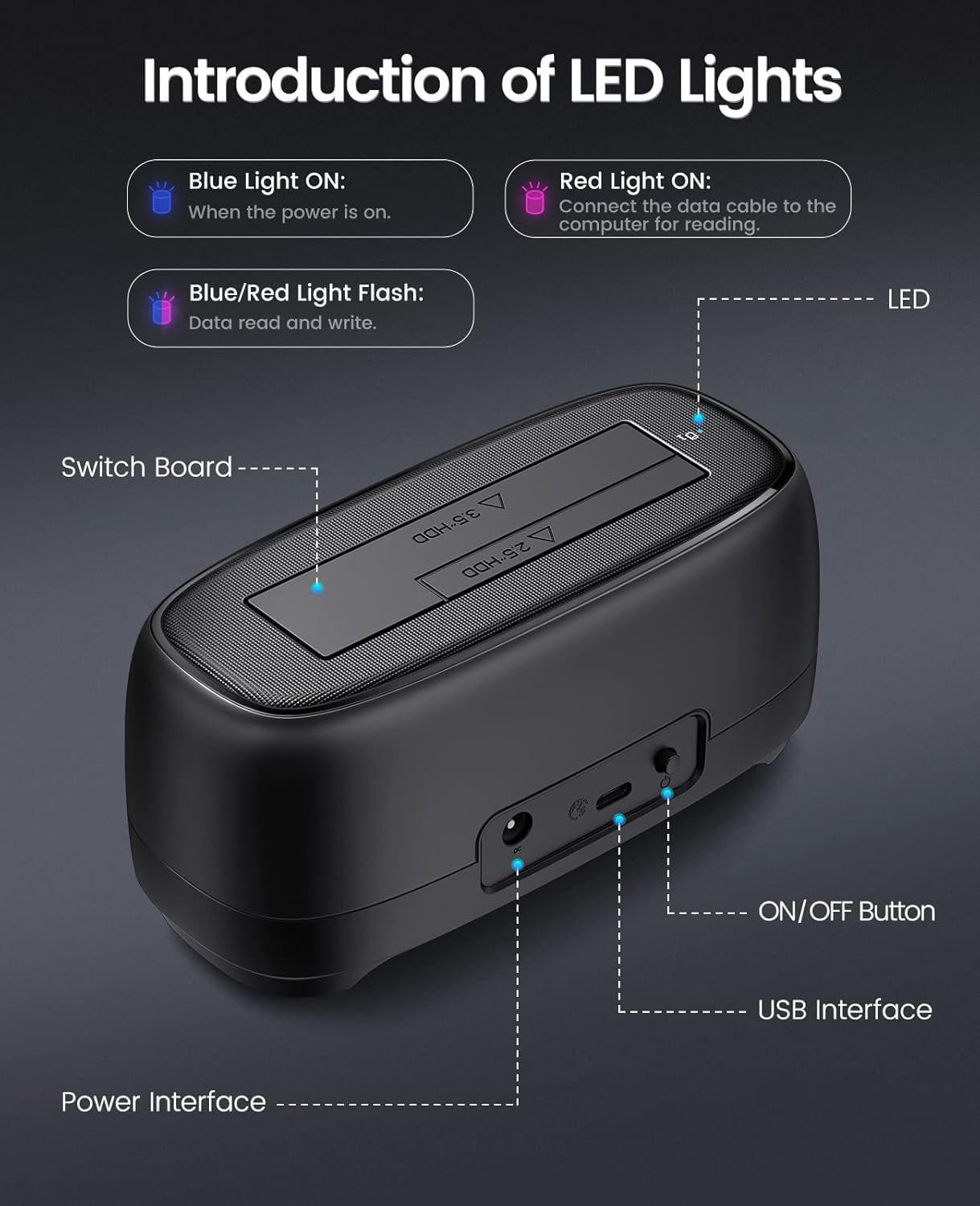
Figure 3: Product Ports and LED Indicators
- Power Interface: Connects to the 12V power adapter.
- USB Interface: USB Type-C port for data connection to your computer.
- ON/OFF Button: Powers the docking station on or off.
- LED Indicator:
- Blue Light ON: Indicates the device is powered on.
- Red Light ON: Indicates the data cable is connected to the computer for reading.
- Blue/Red Light Flash: Indicates data read and write activity.
3.2. Key Features
- Tool-Free Design: Easy installation and removal of hard drives without tools.
- Dust-Proof Design: Integrated dust shield protects the SATA interface from dust accumulation.
- Silicone Anti-skid Pad: Four rubber pads on the base reduce friction and vibration for stable operation.
- 10-Minute Auto Sleep Mode: Automatically enters sleep mode after 10 minutes of inactivity to save energy and extend drive lifespan.
- Multiple Safety Mechanisms: Equipped with a high-performance master control chip to protect against over-current, short-circuit, over-heat, over-voltage, and leakage.

Figure 4: Power Adapter and Dust-Proof Design

Figure 5: 10-Minute Auto Sleep Mode

Figure 6: Silicone Anti-skid Pads

Figure 7: Safety and Stability Features
4. Setup
Follow these steps to set up your ORICO Hard Drive Docking Station:
- Connect Power: Plug the 12V power adapter into the docking station's power interface and then into a wall outlet.
- Connect to Computer: Use the provided 2-in-1 USB C to USB C/A adapter cable to connect the docking station to your computer's USB port. The docking station is compatible with both USB-C and USB-A ports.
- Insert Hard Drive: Gently insert your 2.5-inch or 3.5-inch SATA HDD/SSD into the drive slot until it is firmly seated. The tool-free design allows for easy insertion.
- Power On: Press the ON/OFF button on the back of the docking station. The blue LED indicator will light up, indicating the device is powered on.

Figure 8: Inserting a Hard Drive
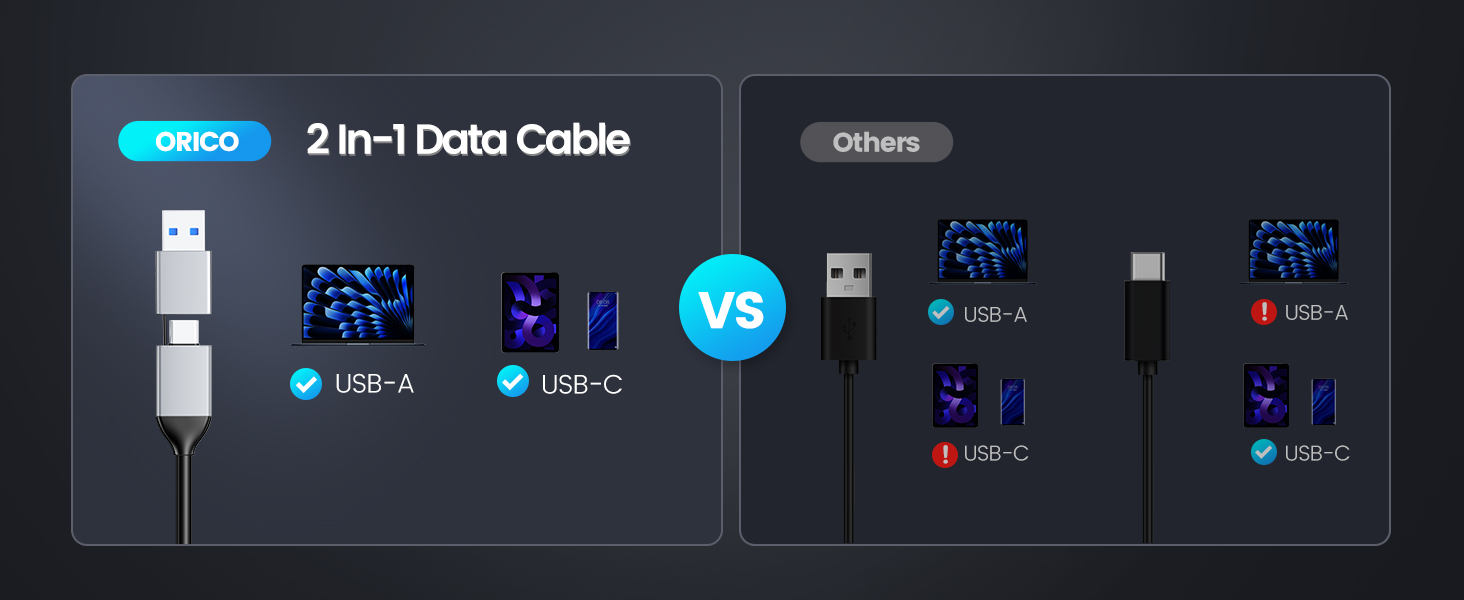
Figure 9: 2-in-1 USB Data Cable for Universal Compatibility
Setup Video:
Video 1: ORICO Single Bay USB C Port Hard Drive Dock Overview
This video demonstrates the physical setup and basic functionality of the ORICO single bay hard drive dock, including drive insertion and connectivity.
5. Operating Instructions
Once set up, your ORICO docking station is ready for use:
- Drive Recognition: The connected hard drive will be automatically recognized by your computer. For new drives, you may need to initialize and format them through your operating system's disk management utility before use.
- Data Transfer: Drag and drop files to and from the recognized drive. The docking station supports the UASP (USB Attached SCSI Protocol) for enhanced transfer speeds up to 5Gbps, significantly faster than traditional USB 3.0.
- Universal Compatibility: The docking station is compatible with Windows, Mac, Linux, and Android systems. It can be used with various devices such as PCs, laptops, gaming consoles, smart TVs, and routers. Mobile phone transmission is also supported if your phone has OTG functionality.

Figure 10: High-Speed Data Transfer Performance

Figure 11: Universal Device and Operating System Compatibility

Figure 12: Mobile Phone Transmission (OTG function required)
6. Maintenance
To ensure the longevity and optimal performance of your ORICO Hard Drive Docking Station, follow these maintenance guidelines:
- Cleanliness: Keep the docking station free from dust and debris. The integrated dust shield helps, but regular gentle cleaning with a soft, dry cloth is recommended.
- Safe Removal: Always safely eject the hard drive from your operating system before physically removing it from the docking station or disconnecting the power/USB cable. This prevents data corruption.
- Proper Storage: When not in use, store the docking station in a cool, dry place away from direct sunlight and extreme temperatures.
- Avoid Impact: Protect the device from drops or impacts, which can damage internal components or the drive itself.
7. Troubleshooting
If you encounter issues with your ORICO Hard Drive Docking Station, refer to the following common problems and solutions:
- Drive Not Recognized:
- Ensure the power adapter is securely connected and the docking station is powered on (blue LED).
- Verify the USB cable is properly connected to both the docking station and your computer. Try a different USB port.
- Check the hard drive's connection within the slot. Ensure it is fully seated.
- For new drives, check your operating system's Disk Management (Windows) or Disk Utility (Mac) to see if the drive needs to be initialized or formatted.
- Test with a different hard drive to rule out a drive issue.
- Slow Transfer Speeds:
- Ensure you are connected to a USB 3.0 (or higher) port on your computer. USB 2.0 ports will result in significantly slower speeds.
- Verify your operating system and drivers support UASP.
- The actual speed may vary depending on the hard drive's performance and your computer's hardware.
- LED Indicator Not Lighting Up:
- Confirm the power adapter is connected and the ON/OFF button is pressed.
- Try a different power outlet.
8. Specifications
| Feature | Description |
|---|---|
| Brand | ORICO |
| Model Number | 1 Bay (DD18C3) |
| Material | Plastic |
| Compatible Drive Types | 2.5" & 3.5" SATA HDD/SSD |
| Max Capacity Supported | Up to 22TB (3.5" HDD), 8TB (2.5" HDD/SSD) |
| Interface | USB 3.2 Gen 1 Type-C |
| Data Transfer Rate | Up to 5Gbps (UASP Supported) |
| Power Supply | 12V/3A Power Adapter |
| Compatible Operating Systems | Windows, Mac OS, Linux, Android |
| Dimensions (L x W x H) | 6.38 x 4.65 x 2.83 inches |
| Item Weight | 5.3 ounces (150 Grams) |
9. Warranty and Support
ORICO products are designed with quality and reliability in mind. This product comes with a standard manufacturer's warranty. For detailed warranty information, technical support, or customer service inquiries, please visit the official ORICO website or contact their customer support team directly.
You can also visit the ORICO Store on Amazon for more product information and support resources.


