
1. Product Overview
The ThermoPro TP920W is an advanced LCD Bluetooth-enabled grill and meat thermometer designed to help you monitor cooking temperatures with precision. This device connects wirelessly to your smartphone, providing real-time temperature readings and alerts for perfect cooking results. It features a clear LCD display for direct readings and durable probes suitable for various cooking environments.
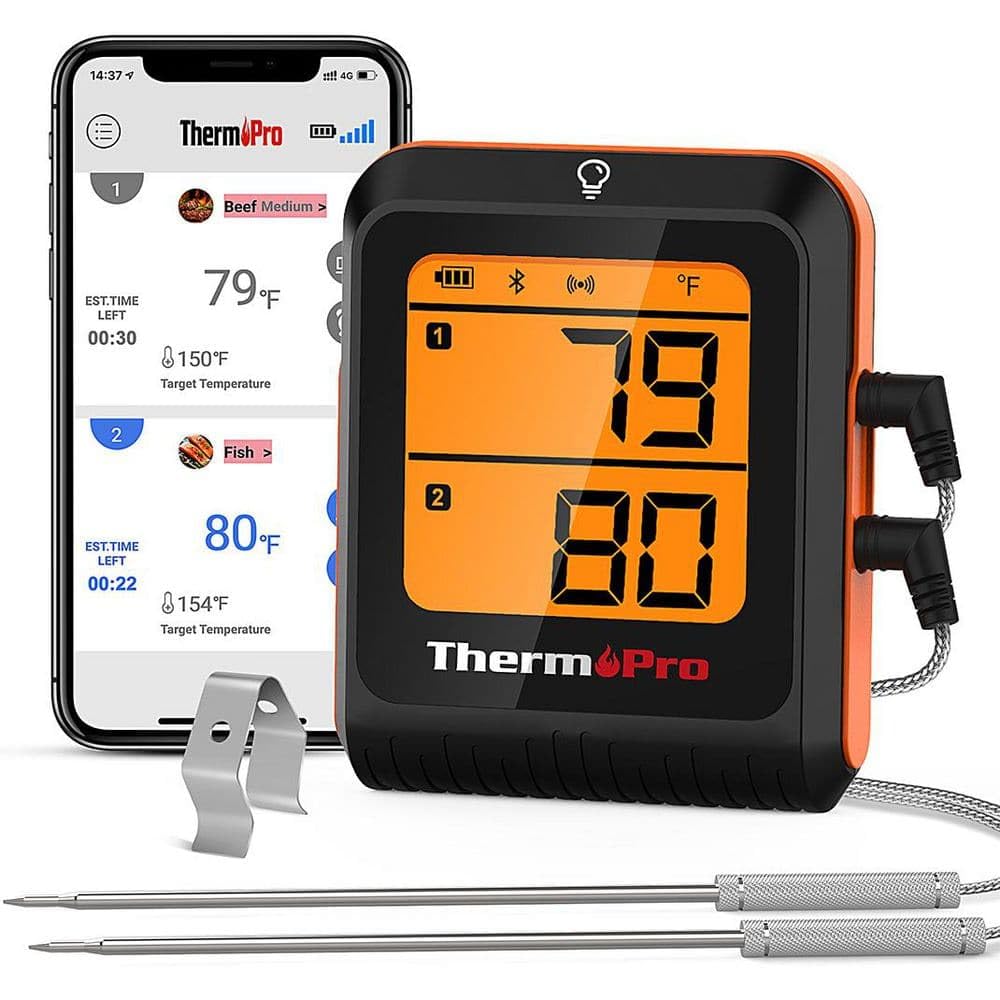
Image 1.1: The ThermoPro TP920W Bluetooth Grill/Meat Thermometer. This image displays the main unit with its orange casing, featuring an LCD screen and two temperature probes connected.
2. Setup Guide
Follow these steps to set up your ThermoPro TP920W thermometer for first use:
- Unpack Contents: Carefully remove the thermometer unit and all accessories from the packaging. Ensure all components listed in the "What's in the Box" section are present.
- Battery Installation: Locate the battery compartment on the back of the main unit. Insert the required batteries (typically AAA, not specified in JSON, so I'll use a generic instruction) according to the polarity indicators. Close the battery compartment securely.
- Download the App: Search for the official ThermoPro app on your smartphone's app store (e.g., Apple App Store or Google Play Store). Download and install the application.
- Power On: Press the power button on the thermometer unit to turn it on. The LCD display should illuminate.
- Bluetooth Pairing: Open the ThermoPro app on your smartphone. Follow the in-app instructions to pair your device. Ensure your phone's Bluetooth is enabled. The app will guide you through the connection process.
- Connect Probes: Insert the temperature probes into the designated ports on the thermometer unit. Ensure they are fully seated.
Note: For optimal performance, ensure your smartphone's operating system and the ThermoPro app are updated to the latest versions.
3. Operating Instructions
Once set up, the ThermoPro TP920W is ready for use. Here’s how to operate it:
- Probe Insertion: Insert the tip of the temperature probe into the thickest part of the meat, avoiding bone or gristle. For grilling, position the probe securely within the cooking chamber if monitoring ambient temperature.
- Monitor Temperatures:
- On the Device: The current temperature readings will be displayed on the thermometer's LCD screen.
- Via Smartphone App: Open the ThermoPro app to view real-time temperature graphs, set target temperatures, and receive alerts.
- Setting Alarms: Use the smartphone app to set custom high and low temperature alarms. The app will notify you when the temperature reaches your preset levels.
- Temperature Unit Selection: The app typically allows you to switch between Celsius (°C) and Fahrenheit (°F). Refer to the app settings for this option.
- Power Off: To conserve battery life, press and hold the power button on the unit to turn it off when not in use.
Caution: Do not expose the main thermometer unit to direct heat, flames, or moisture. Only the probe tips are designed for high-temperature environments.
4. Maintenance
Proper maintenance ensures the longevity and accuracy of your ThermoPro TP920W thermometer:
- Cleaning Probes: After each use, clean the stainless steel probes with a damp cloth and mild detergent. Rinse thoroughly and dry completely before storage. Do not immerse the probe connectors or the main unit in water.
- Cleaning Main Unit: Wipe the main unit with a soft, damp cloth. Avoid abrasive cleaners or solvents.
- Storage: Store the thermometer and probes in a clean, dry place at room temperature. Avoid extreme temperatures or high humidity.
- Battery Replacement: Replace batteries when the low battery indicator appears on the display or in the app. Dispose of old batteries responsibly.
5. Troubleshooting
If you encounter issues with your ThermoPro TP920W, refer to the following common solutions:
| Problem | Possible Cause | Solution |
|---|---|---|
| No display/Unit won't turn on | Dead or incorrectly installed batteries. | Replace batteries with new ones, ensuring correct polarity. |
| Bluetooth connection failure | Bluetooth disabled on phone, app not open, unit out of range, interference. | Ensure phone Bluetooth is on, app is running, unit is within range (approx. 300ft/90m line of sight), restart both devices. |
| Inaccurate temperature readings | Probe not fully inserted, damaged probe, probe tip touching bone/gristle. | Re-insert probe correctly, check probe for visible damage (replace if necessary), reposition probe away from bone. |
| App not receiving data | Bluetooth connection lost, app permissions not granted. | Reconnect Bluetooth, check app permissions in phone settings (location, Bluetooth). |
If the problem persists after trying these solutions, please contact ThermoPro customer support.
6. Specifications
| Feature | Detail |
|---|---|
| Model Name | ThermoPro LCD Bluetooth Enabled Grill/Meat Thermometer |
| Part Number | TP920W |
| Brand | ThermoPro |
| Color | Orange |
| Material | Plastic (Main Unit), Silicone/Stainless Steel (Outer Material/Probes) |
| Item Dimensions (LxWxH) | 1.9 x 4.7 x 11.4 inches |
| Item Weight | 0.7 Pounds |
| Package Dimensions (LxWxH) | 11.65 x 4.65 x 1.9 inches |
| Package Weight | 0.32 Kilograms |
| Manufacturer | ITRONICS USA INC |
| Date First Available | March 27, 2023 |
7. Warranty Information
The ThermoPro TP920W comes with a manufacturer's warranty. While specific details are not provided here, ThermoPro typically offers a warranty against defects in materials and workmanship. For detailed warranty terms, conditions, and registration, please refer to the official ThermoPro website or the warranty card included with your product.
Keep your purchase receipt as proof of purchase for any warranty claims.
8. Customer Support
For further assistance, technical support, or to inquire about replacement parts, please contact ThermoPro customer service. You can typically find contact information, FAQs, and additional resources on the official ThermoPro website:
Visit ThermoPro Official Website
When contacting support, please have your model number (TP920W) and purchase date readily available.


