
1. Setup Guide
This section provides instructions for setting up your WEILAILIFE Wireless Security Camera System.
1.1. What's in the Box
Verify that all components are present in your package:
- 10CH 5.0MP NVR Pre-install 4TB Hard Drive x 1
- 5MP 2-Way Audio Wireless Security Camera x 8
- 10FT Cable Power Supply for Camera x 8
- 3FT Cable Power Supply for NVR x 1
- Antenna for Camera x 16
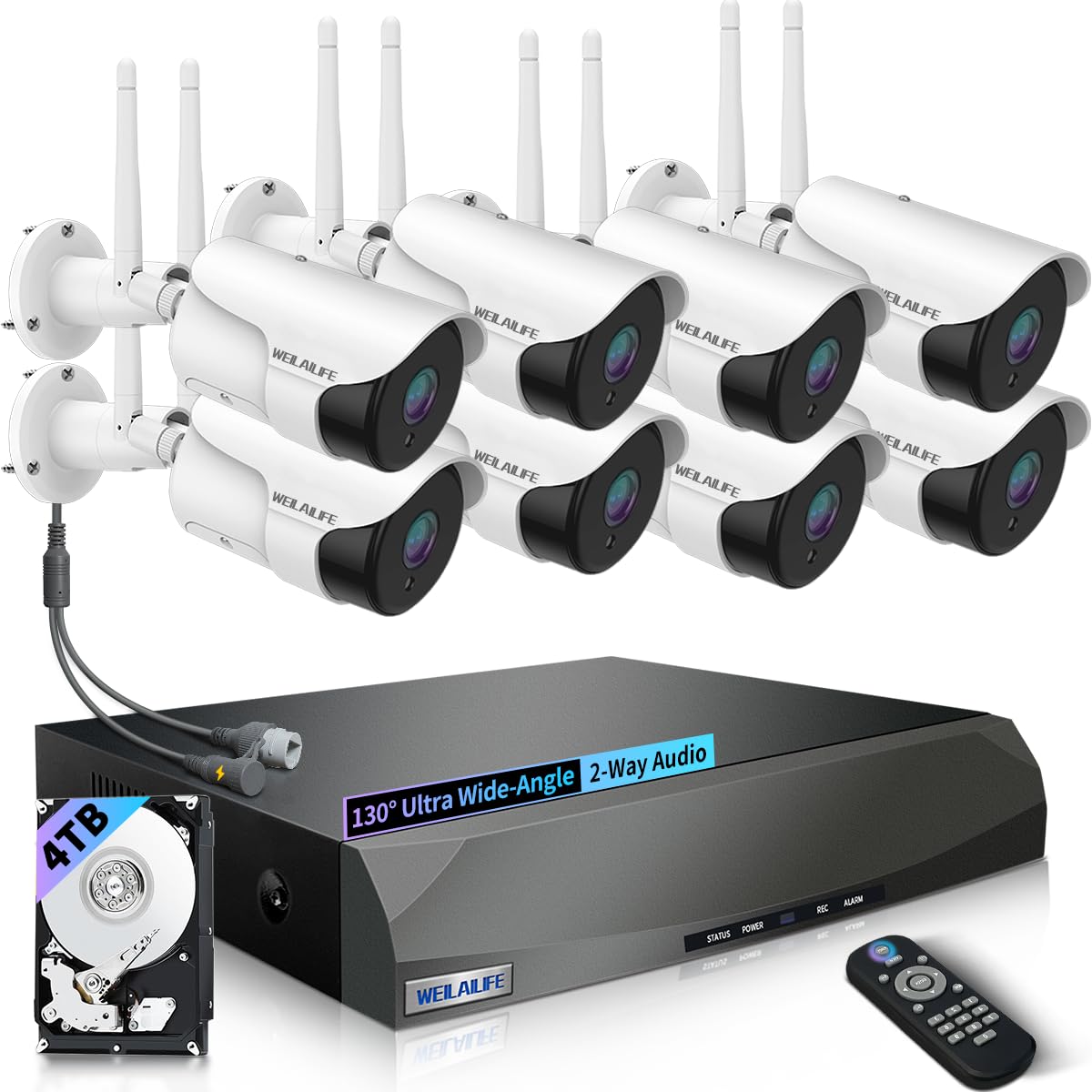
Image: Overview of the WEILAILIFE 5MP 8-Camera 4TB Wireless Security Camera System, showing the NVR and multiple cameras.
1.2. Camera Antenna Installation
Before mounting, ensure the antennas are correctly attached to each camera for optimal wireless signal.
- Remove the red protective cap from the antenna port on the camera.
- Firmly screw in the antenna to the designated port.
- Adjust the angle of the antenna for best signal reception.
Video: Demonstrates the installation process for the wireless camera antennas and mounting.
1.3. System Connection
Follow these steps to connect your wireless security camera system:
- Connect the power adapter to the NVR and plug it into an electrical outlet.
- Connect the power adapters to each camera and plug them into electrical outlets.
- Connect the NVR to a monitor (VGA or HDMI) and a mouse for local control.
- For remote access, connect the NVR to your router using the provided LAN cable.
Video: Illustrates the connection settings for the wireless security camera system, including NVR and camera power, and network connections.
1.4. App Setup and Camera Pairing
Use the "HonestView" app for remote viewing and management.
- Download the "HonestView" app from your smartphone's app store (iOS/Android).
- Open the app and follow the on-screen instructions to add your NVR by scanning the QR code on the device.
- The app will guide you through pairing the cameras to the NVR. Ensure cameras are powered on and within range.
Video: Shows how to add a WiFi camera to the wireless security system using the mobile application.
2. Operating Instructions
Learn how to utilize the key features of your security system.
2.1. 90ft Super Night Vision
Each camera is equipped with 18 hidden infrared LEDs, providing clear surveillance up to 90 feet in complete darkness. The LEDs activate automatically at night.

Image: Illustrates the camera's 90ft Super Night Vision capability, showing clear visibility in low-light conditions.
2.2. Dual Antenna Enhanced Wireless Signal
The dual-antenna design enhances wireless signal transmission up to 150 feet, ensuring stable and reliable connectivity for your 5-megapixel cameras, delivering stunning 1944P resolution.

Image: Diagram showing enhanced wireless signal transmission with dual antennas, improving range and stability.
2.3. 2-Way Audio Communication
Equipped with advanced noise-canceling microphones and speakers, the cameras allow for clear two-way communication. This feature enables you to speak with visitors or deter intruders remotely via the app.

Image: Depicts a user communicating through the camera's two-way audio feature with a person at the door.
2.4. 130° Wide-angle Lens
The cameras feature a 130° wide-angle lens, providing extensive coverage and minimizing blind spots in the monitored area. This is ideal for thorough inspections and capturing a broader view.

Image: Visual representation of the 130-degree wide-angle lens coverage from a security camera.
2.5. Motion Detection & Alerts
The system detects movement and sends real-time notifications to your smartphone (via app push, email, or buzzer), ensuring you are immediately aware of any activity.

Image: Shows motion detection in action, highlighting a person entering the monitored area and the various alert options.
2.6. Remote Viewing with "HonestView" App
Access live video feeds and recorded footage from your smartphone, PC, or tablet using the free "HonestView" app, with no monthly fees.

Image: A person viewing live camera footage on a smartphone, demonstrating remote monitoring capabilities.
Video: An introductory video showcasing the features and benefits of the WEILAILIFE Wireless Security System.
Video: Highlights the 5MP resolution and wireless capabilities of the security camera system.
3. Maintenance
Proper maintenance ensures the longevity and optimal performance of your security system.
3.1. Cleaning
- Regularly wipe the camera lenses with a soft, damp cloth to remove dust and smudges. Avoid abrasive cleaners.
- Keep the NVR unit free from dust by gently wiping its exterior. Ensure ventilation openings are not blocked.
3.2. Environmental Considerations
The cameras are IP66 waterproof, designed to withstand various weather conditions. However, extreme temperatures can affect performance.

Image: Demonstrates the IP66 waterproof rating of the camera, showing its resilience to rain and varying temperatures.
3.3. Firmware Updates
Check the "HonestView" app or the WEILAILIFE website periodically for firmware updates to ensure your system has the latest features and security enhancements.
4. Troubleshooting
Common issues and their solutions.
4.1. No Video Feed
- Check Power: Ensure both the camera and NVR are powered on and connected to a working power source.
- Check Connections: Verify all cables (HDMI/VGA, LAN) are securely connected.
- Wireless Signal: If using wireless, check the signal strength in the NVR settings or app. Relocate cameras closer to the NVR if the signal is weak.
- Re-pair Camera: If a specific camera is offline, try re-pairing it through the NVR's menu or the app.
4.2. Motion Detection Not Working
- Enable Motion Detection: Ensure motion detection is enabled in the NVR settings or app for the specific camera.
- Adjust Sensitivity: The sensitivity level might be too low. Increase it in the settings.
- Set Detection Zones: Verify that detection zones are correctly configured and cover the desired areas.
4.3. Remote Access Issues
- Internet Connection: Ensure both your NVR and smartphone have a stable internet connection.
- App Version: Make sure your "HonestView" app is updated to the latest version.
- Router Settings: Check your router's firewall or port forwarding settings if you experience persistent connectivity issues. Consult your router's manual or ISP for assistance.
5. Product Specifications
| Feature | Detail |
|---|---|
| Brand | WEILAILIFE |
| Model Name | CSWL-08SW5MP18-8ch+3.5"4TB-BW |
| Recommended Uses | Indoor Security, Outdoor Security |
| Connectivity Technology | IEEE802.11 1/n/f, WiFi, Wireless |
| Special Features | 130° Wide-angle Lens, 2-Antennas Enhancement, 2-Way Audio, 90ft Night Vision, Motion Sensor |
| Indoor/Outdoor Usage | Indoor, Outdoor |
| Compatible Devices | Cameras, Personal Computers, Smartphone, Tablet, Television |
| Controller Type | APP Control, Remote Control, USB Mouse |
| Mount Type | Embedded |
| Color | White |
| Form Factor | Bullet |
| Installation Type | Wall Mount |
| Enclosure Material | Aluminum |
| Water Resistance Level | Waterproof (IP66) |
| Alert Type | Audio and Motion |
| Effective Still Resolution | 5 MP |
| Photo Sensor Resolution | 5 MP |
| Power Source | AC/DC |
| Voltage | 110 Volts (AC) |
| Wattage | 50 watts |
| Number of Channels | 10 |
| Video Encoding | MPEG-4 |
| Night Vision Range | 90 Feet |
| Video Capture Resolution | 2536 x 1944p, 5.0 Megapixel |
| Frame Rate | 15 Fps |
| Viewing Angle | 130 Degrees |
| Zoom Type | Digital Zoom |
| Item Dimensions | 13 x 11 x 9 inches |
6. Warranty & Support
6.1. Manufacturer Warranty
The WEILAILIFE 5MP 8-Camera 4TB Wireless Security Camera System comes with a US Location Service Manufacturer Warranty for 1 Year from Date of Purchase.
6.2. Customer Support
For further assistance, technical support, or to explore other WEILAILIFE products, please visit the official WEILAILIFE Store:


