
1. Introduction
This manual provides comprehensive instructions for the setup, operation, and maintenance of your PZL XRT302 Replacement Remote Control. This remote is designed to be a direct replacement for various Vizio TV models, offering a full range of functions including a QWERTY keyboard for enhanced navigation and input.
2. Product Overview
The PZL XRT302 is an infrared (IR) replacement remote control featuring a standard TV remote layout on the front and a full QWERTY keyboard on the reverse side. It is engineered for a delay-free response and precise control.
2.1 Key Features
- Infrared Technology: Transmits a strong signal for multi-angle sensing, effective up to 12 meters (40 feet).
- Fast Response: Commands are processed by the TV in less than 0.2 seconds.
- QWERTY Keyboard: Integrated on the back for easy text input.
- No Programming Required: Ready to use with compatible Vizio TV models upon battery installation.
- Ergonomic Design: Comfortable to hold and operate.
2.2 Compatible Vizio TV Models
This remote control is compatible with the following Vizio TV models:
- E3D320VX, M420SV, M470SV, M320SR, E472VL, M470VSE, M650VSE, M550VSE, M3D470KDE, E3D420VX, E552VL, E601i-A3, E701i-A3, E650i-A2, D650i-B2, M370SR, M420SR, E3D470VX, M420KD, M3D470KD, M550SV.
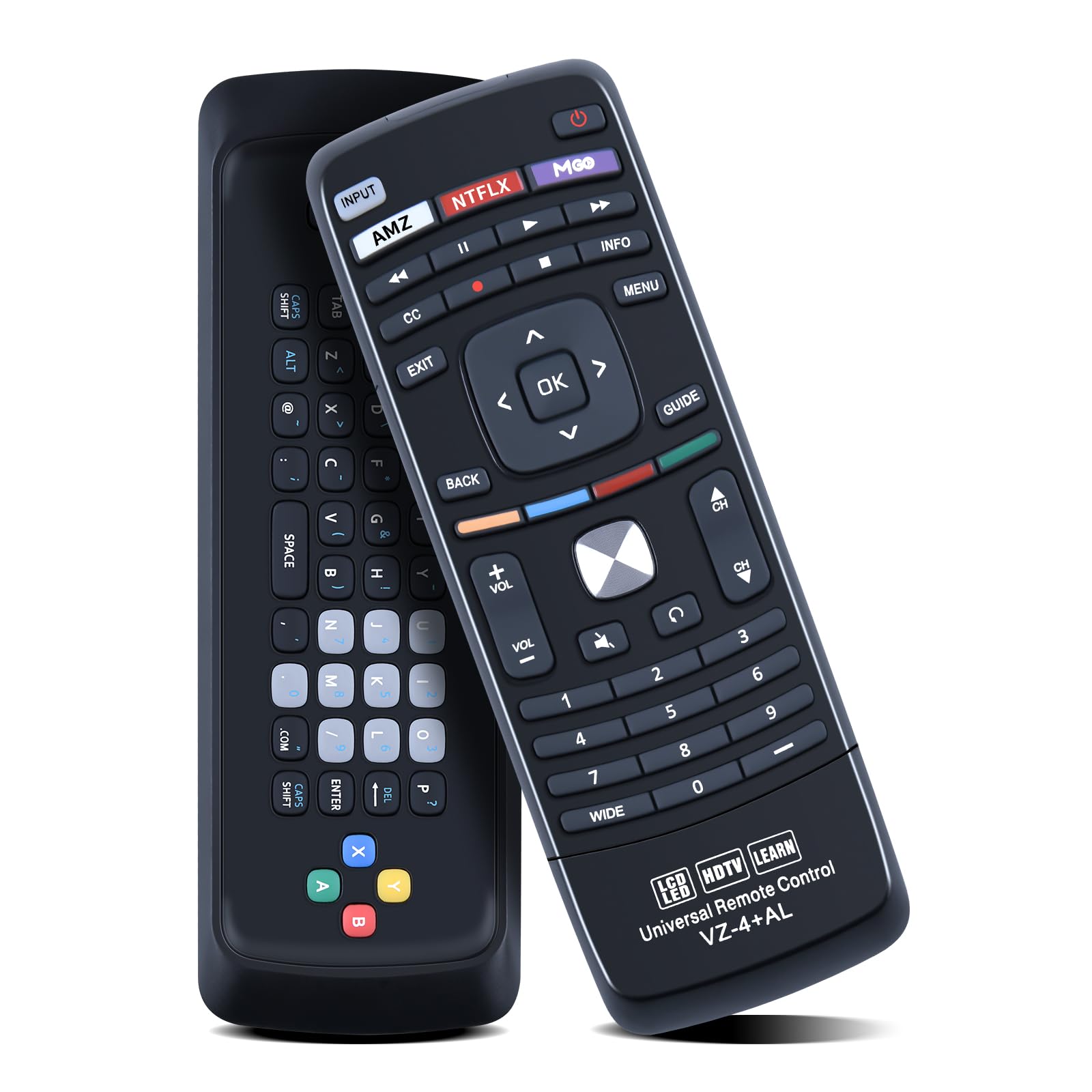
Image 2.1: Front view of the PZL XRT302 remote control.

Image 2.2: Key features of the remote control.

Image 2.3: Remote control range and multi-angle control.
3. Setup
The PZL XRT302 remote control requires no complex setup or programming. Simply install the batteries, and it will be ready for use with your compatible Vizio TV.
3.1 Battery Installation
- Locate the battery compartment cover on the back of the remote control.
- Slide the cover downwards or press the latch and lift to open the compartment.
- Insert two (2) AAA batteries, ensuring the positive (+) and negative (-) terminals align correctly with the markings inside the compartment.
- Replace the battery compartment cover by sliding it back into place until it clicks securely.
Note: Batteries are not included with the remote control.

Image 3.1: Remote control dimensions and battery type.
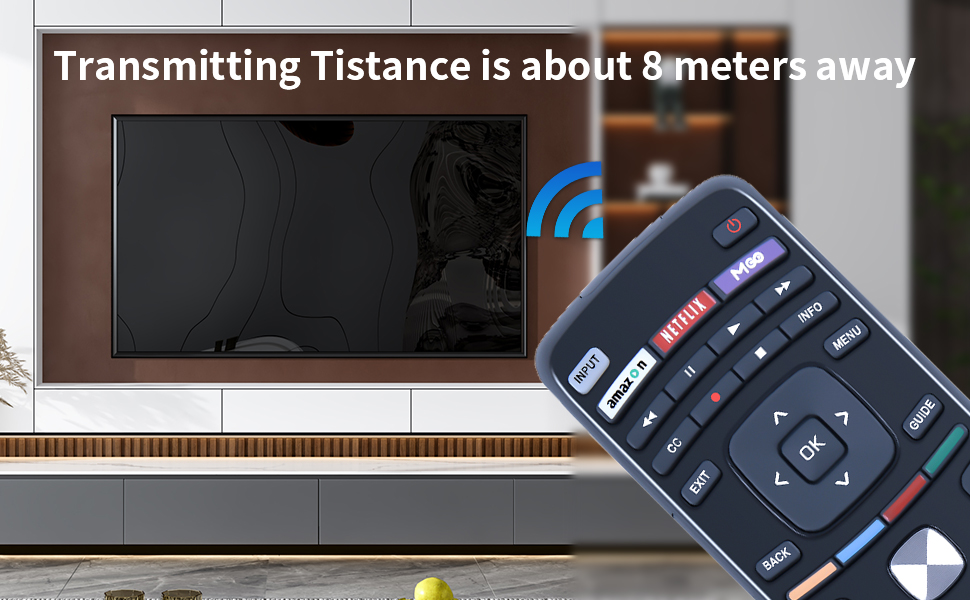
Image 3.2: Battery compartment open for installation.
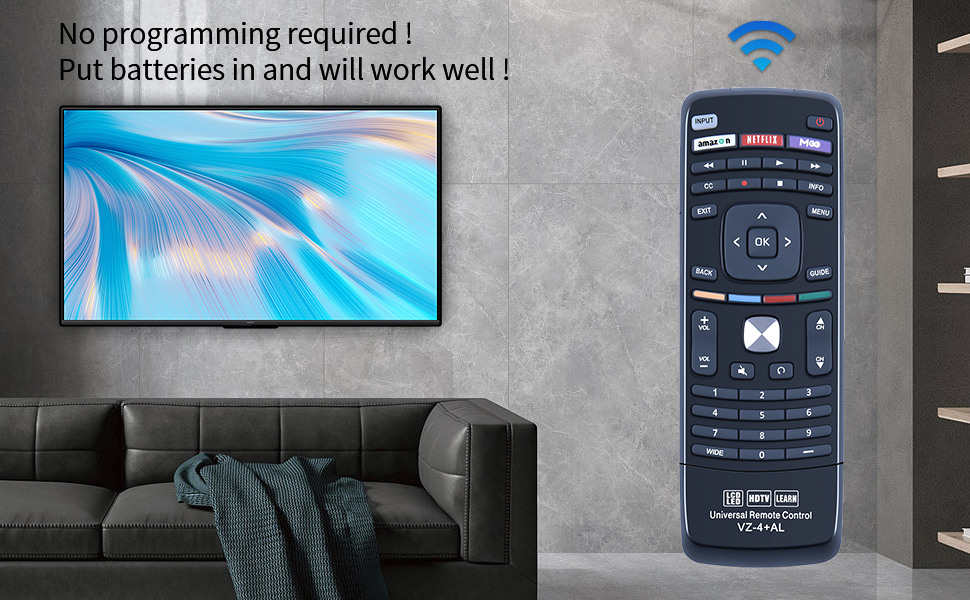
Image 3.3: Remote control ready for use after battery installation.
4. Operating Instructions
Once batteries are installed, the remote is ready to control your compatible Vizio TV. Ensure there is a clear line of sight between the remote's IR emitter and the TV's IR receiver.
4.1 Front Panel Controls
The front panel features standard TV remote buttons for common functions:
- Power Button: Turns the TV on or off.
- Input Button: Cycles through available input sources (HDMI, AV, etc.).
- Volume Up/Down: Adjusts the TV volume.
- Channel Up/Down: Changes TV channels.
- Navigation Pad (Up/Down/Left/Right/OK): Used for menu navigation and selection.
- Back/Exit/Menu/Guide/Info: Standard navigation and information buttons.
- Quick Access Buttons: Dedicated buttons for services like Amazon (AMZ), Netflix (NTFLX), and M-Go (MGO).
- Number Pad (0-9): For direct channel entry.
4.2 QWERTY Keyboard Usage
To access the QWERTY keyboard:
- Flip the remote control over to reveal the full QWERTY keyboard on the back.
- The remote automatically detects which side is facing up and activates the corresponding controls.
- Use the keyboard for text input in smart TV applications, search functions, or web browsing.
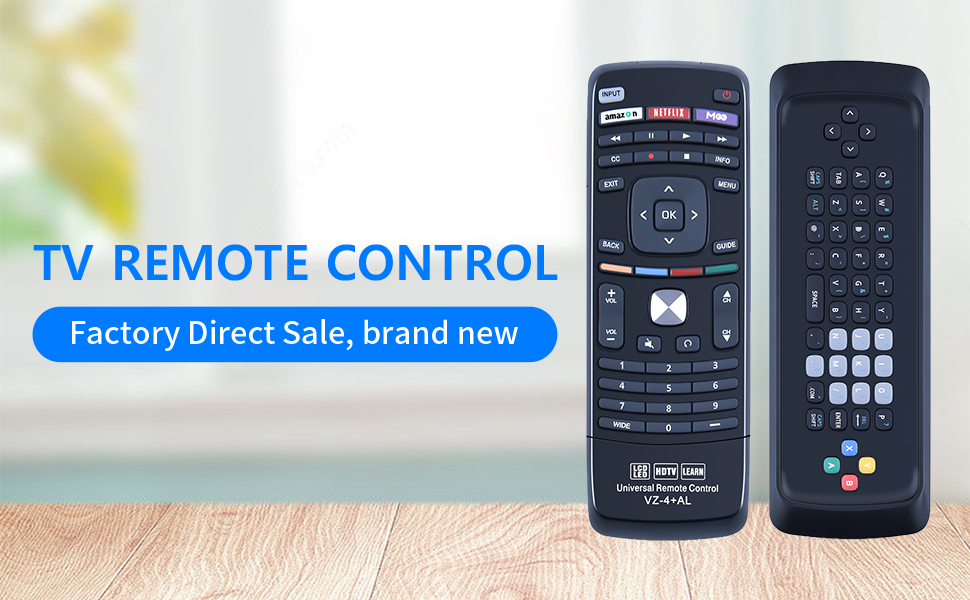
Image 4.1: Front and back view of the remote control, showing the QWERTY keyboard.
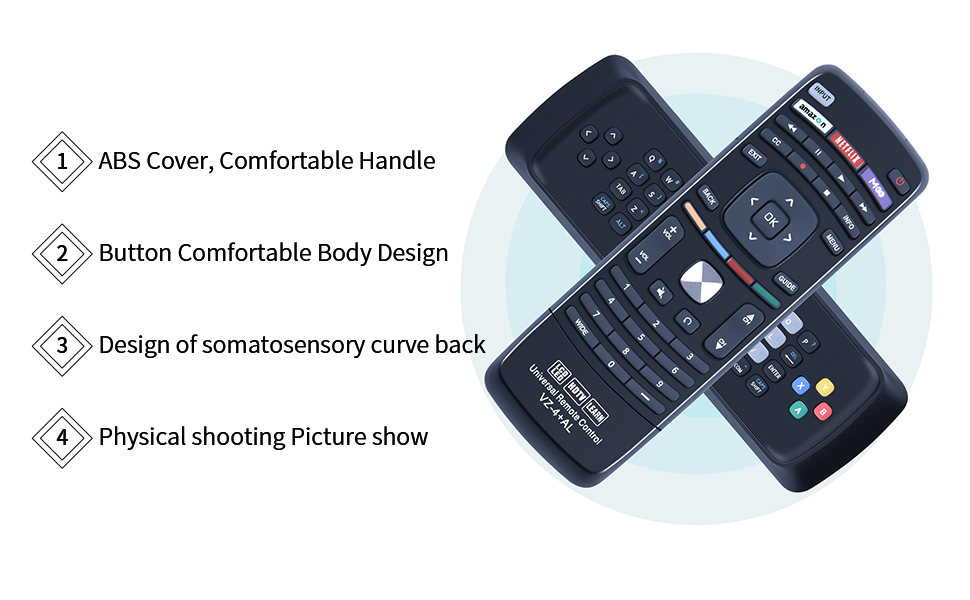
Image 4.2: Remote control in use, demonstrating multi-angle control.
5. Maintenance
Proper care and maintenance will ensure the longevity and optimal performance of your remote control.
5.1 Cleaning
- Wipe the remote control with a soft, dry cloth.
- For stubborn dirt, lightly dampen the cloth with water or a mild, non-abrasive cleaner.
- Do not use harsh chemicals, solvents, or abrasive cleaning pads, as these can damage the remote's surface or internal components.
- Ensure no liquid enters the battery compartment or button crevices.
5.2 Battery Replacement
Replace batteries when the remote's response becomes sluggish or it stops functioning. Always replace both AAA batteries simultaneously with new ones. Do not mix old and new batteries, or different types of batteries.
5.3 Storage
When not in use for extended periods, remove the batteries to prevent leakage, which can damage the remote. Store the remote in a cool, dry place away from direct sunlight and extreme temperatures.
6. Troubleshooting
If you encounter issues with your PZL XRT302 remote control, refer to the following troubleshooting steps:
- Remote not responding:
- Check if the batteries are inserted correctly with the correct polarity.
- Replace old batteries with new AAA batteries.
- Ensure there is a clear line of sight between the remote and the TV's IR sensor. Remove any obstructions.
- Confirm the remote is pointed directly at the TV.
- Limited range or intermittent response:
- Ensure batteries are fresh.
- Reduce the distance between the remote and the TV. The maximum effective range is 12 meters (40 feet).
- Check for strong light sources (e.g., direct sunlight, fluorescent lights) that might interfere with the IR signal.
- Specific buttons not working:
- Clean the remote's surface, especially around the buttons, to ensure no debris is obstructing them.
- If only certain buttons fail, and others work, it might indicate a specific internal issue.
If these steps do not resolve the issue, please refer to the Warranty and Support section for further assistance.
7. Specifications
| Brand | PZL |
| Model Name/Number | XRT302 |
| Connectivity Technology | Infrared (IR) |
| Compatible Devices | Television (Specific Vizio models) |
| Max Number of Supported Devices | 1 |
| Maximum Range | 12 meters (40 feet) |
| Battery Type | 2 x AAA (not included) |
| Item Weight | 2.08 ounces |
| Controller Type | Button Control (Front) + QWERTY Keyboard (Back) |
| Special Feature | Ergonomic |
8. Warranty and Support
PZL is committed to providing quality products and professional after-sales service.
8.1 Customer Support
If you have any questions regarding your order, product model compatibility, or require assistance with the remote control, please contact PZL customer service directly. We aim to respond to inquiries within 12 hours on weekdays.
For more information or to explore other PZL products, please visit the PZL Store on Amazon.