
1. Product Overview
The BENEWY External DVD Drive is a portable CD/DVD drive designed for reading and writing CDs and DVDs. It features both USB 3.0 and Type-C connections, offering fast data transfer speeds of up to 5 Gbit/s for stable and efficient operation.

Image: BENEWY External DVD Drive showing its compact design and dual USB 3.0 and Type-C connectivity.
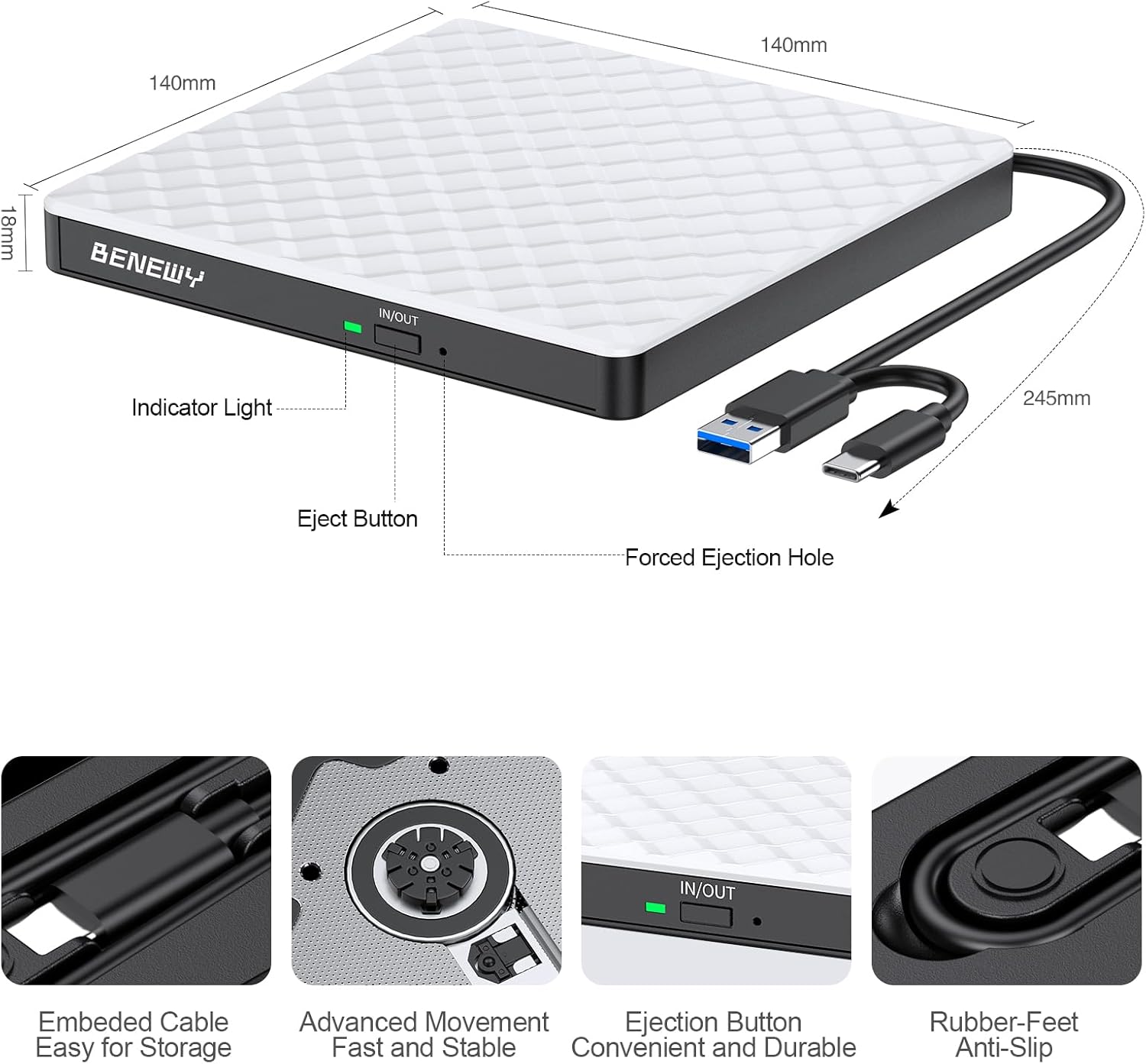
Image: Detailed view of the BENEWY External DVD Drive, highlighting its dimensions (140mm x 140mm x 18mm), indicator light, eject button, and integrated cable storage.
Key Features:
- Dual Connectivity: USB 3.0 and Type-C ports for broad compatibility and high-speed data transfer.
- Plug & Play: No driver installation required for most operating systems.
- Wide Compatibility: Supports Windows 11/10/8.1/7/XP, Linux, PC, Desktop, MacBook, and Mac OS.
- Versatile Functionality: Reads and writes CD-ROM, DVD-ROM, CD-R/RW, and DVD-R/RW formats.
- Compact Design: Lightweight and slim with an integrated data cable for portability and easy organization.
2. Setup Instructions
Connecting the Drive:
- Locate the integrated USB cable on the underside of the drive. Gently pull out the USB-A and USB-C connectors.
- Connect the appropriate connector (USB-A or USB-C) to an available port on your computer (laptop, PC, or MacBook).
- The drive is plug-and-play; no additional drivers are typically needed for most operating systems.
Video: Demonstrates how to retrieve the integrated USB cable and connect the drive to a computer.

Image: Illustrates the plug-and-play functionality of the drive, showing connection to a laptop and various uses like installing software, creating backup data, watching movies, burning files, downloading games, and listening to music.
Important Notes for Setup:
- Ensure your computer's driver program is functioning correctly.
- A compatible media player must be installed on your computer to play media. VLC Media Player is recommended.
- For Mac OS computers, the device icon will only appear once a CD/DVD is successfully placed and read by the drive.
- Always plug the DVD drive directly into a USB port on your computer, avoiding USB hubs if possible, to ensure stable power and data transfer.
3. Operating Instructions
Inserting and Ejecting Discs:
- Press the eject button on the front of the drive to open the disc tray.
- Carefully place your CD or DVD onto the tray, ensuring it is centered on the spindle.
- Gently push the tray back into the drive until it clicks shut.
- To eject, press the eject button again. For Mac OS, you may need to use the Mac commands to eject the disc if the physical button does not respond immediately.
Video: Shows the process of inserting a CD into the drive and playing music on a laptop.
Video: Demonstrates inserting a CD into the drive and the drive's operation.
Supported Formats and Speeds:
- Read/Write Formats: CD-ROM, DVD-ROM, CD-R/RW, DVD-R/RW.
- DVD Read/Write Speed: Up to 8x.
- CD Read/Write Speed: Up to 24x.

Image: Details the supported CD, DVD, and VCD formats along with their read/write speeds, highlighting strong error-correcting, anti-shock, noise-reduction, faster 3.0 connector, and low-power consumption features.
Region Code Information for DVDs:
DVDs will only play on DVD drives that use the same region country codes. For example, if you are in the US (Region 1), you need to set the DVD drive Region code to #1 to play US DVDs. CDs are not region coded.
Note: Each external optical drive only allows the region code to be changed 4-5 times.
- Region 1: Canada, United States
- Region 2: Japan, Europe, South Africa, Middle East
- Region 3: Southeast Asia, East Asia (including Hong Kong)
- Region 4: Australia, New Zealand, Pacific Islands, Central America, Mexico, South America
- Region 5: Eastern Europe, Russia, Indian Subcontinent, Africa, North Korea, Mongolia
- Region 6: China
- Region 7: Reserved for unspecified special use
- Region 8: Air and oceanic travel

Image: Illustrates wide compatibility with various operating systems and devices, and also lists non-compatible devices.
4. Maintenance
To ensure the longevity and optimal performance of your BENEWY External DVD Drive, follow these maintenance guidelines:
- Keep Clean: Regularly wipe the exterior of the drive with a soft, dry cloth. Avoid using harsh chemicals or abrasive materials.
- Dust Prevention: Keep the drive in a clean, dust-free environment. When not in use, store it in its original packaging or a protective pouch.
- Handle Discs Carefully: Always handle CDs and DVDs by their edges to avoid fingerprints and scratches, which can affect playback and burning quality.
- Avoid Extreme Temperatures: Do not expose the drive to extreme heat, cold, or direct sunlight.
- Proper Storage: Utilize the integrated cable storage to prevent cable damage during transport or storage.
5. Troubleshooting
If you encounter issues with your BENEWY External DVD Drive, please refer to the following common troubleshooting steps:
- Drive Not Recognized:
- Ensure the USB cable is securely connected to both the drive and your computer.
- Try connecting the drive to a different USB port on your computer.
- Restart your computer.
- For Mac OS, remember the device icon appears only after a disc is inserted and read.
- Disc Not Reading/Playing:
- Check if the disc is clean and free of scratches or smudges.
- Ensure you have a compatible media player installed (e.g., VLC Media Player).
- Verify the disc format is supported by the drive (CD-ROM, DVD-ROM, CD-R/RW, DVD-R/RW). Blu-ray discs are NOT supported.
- For DVDs, check the region code compatibility.
- Burning Issues:
- Ensure you are using a blank, compatible recordable disc (CD-R/RW, DVD-R/RW).
- Use reliable burning software.
- Avoid interrupting the burning process.
- Compatibility Issues:
- The drive is not compatible with TVs, tablets, iPads, Chrome OS devices (Chromebooks), Surface Pro, car players, or projectors.
- It does not support Apple M1, M2, M3, and M4 chips.
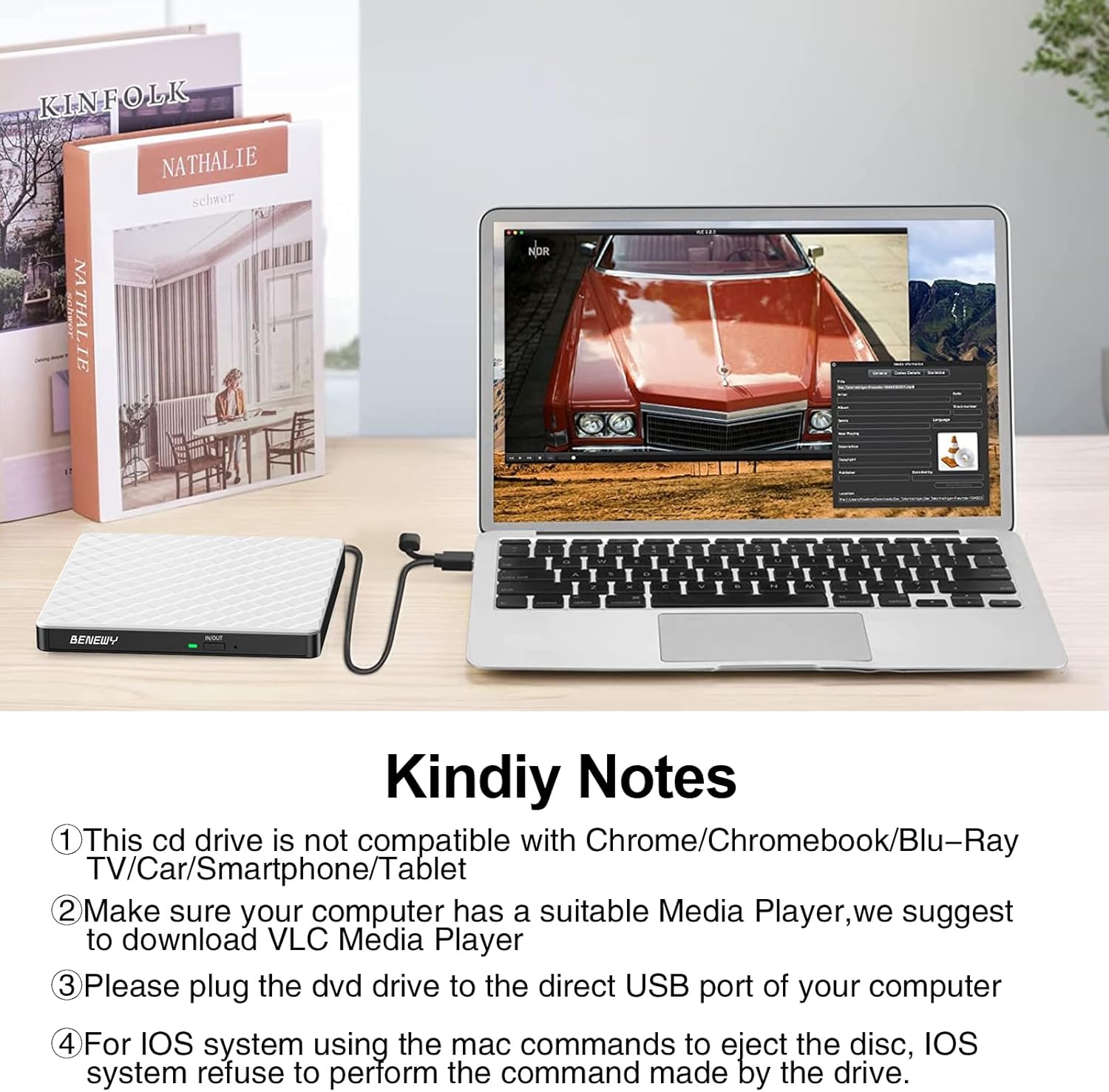
Image: Provides important notes regarding compatibility, media player requirements, and proper connection to a direct USB port.
6. Specifications
| Feature | Detail |
|---|---|
| Brand | BENEWY |
| Model Number | SY879-White |
| Hardware Interface | USB, USB 3.0, USB-C |
| Optical Storage Write Speed | CD: 24x, DVD: 8x |
| Optical Storage Read Speed | CD: 24x, DVD: 8x |
| Data Transfer Rate | 5 Gigabit per second |
| Cache Size | 2 MB |
| Compatible Devices | Computers with Windows, macOS, Linux, and Apple (excluding M1/M2/M3/M4 chips) |
| Operating System Support | Windows 11/10/8.1/7/XP/2003/2000/Vista, Linux, Mac OS |
| Housing Material | Plastic |
| Item Dimensions (L x W x H) | 14L x 14W x 1.7H cm |
| Color | White |
| Power Supply | DC 5V (USB-powered) |
7. Warranty and Support
Warranty Information:
BENEWY offers a 1-year warranty against manufacturer defects for this product.
Customer Support:
For any questions or technical assistance, BENEWY provides 24-hour customer support and free lifetime technical support. Please contact us via Amazon's messaging system ("Station Post").
We are committed to providing our customers with a better shopping experience.
