
ORICO ORICO-FAX3-8PM-GY-EP-JP
ORICO USB C Docking Station User Manual
Model: ORICO-FAX3-8PM-GY-EP-JP
1. Introduction
Thank you for choosing the ORICO USB C Docking Station. This 8-in-1 multiport adapter is designed to expand the connectivity of your USB-C enabled devices, providing a comprehensive solution for your home, office, or travel needs. With its versatile ports, you can connect multiple peripherals, enjoy high-resolution video output, ensure stable network connection, and power your device simultaneously.

Figure 1: ORICO 8-in-1 USB C Docking Station overview.
2. Key Features
- 8-in-1 Comprehensive Expansion: Transforms a single USB-C port into multiple connectivity options.
- 4K@60Hz HDMI Output: Supports high-resolution video output for crystal-clear display on external monitors or TVs.
- High-Speed Data Transfer: Two USB-A 3.0 ports offer data transfer speeds up to 5Gbps for peripherals like mice, keyboards, and external drives.
- Gigabit Ethernet: Provides a stable and fast wired network connection up to 1000Mbps.
- SD & TF Card Readers: Conveniently access files from SD and TF (Micro SD) cards. Note: SD and TF cards cannot be read simultaneously.
- 100W Power Delivery (PD): Allows for pass-through charging of your laptop or other USB-C devices while using the hub.
- 3.5mm Audio Jack: For connecting headphones or speakers.
- Universal Compatibility: Compatible with a wide range of USB-C devices including MacBook Pro/Air, Dell XPS, HP Spectre, ASUS ZenBook, Lenovo Yoga, and other Type C devices running Windows, Mac OS, Linux, Android, and iPad OS.
3. Setup Guide
Follow these steps to set up your ORICO USB C Docking Station:
- Connect to Host Device: Plug the integrated USB-C cable of the docking station into an available USB-C port on your laptop, tablet, or smartphone. Ensure your device's USB-C port supports DisplayPort Alternate Mode for video output.
- Power Connection (Optional but Recommended): For optimal performance and to charge your host device, connect your original USB-C power adapter to the 100W PD port on the docking station.
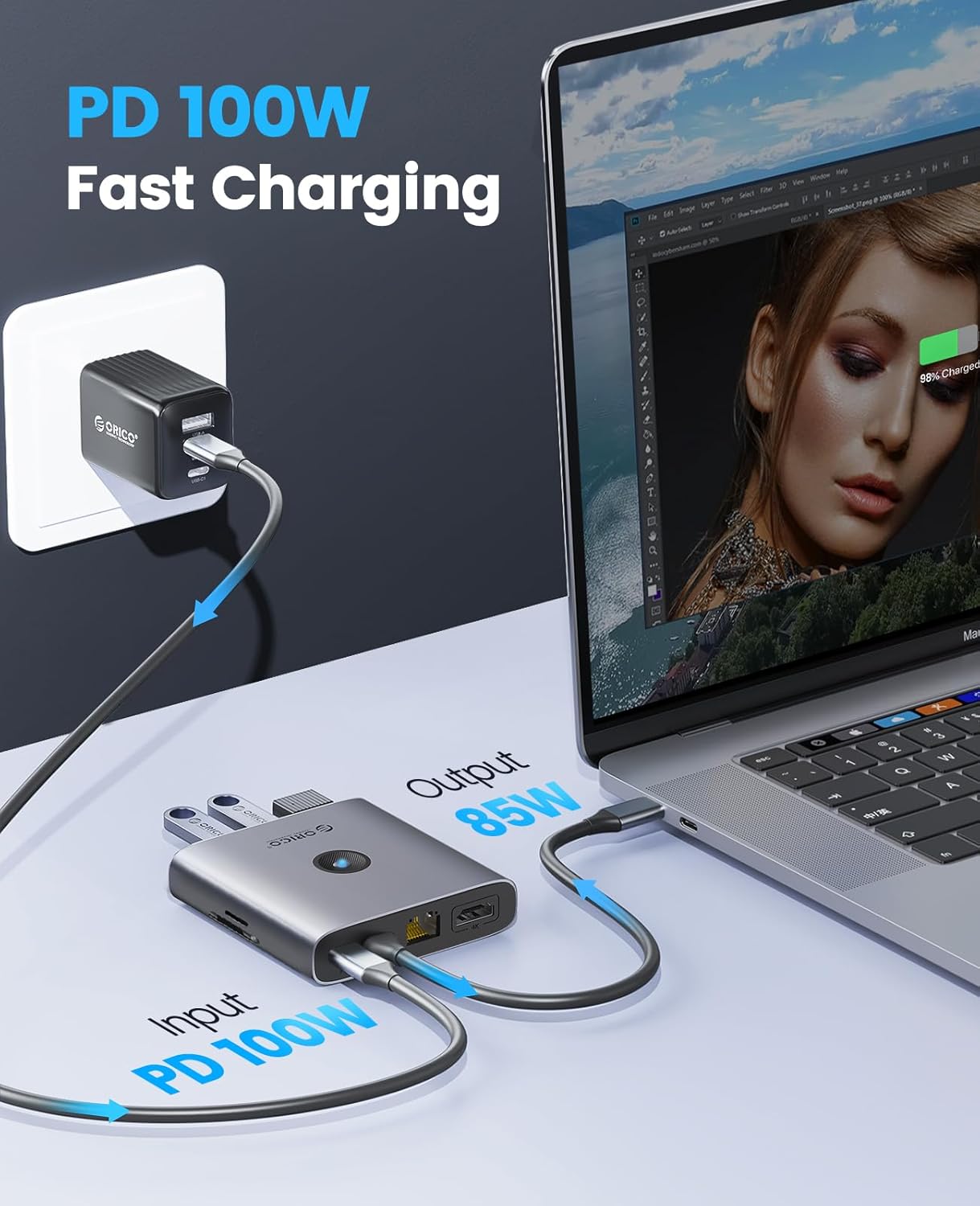
Figure 2: Connecting the docking station and power adapter.
- Connect Peripherals:
- HDMI Display: Connect an HDMI cable from your monitor or TV to the HDMI port on the docking station for 4K@60Hz video output.
- USB Devices: Plug your USB-A peripherals (e.g., mouse, keyboard, external hard drive, USB flash drive) into the USB-A 3.0 ports.

Figure 3: Connecting multiple peripherals to the hub.
- Ethernet Cable: For a stable internet connection, connect an Ethernet cable from your router/modem to the Gigabit Ethernet port.

Figure 4: Utilizing the Gigabit Ethernet port for fast network speed.
- SD/TF Cards: Insert your SD or TF (Micro SD) cards into the corresponding slots. Remember, only one card can be read at a time.

Figure 5: SD and TF card slots for data transfer.
- Audio Device: Connect headphones or speakers to the 3.5mm audio jack.
4. Operating Instructions
4.1. Display Modes (HDMI)
The HDMI port supports various display modes depending on your operating system and connected display:
- Mirror Mode: Duplicates your host device's screen onto the external display.
- Extended Mode: Extends your desktop across multiple displays, allowing for more workspace.

Figure 6: Extended Mode and Mirror Mode display options.
4.2. Data Transfer
Utilize the USB-A 3.0 ports for high-speed data transfer. Simply plug in your USB storage devices, and they will appear as removable drives on your host device.

Figure 7: High-speed 5Gbps data transfer via USB 3.0.
5. Maintenance and Care
- Keep the docking station away from water, fire, and corrosive liquids.
- Avoid dropping or subjecting the device to strong impacts.
- Clean the device with a soft, dry cloth. Do not use harsh chemicals or abrasive materials.
- Store in a cool, dry place when not in use.
6. Troubleshooting
- No Display Output:
- Ensure your host device's USB-C port supports DisplayPort Alternate Mode.
- Check the HDMI cable connection between the docking station and the display.
- Try a different HDMI cable or display.
- Ensure the docking station is receiving sufficient power, especially when connecting high-power devices.
- USB Devices Not Recognized:
- Reconnect the USB device to a different port on the docking station.
- Ensure the docking station is properly connected to your host device.
- Check if the device requires external power.
- Slow Data Transfer Speed:
- Ensure you are using USB 3.0 compatible devices and cables.
- Avoid connecting too many power-hungry devices simultaneously without external power to the PD port.
- SD/TF Cards Not Reading:
- Ensure only one card (SD or TF) is inserted at a time.
- Try reinserting the card or using a different card.
7. Specifications
| Brand | ORICO |
| Model | ORICO-FAX3-8PM-GY-EP-JP |
| Material | ABS / Aluminum Alloy / ABS |
| Input Interface | USB-C |
| Output Interfaces | 2x USB-A 3.0 (5Gbps), 1x HDMI (4K@60Hz), 1x Gigabit Ethernet (1000Mbps), 1x SD Card Reader, 1x TF Card Reader, 1x 3.5mm Audio Jack, 1x USB-C PD (100W) |
| Transfer Rate | 5Gbps (USB-A 3.0), 480Mbps (SD/TF) |
| Supported Systems | Windows, Mac OS, Linux, Android, iPad OS |
| Item Weight | 5.3 ounces |
8. Warranty and Support
ORICO products come with a standard manufacturer's warranty. For detailed warranty information, technical support, or customer service inquiries, please visit the official ORICO website or contact their customer support team.
Official Website: www.orico.cc
For product authenticity verification, you may refer to the UPC: 6936761888264 and the serial number: 13H23-2YBQ87 found on the product packaging.
Related documentsORICO-FAX3-8PM-GY-EP-JP


Ask a question about this manual
Ask about setup, troubleshooting, compatibility, parts, safety, or missing instructions. Manuals+ will review the question and use this page’s manual context to help answer it.