
1. Introduction
This manual provides essential instructions for the installation, operation, and maintenance of your Urmet Note 2 Wifi Video Kit 1723/95. This video intercom system offers a comprehensive security and comfort solution for residential properties, featuring integrated Wi-Fi, video monitoring capabilities, and smart home integration. Please read this manual thoroughly before installation and use to ensure proper functioning and to prevent damage.
2. Safety Information
- Electrical Safety: Installation must be performed by a qualified electrician in accordance with local electrical codes. Disconnect power before performing any wiring or maintenance.
- Environmental Conditions: Do not expose the unit to extreme temperatures, humidity, or direct sunlight. Ensure proper ventilation.
- Water Exposure: This device is not waterproof unless specified. Avoid contact with water or other liquids.
- Cleaning: Use a soft, dry cloth for cleaning. Do not use abrasive cleaners or solvents.
- Modifications: Do not attempt to modify or repair the device yourself. Refer all servicing to qualified personnel. Unauthorized modifications may void the warranty and pose safety risks.
3. Package Contents
Verify that all items are present in the package:
- Urmet Note 2 Wifi Video Monitor (1723/95)
- Outdoor Station/Doorbell Unit
- Mounting Bracket and Screws
- Power Adapter/Supply
- User Manual (this document)
- Wiring Connectors
- (Optional: Flush mounting kit ref. 1723/60, Micro SD card)
4. Product Overview
The Urmet Note 2 Wifi Video Kit 1723/95 features a 7-inch color LCD touchscreen monitor and an outdoor station. It supports up to 4 cameras and includes video memory. Integrated Wi-Fi allows for call forwarding to smartphones via the Urmet CallMe app.
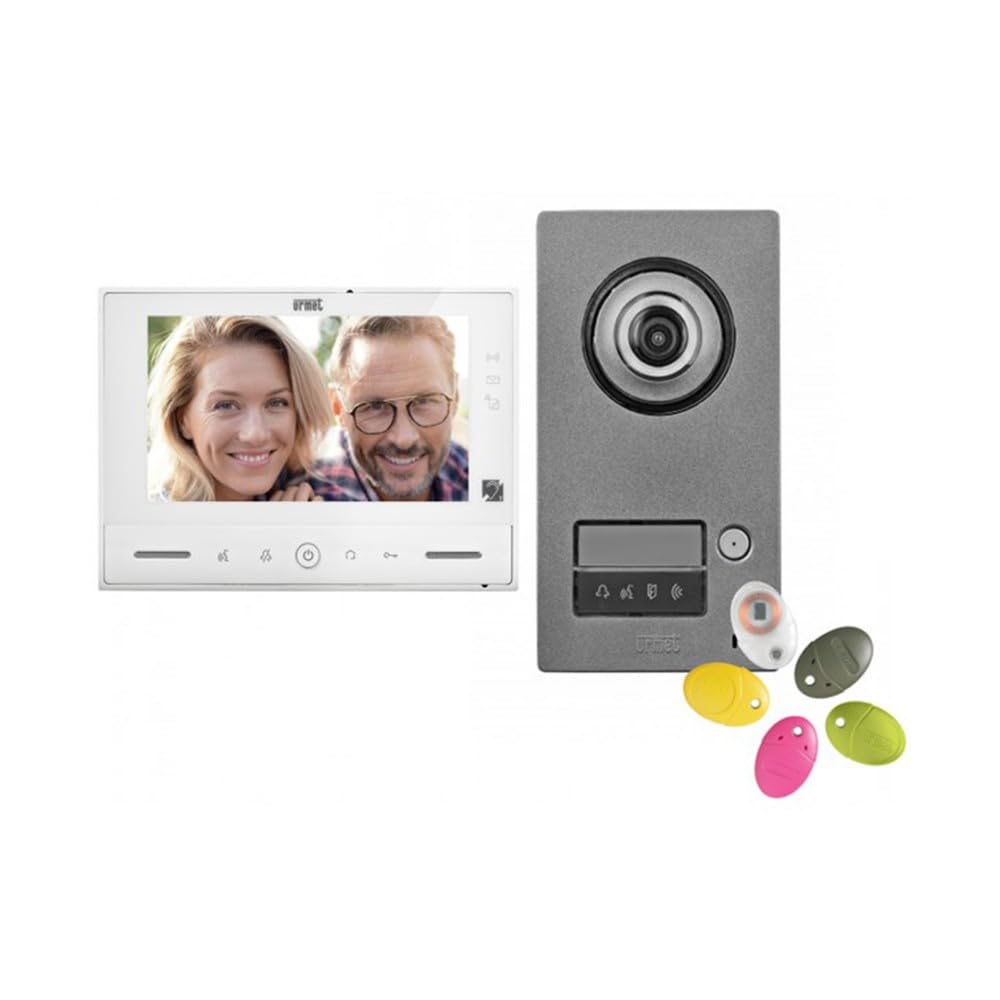
Figure 1: Urmet Note 2 Wifi Video Kit 1723/95 components, showing the indoor monitor and outdoor doorbell unit. The monitor features a large screen for clear viewing, and the outdoor unit is designed for weather resistance.
Monitor Features:
- 7'' (18 cm) color LCD touchscreen display.
- Integrated Wi-Fi for smartphone connectivity.
- Video memory for 32 clips of 10 seconds (requires micro SD card).
- Adjustable ringtone level, brightness, contrast, and color.
- 5 selectable melodies.
- Magnetic loop for hearing-impaired users.
- Controls for door opening, motorized gate opening, and 8 radio controls (e.g., outdoor lighting, roller shutters).
- 6 customizable scenarios.
- Multiple inputs/outputs for additional devices (doorbells, detectors, cameras).
5. Installation and Setup
Important: Professional installation by a qualified technician is highly recommended for optimal performance and safety.
5.1. Physical Installation
- Mounting the Outdoor Station: Choose a suitable location near your entrance, ensuring it is protected from direct rain and accessible for visitors. Mount the outdoor station at an appropriate height.
- Mounting the Indoor Monitor: The monitor can be surface-mounted. An optional flush-mounting kit (ref. 1723/60) is available for recessed installation. Select a central location within your home for easy access.
- Wiring: Connect the outdoor station to the indoor monitor according to the wiring diagram provided in the full installation guide (not included in this manual). Ensure all connections are secure and correctly polarized. Connect the power supply.
- Additional Connections: If connecting additional devices (e.g., extra doorbells, detectors, surveillance cameras), follow the specific wiring instructions for those components.
5.2. Initial Setup and Configuration
- Power On: Once all wiring is complete, connect the system to the main power supply. The monitor should power on.
- Basic Settings: On the monitor's touchscreen, navigate to the settings menu to configure basic parameters such as date, time, language, and ringtone preferences.
- Wi-Fi Connection: Access the Wi-Fi settings on the monitor. Select your home Wi-Fi network and enter the password to connect the device to the internet.
- Urmet CallMe App Setup:
- Download the "Urmet CallMe" app from the Google Play Store (Android) or Apple App Store (iOS).
- Register an account or log in.
- Follow the in-app instructions to pair your Urmet Note 2 Wifi Video Kit with your smartphone. This typically involves scanning a QR code displayed on the monitor or entering a device ID.
- Camera Integration: If connecting additional surveillance cameras, configure them through the monitor's settings or the Urmet CallMe app as per their respective manuals.
6. Operation
6.1. Answering a Call
- When a visitor presses the doorbell button on the outdoor station, the indoor monitor will ring and display the visitor's image.
- To answer the call, tap the "Answer" icon on the monitor's touchscreen. You can then converse with the visitor.
- If you are away, the call will be forwarded to your smartphone via the Urmet CallMe app (if configured). You can answer, view, and converse through the app.
6.2. Opening Access
- During a call, tap the "Door Open" icon on the monitor to unlock the connected door or gate.
- Through the Urmet CallMe app, you can also remotely open up to two accesses.
6.3. Monitoring
- You can manually activate the outdoor station camera or connected surveillance cameras from the monitor to view the outside area at any time.
- The Urmet CallMe app also allows live viewing from connected cameras.
6.4. Video Memory
- The system automatically records short video clips (10 seconds) when a visitor calls or motion is detected (if configured).
- These clips are saved to a micro SD card (not included) and can be reviewed from the monitor's menu. The system supports up to 32 clips.
6.5. Home Automation Controls
- Utilize the integrated YOKIS home automation controls and 8 radio controls to manage various devices such as outdoor lighting or roller shutters directly from the monitor.
- Configure up to 6 customizable scenarios for automated actions.
7. Maintenance
- Cleaning: Regularly wipe the monitor screen and outdoor station with a soft, dry, lint-free cloth. Do not use liquid cleaners or sprays directly on the device.
- Software Updates: Check for firmware updates periodically through the monitor's settings or the Urmet CallMe app to ensure optimal performance and security.
- Cable Inspection: Periodically inspect all visible cables and connections for any signs of wear or damage.
8. Troubleshooting
| Problem | Possible Cause | Solution |
|---|---|---|
| No image on monitor / Monitor not powering on. | No power supply; loose wiring; faulty unit. | Check power connection. Verify all wiring connections. Contact support if issue persists. |
| No sound during call. | Volume too low; faulty microphone/speaker; wiring issue. | Adjust volume settings. Check wiring. |
| Wi-Fi connection unstable or failing. | Weak Wi-Fi signal; incorrect password; router issue. | Ensure monitor is within Wi-Fi range. Re-enter Wi-Fi password. Restart router. |
| App not receiving calls. | App not paired; phone settings (notifications, background data); internet connection issue. | Verify app pairing. Check phone's notification and data settings. Ensure stable internet connection on both monitor and phone. |
| Door/Gate not opening. | Wiring issue to lock/gate; faulty lock/gate mechanism. | Check wiring to the access control device. Test the lock/gate mechanism independently. |
If you encounter problems not listed here or if the suggested solutions do not resolve the issue, please contact Urmet customer support or a qualified technician.
9. Specifications
| Feature | Detail |
|---|---|
| Model Number | 1723/95 |
| Brand | Urmet |
| Connectivity Technology | Wireless |
| Video Recording Resolution | 720p |
| Special Feature | Wifi Integration, Accessible Features, Home Automation Capabilities |
| Number of Channels | 4 |
| Color | Black |
| Power Source | DC Power Supply |
| Compatible Devices | Laptop, Smartphone, Tablet |
| Camera Description | Front |
| Frame Rate | 15 fps, 20 fps, or 30 fps |
| Signal Format | Digital |
| Antenna Type | Internal |
| Recording Mode | Video |
| Optical Sensor Technology | CMOS |
| Hardware Interface | 802.11 ac/b/g/n |
| Lens Type | Wide Angle |
| Tolerated Video Input Type | BNC |
| Item Weight | 3 Kilograms |
10. Warranty and Support
Specific warranty details for the Urmet Note 2 Wifi Video Kit 1723/95 are not provided within this manual. For warranty information, technical support, or service inquiries, please refer to the documentation included with your purchase or visit the official Urmet website. You may also contact your local Urmet distributor or retailer for assistance.
Urmet Official Website: www.urmet.com


