
1. Introduction and Overview
The LTC GM-041 is a wired gaming mouse designed for precision and control. It features a high-precision optical sensor, adjustable DPI levels, customizable RGB backlighting, and multiple programmable buttons to enhance both gaming and productivity. Its ergonomic design ensures comfort during extended use, and the included software allows for extensive personalization.

Figure 1: LTC GM-041 Wired Gaming Mouse highlighting its features.
2. Product Features
- 7 Customizable Buttons & Onboard Memory: Assign complex macro functions and reconfigure custom commands through the LTC Pro driver. Save up to 2 ready-to-play profiles directly to the mouse for quick access in different scenarios.
- Side Wheel & Buttons for Ultimate Efficiency: A unique thumb wheel design allows for horizontal scrolling, improving efficiency in tasks like video editing or spreadsheet navigation. Programmable fire buttons and additional side buttons provide instant access to complex custom macros and keybindings.
- Adjustable 5 DPI Levels: Default DPI settings include 1200, 2400, 3600, 4800, and 6200. These levels can be customized via software to meet specific needs. A 1000Hz polling rate, 30G acceleration, and a high-precision Pixart PMW3327 Sensor ensure accuracy and responsiveness.
- Pro Software Support: Utilize the professional LTC drive to assign macros, remap key functions, redefine 5-step DPI, adjust polling rate and click/scroll speed, and customize RGB lighting effects.
- Built for Comfort: The ergonomic shape promotes a natural grip, ensuring long-lasting comfort during intensive gaming or work sessions. Detachable finger rests provide full support for various grip styles, including claw, fingertip, or palm.

Figure 2: Overview of the 7 programmable buttons and their default functions.

Figure 3: The thumb wheel designed for horizontal scrolling and efficiency.
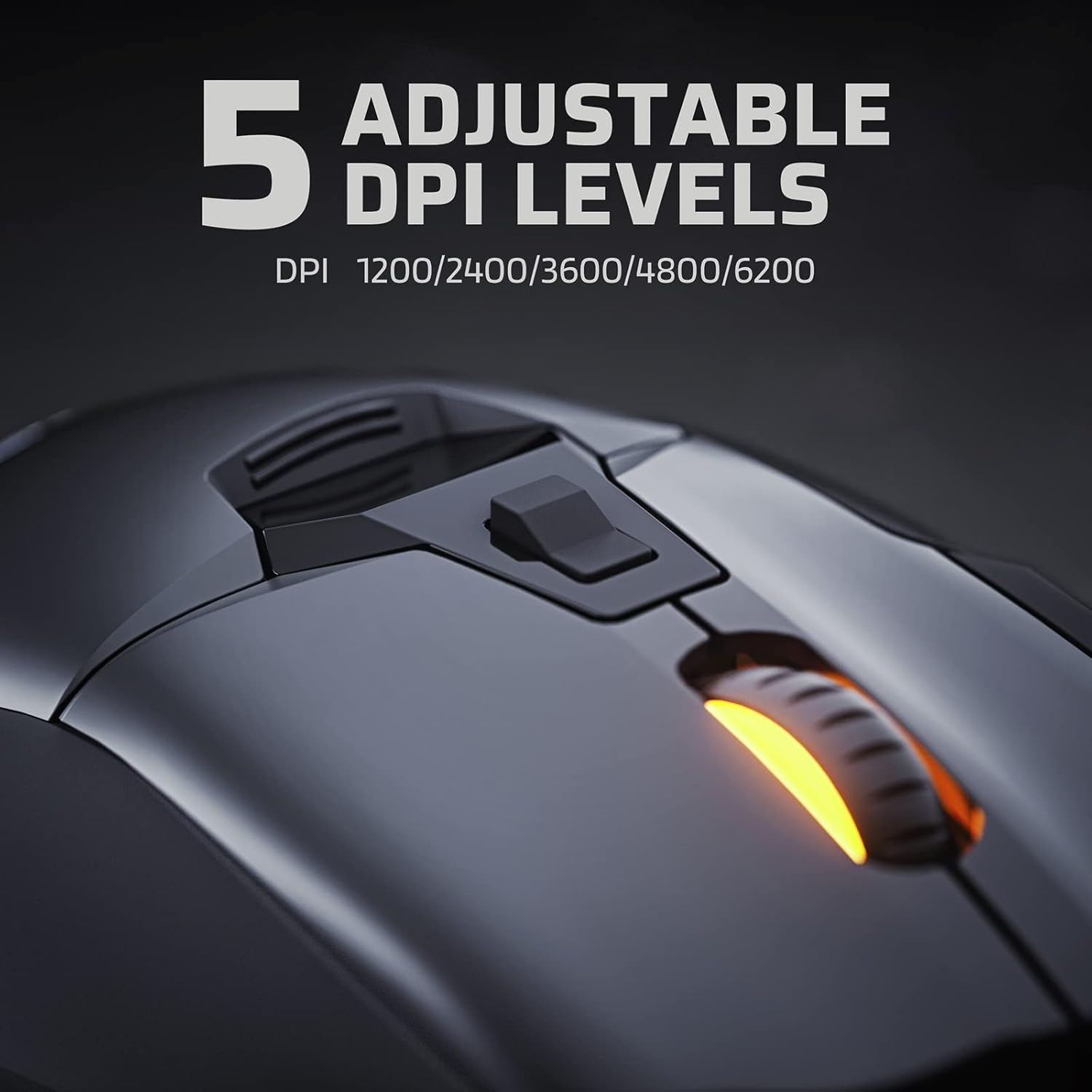
Figure 4: The DPI button and available DPI levels for sensitivity adjustment.

Figure 5: Detachable finger rests providing support for claw, fingertip, and palm grips.
3. Setup
- Connect the Mouse: Plug the USB-A connector of the LTC GM-041 mouse into an available USB port on your computer. The mouse will automatically power on and its RGB lighting will illuminate.
- Driver Installation: For full customization and access to all programmable features, download and install the official LTC Pro driver software from the manufacturer's website. Follow the on-screen instructions for installation.
- Initial Test: Once connected, move the mouse and click the primary buttons to ensure basic functionality. The default DPI settings will be active.
Video 1: An overview of the LTC GM-041 RGB Gaming Mouse, demonstrating its physical features and RGB lighting.
4. Operating Instructions
- Basic Functions: Use the left and right click buttons for primary interactions. The main scroll wheel allows for vertical scrolling.
- DPI Adjustment: Press the DPI loop button (typically located below the scroll wheel) to cycle through the preset DPI levels. The mouse's RGB lighting may change color to indicate the current DPI setting.
- Thumb Wheel: The thumb wheel on the side of the mouse allows for horizontal scrolling, useful in applications that support this feature.
- Side Buttons: The programmable side buttons can be used for various functions, such as forward/backward navigation in web browsers or custom macros in games.
Video 2: A brief review of the LTC GM-041 RGB Gaming Mouse, showcasing its features and responsiveness.
5. Customization (Software)
The LTC Pro driver software unlocks the full potential of your GM-041 mouse. After installation, launch the software to access the following customization options:
- Macro Assignment: Create and assign complex macro sequences to any of the 7 programmable buttons.
- Key Function Remapping: Change the default function of any button to suit your preferences.
- DPI Settings: Fine-tune the 5 adjustable DPI levels to precise values beyond the defaults.
- Polling Rate & Click/Scroll Speed: Adjust the mouse's polling rate (up to 1000Hz) and customize the click and scroll speeds for optimal performance.
- RGB Lighting Effects: Choose from various RGB lighting modes, colors, brightness, and speed to match your setup or mood.
- Profile Management: Save and load multiple custom profiles for different games or applications, allowing for quick switching.

Figure 6: The software interface for assigning macros and remapping keys.

Figure 7: Customizing RGB lighting effects through the LTC software.

Figure 8: Adjusting DPI levels and polling rate in the LTC software.
6. Ergonomics and Grip
The LTC GM-041 mouse is designed with an ergonomic shape to provide a comfortable and natural fit for your hand, reducing strain during prolonged use. It includes detachable finger rests that can be adjusted or removed to accommodate various grip styles:
- Claw Grip: Fingers are arched, and only the fingertips and the base of the palm make contact with the mouse.
- Fingertip Grip: Only the fingertips make contact with the mouse, allowing for maximum maneuverability.
- Palm Grip: The entire palm rests on the mouse, providing full support and stability.

Figure 9: The detachable finger rests support various grip styles for personalized comfort.
7. Specifications
| Feature | Detail |
|---|---|
| Model Number | GM-041 |
| Connectivity Technology | USB (Wired) |
| Movement Detection Technology | Optical (Pixart PMW3327 Sensor) |
| Max DPI | 6400 DPI (Adjustable 5 levels) |
| Polling Rate | 1000Hz (Adjustable) |
| Acceleration | 30G |
| Programmable Buttons | 7 |
| Special Features | 2 Way Scrolling, Detachable Finger Rest, LED Lights, Programmable Buttons, Thumb Wheel |
| Item Weight | 5.9 ounces |
| Package Dimensions | 5.75 x 4.25 x 2.05 inches |
8. Maintenance
To ensure the longevity and optimal performance of your LTC GM-041 gaming mouse, follow these maintenance guidelines:
- Cleaning: Regularly clean the mouse surface with a soft, dry cloth. For stubborn dirt, a slightly damp cloth can be used, ensuring no moisture enters the internal components.
- Sensor Cleaning: Use a cotton swab lightly dampened with isopropyl alcohol to gently clean the optical sensor on the underside of the mouse. Allow it to dry completely before use.
- Cable Care: Avoid sharp bends or excessive pulling on the USB cable. Use the included cable tie or a similar solution to manage the cable and prevent tangling or damage.
- Storage: When not in use, store the mouse in a clean, dry environment away from extreme temperatures and direct sunlight.
9. Troubleshooting
If you encounter any issues with your LTC GM-041 gaming mouse, refer to the following troubleshooting steps:
- Mouse Not Responding:
- Ensure the USB cable is securely plugged into a working USB port on your computer.
- Try plugging the mouse into a different USB port or a different computer to rule out port or system issues.
- Restart your computer.
- DPI Not Changing:
- Press the DPI loop button to cycle through settings. Observe if the indicator lights change.
- Open the LTC Pro driver software and verify that the DPI settings are configured correctly and applied.
- RGB Lighting Issues:
- Check the RGB settings in the LTC Pro driver software to ensure lighting effects are enabled and configured as desired.
- Ensure the mouse is properly connected to the computer.
- Buttons Not Working as Expected:
- Open the LTC Pro driver software and check the key assignments for the affected buttons. Reconfigure if necessary.
- Ensure no other software is conflicting with the mouse's button assignments.
10. Warranty and Support
For warranty information, technical support, or further assistance with your LTC GM-041 Wired Gaming Mouse, please refer to the documentation included with your product or visit the official LTC website. You may also contact customer support through the vendor where the product was purchased.


