
7KEYS TW1867Pro
7KEYS Typewriter Keyboard Wireless Retro Style User Manual
Model: TW1867Pro
Brand: 7KEYS
1. Introduction
This manual provides comprehensive instructions for the setup, operation, and maintenance of your 7KEYS Typewriter Keyboard Wireless Retro Style. Please read this manual thoroughly before using the product to ensure proper function and longevity.
The 7KEYS TW1867Pro combines a vintage typewriter aesthetic with modern mechanical keyboard technology, offering versatile connectivity and customizable features.
2. Package Contents
Verify that all items listed below are included in your package:
- TW1867 Keyboard
- User Manual
- Keycap Puller
- Mechanical Switch Puller
- USB Type-C Cable
- Packing Box
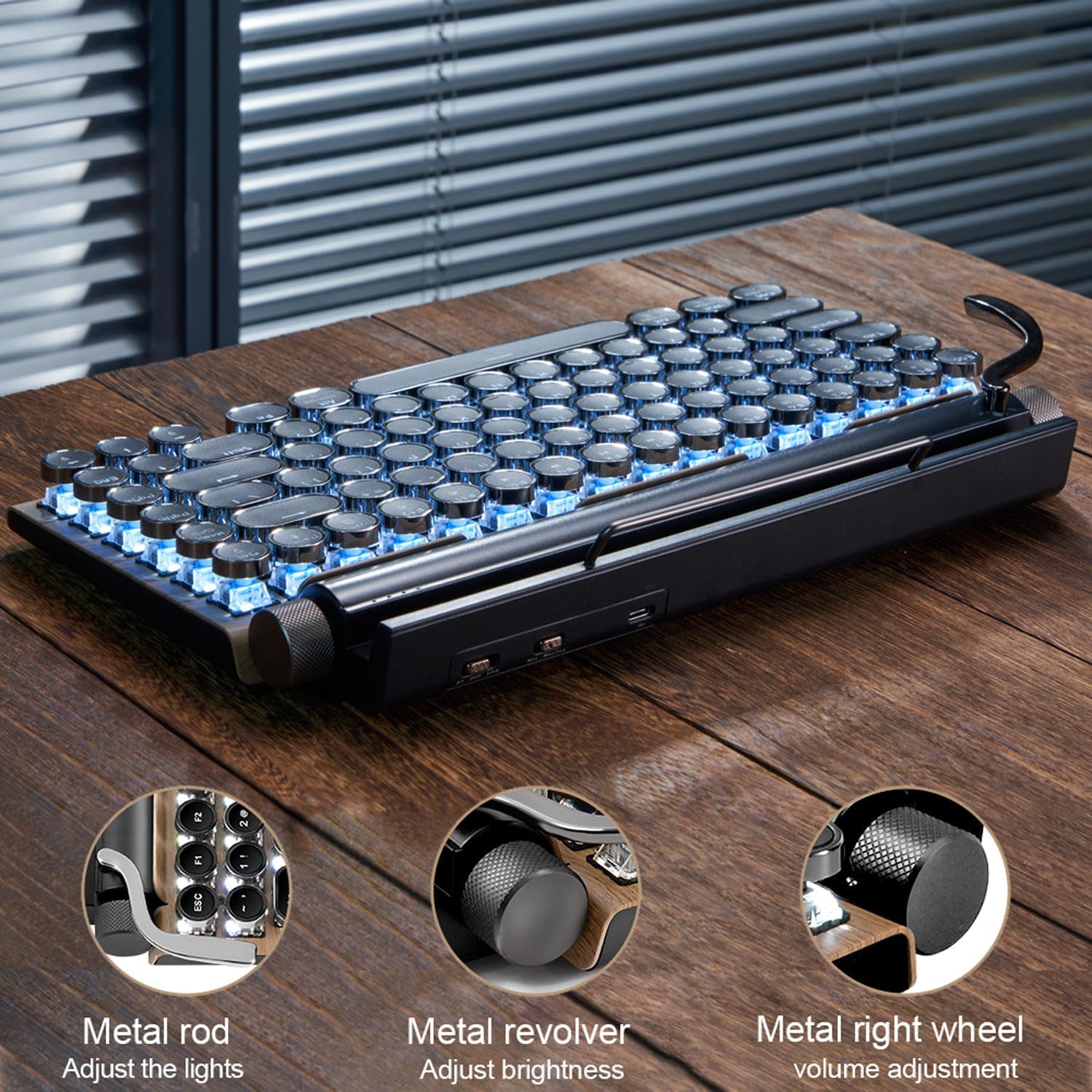
Image: Package contents of the 7KEYS TW1867Pro keyboard, showing the keyboard, USB cable, keycap puller, switch puller, and user manual.
3. Product Overview
The 7KEYS Typewriter Keyboard features a retro design with modern functionalities. Familiarize yourself with the main components and controls:

Image: The 7KEYS Typewriter Keyboard in a wood finish, highlighting its unique design.
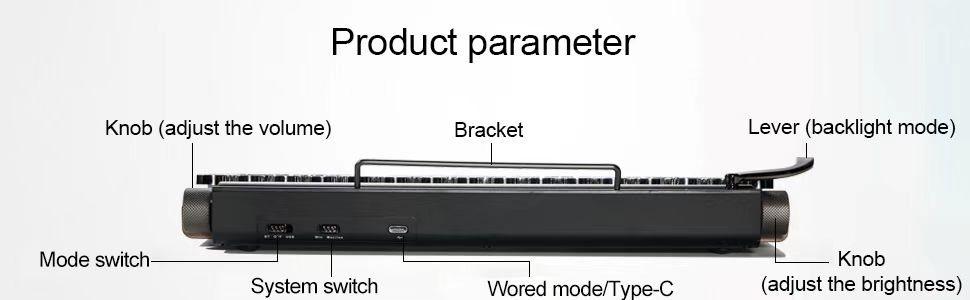
Image: Side view diagram of the keyboard, labeling the Mode switch, System switch, Wired mode/Type-C port, Knob (adjust brightness), Knob (adjust volume), Bracket, and Lever (backlight mode).
- Lever (Backlight Mode): Used to switch between different backlight effects.
- Knob (Adjust Volume): Rotates to control the audio volume of the connected device.
- Knob (Adjust Brightness): Rotates to adjust the intensity of the keyboard backlight.
- Bracket: Integrated stand for holding tablets or smartphones.
- Mode Switch: Toggles between wired and wireless (Bluetooth) modes.
- System Switch: Selects the operating system mode (e.g., Windows, Mac, Android, iOS).
- Wired Mode/Type-C Port: For wired connection and charging the keyboard.
4. Setup
4.1 Initial Charging
Before first use, it is recommended to fully charge the keyboard. Connect the provided USB Type-C cable to the keyboard's Type-C port and the other end to a USB power source (e.g., computer USB port, USB wall adapter). The keyboard has a built-in 2000mA rechargeable battery.
4.2 Wired Connection
To use the keyboard in wired mode:
- Ensure the Mode Switch on the side of the keyboard is set to the wired (USB) position.
- Connect the USB Type-C cable from the keyboard to your computer's USB port.
- The keyboard will be automatically recognized by your system.
4.3 Bluetooth Connection
The keyboard supports Bluetooth 5.0 for wireless connection to up to three devices (A, B, C).

Image: Diagram illustrating the keyboard's ability to connect to multiple devices (smartphone, tablet, laptop/desktop) via Bluetooth 5.0.
To pair a device:
- Set the Mode Switch to the Bluetooth position.
- Select a Bluetooth channel (A, B, or C) using the System Switch.
- On your device (Cellphone, Tablet, Laptop), enable Bluetooth and search for new devices.
- Select "7KEYS Keyboard" from the list of available devices.
- Follow any on-screen prompts to complete the pairing process.
To switch between paired devices, simply move the System Switch to the desired channel (A, B, or C). The keyboard will automatically connect to the last paired device on that channel.
4.4 System Compatibility
The keyboard is compatible with Android, Windows 10, iOS, and Mac OS systems. Ensure the System Switch is set to the appropriate operating system for optimal key mapping.
5. Operation
5.1 Backlight Control
The keyboard features white LED backlighting with adjustable modes and brightness.

Image: Illuminated white backlight letters on the keyboard, enhancing visibility in low-light conditions.
- Adjusting Backlight Modes: Pull the metal lever on the left side of the keyboard to cycle through different backlight effects.
- Adjusting Backlight Brightness: Rotate the knob on the right side (labeled 'Adjust brightness' in the product overview) to increase or decrease the backlight intensity.
5.2 Volume Control
Rotate the metal wheel on the right side (labeled 'Adjust volume' in the product overview) to control the audio volume of your connected device.

Image: Detailed view of the keyboard's control mechanisms: the metal rod for light adjustment, the metal revolver for brightness, and the metal right wheel for volume adjustment.
5.3 Integrated Tablet/Phone Stand
The keyboard features an integrated bracket that can hold a tablet or smartphone, providing a convenient setup for typing.

Image: The 7KEYS keyboard with a tablet positioned in its built-in stand, demonstrating its utility for mobile devices.
5.4 Hot-Swappable Blue Switches
The keyboard is equipped with hot-swappable blue mechanical switches, allowing for easy customization and replacement without soldering. These switches provide a tactile and audible "click" feedback, characteristic of traditional typewriters.
6. Maintenance
To ensure the longevity and optimal performance of your keyboard, follow these maintenance guidelines:
- Cleaning: Use a soft, dry cloth to wipe the keyboard surface. For deeper cleaning, use a can of compressed air to remove dust and debris from between the keycaps.
- Keycap Removal: Use the provided keycap puller to carefully remove keycaps for cleaning or switch replacement.
- Switch Replacement: Use the provided mechanical switch puller to remove and replace switches. Ensure the new switch is aligned correctly before pressing it into place.
- Avoid Liquids: Do not expose the keyboard to liquids. In case of accidental spills, immediately disconnect the keyboard and allow it to dry completely before reuse.
- Storage: Store the keyboard in a cool, dry place away from direct sunlight and extreme temperatures.
7. Troubleshooting
If you encounter issues with your keyboard, refer to the following common problems and solutions:
- Keyboard not connecting via Bluetooth:
- Ensure the keyboard's Mode Switch is set to Bluetooth.
- Verify the keyboard battery has sufficient charge.
- Make sure Bluetooth is enabled on your device and it is within range.
- Try unpairing and re-pairing the keyboard on your device.
- Ensure the System Switch is set to the correct operating system.
- Keyboard not responding in wired mode:
- Ensure the keyboard's Mode Switch is set to wired (USB).
- Check if the USB Type-C cable is securely connected to both the keyboard and the computer.
- Try a different USB port on your computer or a different USB Type-C cable.
- Backlight not working or dim:
- Ensure the keyboard has sufficient battery charge.
- Rotate the brightness knob to increase the backlight intensity.
- Pull the lever to cycle through backlight modes; some modes might appear dimmer.
- Keys not registering or double-typing:
- Clean around the affected key to remove any debris.
- If the issue persists, the mechanical switch might need to be replaced. Use the provided switch puller to carefully remove and replace the faulty switch.
If these steps do not resolve the issue, please contact 7KEYS customer service for further assistance.
8. Specifications
| Feature | Detail |
|---|---|
| Model Number | TW1867Pro |
| Product Dimensions | 12.8"L x 6.6"W x 1.6"H (32.5 x 16.8 x 4.1 cm) |
| Item Weight | 2.42 pounds (1.1 kg) |
| Connectivity Technology | Bluetooth 5.0, USB-C (Wired) |
| Compatible Devices | Laptop, PC, Smart TV, Cellphone, Tablet (Android, Windows10, iOS, Mac OS) |
| Keyboard Description | Multi-Functional, Mechanical |
| Special Features | Backlit (White LED), Hot-Swappable Blue Switches, Round Keycaps, Volume Roller, Backlight Mode Lever, Integrated Tablet/Phone Stand |
| Battery | 1 Lithium Ion battery (included), 2000mA rechargeable |
| Color | Wood (base), Black/Silver (keys/accents) |
| Style | Classic / Retro Typewriter |
9. Warranty and Support
7KEYS offers lifetime after-sales quality service for this product. For any inquiries, technical support, or warranty claims, please contact the 7KEYS customer service team. Refer to the contact information provided with your purchase or visit the official 7KEYS website for support details.
Related documentsTW1867Pro


Ask a question about this manual
Ask about setup, troubleshooting, compatibility, parts, safety, or missing instructions. Manuals+ will review the question and use this page’s manual context to help answer it.