
1. Introduction
This manual provides detailed instructions for the setup, operation, and maintenance of your PHILIPS SmartMeeting PSE0550 4K Video Conferencing Solution. The PSE0550 integrates high-definition video, 360-degree audio, and Sembly AI meeting assistance to enhance your conferencing experience. Please read this manual thoroughly before using the device to ensure optimal performance and safety.
2. Safety Information
- Do not expose the device to water or moisture.
- Use only the power adapter and cables provided or recommended by PHILIPS.
- Avoid placing the device in direct sunlight or near heat sources.
- Do not attempt to open or repair the device yourself. Refer all servicing to qualified personnel.
- Keep the device away from strong magnetic fields.
3. Package Contents
Verify that all items are present in your package:
- PHILIPS SmartMeeting PSE0550 Device
- Remote Control
- USB-C Cord
- Quick Start Guide (not included in this manual)
4. Product Overview
The PHILIPS SmartMeeting PSE0550 is an all-in-one conferencing device designed for clear audio and video communication.

Figure 4.1: PHILIPS SmartMeeting PSE0550 device and remote control.
This image displays the main unit of the PHILIPS SmartMeeting PSE0550 alongside its dedicated remote control. The main unit features a cylindrical design with a camera lens at the top and control buttons on its upper surface.
4.1 Device Components
- 4K Camera: Located at the top, capable of 4K video resolution.
- Microphone Array: Integrated for 360-degree audio capture.
- Speaker: Base of the unit for clear audio output.
- Control Buttons: Power, volume up/down, microphone mute, and camera controls on the top panel.
- USB-C Port: For connection to a computer.
- Status Indicator Light: Provides visual feedback on device status.

Figure 4.2: Top view of the PSE0550 showing control buttons.
This image provides a close-up of the top surface of the PSE0550, highlighting the power button, volume controls, and microphone mute button.

Figure 4.3: PSE0550 with camera extended.
This image shows the PSE0550 with its camera module fully extended, ready for video conferencing.
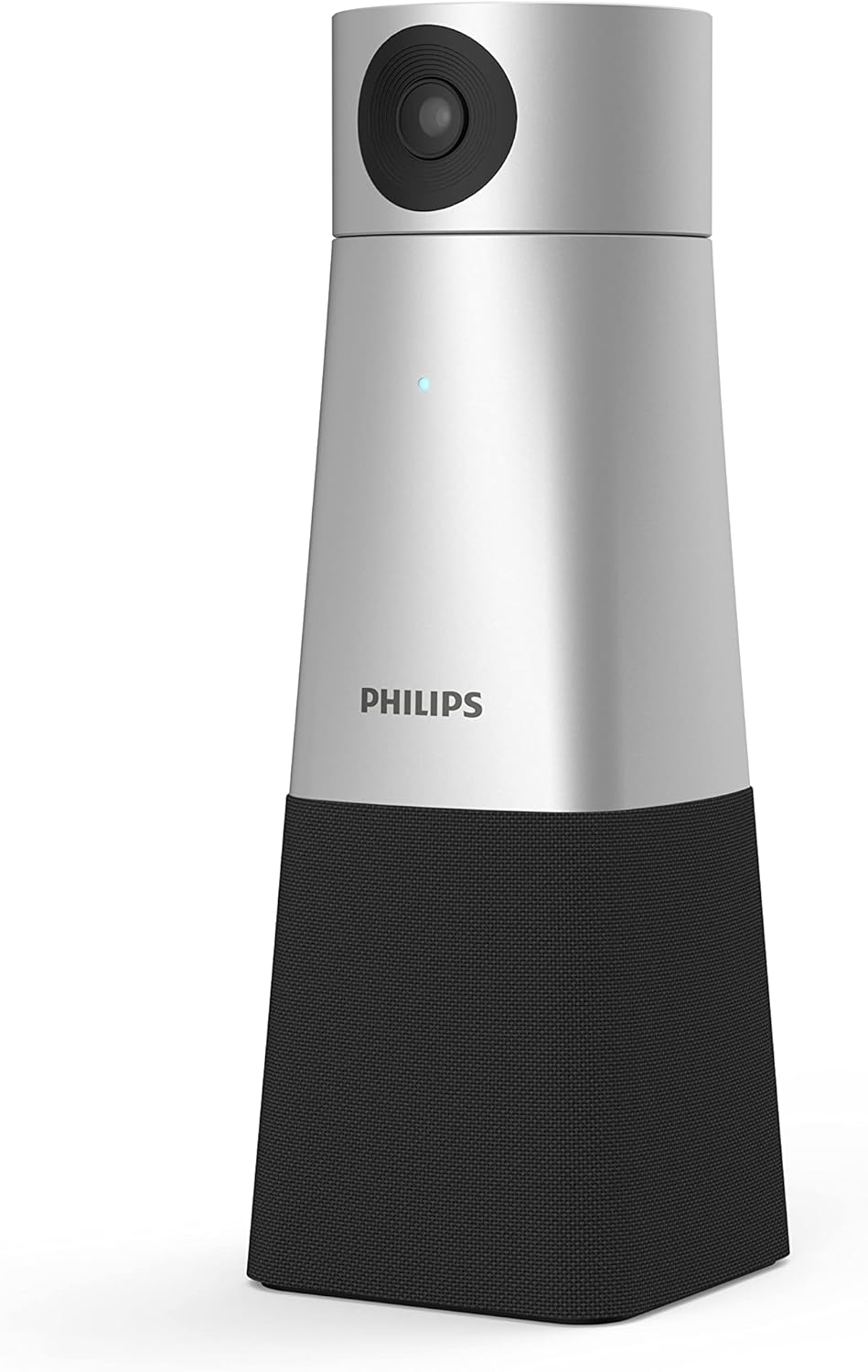
Figure 4.4: PSE0550 with camera retracted.
This image illustrates the PSE0550 with its camera module retracted, indicating a compact state when not in active video use.
5. Setup
5.1 Connecting the Device
- Place the PHILIPS SmartMeeting PSE0550 on a stable surface in your meeting room.
- Connect the provided USB-C cable to the USB-C port on the PSE0550.
- Connect the other end of the USB-C cable to an available USB port on your computer (laptop or desktop).
- The device will automatically power on and the status indicator light will illuminate.
5.2 Software Installation
The PSE0550 is a plug-and-play device and typically does not require specific driver installation for basic functionality. For advanced features and Sembly AI integration, ensure your computer has the necessary conferencing software (e.g., Zoom, Microsoft Teams) and consider activating your Sembly AI trial.

Figure 5.1: PSE0550 in a typical meeting room setup.
This image shows the PSE0550 positioned centrally on a conference table, facilitating a group meeting.
6. Operating Instructions
6.1 Basic Device Operation
- Power On/Off: Press the power button on the top of the device or on the remote control.
- Volume Control: Use the 'V+' and 'V-' buttons on the device or remote to adjust speaker volume.
- Microphone Mute: Press the microphone icon button on the device or remote to mute/unmute the microphones. The status indicator will change to reflect the mute status.
6.2 Video Conferencing Features
The PSE0550 provides high-quality video for your meetings.

4K High Definition Video: The 1/2.8 inch CMOS sensor delivers clear 4K video, even in low-light conditions, ensuring participants are seen with accurate color rendition.

Voice Tracking: The camera automatically adjusts its lens to follow and frame the current speaker. Manual pan, tilt, and zoom controls are available via the remote control. Up to three camera positions can be saved as presets.
6.3 Audio Features
Experience clear and natural-sounding calls with advanced audio capabilities.

360° Recording: The 4-array microphone captures sound up to 20 feet away, accommodating up to 6 speakers around a table. Smart speech-enhancing and noise-filtering technology ensures audio clarity.
6.4 Sembly AI Integration
The PSE0550 integrates with Sembly AI for intelligent meeting assistance. A trial of Sembly Cloud Software is included with your purchase.

Figure 6.1: Sembly AI integration.
This image highlights the inclusion of a Sembly Team Plus plan with the PHILIPS SmartMeeting PSE0550.
- Sembly AI VoiceID: Sembly AI's algorithm identifies speakers and separates transcripts per person based on their unique voice fingerprint.
- Automated Action Points: Sembly's AI tracks actions, issues, and requirements discussed during your call, providing automated meeting minutes.
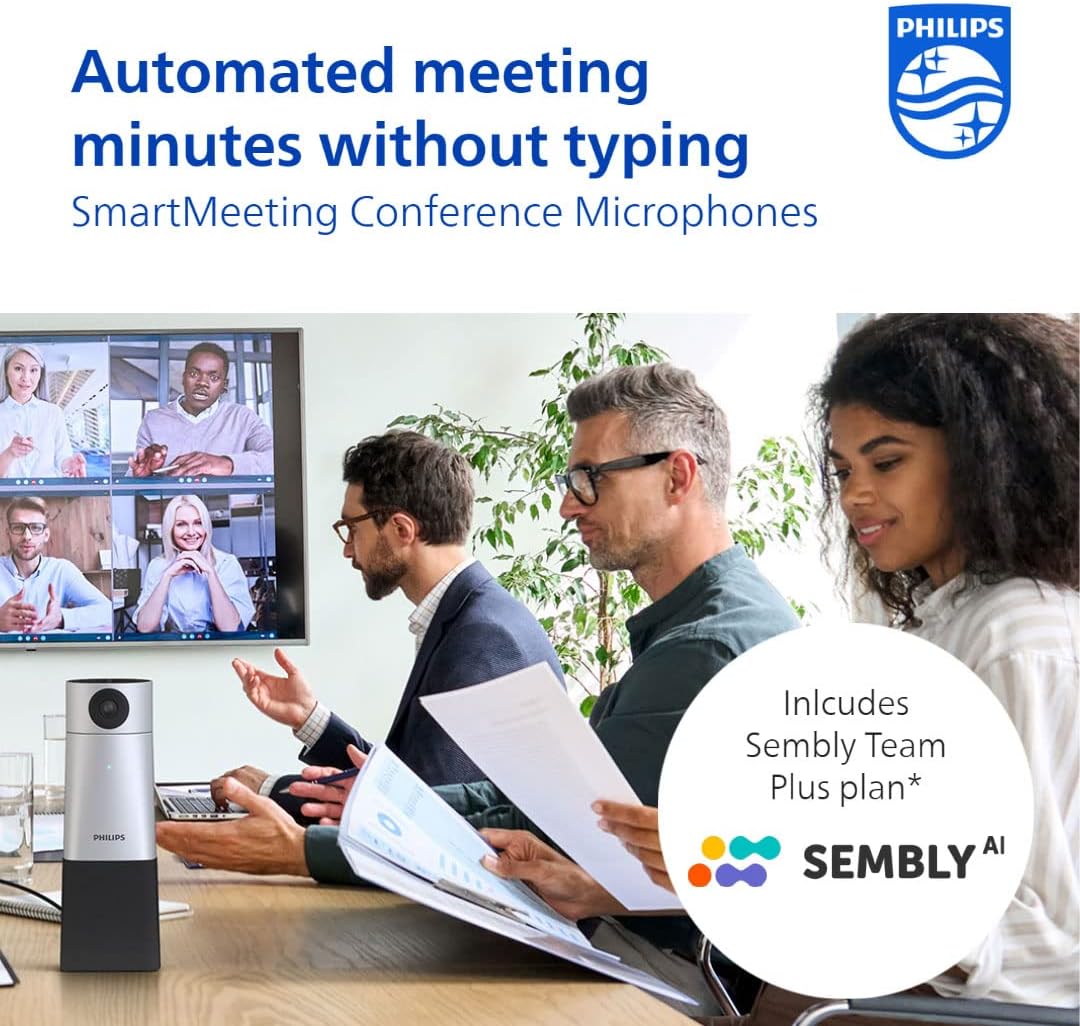
Figure 6.2: Sembly AI interface showing meeting minutes.
This image displays a laptop screen with the Sembly AI interface, showing a detailed transcript and summary of a meeting, with the PSE0550 device visible next to the laptop.
7. Maintenance
- Cleaning: Use a soft, dry cloth to clean the exterior of the device. Do not use liquid cleaners or abrasive materials.
- Storage: When not in use, store the device in a cool, dry place away from direct sunlight.
8. Troubleshooting
If you encounter issues with your PSE0550, refer to the following common problems and solutions:
- No Power: Ensure the USB-C cable is securely connected to both the device and the computer. Try a different USB port or cable.
- No Video Output: Check if the device is selected as the primary camera in your conferencing software settings. Ensure the camera is extended.
- No Audio Input/Output: Verify the microphone and speaker are not muted on the device or in your computer's sound settings. Confirm the PSE0550 is selected as the audio input/output device in your conferencing software.
- Remote Control Not Responding: Check the battery in the remote control. Ensure there are no obstructions between the remote and the device.
9. Specifications
| Feature | Specification |
|---|---|
| Model Name | PSE0550 |
| Video Capture Resolution | 4K |
| Photo Sensor Technology | CMOS |
| Maximum Webcam Image Resolution | 16 MP |
| Viewing Angle | 88 Degrees |
| Focus Type | Auto Focus |
| Zoom Type | Digital |
| Microphone Array | 4-array, 360° recording |
| Sound Capture Range | Up to 20 feet |
| Connectivity Technology | USB |
| Compatible Devices | Laptop, Personal Computer |
| Power Source | Battery Powered (1 Lithium Ion battery included) |
| Item Weight | 2.42 pounds (1.1 Kilograms) |
| Product Dimensions (L x W x H) | 31.89 x 31.89 x 91.73 inches |
| Included Components | Remote Control, Speaker Microphone, USB-C cord |
| Special Features | Face Detection, Motion Sensor, Remote Control, Speakers |
10. Warranty and Support
10.1 Warranty Information
The PHILIPS SmartMeeting PSE0550 comes with a 1-year manufacturer's warranty. This warranty covers defects in materials and workmanship under normal use. Please retain your proof of purchase for warranty claims.
10.2 Customer Support
For technical assistance, troubleshooting, or warranty service, please contact PHILIPS customer support through their official website or the contact information provided with your product packaging. Ensure you have your model number (PSE0550) and purchase details ready.


