
1. Introduction
This manual provides detailed instructions for the installation, operation, and maintenance of your ZERTRAN 13.1-inch Android Radio Car Stereo, model ZT-V7478A. This unit is designed as a replacement for Mitsubishi ASX models from 2010 to 2015. Please read this manual thoroughly before installation and use to ensure proper function and safety.
2. Vehicle Compatibility
This ZERTRAN Android Radio is compatible with Mitsubishi ASX vehicles manufactured between 2010 and 2015. It is crucial to verify your vehicle's dashboard configuration before installation.
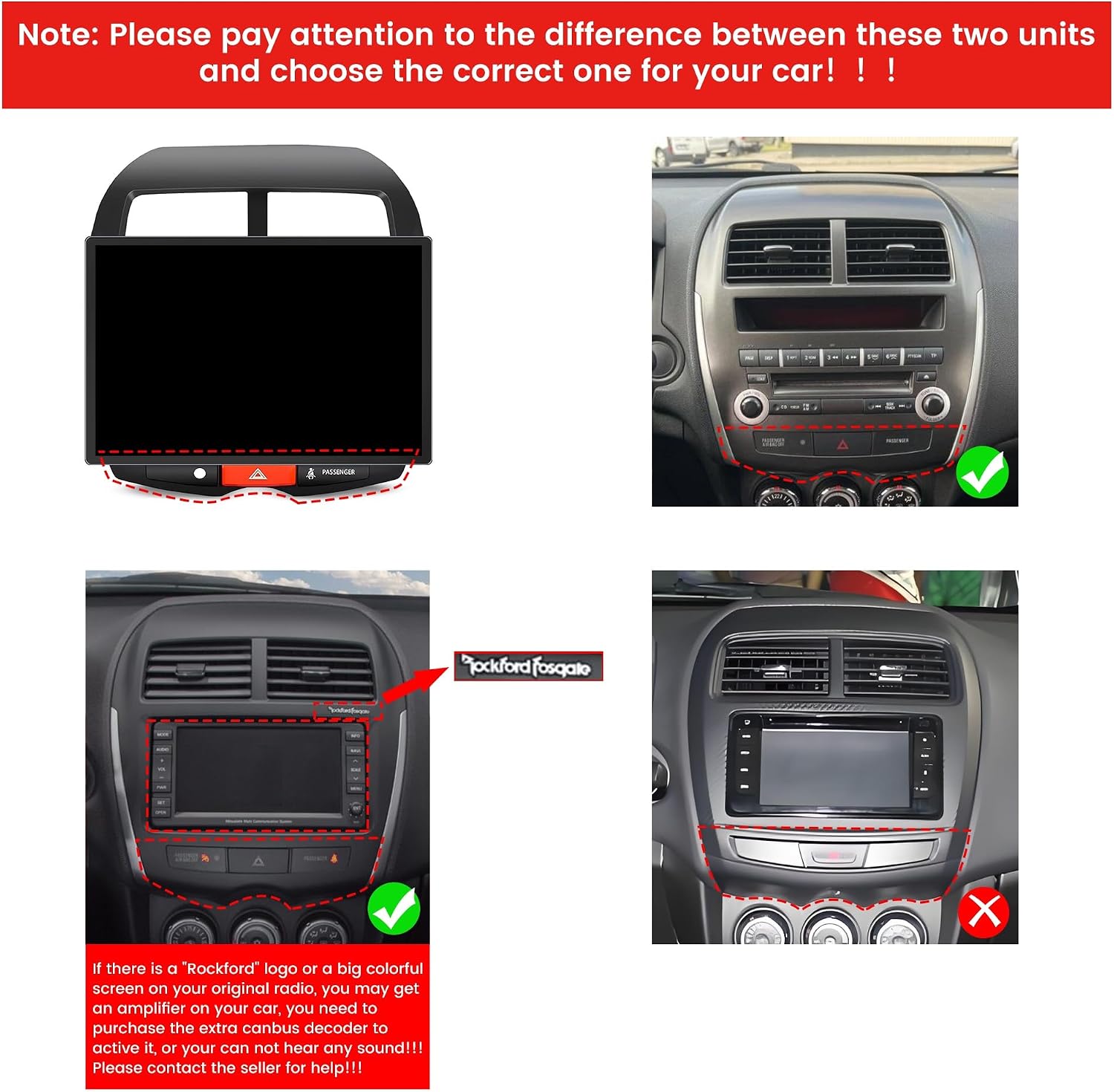
Image: Comparison of different Mitsubishi ASX dashboard configurations. The image highlights the correct unit type for installation and warns about potential amplifier compatibility issues (Rockford Fosgate system).
Important Note: If your car is equipped with an original Rockford Fosgate amplifier, you may need an additional CANbus decoder to activate it and ensure audio output. Contact the seller for support if your vehicle has this system.
3. Package Contents
Verify that all components are present in the package before beginning installation.

Image: A visual representation of the items included in the package. This typically includes the 13.1-inch head unit, power cable, cable plug, camera input cable, USB cables (4-pin and 6-pin), GPS antenna, RCA wire harness, AHD reverse camera, external microphone, and a crowbar tool.
- 13.1-inch Android Radio Head Unit
- Power Cable
- Cable Plug (compatible with original car plug)
- Camera Input Cable
- USB Cable (4-pin)
- USB Cable (6-pin)
- GPS Antenna
- RCA Wire Harness
- AHD Reverse Camera (Gift)
- External Microphone (Gift)
- Crowbar Tool (Gift)
4. Setup and Installation
The ZERTRAN Android Radio is designed for a plug-and-play installation. Basic DIY ability is recommended for self-installation. If you are unsure, professional installation is advised.
4.1 Pre-Installation Check
- Ensure the vehicle's ignition is off and the battery is disconnected before starting.
- Confirm all package contents are present.
- Verify compatibility with your specific Mitsubishi ASX model and year (2010-2015).
- If your car has a factory amplifier (e.g., Rockford Fosgate), consult the seller for a compatible CANbus decoder.
4.2 Installation Steps (General Guide)
- Carefully remove the original car stereo unit and trim using the provided crowbar tool.
- Disconnect all cables from the original unit.
- Connect the new ZERTRAN Android Radio's power cable and other necessary cables (GPS antenna, USB cables, camera input, RCA harness) to the corresponding ports. The main power plug is designed to be compatible with the original car's wiring harness.
- If installing the reverse camera, route the camera cable to the rear of the vehicle and connect it to the camera input.
- Securely mount the new head unit into the dashboard opening.
- Reconnect the vehicle battery and test the unit's functionality.

Image: A side-by-side comparison showing the original car stereo dashboard (Before Installation) and the ZERTRAN 13.1-inch Android Radio installed (After Installation).
5. Operating Instructions
The ZERTRAN Android Radio operates on an Android system, offering a wide range of multimedia and navigation features.
5.1 CarPlay & Android Auto
Seamlessly integrate your smartphone for navigation, music, calls, and more. Use voice commands for safe operation.

Image: Depicts the CarPlay and Android Auto logos and their respective interfaces on the car stereo screen, showing smartphone integration.
- CarPlay (for iOS devices): Connect your iPhone via USB for wired CarPlay functionality.
- Android Auto (for Android devices): Connect your Android phone via USB for wired Android Auto functionality.
- Voice Assistant: Utilize Siri or Google Assistant for hands-free control of navigation, calls, and music.
5.2 GPS Navigation
The unit supports various navigation applications through its Android operating system.

Image: Shows the car stereo display with a navigation map and icons for various navigation applications such as Google Maps, iGO, Navitel, Waze, Sygic, and G*ode Map.
- Pre-installed navigation apps or download your preferred apps from the Google Play Store.
- The included GPS antenna ensures accurate positioning.
5.3 FM/AM/RDS Radio
Access local radio stations with clear reception. RDS (Radio Data System) provides additional information where available.

Image: Displays the radio interface on the car stereo screen, showing frequency tuning, station presets, and RDS information.
- Scan and save your favorite radio stations.
- Long press to save a station to a preset.
5.4 Bluetooth Functionality
Connect your smartphone wirelessly for hands-free calling and audio streaming.

Image: Shows the Bluetooth interface for making calls and streaming music, with icons representing phone, Bluetooth connection, and music playback.
- Pair your device through the Bluetooth settings menu.
- Make and receive calls directly from the head unit.
- Stream audio from your phone to the car speakers.
5.5 Steering Wheel Control
Integrate with your vehicle's existing steering wheel controls for convenient operation.

Image: Illustrates the steering wheel control learning interface, allowing users to map vehicle steering wheel buttons to functions on the head unit.
- Access the steering wheel control settings in the unit's menu to program buttons.
- Control volume, track skipping, and answer/end calls without taking your hands off the wheel.
5.6 Car Reverser Camera Support
The unit supports a car reverser camera input, providing a clear view of the area behind your vehicle when reversing.

Image: Shows the car stereo screen displaying the view from a rear-view camera, complete with parking guidelines, as if reversing in a parking garage.
- The display automatically switches to the camera view when the vehicle is in reverse gear.
- The included AHD reverse camera provides high-definition video.
5.7 Dual Screen Display
Utilize the dual-screen feature to run two applications simultaneously, such as navigation and music playback.

Image: Illustrates the dual-screen functionality, showing navigation on one side and a video player or web browser on the other.
- Drag and drop apps to split the screen.
- Enhances multitasking capabilities while driving.
5.8 Other Features
- Wi-Fi Connectivity: Connect to a Wi-Fi hotspot for internet access, app downloads, and online services.
- DSP (Digital Signal Processor): Provides enhanced audio customization and sound quality.
- Multimedia Playback: Supports various audio and video formats from USB drives or internal storage.
6. Maintenance
To ensure the longevity and optimal performance of your ZERTRAN Android Radio, follow these maintenance guidelines:
- Cleaning: Use a soft, dry cloth to clean the screen and unit exterior. Avoid abrasive cleaners or solvents.
- Software Updates: Periodically check for and install software updates to ensure the system runs efficiently and has the latest features.
- Temperature: Avoid exposing the unit to extreme temperatures, which can affect performance and lifespan.
7. Troubleshooting
If you encounter issues with your ZERTRAN Android Radio, refer to the following common troubleshooting steps:
- No Power: Check all power connections and ensure the vehicle's battery is properly connected. Verify fuses.
- No Sound: Ensure volume is not muted. Check speaker connections. If your car has a factory amplifier, confirm if a CANbus decoder is required and properly installed.
- Touchscreen Unresponsive: Try restarting the unit. If the issue persists, a factory reset might be necessary (note: this will erase user data).
- GPS Signal Issues: Ensure the GPS antenna is properly installed and has a clear view of the sky.
- Bluetooth Connection Problems: Ensure Bluetooth is enabled on both the unit and your phone. Try unpairing and re-pairing the device.
- System Freezes/Crashes: Restart the unit. If frequent, consider a factory reset or check for software updates.
For persistent issues, please contact ZERTRAN customer support for assistance.
8. Specifications
| Feature | Detail |
|---|---|
| Brand | ZERTRAN |
| Model Number | ZT-V7478A |
| Screen Size | 13.1 Inches |
| Memory Storage Capacity | 128 GB |
| Human Interface Input | Touch Pad, Touchscreen with Stylus Support |
| Operating System | Android (Specific version not provided, assumed latest compatible) |
| Processor | Super 8-core Processor |
| Display Resolution | 1920*1200 HD (2K QLED) |
| Connectivity | Bluetooth, Wi-Fi, USB |
| Special Features | CarPlay, Android Auto, GPS Navigation, RDS, DSP, Steering Wheel Control, Reverse Camera Support, Dual Screen Display |

Image: A visual representation of the "Super 8-core Processor" chip, highlighting the high-speed car-level chip equipped with an eight-core processor.

Image: Illustrates the 13.1-inch 2K QLED display, emphasizing its full-screen design, 2K clarity (1920x1200 HD), and vibrant color reproduction.
9. Warranty and Support
Your ZERTRAN Android Radio comes with a manufacturer's warranty and dedicated customer support.
- Warranty: This product includes a 1-Year Warranty from the date of purchase.
- Customer Support: For any questions, technical assistance, or warranty claims, please contact Zertran Vehicle Parts, the seller. Provide your purchase details and model number (ZT-V7478A) for efficient service.
10. Product Overview Video
Watch this video for a visual overview of the ZERTRAN Android Radio's features and interface.
Video: An official product video titled "car stereo for Mitsubishi ASX 2010-2019" by Zertran Vehicle Parts. This video demonstrates the user interface, various functions, and overall operation of the ZERTRAN Android Radio. Duration: 3 minutes 35 seconds.