
1. Introduction
The RIOWOIS DS6401D 31-inch Sound Bar is designed to enhance your audio experience with immersive surround sound. Featuring four full-range speakers, this sound bar delivers clear and powerful audio for movies, music, and news. It offers versatile connectivity options including Bluetooth 5.0, HDMI-ARC, Optical, and AUX inputs, ensuring compatibility with a wide range of devices. Its unique detachable design provides convenience for portability and storage.

Image: The RIOWOIS DS6401D Sound Bar shown with its remote control, highlighting its sleek black design.
2. Package Contents
Please verify that all items listed below are included in your package:
- RIOWOIS DS6401D Sound Bar
- Remote Control
- 3.5mm-3.5mm AUX Cable
- Optical Cable
- Power Adapter
- User Manual
- Mount Screws (for wall mounting)

Image: A visual representation of all items included in the RIOWOIS DS6401D Sound Bar package, including the sound bar, remote, cables, power adapter, and mounting hardware.
3. Product Overview
Sound Bar Features
- 4 Full-Range Speakers: Delivers rich, immersive audio throughout your room.
- Bluetooth 5.0: Enables quick and stable wireless connection to streaming devices.
- Multiple Inputs: Supports HDMI-ARC, Optical, and AUX connections for broad compatibility.
- Detachable Design: Convenient for transport and storage.
- Remote Control: Offers full control, including three distinct EQ modes.
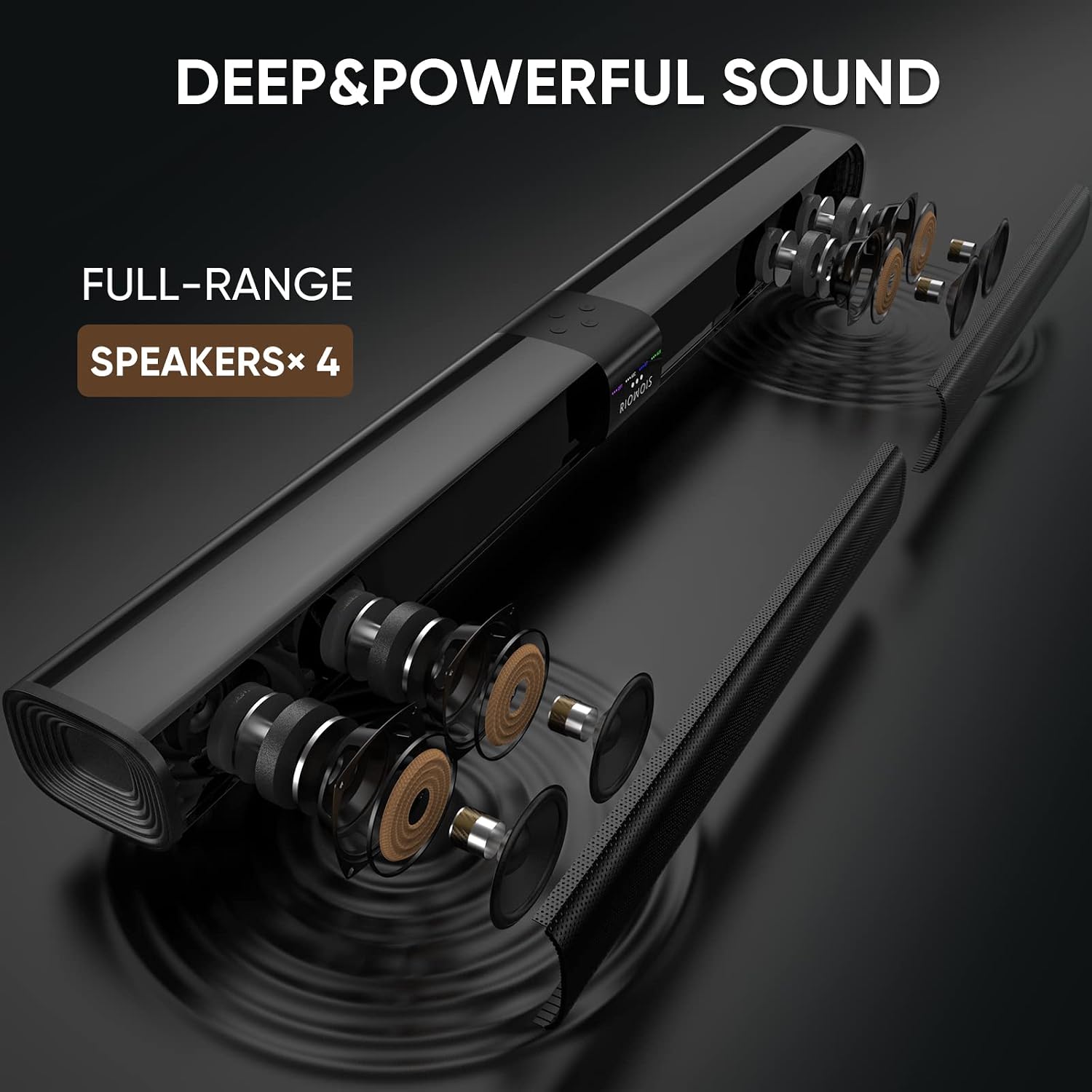
Image: An exploded view of the RIOWOIS Sound Bar, illustrating the internal placement of its four full-range speakers for deep and powerful sound.
4. Setup and Installation
Placement Options
The sound bar can be installed in two ways:
- Table-top Placement: Position the sound bar on a flat, stable surface below your TV.
- Wall-mounted: Use the included wall mounting kit to secure the sound bar to a wall. Ensure the wall can support the weight of the sound bar.

Image: The RIOWOIS Sound Bar positioned on a media console beneath a wall-mounted television, demonstrating a typical home setup.

Image: A visual guide illustrating the sound bar's compatibility with different TV sizes and its wall-mountable design.
Connecting to Your TV
The sound bar offers several connection methods to your television or other audio sources:
HDMI-ARC Connection
- Locate the HDMI port on your TV labeled HDMI ARC.
- Connect an HDMI cable (not supplied) from the sound bar's HDMI-ARC port to the TV's HDMI ARC port.
- On your TV's audio settings, select HDMI(ARC) as the sound output.
- Ensure the Digital Output Audio Format on your TV is set to PCM.
Note: Use the HDMI ARC port on your TV, not a standard HDMI port. This connection is not compatible with monitor or computer HDMI outputs.
Optical Connection
- Connect the included Optical cable from the sound bar's OPTICAL input to your TV's Optical output.
- On your TV's audio settings, select Optical as the sound output.
- Ensure the Digital Output Audio Format on your TV is set to PCM.
AUX Connection
- Connect the included 3.5mm-3.5mm AUX cable from the sound bar's AUX input to your TV's or device's 3.5mm audio output.
- Select AUX as the input source on the sound bar.

Image: A visual guide demonstrating how to configure TV audio settings for HDMI ARC or Optical connections, including setting the digital output audio format to PCM.

Image: A close-up view of the sound bar's rear panel, clearly showing the HDMI ARC, Optical, AUX, Sub Out, and DC In ports, along with a mobile phone connected via Bluetooth.
Bluetooth Connection
- Power on the sound bar.
- Press the BT button on the remote control or the sound bar to switch to Bluetooth mode. The indicator light will flash.
- On your streaming device (e.g., smartphone, tablet, TV), search for Bluetooth devices and select "RIOWOIS DS6401D".
- Once connected, the indicator light will stop flashing and remain solid.
5. Operating Instructions
Power On/Off
Press the Power button on the remote control or the sound bar to turn the unit on or off.
Input Source Selection
Press the corresponding input button on the remote control (e.g., HDMI-ARC, OPT, AUX, BT) to switch between different audio sources.
Volume Control
Use the Volume + and Volume - buttons on the remote control or the sound bar to adjust the audio level.
EQ Modes
The remote control provides three Equalizer (EQ) modes to optimize your listening experience:
- Movie Mode: Enhances dialogue and cinematic effects for films.
- Music Mode: Optimizes audio for a balanced music listening experience.
- News Mode: Clarifies vocals for news broadcasts and spoken content.

Image: A television screen displaying the three selectable sound modes: Movie, Music, and News, indicating the sound bar's customizable audio profiles.
Remote Control Functions
The remote control offers comprehensive control over your sound bar:
- Power Button: Turns the sound bar on or off.
- Mute Button: Mutes or unmutes the audio.
- Volume +/-: Adjusts the volume level.
- Input Selection Buttons: Dedicated buttons for BT, HDMI-ARC, OPT, AUX.
- EQ Mode Buttons: Select Movie, Music, or News sound profiles.
- Bluetooth Disconnect: Press and hold the BT button for approximately 2 seconds to disconnect the current Bluetooth device.

Image: A detailed view of the RIOWOIS Sound Bar remote control, highlighting its various buttons for power, volume, input selection, and EQ modes.
6. Detachable Design
The RIOWOIS DS6401D Sound Bar features a unique detachable design, allowing it to be separated into two smaller units. This design offers significant advantages for portability, making it convenient for moving, outdoor parties, or travel in an RV. When detached, the sound bar is compact, fitting easily into luggage.
Note: There is no built-in battery in the sound bar; it requires an external power supply for operation.

Image: The RIOWOIS Sound Bar shown in its detached state, neatly packed inside a suitcase alongside other travel items, demonstrating its portability.
7. Maintenance
To ensure the longevity and optimal performance of your RIOWOIS DS6401D Sound Bar, follow these maintenance guidelines:
- Cleaning: Use a soft, dry cloth to wipe the surface of the sound bar. Avoid using abrasive cleaners, waxes, or solvents as they may damage the finish.
- Ventilation: Ensure the sound bar has adequate ventilation. Do not block any ventilation openings.
- Environment: Keep the sound bar away from direct sunlight, heat sources, excessive dust, moisture, and strong magnetic fields.
- Power Cord: Regularly inspect the power cord for any damage. If damaged, discontinue use and contact customer support.
8. Troubleshooting
If you encounter issues with your sound bar, refer to the following common troubleshooting steps:
No Sound
- Check Power: Ensure the sound bar is powered on and the power adapter is securely connected.
- Verify Input Source: Confirm that the correct input source (HDMI-ARC, Optical, AUX, Bluetooth) is selected on the sound bar.
- Check Cable Connections: Ensure all audio cables are securely connected to both the sound bar and your TV/device.
- TV Audio Settings: For HDMI-ARC and Optical connections, verify that your TV's audio output is set to the correct source and the Digital Output Audio Format is set to PCM.
- Volume Level: Increase the volume on both the sound bar and your TV/device. Ensure neither is muted.
Bluetooth Connectivity Issues
- Re-pair Device: On your streaming device, forget the sound bar from the Bluetooth device list and attempt to pair again.
- Disconnect Other Devices: Ensure no other devices are currently connected to the sound bar via Bluetooth. Press and hold the BT button on the remote for 2 seconds to disconnect any active Bluetooth connection.
- Proximity: Ensure your Bluetooth device is within the effective range of the sound bar.
Remote Control Not Responding
- Check Batteries: Replace the batteries in the remote control with new ones.
- Line of Sight: Ensure there are no obstructions between the remote control and the sound bar's sensor.
- Reset: If the remote becomes unresponsive, try unplugging the sound bar from power for a few seconds and then plugging it back in.
9. Specifications
| Feature | Specification |
|---|---|
| Model Name | RIOWOIS Sound Bar DS6401D |
| Speaker Type | Soundbar |
| Speaker Size | 31 Inches |
| Speaker Maximum Output Power | 200 Watts |
| Surround Sound Channel Configuration | 5.1 |
| Connectivity Technology | Bluetooth, HDMI-ARC, Optical, Auxiliary |
| Wireless Communication Technology | Bluetooth |
| Product Dimensions | 3.54"D x 31.02"W x 2.56"H |
| Item Weight | 5.22 Pounds |
| Color | Black |
| Material | Plastic |
| Power Source | Corded Electric |
| Signal-to-Noise Ratio | 80 dB |
| Manufacturer | Saiyin Electronic Co., Ltd |
10. Warranty and Support
Warranty Information
The RIOWOIS DS6401D Sound Bar comes with a limited warranty. Please refer to the warranty card included in your package for specific terms and conditions.
Customer Support
For any questions, technical assistance, or support needs, RIOWOIS offers:
- Professional 24/7 customer service.
- Free remote replacement services.
- Free product replacement within one year of purchase.
Please contact RIOWOIS customer service through the official channels provided with your product or on the brand's website for assistance.


