
1. Product Overview
The HP EliteDesk 800 G6 Mini Business Desktop is a compact and powerful computing solution designed for business environments. It features an Intel Core i5-10500T vPro Processor, 16GB of high-bandwidth RAM, and a 256GB PCIe NVMe M.2 Solid State Drive, ensuring efficient performance for demanding applications and multitasking. This mini PC comes pre-installed with Windows 11 Pro, offering enhanced productivity and security features.
Its small form factor allows for versatile placement, while comprehensive connectivity options, including Wi-Fi 6, multiple USB ports, and DisplayPort outputs, support a wide range of peripherals and display configurations.

Figure 1: Front view of the HP EliteDesk 800 G6 Mini Business Desktop.
2. Setup Guide
2.1 Unboxing and Placement
- Carefully remove the HP EliteDesk 800 G6 Mini PC and all accessories from the packaging.
- Place the mini PC on a stable, flat surface with adequate ventilation. Ensure no vents are obstructed.
2.2 Connecting Peripherals
Connect your monitor(s), keyboard, mouse, and other necessary peripherals to the appropriate ports on the mini PC.

Figure 2: Front panel ports and indicators. Includes a Type-C SuperSpeed USB 10Gbps signaling rate port, two Type-A SuperSpeed USB ports (one 10Gbps, one 5Gbps with Fast Charging), a Universal Audio Jack, a power button, and a hard drive activity light.
- Display: Connect your monitor(s) to the DisplayPort outputs on the rear of the device. The system supports up to three DisplayPort connections.
- USB Devices: Connect your keyboard, mouse, and other USB devices to the available USB Type-A or Type-C ports. The front panel includes one USB Type-C 3.2 port and two USB Type-A 3.2 ports. The rear panel provides additional USB Type-A 3.2 ports.
- Network: For wired network access, connect an Ethernet cable to the RJ45 port. For wireless connectivity, the system supports Intel Wi-Fi 6.
- Audio: Use the Universal Audio Jack (headphone/microphone combo) on the front panel for audio input/output.
2.3 Power Connection and First Boot
- Connect the HP 65W DM External Power Supply to the power input on the mini PC, then plug the power cable into a wall outlet.
- Press the power button on the front panel to turn on the device.
- Follow the on-screen instructions to complete the initial Windows 11 Pro setup.
3. Operating Instructions
3.1 Power On/Off and Restart
- Power On: Press the power button on the front of the unit.
- Shut Down: Click the Start button in Windows 11, then select Power > Shut down.
- Restart: Click the Start button in Windows 11, then select Power > Restart.
3.2 Windows 11 Pro Features
The HP EliteDesk 800 G6 comes with Windows 11 Pro, offering features designed to enhance productivity and collaboration:
- Snap Layouts: Organize open applications with pre-configured layouts for efficient multitasking.
- Microsoft Teams Integration: Collaborate effectively with integrated communication tools.
- Enhanced Security: Benefit from advanced security features inherent in Windows 11 Pro.
3.3 Network Connectivity
- Wi-Fi 6: To connect to a wireless network, click the network icon in the taskbar, select your Wi-Fi network, and enter the password.
- Wired Ethernet: Ensure an Ethernet cable is connected to the RJ45 port for a stable wired connection.
4. Maintenance
4.1 Cleaning the Device
- Regularly clean the exterior of the mini PC with a soft, dry, lint-free cloth.
- Ensure vents are free from dust accumulation to maintain optimal airflow and prevent overheating. Use compressed air if necessary, holding the can upright.
- Do not use liquid cleaners or aerosol sprays directly on the device.
4.2 Software Updates
- Keep your Windows 11 Pro operating system updated by regularly checking for updates via Settings > Windows Update.
- Ensure HP drivers and firmware are up-to-date. Visit the official HP support website for your model to download the latest updates.
4.3 Data Backup
Regularly back up your important data to an external drive or cloud storage to prevent data loss.
5. Troubleshooting
This section addresses common issues you might encounter with your HP EliteDesk 800 G6 Mini PC.
5.1 Power Issues
- No Power: Ensure the power adapter is securely connected to both the mini PC and a working power outlet. Check the power adapter for any damage.
- Unexpected Shutdowns: Verify that the mini PC has adequate ventilation and is not overheating. Ensure all cables are securely connected. If the issue persists, contact HP Support.
5.2 Display Issues
- No Display: Confirm that the monitor is powered on and the display cable (DisplayPort) is securely connected to both the mini PC and the monitor. Try a different display cable or monitor if available.
5.3 Connectivity Issues
- No Wi-Fi: Check if Wi-Fi is enabled in Windows settings. Ensure your router is functioning correctly and the mini PC is within range.
- No Wired Network: Verify the Ethernet cable is properly connected and your network router/switch is operational. Check network adapter settings in Windows.
5.4 Performance Issues
- Slow Performance: Close unnecessary applications. Check Task Manager for processes consuming high CPU or RAM. Ensure sufficient free space on the SSD.
6. Specifications
Detailed technical specifications for the HP EliteDesk 800 G6 Mini Business Desktop.
| Feature | Specification |
|---|---|
| Processor | Intel Core i5-10500T vPro (6 Cores, 12 Threads, 2.30GHz Base, up to 3.80GHz Max Turbo) |
| Graphics | Intel UHD Graphics 630 (Integrated) |
| RAM | 16GB DDR4 SDRAM |
| Storage | 256GB PCIe NVMe M.2 Solid State Drive |
| Operating System | Windows 11 Pro |
| Front Ports | 1x USB Type-C 3.2, 2x USB Type-A 3.2 (one with Fast Charging), 1x Headphone/Microphone Combo |
| Rear Ports | 4x USB Type-A 3.2, 1x RJ45, 3x DisplayPort, 1x Power Supply |
| Wireless Connectivity | Intel Wi-Fi 6 2x2 (Gig+), Bluetooth 5.2 |
| Power Supply | HP 65W DM External Power Supply |
| Dimensions (WxDxH) | 6.97" x 6.89" x 1.35" (17.7 cm x 17.5 cm x 3.4 cm) |
| Weight | 3.13 lbs (1.42 kg) |
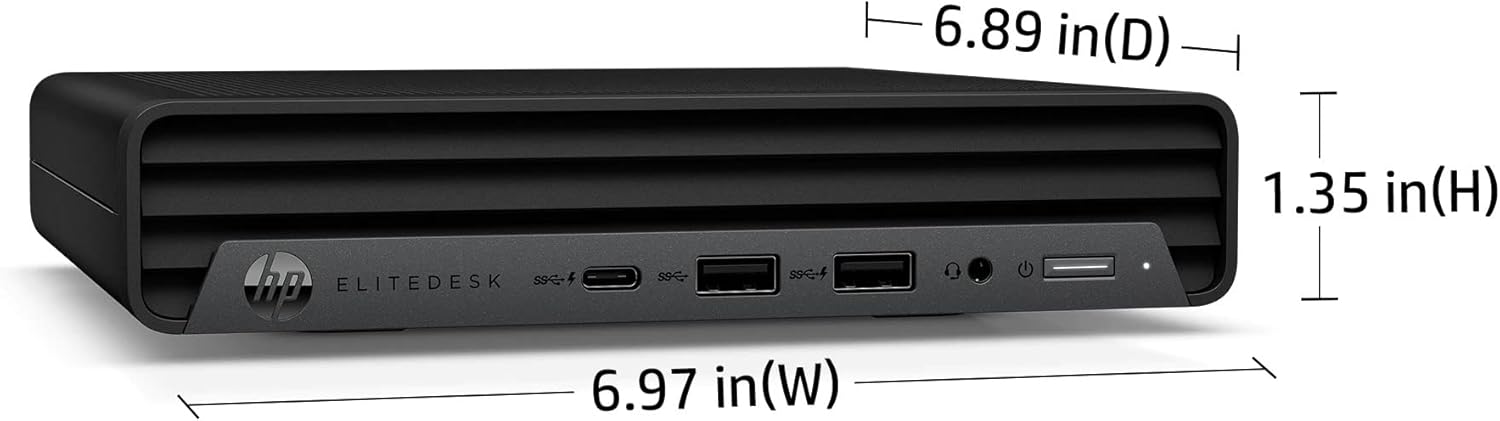
Figure 3: Dimensions of the HP EliteDesk 800 G6 Mini PC: 6.97 inches (W), 6.89 inches (D), 1.35 inches (H).
7. Warranty and Support
7.1 Product Warranty
This HP product is covered by a standard limited warranty. For specific terms and conditions, please refer to the warranty documentation included with your purchase or visit the official HP support website. The warranty typically covers defects in materials and workmanship under normal use.
7.2 Technical Support
For technical assistance, troubleshooting, or service requests, please contact HP Support. You can find contact information and online resources, including drivers, manuals, and FAQs, on the official HP website: www.hp.com/support.


