
Baseus BS-PS010
Baseus Writing2 Active Stylus Pen User Manual
Model: BS-PS010
1. Product Overview
The Baseus Writing2 Active Stylus Pen is designed to enhance your iPad experience, offering precise control, tilt sensitivity, and palm-rejection for natural writing and drawing. Its advanced features and long battery life make it an ideal tool for students, professionals, and creatives.
Key features include:
- Tilt Control: Adjust line thickness dynamically based on the pen's angle.
- Full-Screen Palm-Rejection: Rest your hand comfortably on the screen without interference.
- Fast Charging & Long Standby: Quick charge for extended use and impressive standby time.
- Precise Control & Stable Connection: Gold-plated copper core ensures ultra-fast response and low latency.
- Real-time Battery Level Display: LED indicators show current battery status.

Image 1.1: The Baseus Writing2 Active Stylus Pen, showcasing its sleek design and a replaceable tip.
2. Setup Guide
2.1 Initial Charging
Before first use, fully charge the stylus pen. The pen is charged via a Type-C port.
- Connect the provided Type-C charging cable to the stylus charging port.
- Connect the other end of the cable to a compatible USB power adapter (not included).
- Charging typically takes 15-20 minutes for a full charge, providing up to 10 hours of continuous use.
- Observe the LED indicators for charging status: three blue lights indicate 70-100% battery, two blue lights 30-70%, one blue light 5-30%, and a flashing red light indicates less than 5% battery.

Image 2.1: Battery life and charging indicators for the stylus pen.
2.2 Powering On/Off and Connection
The stylus pen features a simple power button for easy operation.
- To Power On: Press the power button located on the side of the stylus. The LED indicators will light up.
- To Power Off: Press and hold the power button for a few seconds until the LED indicators turn off.
- The stylus automatically connects to compatible iPads without requiring Bluetooth pairing. Ensure your iPad is updated to a compatible iOS version.

Image 2.2: Detail of the stylus power button and LED indicators.
3. Operating Instructions
3.1 Writing and Drawing
The stylus offers a smooth and precise writing experience, similar to using a traditional pen on paper.
- Simply touch the pen tip to your iPad screen to begin writing or drawing.
- The upgraded gold-plated copper core ensures a stable connection and ultra-fast response with low latency.

Image 3.1: Internal view of the stylus pen's gold-plated copper core for enhanced precision.
3.2 Tilt Control
Utilize the tilt control feature for varied line thickness and shading effects.
- Tilt the pen at different angles to achieve thicker or thinner lines, mimicking the effect of a pencil.
- This feature is ideal for artistic applications, note-taking, and sketching.

Image 3.2: Demonstrating tilt control for varied line thickness.

Image 3.3: Visual representation of tilt control functionality.
3.3 Palm-Rejection
Write and draw naturally without worrying about accidental touches from your palm.
- The full-screen palm-rejection technology allows you to rest your hand on the iPad screen while using the stylus, just as you would with paper and pen.
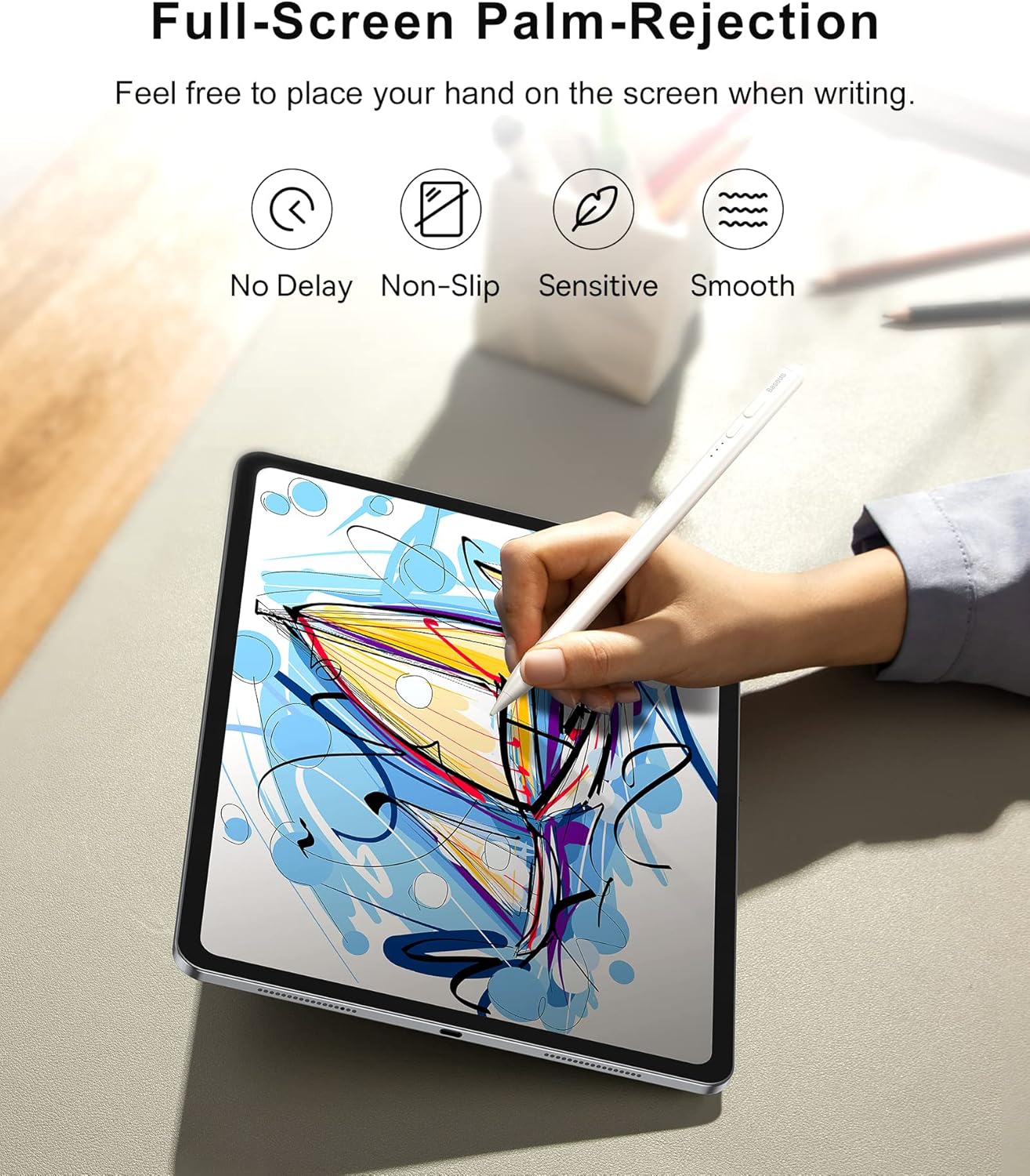
Image 3.4: Palm-rejection in action, allowing comfortable use.

Image 3.5: Visualizing the palm-rejection feature.
3.4 Magnetic Attachment
For convenient storage, the stylus can magnetically attach to your iPad.
- Simply place the stylus on the side of your compatible iPad, and it will snap into place magnetically.

Image 3.6: Magnetic attachment feature for convenient storage.
3.5 Multi-Scenario Application
The Baseus Writing2 Stylus Pen is versatile for various tasks:
- Note-Taking
- Drawing
- Sketching
- Drafting

Image 3.7: The stylus is suitable for multiple scenarios including note-taking, drawing, sketching, and drafting.
3.6 Official Product Video
Video 3.1: Official product video from Baseus US Flagship demonstrating the stylus pen's features, including tilt control, real-time battery display, and smooth writing experience.
4. Maintenance
4.1 Replacing Pen Tips
The stylus pen comes with replaceable pen tips to ensure long-term usability.
- Gently twist the existing pen tip counter-clockwise to remove it.
- Align the new pen tip with the stylus and twist clockwise until it is securely in place.
- Ensure the tip is firmly attached before use to maintain optimal performance.

Image 4.1: The replaceable pen tip mechanism.
4.2 Cleaning
To maintain the stylus's performance and appearance:
- Wipe the stylus body with a soft, dry, lint-free cloth.
- Avoid using abrasive cleaners or solvents.
5. Troubleshooting
If you encounter issues with your Baseus Writing2 Active Stylus Pen, refer to the following common solutions:
| Problem | Possible Cause | Solution |
|---|---|---|
| Stylus not responding | Low battery; Not powered on; Incompatible iPad model; Loose pen tip. | Charge the stylus; Press the power button; Verify iPad compatibility; Re-attach or replace pen tip. |
| Inaccurate or delayed response | Pen tip wear; Screen protector interference; Software glitch. | Replace the pen tip; Ensure screen protector is stylus-compatible; Restart iPad and stylus. |
| Palm-rejection not working | Incompatible app; iPad settings. | Ensure the app supports palm-rejection; Check iPad settings for stylus compatibility. |
| LED indicators not lighting up | Battery completely drained; Malfunction. | Charge the stylus for at least 30 minutes; If issue persists, contact customer support. |
6. Specifications
| Feature | Detail |
|---|---|
| Model Number | BS-PS010 |
| Product Dimensions | 6.5 x 0.35 x 0.35 inches (16.5 x 0.89 x 0.89 cm) |
| Item Weight | 0.529 ounces (15 grams) |
| Color | White |
| Material | Aluminum |
| Battery Type | 1 Lithium Ion battery (included) |
| Charging Time | 15-20 minutes (approx.) |
| Continuous Use Time | Up to 10 hours |
| Standby Time | Up to 12 months (365 days) |
| Charging Port | Type-C |
7. Compatibility
The Baseus Writing2 Active Stylus Pen is compatible with Apple iPad models from 2018 and later, including:
- iPad 10th/9th/8th/7th/6th Generation
- iPad Pro 11-inch (1st, 2nd, 3rd, 4th Gen)
- iPad Pro 12.9-inch (3rd, 4th, 5th, 6th Gen)
- iPad Air (3rd, 4th, 5th Gen)
- iPad Mini (5th, 6th Gen)
For detailed model number compatibility, please refer to the table below:

Image 7.1: Comprehensive compatibility chart for various iPad models.

Image 7.2: Detailed compatibility table for iPad models and their specific model numbers.
8. Warranty and Support
Baseus products are manufactured to high-quality standards. For any warranty claims or technical support, please contact Baseus customer service through the retailer where you purchased the product or visit the official Baseus website for support information.
Please retain your proof of purchase for warranty purposes.
Ask a question about this manual
Ask about setup, troubleshooting, compatibility, parts, safety, or missing instructions. Manuals+ will review the question and use this page’s manual context to help answer it.